
Beancount.io provides flexible options for sharing your financial data. You can embed your ledger on websites for public viewing or invite collaborators to help edit and manage your accounts.
Embedding Your Ledger
Embedding allows you to display your ledger publicly on websites, portfolios, or documentation. This is perfect for transparency reports, open-source project budgets, or educational demonstrations.
Prerequisites: Make Your Ledger Public
Important: Before you can embed your ledger, you must first set it to public visibility.
- Navigate to your ledger's settings page:
https://beancount.io/ledger/{username}/{repo}/settings - Change the visibility setting from "Private" to "Public"
- Save your changes
Only make your ledger public if you're comfortable sharing all financial data with anyone. Public ledgers can be viewed by anyone on the internet and will be indexed and tracked by search engines. If your ledger contains sensitive personal or business financial information, keep it private and use the collaboration features instead.
Embedding with an iframe
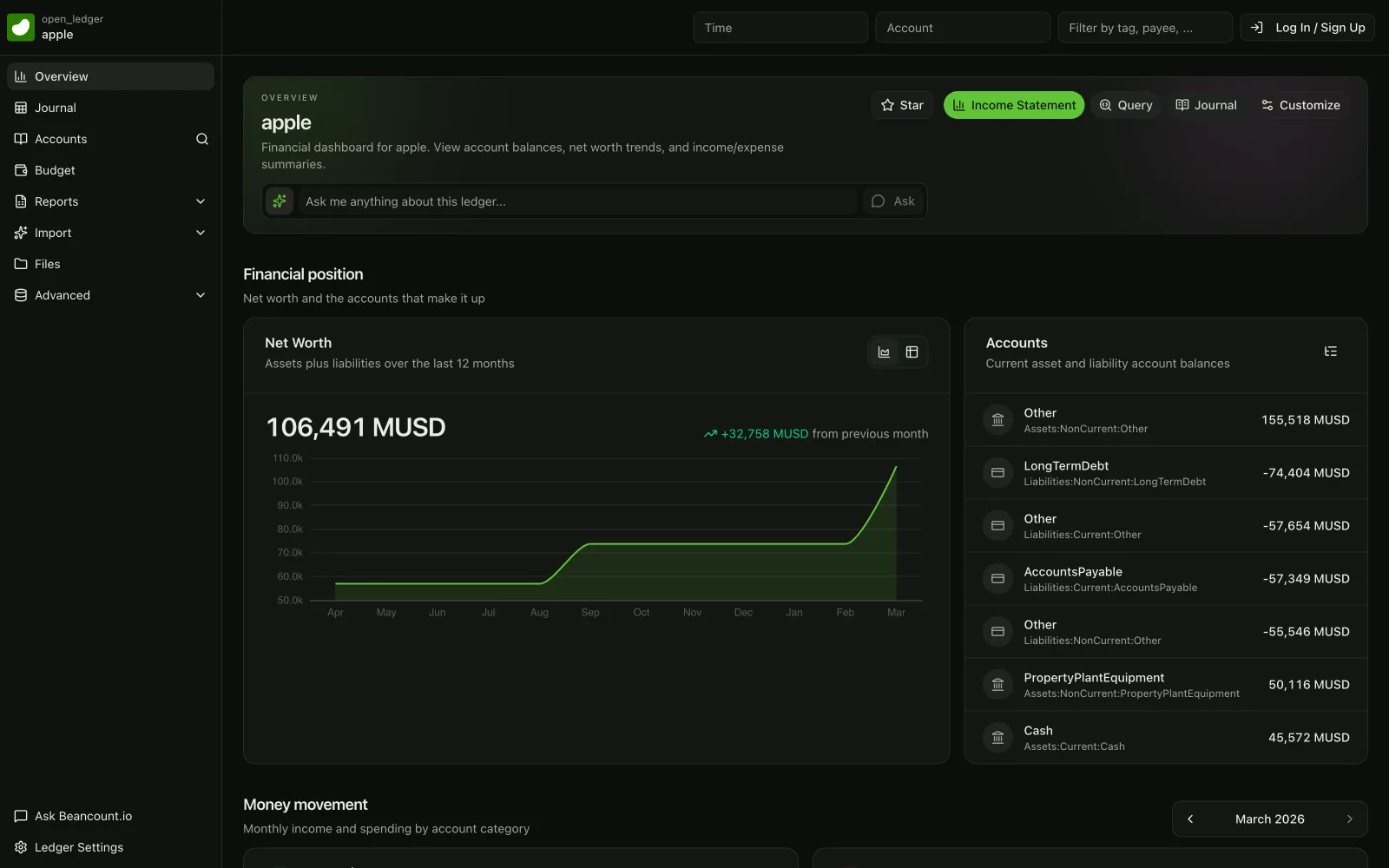
Once your ledger is public, you can embed it on any website using an HTML iframe. Here's an example embedding the overview page:
iframe Code Example
<div
  style="position: relative; padding-bottom: 56.25%; height: 0; overflow: hidden; max-width: 100%; margin-bottom: 2rem;"
>
  <iframe
    style="position: absolute; top: 0; left: 0; width: 100%; height: 100%;"
    src="https://beancount.io/ledger/open_ledger/example"
    title="Beancount Ledger Overview"
    frameborder="0"
    allow="clipboard-write"
    loading="lazy"
  >
  </iframe>
</div>
Customizing the Embedded View
You can embed different pages from your ledger by changing the URL path:
- Overview:
/ledger/{username}/{repo}/overview - Balance Sheet:
/ledger/{username}/{repo}/balance-sheet - Income Statement:
/ledger/{username}/{repo}/income-statement - Journal:
/ledger/{username}/{repo}/journal - Statistics:
/ledger/{username}/{repo}/statistics
Simply replace {username} with your username and {repo} with your ledger repository name.
Sharing Your Ledger for Editing
If you want others to help edit your ledger (like an accountant, business partner, or team member), you can invite them as collaborators. Collaborators get full read and write access to your ledger and can make commits through the Git-based workflow.
Step-by-Step: Invite a Collaborator
-
Ask your collaborator to sign up Your collaborator needs to create a free account at https://beancount.io first.
-
Navigate to the collaborators page Go to
https://beancount.io/ledger/{username}/{repo}/collaborators(replace{username}and{repo}with your ledger details). -
Invite the collaborator Click the "Invite Collaborator" button and enter your collaborator's username or email address.
What Collaborators Can Do
Once invited and accepted, collaborators can:
- View all transactions and financial data
- Edit the ledger files directly through the web interface
- Make Git commits and view commit history
- Upload documents and receipts
- Run queries and generate reports
- Push and pull changes using Git commands (if working locally)
Collaboration Best Practices
- Define roles clearly: Discuss who is responsible for which accounts or time periods
- Use meaningful commit messages: This helps track who made which changes and why
- Regular communication: Coordinate on major changes to avoid conflicts
- Review changes together: Use the Git history to review each other's work
- Backup regularly: Even though Git provides version control, maintain your own backups
Beancount.io uses Git for version control. Collaborators with Git knowledge can clone the repository locally, make changes with their favorite text editor, and push updates back to the server. This provides powerful version control capabilities for managing your financial data.
Privacy Considerations
Public vs. Private Ledgers
-
Public Ledgers:
- Can be embedded on external websites
- Viewable by anyone with the URL
- Indexed and tracked by search engines
- Great for transparency and educational purposes
-
Private Ledgers (Default):
- Only accessible to you and invited collaborators
- Cannot be embedded externally
- Recommended for personal and business finances
When to Use Each Option
- Use Public for: Open-source project budgets, educational examples, transparency reports, portfolio demonstrations
- Use Private for: Personal finances, business accounting, client work, sensitive financial data
You can always change the visibility settings at any time from your ledger's settings page.