
One click deploys the whole Beancount.io stack, including the web dashboard, the API and MCP server, the ledger service and your Git-backed ledgers, into a bex workspace you own. This guide goes from the button to a working ledger. It then covers connecting your tools, adding accounts, updating, backing up, and removing the stack.
The stack is MIT-licensed, applies no plan limits, and costs about $33 a month in hosting, billed to your workspace. For the announcement, read Run your own Beancount.io with one click.
Deploy the stack

- Launch it. Press Deploy to bex.co, choose the workspace that should own the stack, review the plan, and apply. Nothing is created until you approve the preview, and there is nothing to fill in: every secret is generated inside your workspace.
- Wait for the first build. It took 27–30 minutes in our runs, and longer when bex's build queue is busy. A service whose rollout is marked failed is not retried; deploy that service again from the bex dashboard.
- Claim your instance. Open the
beancount-dashboardservice's URL and sign up straight away. There is no email verification step, and sign-up closes behind the first account. - Create a ledger. Start from the starter template, or load the sample ledger to look around.
Until the first account exists, anyone who finds the dashboard's address can create it. If someone signs up before you, remove that account with the stack's admin token to reopen sign-up.
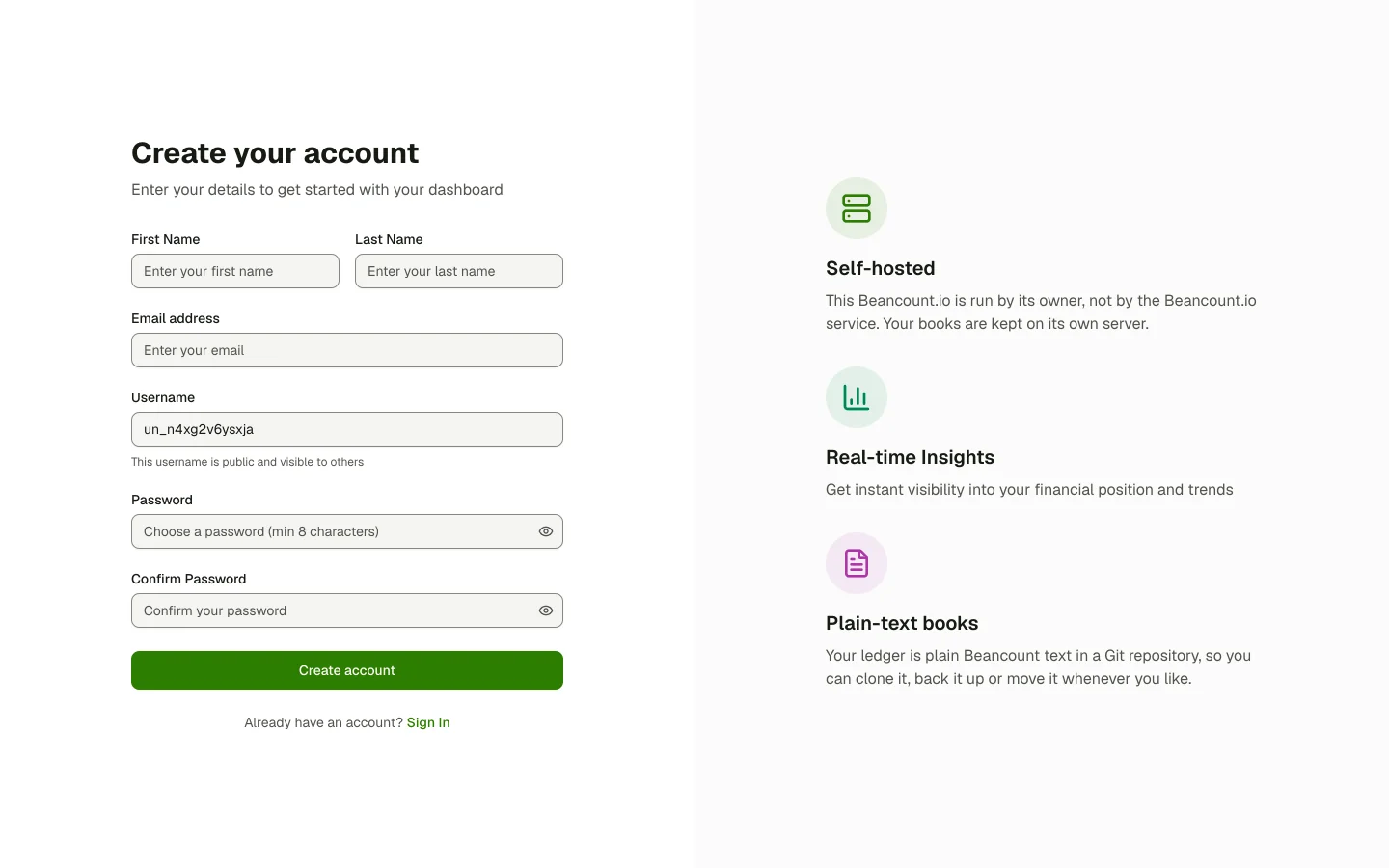
Every account on a self-hosted stack gets the top tier: ledgers, directives, collaborators and AI usage are unlimited.
What runs and what it costs
The Blueprint creates six resources in your workspace (prices from bex's plan preview on 2026-11-18):
| bex resource | What it does | Monthly cost (USD) |
|---|---|---|
beancount-dashboard | The web app, and the one public address you use | 4.90 |
beancount-api | GraphQL, REST, the MCP server and the Git proxy | 4.90 |
beancount-ledger | Validates and queries your books (private, no public address) | 4.90 |
beancount-gitea | Stores each ledger as a Git repository on a 10 GB disk (private) | 6.65 |
beancount-backend-db | Postgres for accounts, tokens and settings | 4.41 |
beancount-cache | Key Value for sign-in sessions and caches | 7.21 |
| Total | 32.97 |
A model provider, mail service or S3 bucket you connect bills you separately.
Turn on optional features
The stack boots without any integration. A feature that needs one says which setting is missing. To add one, open the beancount-api service in bex, add the variables on its Environment tab, and deploy the service again. A variable you add there is kept when you later sync the Blueprint.
| Variables | What they turn on |
|---|---|
ANTHROPIC_API_KEY or OPENAI_API_KEY | Receipt scanning, categorization and the assistant. bea ask needs OPENAI_API_KEY. |
TEMP_ASSETS_AWS_S3_* and PERM_ASSETS_AWS_S3_* (BUCKET, ACCESS_KEY_ID, SECRET_ACCESS_KEY) | Receipt and attachment uploads |
SEND_GRID_API_KEY | Mail, such as password-reset links |
OIDC_ISSUER, OIDC_CLIENT_ID, OIDC_CLIENT_SECRET | Sign-in through your own identity provider, and more accounts (see Add more accounts below) |
Connect your tools
Use the dashboard's address everywhere except for Git, which uses the API's address.
The bea CLI
Install or update bea with uv tool install beancount-io or brew install bex-co/tap/bea, then point it at your dashboard:
export BEA_API_URL=https://<your dashboard address>
export BEA_DASHBOARD_URL=https://<your dashboard address>
bea cloud login            # signs in through your browser
bea cloud ledger list
Both variables take the dashboard's address, because the dashboard forwards API traffic. The Beancount CLI reference lists every other bea cloud command.
Coding agents over MCP
Add the deployment's MCP server to Claude Code or any MCP client:
claude mcp add --transport http beancount \
  https://<your dashboard address>/api-gateway/mcp
Sign in with /mcp in Claude Code. The consent page is served by your own instance; choose the ledger the client may use and approve. For a client that sends a header instead, create a personal access token (below) and send it as Authorization: Bearer <token>.
Git over HTTPS
Every ledger is a Git repository at https://<your API address>/git/<owner>/<ledger>.git. Copy the exact address from the ledger's Git Clone menu. bex does not route SSH, so Git runs over HTTPS. On a machine with bea, let it sign Git in:
bea cloud login            # once, if you haven't already
bea cloud git setup        # Git now signs in with your bea session
git clone https://<your API address>/git/<owner>/<ledger>.git
After that, git clone, git pull and git push to that host ask for nothing, and bea cloud logout removes Git's sign-in too. bea cloud ledger clone clones over SSH, so on this stack it prints the commands above instead.
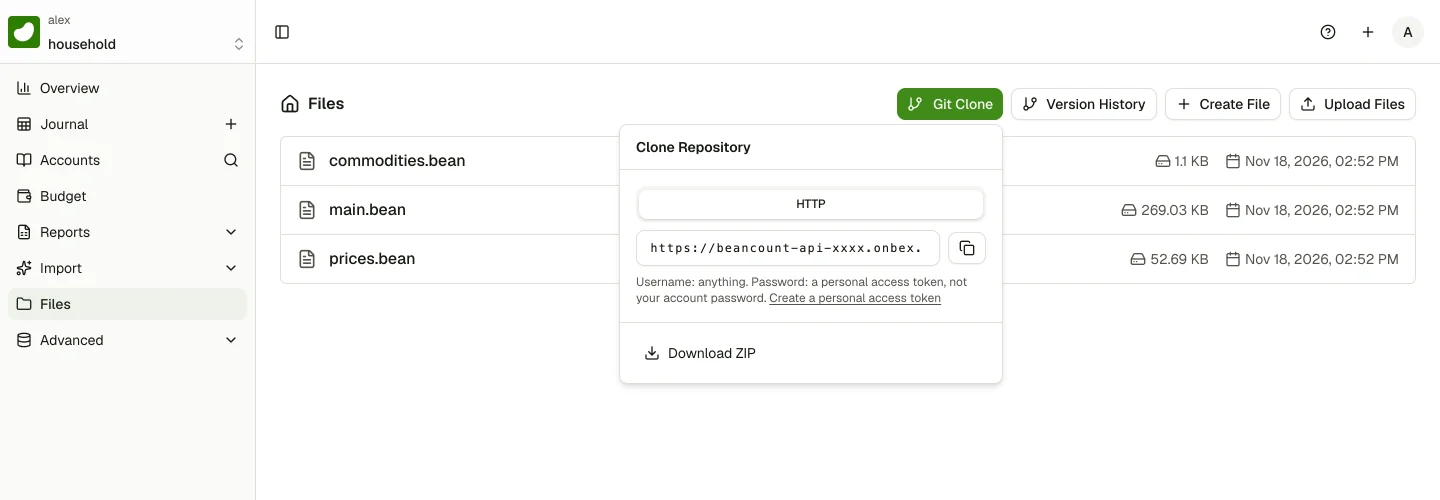
Git without bea
On a CI runner or a machine without bea, sign Git in with a personal access token:
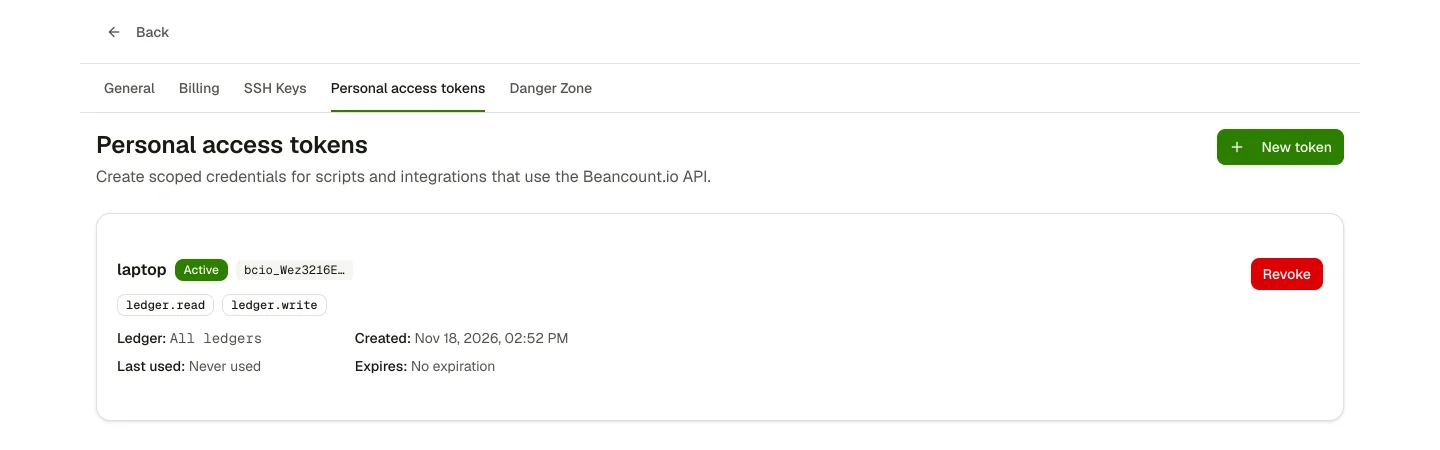
- Create a token. In the dashboard, open Settings → Personal access tokens → New token. Name it for where it runs (
laptop,nightly-backup), chooseledger.readto clone and pull, and addledger.writeif it pushes. For an unattended script, limit it to one ledger and set an expiry. Copy thebcio_token now; it is shown only once. - Clone. Git asks for a username and a password: enter any non-empty username and paste the token as the password. macOS Keychain and Git Credential Manager on Windows keep it for the next time. On Linux, turn on a credential helper first, for example
git config --global credential.helper 'cache --timeout=86400'(in memory for a day).
In a script, keep the token out of the remote URL, where Git would save it in .git/config, and out of shell history. Hand it to Git through a one-off credential helper:
read -rs BEANCOUNT_TOKEN; export BEANCOUNT_TOKEN
helper='!f() { echo username=token; echo "password=$BEANCOUNT_TOKEN"; }; f'
git -c credential.helper= -c credential.helper="$helper" \
  clone --mirror https://<your API address>/git/<owner>/<ledger>.git
The empty -c credential.helper= stops a stored helper from saving the token. Pass both -c options to every later git fetch or git push in the script.
If Git keeps offering an old password or a revoked token, clear it:
printf 'protocol=https\nhost=<your API address>\n\n' | git credential rejectThe mobile app
On the iOS or Android app's welcome screen, open settings, set the server URL to your dashboard address, and sign in.
Bring your existing books
Create a ledger in the dashboard, clone it, merge your files or your Git history into it, and push. The stack opens main.bean as the ledger's entry point, so name your root file main.bean or use main.bean to include your existing files.
Add more accounts
Sign-up stays closed after the first account. More people join through an OpenID Connect provider you connect, which also handles their two-factor sign-in. On the beancount-api service's Environment tab:
- Set
OIDC_ISSUER,OIDC_CLIENT_IDandOIDC_CLIENT_SECRET, and registerhttps://<your dashboard address>/api-gateway/auth/oidc/callbackas the client's redirect URI. The sign-in page then offers Sign in with followed byOIDC_NAME(defaultSSO). - List who may join in
OIDC_ALLOWED_EMAILS, separated by commas: an address ([email protected]), a domain (@example.com), or its subdomains (@*.example.com). A listed, verified address gets an account and a default ledger the first time it signs in. Without the list, the provider only signs in accounts already linked to it.
Everyone you let in shares your disk and model key, with no plan limits. With a provider anyone can join, list addresses rather than a domain such as @gmail.com.
Reset a forgotten password
Without SEND_GRID_API_KEY, the forgot-password page tells the user the server cannot send email. Issue them a one-time reset link from the admin API instead. Copy ADMIN_TOKEN from the beancount-api service's Environment tab, and call that service's own onbex.co address, not the dashboard's:
read -rs ADMIN_TOKEN; export ADMIN_TOKEN
curl -sS -X POST "https://<your API address>/api/admin/password-reset-link" \
  -H "x-admin-token: $ADMIN_TOKEN" -H "Content-Type: application/json" \
  -d '{"email":"[email protected]"}'
Send the returned resetUrl to the user over a channel you trust. It works once and expires after an hour.
The admin API is reachable by anyone who can reach the API's address, and ADMIN_TOKEN alone guards it. The token can sign in as any user, so treat it like a root password: keep it out of shell history and chat, and rotate it if it may have leaked.
Update to a newer release
The stack stays on the version you deployed until you update it. A Blueprint created from the button gets no push webhook, so an update takes two steps:
- Sync the Blueprint to apply changes to its settings (bex API:
POST /v1/blueprints/<id>/sync). - Deploy each service at the new commit, because code changes need a build (
POST /v1/services/<id>/deployswithcommitId).
bex builds one service at a time and the API builds last, so a full rollout can take most of an hour. Before you sync a newer Blueprint into a stack that holds data, read Upgrading a stack that is already running and back up first.
Back up and restore
Ledgers are Git repositories on Gitea's disk. Accounts, personal access tokens and settings live in the managed Postgres. Back up each its own way.
Ledgers
A mirror clone is a complete backup of a ledger's files and history:
git clone --mirror https://<your API address>/git/<owner>/<ledger>.gitRun it on a machine where bea cloud git setup has run, or with the token helper from Git without bea above. To restore, delete the ledger in the dashboard if it is still listed and create one with the same name. The server refuses a forced push to a ledger's main branch, so merge the backup on top of the new ledger's first commit, using a token with ledger.write when you do not use bea:
git clone https://<your API address>/git/<owner>/<ledger>.git restore
cd restore
git fetch ../<ledger>.git main
git merge --allow-unrelated-histories -X theirs -m "Restore from backup" FETCH_HEAD
git push origin HEAD
The database
bex backs beancount-backend-db up continuously and can restore it as it was at an earlier time. It restores into a new database, never in place, so you copy that database back over the stack's own:
-
In bex, open
beancount-backend-db, choose Recovery, pick a time at least ten minutes ago, and restore. bex creates a new database with the data as of that time. -
Suspend
beancount-apiandbeancount-gitea, so nothing writes while you restore. -
Copy the data back with PostgreSQL 16's
pg_dumpandpg_restore(thepostgres:16Docker image has both). Usebeancount-backend-db's external connection string for both ends, and for the copy change only the host to the copy's. Do not use the connection details bex shows for the copy; they name a database and a user that cannot read the restored data.read -rs DB_URL; export DB_URL # beancount-backend-db's external connection string COPY_URL="${DB_URL/@<database host>/@<copy host>}" pg_dump -Fc --no-owner --no-privileges "$COPY_URL" > backend.dump pg_restore --clean --if-exists --no-owner --no-privileges -d "$DB_URL" backend.dumppg_restorereports that it may not drop thevectorandpg_stat_statementsextensions; those errors are expected. If the copy's certificate is still being issued, add?sslmode=verify-fulltoCOPY_URLand save the CA bex shows for the copy as~/.postgresql/root.crt. If the connection times out, retry. -
Resume
beancount-giteaandbeancount-api, then delete the copy.
What leaves your workspace
The stack sends no analytics or telemetry to Beancount.io, and the browser analytics script is left out of the build. The only outbound requests we know of are:
- Password breach checks: the first five characters of a new password's SHA-1 hash, checked by k-anonymity, so neither the password nor the account is revealed.
- Avatars: the browser asks Gravatar for an image by a hash of the user's email address.
- Feeds: the Beancount.io blog and changelog feeds, which receive only a language preference.
- Price feeds: requests to beancount.io only when a ledger includes a managed price URL.
- Your integrations: whatever you connect, such as a model provider, SendGrid, S3, Plaid or your identity provider.
The privacy table in PRFAQ006 says when each request fires. Your services, disk and database run on bex's infrastructure, under bex's privacy policy and terms of service. bex is built by Stargately, Inc., the company behind Beancount.io; the hosted Beancount.io service is separate from your stack and holds none of its secrets.
Remove the stack
Deleting the resources stops the bill and deletes your data with them. Clone every ledger first.
Back up as described above, then delete the six resources in bex, followed by the Blueprint. To remove only your own account and keep the stack, delete it under Settings → General → Danger Zone, as on the hosted service; deleting the only account reopens sign-up.
Run it on your own server instead
The Docker deployment runs the same stack on any server you control. The bex deployment notes cover every setting in this guide in more depth.
Hit a snag? Open a GitHub issue or ask in the Beancount Telegram chat.