# Beancount.io Documentation
> Plain-Text Accounting. Powerful, Precise, Auditable.
## Add your first transaction in the Beancount.io app
Canonical: https://beancount.io/docs/add-your-first-transaction-ui
Content type: get-started
This guide walks you through adding your first transaction using Beancount.io’s web and mobile interfaces. Whether you’re on desktop or mobile, you’ll learn how to quickly record your expenses and income.
:::note
The exact button labels and screen order below describe the current apps and may change as the interface evolves. The accounting underneath does not: a debit is a positive amount, a credit is a negative one, and every transaction sums to zero. When a label differs from what you see, the [live app](/demo) is the source of truth.
:::
## Web Application
### How to Add a Transaction

1. Click the "+" button in the editor section to add a new entry.
2. Select **Transaction** from the tabs at the top.
3. Enter the transaction date using the calendar picker.
4. Fill in the payee (e.g., "UberEats") and description (e.g., "Lunch Meal").
5. Enter the accounts affected. A lunch charged to a credit card is an expense (a debit, entered as a positive amount) funded by more credit-card debt (a credit, entered as a negative amount):
- **Debit side:** `Expenses:Misc` — positive amount, e.g., `12.95 USD` (the expense increases)
- **Credit side:** `Liabilities:CreditCard` — negative amount, e.g., `-12.95 USD` (what you owe increases)
6. Click **Save** to record the transaction. The two amounts sum to zero, which is what makes the entry valid.
Whichever interface you use, the entry the UI saves is an ordinary Beancount transaction whose two amounts sum to zero:
```bean
2025-01-02 * "UberEats" "Lunch Meal"
Expenses:Misc 12.95 USD ; debit: the expense increases
Liabilities:CreditCard -12.95 USD ; credit: the balance you owe increases
```
## Mobile App

### How to Add a Transaction
1. Tap the **Quick Add** button from the home screen.
2. Enter the transaction amount (e.g., \$12.95).
3. Choose the two accounts the money moves between. In Beancount's signed convention a debit is a positive amount and a credit is a negative one:
- For a card expense: the category (e.g. `Expenses:Misc`) is debited (positive) and `Liabilities:CreditCard` is credited (negative)
- For income: the `Income` category is credited (negative) and the receiving `Assets` account is debited (positive)
4. Use the number pad to confirm the amount, then tap **Next**.
5. Enter the payee (e.g., "UberEats").
6. Add a description (e.g., "Lunch Meal").
7. Tap **Done** to save your transaction.
## Tips for Success
- Categorize transactions consistently for clearer reports.
- Use specific descriptions for easier searching and reporting.
- Review your net income regularly to track spending patterns.
- Explore advanced features like custom reports and budgeting as you get comfortable.
- Typing a whole month of history by hand is slow — convert a statement export with the [CSV to Beancount converter](/tools/csv-to-beancount) instead, then paste the result into the editor.
---
If you have questions or want to learn more, check out the [full Getting Started guide](https://beancount.io/docs/Basics/getting-started) or the [Syntax Reference](https://beancount.io/docs/Basics/syntax).
## Beancount CLI quick start
Canonical: https://beancount.io/docs/Basics/bea-cli
Content type: get-started
Create a local ledger and record your first purchase with `bea`, the Beancount.io command-line tool. Local bookkeeping needs no Beancount.io account.
This walkthrough starts with 1,000 USD in checking. After a 12.50 USD coffee purchase, you will verify a balance of 987.50 USD.
## 1. Install the command
With Homebrew on macOS or Linux:
```bash
brew install bex-co/tap/bea
bea --version
```
If you do not use Homebrew, install [uv](https://docs.astral.sh/uv/) and use `uv tool install beancount-io`. The Python package requires Python 3.12 or newer. Homebrew provisions the accounting engine during installation. With PyPI, keep `uv` available: the first local command downloads the managed engine, then later commands reuse it offline. You do not need to install Beancount separately.
## 2. Create your ledger
Choose a new directory. This example creates `main.bean` inside `~/my-books`:
```bash
bea --no-input init ~/my-books --currency USD --date 2026-08-01 \
--opening-balance "Assets:Checking 1000"
cd ~/my-books
```
The template opens common checking, savings, cash, credit card, income, and expense accounts. The opening balance is offset against `Equity:OpeningBalances`.
For your own books, choose the earliest date you intend to record. All template accounts open on that date. The opening balance must describe the account on that day. Credit card debt uses a negative amount.
`init` never overwrites an existing ledger. New files are private on POSIX systems: only the owner can read and write them. To share with your local user group, explicitly change the permissions with `chmod 640 main.bean`.
For guided setup instead, run `bea init ~/my-books` in a terminal. The wizard asks for your currency, history start date, and checking balance.
## 3. Record a purchase
```bash
bea add transaction --date 2026-08-02 --narration "Coffee" \
--posting "Expenses:Dining 12.50" \
--posting "Assets:Checking"
```
The expense uses the account's USD currency. Beancount fills in the other posting as `-12.50 USD`. You can omit `--date` for purchases made today.
Each addition is checked against the complete ledger before the file is replaced. An unknown account or an unbalanced transaction produces an error with guidance.
## 4. Check the result
```bash
bea check
bea list transaction --limit 10
bea report balance-sheet
```
The transaction list shows the newest entries first, with their posting amounts. The balance sheet shows **987.50 USD** in checking.
To verify that amount directly:
```bash
bea query "SELECT account, sum(position) WHERE account = 'Assets:Checking' GROUP BY account"
```
Query tables preserve the result's precision. For structured output, put the global `--json` flag before the command:
```bash
bea --json list transaction --limit 10
```
## 5. Keep your books in good shape
Run `bea check` after editing the file by hand. Run `bea format -i main.bean` to align its columns in place. Without `-i`, formatted text goes to stdout and the file stays unchanged. Use `bea format main.bean --check` when a script should fail if formatting is needed.
To work from another directory, select the root file explicitly:
```bash
bea --file ~/my-books/main.bean check
```
The root is selected by `--file`, then `BEA_FILE`, then `main.bean` in the working directory. Global options go before the command. Formatting takes its own file or directory argument.
## Continue with your own records
- [Import a bank export](https://beancount.io/docs/Solutions/import-bank-exports-cli) with a preview and duplicate review.
- [Hand an external agent two bookkeeping jobs](https://beancount.io/docs/Solutions/accounting-with-ai-agents) with copyable prompts and CLI equivalents.
- [Compare five accounting tools for AI agents](/compare/best-accounting-tools-for-ai-agents) on installation, authentication, scope, data, preview, output and repeats, with dated sources.
- [Look up commands and options](https://beancount.io/docs/bea-cli-reference) for accounts, balances, investments, reports, and automation.
- [Organize a ledger across files](https://beancount.io/docs/Tips/multi-file-support). Use `--into` to write an included file while validating against the root.
- [Use the browser interface](https://beancount.io/docs/add-your-first-transaction-ui) if you prefer forms to terminal commands.
Check for updates with `bea upgrade --check`. Run `bea upgrade` to invoke the package manager that installed your copy. Use `bea --help` or `bea add transaction --help` to inspect the options available in your installed version.
## Your first month with bea
Canonical: https://beancount.io/docs/Basics/bea-first-month
Content type: get-started
Close one month of books end to end with `bea`, the Beancount.io command-line tool. You will open a ledger, record purchases, import a bank export, reconcile to a statement balance of **3206.81 USD**, and read the month's income statement and balance sheet.
The month is August 2026 and the ledger starts with 1,250 USD in checking. Nothing here asks you to write Python or a query.
Install `bea` first if you have not: the [Beancount CLI quick start](https://beancount.io/docs/Basics/bea-cli) covers Homebrew and uv. Local bookkeeping needs no Beancount.io account.
Work in an empty directory. Download the two input files into it before you start:
- first-month.csv — the bank export you import in week 3.
- rules.toml — the categorization rules that export uses.
Every command names the ledger with `--file august/main.bean`, so you can run them from that directory without changing into the ledger.
## Week 1 — set up the books
Create the ledger, then open the one account the template lacks for this month.
```bash
bea --no-input init august --currency USD --date 2026-08-01 \
--opening-balance "Assets:Checking 1250"
bea --file august/main.bean add open --date 2026-08-01 --account Expenses:Transport:Fuel -c USD
```
`init` writes `august/main.bean` with fourteen accounts, including `Expenses:Uncategorized`. Imports park rows they cannot categorize there.
## Week 2 — record daily purchases
Record purchases as they happen. The date defaults to today, so backdated history passes `--date` explicitly.
```bash
bea --file august/main.bean add transaction "Coffee" --date 2026-08-03 \
--posting "Expenses:Dining 4.50" --posting "Assets:Checking"
bea --file august/main.bean add transaction "Weekly groceries" --date 2026-08-05 \
--posting "Expenses:Groceries 62.30" --posting "Assets:Checking"
bea --file august/main.bean add transaction --date 2026-08-07 --payee "Employer" \
--narration "August salary" --posting "Assets:Checking 2100" --posting "Income:Salary"
```
Each addition is checked against the whole ledger before the file is replaced. The second posting is left blank, so Beancount fills in the balancing amount.
## Week 3 — import the bank export
The export for the rest of August holds three rows:
```csv
Date,Payee,Amount
2026-08-10,Whole Foods,-28.40
2026-08-12,Shell,-35.00
2026-08-20,Mystery Shop,-9.99
```
The rules file matches a payee to an account. Rules run in file order and the first match wins.
```toml
[[rule]]
match = "whole foods|trader joe|corner market"
account = "Expenses:Groceries"
[[rule]]
match = "shell|chevron|exxon"
account = "Expenses:Transport:Fuel"
[[rule]]
match = "salary|payroll|employer"
account = "Income:Salary"
```
Map the export's columns with `--csv`, preview the result, then repeat with `--apply` to write it.
```bash
bea --file august/main.bean import first-month.csv \
--csv date=Date,amount=Amount,payee=Payee --account Assets:Checking --rules rules.toml
bea --file august/main.bean import first-month.csv --apply
```
The preview prints one row per line with the rule that matched it, plus the exact diff it would write. Nothing is written until `--apply`.
The second command needs no flags: the column mapping, the account and the rules are remembered for that file. Each written entry carries an `import-id` line, so importing the same export again skips what is already in the ledger.
Two rows match a rule. The third, Mystery Shop, matches nothing, so it posts to `Expenses:Uncategorized` with the flag `!` — your review queue for later.
For the debit and credit column form, other currencies and Python importers, see [Import bank exports with the CLI](https://beancount.io/docs/Solutions/import-bank-exports-cli).
## Week 4 — reconcile against the statement
The August statement closes checking at 3206.81 USD. Your books say 3209.81 USD. The difference is a 3.00 USD bank fee the export missed.
Record the fee, then assert the statement balance. Beancount checks an assertion at the start of its day, so a September 1 assertion covers every August transaction.
```bash
bea --file august/main.bean add transaction "Bank fee" --date 2026-08-31 \
--posting "Expenses:Fees 3.00" --posting "Assets:Checking"
bea --file august/main.bean add balance --date 2026-09-01 --account Assets:Checking \
--amount "3206.81 USD"
bea --file august/main.bean list transaction --flag '!' --details
```
The queue holds one transaction, the Mystery Shop row. `--details` prints its file and line number.
Open that line in your editor. Change its `Expenses:Uncategorized` posting to the account it belongs in — `Expenses:Dining` here — and change its flag from `!` to `*` to mark it reviewed. Keep the `import-id` line so a repeat import still skips the row.
Then confirm the ledger loads and the queue is empty:
```bash
bea --file august/main.bean check
bea --file august/main.bean list transaction --flag '!' --details
```
A clean ledger exits 0. A broken assertion or an unknown account is listed with a non-zero exit. The queue now prints `No transactions found.`
## Read the month
```bash
bea --file august/main.bean report income-statement --time 2026-08
bea --file august/main.bean report balance-sheet
bea --file august/main.bean report income-statement --time month
```
The income statement nets the 2,100.00 USD salary against 143.19 USD of expenses for a net profit of 1,956.81 USD. Account balances print in Beancount signs, so income lines are negative. The balance sheet shows checking at 3,206.81 USD, matching the statement you reconciled to.
`--time 2026-08` pins this tutorial's month. `--time month` always means the current one, which is what you will reach for once your books are current.
## Continue from here
- [Import bank exports with the CLI](https://beancount.io/docs/Solutions/import-bank-exports-cli) for duplicate review, other column layouts and repeat imports.
- [Automate bookkeeping with bea](https://beancount.io/docs/Solutions/automate-bookkeeping-with-bea) for the JSON envelope, exit codes and unattended runs.
- [Beancount CLI reference](https://beancount.io/docs/bea-cli-reference) for every command and option.
## Beancount Query Language (BQL): query your ledger
Canonical: https://beancount.io/docs/Basics/beancount-query-language
Content type: how-to
Beancount features a powerful, SQL-like Query Language (BQL) that allows you to slice, dice, and analyze your financial data with precision. Whether you want to generate a quick report, debug an entry, or [perform complex analysis](https://beancount.io/docs/Solutions/analytics), mastering BQL is key to unlocking the full potential of your plaintext accounting ledger. This guide will walk you through its structure, functions, and best practices. 🔍
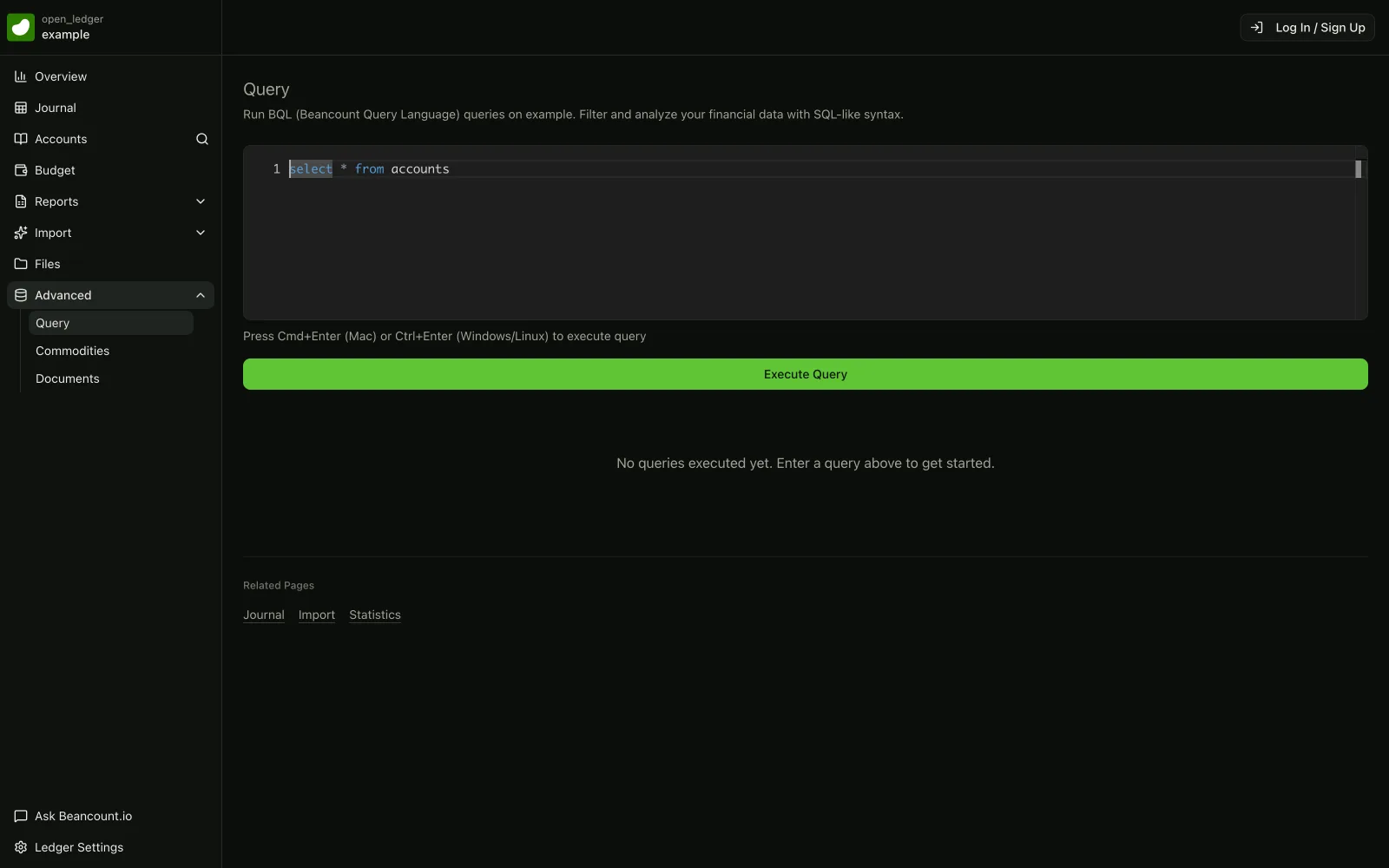
*[Explore the live ledger →](https://beancount.io/ledger/open_ledger/example/query)*
---
## Query Structure and Execution
The core of BQL is its familiar, SQL-inspired syntax. Run queries with `bea query`: `bea --file query "SELECT …"` prints the table in your terminal, and `bea query` with no argument opens the interactive shell. Every query in this guide was executed against Beancount 3.2.3 with beanquery 0.2.0.
### Basic Query Format
A BQL query is composed of three main clauses: **SELECT**, **FROM**, and **WHERE**.
```sql
SELECT , , ...
FROM
WHERE ;
```
- **`SELECT`**: Specifies which columns of data you want to retrieve.
- **`FROM`**: Filters entire transactions _before_ they are processed.
- **`WHERE`**: Filters the individual posting lines _after_ the transaction has been selected.
### Two-Level Filtering System
Understanding the difference between the `FROM` and `WHERE` clauses is crucial for writing accurate queries. BQL uses a two-level filtering process.
1. **Transaction Level (`FROM`)**
This clause acts on entire transactions. If a transaction matches the `FROM` condition, the _entire transaction_ (including all its postings) is passed to the next stage. This is the primary way to filter data, as it preserves the integrity of the double-entry accounting system. For example, filtering `FROM year = 2024` selects all transactions that occurred in 2024.
2. **Posting Level (`WHERE`)**
This clause filters the individual postings _within_ the transactions selected by the `FROM` clause. This is useful for presentation and for focusing on specific legs of a transaction. However, be aware that filtering at this level can "break" the integrity of a transaction in the output, as you might only see one side of an entry. For example, you could select all postings to your `Expenses:Groceries` account.
Concretely, `PRINT FROM year = 2024` returns whole transactions (both legs of each entry), while `SELECT date, narration, account, position FROM year = 2024 WHERE account ~ "Assets:Broker"` returns one row per matching posting. On a ledger with two broker purchases, the first returns the full entries and the second returns exactly the two broker rows.
---
## Data Model
To query your data effectively, you need to understand how Beancount structures it. A ledger is a list of directives, but BQL primarily focuses on `Transaction` entries.
### Transaction Structure
Each `Transaction` is a container with top-level attributes and a list of `Posting` objects.
```text
Transaction
├── date
├── flag
├── payee
├── narration
├── tags
├── links
└── Postings[]
├── account
├── units
├── cost
├── price
└── metadata
```
### Available Column Types
You can `SELECT` any of the attributes from the transaction or its postings.
1. **Transaction Attributes**
These columns are the same for every posting within a single transaction.
```sql
SELECT
date, -- The date of the transaction (datetime.date)
year, -- The year of the transaction (int)
month, -- The month of the transaction (int)
day, -- The day of the transaction (int)
flag, -- The transaction flag, e.g., "*" or "!" (str)
payee, -- The payee (str)
narration, -- The description or memo (str)
tags, -- A set of tags, e.g., #trip-2024 (set[str])
links -- A set of links, e.g., ^expense-report (set[str])
```
2. **Posting Attributes**
These columns are specific to each individual posting line.
```sql
SELECT
account, -- The account name (str)
position, -- The full amount, including units and cost (Position)
units(position), -- The number and currency of the posting (Amount)
cost(position), -- The cost basis of the posting (Amount)
price, -- The price used in the posting (Amount)
weight, -- The position converted to its cost basis (Amount)
balance -- The running total of units in the account (Inventory)
```
`units` and `cost` are functions that take `position`. `price`, `weight` and `balance` are plain columns.
---
## Query Functions
BQL includes a suite of functions for aggregation and data transformation, much like SQL.
### Aggregation Functions
Aggregation functions summarize data across multiple rows. When used with `GROUP BY`, they provide grouped summaries.
```sql
-- Count the number of postings
SELECT COUNT(*)
-- Sum all postings into one Inventory; currencies and lots are kept, not converted
SELECT SUM(position)
-- one row, e.g. (-2300.00 USD, 10 HOOL {150.00 USD, 2024-09-05}, 5 HOOL {160.00 USD, 2024-11-02})
-- Total one account in a single currency explicitly (positions without a price keep their currency)
SELECT SUM(CONVERT(position, 'USD')) WHERE account ~ "Assets:Checking"
-- one row, e.g. (2580.00 USD)
-- Find the date of the first and last transaction
SELECT FIRST(date), LAST(date)
-- Find the minimum and maximum position values
SELECT MIN(position), MAX(position)
-- Group by account to get a sum for each
SELECT account, SUM(position) GROUP BY account
```
### Position/Inventory Functions
The `position` column is a composite object. These functions let you extract specific parts of it or calculate its market value.
```sql
-- Extract just the number and currency from a position
SELECT UNITS(position)
-- Show the total cost of a position
SELECT COST(position)
-- Show each posting at its cost value (a column; there is no WEIGHT() function)
SELECT account, weight WHERE account ~ "Assets:Investments"
-- Calculate the market value using the latest price data
-- (needs a price directive for the holding; otherwise the position is returned unchanged)
SELECT VALUE(position)
```
You can combine these for powerful reports. For example, to see the total cost and current market value of your investment portfolio. The market value needs a `price` directive for each holding (for example `2024-12-01 price HOOL 175.00 USD`). Both aggregates return an Inventory per account, so each currency is still listed separately.
```sql
SELECT
account,
COST(SUM(position)) AS total_cost,
VALUE(SUM(position)) AS market_value
FROM
account ~ "Assets:Investments"
GROUP BY
account
-- one row per account, e.g. Assets:Broker:HOOL | (2300.00 USD) | (2625.00 USD)
```
---
The price directives used by market-value queries can come from manual entries, a local quote fetcher, or [Live Prices](https://beancount.io/docs/live-prices) in a compatible loader. Managed feeds do not change the query syntax. Local upstream tools need local price files, and historical queries still need prices on or before the requested date.
## Advanced Features
Beyond basic `SELECT` statements, BQL offers specialized commands for common financial reports.
### Balance Reports
The `BALANCES` statement generates a balance sheet or income statement for a specific period.
```sql
-- Generate a simple balance sheet as of the start of 2024
BALANCES FROM close ON 2024-01-01
WHERE account ~ "^Assets|^Liabilities"
-- Generate an income statement for the 2024 fiscal year
BALANCES FROM
OPEN ON 2024-01-01
CLOSE ON 2024-12-31
WHERE account ~ "^Income|^Expenses"
```
### Journal Reports
The `JOURNAL` statement shows the detailed activity for one or more accounts, similar to a traditional ledger view.
```sql
-- Show all activity in your checking account at its original cost
JOURNAL "Assets:Checking" AT COST
-- Show all 401k transactions, displaying only the units (shares)
JOURNAL "Assets:.*:401k" AT UNITS
```
### Print Operations
The `PRINT` statement is a debugging tool that outputs full, matching transactions in their original Beancount file format. It accepts only an entry filter. A `WHERE` clause is a syntax error here. To narrow the output to one leg of each entry, use `SELECT` with a posting filter instead. It returns one row per matching posting.
```sql
-- Print all 2024 transactions in full (every posting of each matching entry)
PRINT FROM year = 2024
-- Show only the investment postings of 2024 transactions
SELECT date, narration, account, position
FROM year = 2024
WHERE account ~ "Assets:Investments"
-- Find a transaction by its unique ID (generated by some tools)
-- Returns the matching entry, or no rows when nothing carries that ID
PRINT FROM id = "8e7c47250d040ae2b85de580dd4f5c2a"
```
### Filtering Expressions
You can [build sophisticated filters](https://beancount.io/docs/Tips/filtering-and-searching) using logical operators (`AND`, `OR`), regular expressions (`~`), and comparisons.
String literals use single quotes. Double quotes delimit the regular expression after `~`.
```sql
-- Find all travel expenses from the second half of 2024
-- SELECT * returns date, flag, payee, narration and position per matching posting
SELECT * FROM
year = 2024 AND month >= 6
WHERE account ~ "Expenses:Travel"
-- Find all transactions related to a vacation or business
SELECT * FROM
'vacation-2024' IN tags OR
'business-trip' IN links
```
---
## Performance Considerations ⚙️
`bea query` is designed for efficiency, but understanding its operational flow can help you write faster queries on [large ledgers](https://beancount.io/docs/Tips/multi-file-support).
1. **Data Loading**: Beancount first parses your entire ledger file and sorts all transactions chronologically. This entire dataset is held in memory.
2. **Query Optimization**: The query engine applies filters in a specific order for maximum efficiency: `FROM` (transactions) -\> `WHERE` (postings) -\> Aggregations. Filtering at the `FROM` level is fastest because it reduces the dataset early.
3. **Memory Usage**: All operations happen in-memory. `Position` objects and `Inventory` aggregations are optimized, but very large result sets can consume significant RAM. BQL does not use disk-based temporary storage.
---
## Best Practices
Follow these tips to write clean, effective, and maintainable queries.
1. **Query Organization**
Format your queries for readability, especially complex ones. Use line breaks and indentation to separate clauses.
```sql
-- A clean, readable query for all 2024 expenses
SELECT
date,
account,
position
FROM
year = 2024
WHERE
account ~ "Expenses"
ORDER BY
date DESC;
```
2. **Debugging**
If a query isn't working as expected, run a small sample with `LIMIT` first. To test a filter, use `SELECT DISTINCT` to see what unique values it matches.
```sql
-- Preview the first rows while iterating
SELECT date, account, position LIMIT 5;
-- Test which accounts match a regular expression
SELECT DISTINCT account
WHERE account ~ "^Assets:.*";
```
3. **Balance Assertions**
You can use BQL to double-check the `balance` assertions in your ledger. This query should return the exact amount specified in your last balance check for that account.
```sql
-- Verify the final balance of your checking account
SELECT account, sum(position)
FROM close ON 2025-01-01 -- Use the date from your balance directive
WHERE account = "Assets:Checking";
```
## Beancount cheat sheet: syntax and directives
Canonical: https://beancount.io/docs/Basics/cheatsheet
Content type: reference
## Account Structure
### Account Types and Signs
```text
Type Sign Example
------------------------------------------------
Assets (+) Assets:US:BofA:Checking
Liabilities (-) Liabilities:Credit:Amex
Income (-) Income:Salary:Gross
Expenses (+) Expenses:Food:Restaurant
Equity (-) Equity:Opening-Balances
```
### Commodity Format
Commodities are uppercase symbols — currencies, tickers, and custom units. These are naming examples, not directives:
```text
Currencies: USD, EUR, CAD, AUD
Investments: GOOG, AAPL, VTI
Cryptocurrencies: BTC, ETH
Custom units: HOURS, AIRMILES, HOME_MAYST
```
## Directive Syntax
### Account Management
```bean
; Opening accounts
2024-01-01 open Assets:Checking ; Simple
2024-01-01 open Assets:Investing USD,GOOG ; With constraints
; Closing accounts
2024-12-31 close Assets:Old:Account
```
### Commodity Declaration
```bean
2024-01-01 commodity VTSAX
name: "Vanguard Total Stock Market Index"
asset-class: "equity"
```
### Transaction Recording
```bean
; Basic transaction
2024-01-15 * "Grocery Store" "Weekly shopping"
Assets:Checking -100.00 USD
Expenses:Food:Groceries
; With metadata and tags (#work is a tag, ^invoice-123 is a link)
2024-01-15 * "Restaurant" "Business dinner" #work ^invoice-123
id: "T-1234"
receipt: "path/to/receipt.pdf"
Expenses:Meals 80.00 USD
Liabilities:Credit
```
### Posting Specifications
These are posting lines — each sits inside a transaction, indented under its date line:
```bean
; Basic amount
Assets:Cash 100.00 USD
; Cost basis tracking
Assets:Invest:VTSAX 10 VTSAX {100.00 USD} ; Per-unit cost
Assets:Invest:VTSAX 10 VTSAX {{1000.00 USD}} ; Total cost
Assets:Invest:VTSAX 10 VTSAX {100.00 # 9.95 USD} ; Per-unit plus total fee
; Price specifications
Assets:Forex 1000.00 USD @ 0.85 EUR ; Per-unit
Assets:Forex 1000.00 USD @@ 850.00 EUR ; Total price
; Dated lots
Assets:Invest:VTSAX 10 VTSAX {100.00 USD, 2024-01-15}
```
### Balance Verification
```bean
; Balance padding: fills Assets:Checking up to Equity:Opening-Balances
2024-01-01 pad Assets:Checking Equity:Opening-Balances
; Balance assertion: checked at the start of its date, so date it after the pad
2024-02-01 balance Assets:Checking 1000.00 USD
```
### Metadata Tracking
```bean
; Note attachment
2024-01-15 note Assets:Checking "Called bank about fee"
; Document linking
2024-01-15 document Assets:Checking "path/to/statement.pdf"
; Price recording
2024-01-15 price VTSAX 100.00 USD
```
For hosted ledgers, [Live Prices](https://beancount.io/docs/live-prices) can supply dated valuation prices automatically. Choose supported asset pairs in the picker, then copy the includes into your ledger. Keep transaction prices and cost basis explicit.
### Event Recording
```bean
; Location tracking
2024-01-15 event "location" "New York, USA"
; Property changes
2024-01-15 event "address" "123 Main Street"
```
### Tag Management
```bean
; Tag scope control: #vacation applies to every transaction between the pushtag and poptag
pushtag #vacation
2024-01-15 * "Hotel"
Expenses:Travel:Lodging 200.00 USD
Assets:Credit
poptag #vacation
```
### Configuration Options
```bean
; Basic settings
option "title" "Personal Finance Ledger"
option "operating_currency" "USD"
; Account naming
option "name_assets" "Assets"
option "name_liabilities" "Liabilities"
option "name_income" "Income"
option "name_expenses" "Expenses"
option "name_equity" "Equity"
; Document handling
option "documents" "/path/to/docs"
```
## Comments and Organization
```bean
; Single line comment
* Section Header
** Subsection
; Transaction block follows...
; Account grouping
; Assets
2024-01-15 ...
; Expenses
2024-01-16 ...
```
This reference provides a complete overview of Beancount's [syntax elements](https://beancount.io/docs/Basics/syntax) with practical examples.
## Fava options reference for the Beancount web UI
Canonical: https://beancount.io/docs/Basics/fava-options
Content type: reference
Configure stock Fava with dated `custom "fava-option"` directives. These settings are separate from [Beancount core options](https://beancount.io/docs/Basics/options-configuration).
This reference was executed with **Beancount 3.2.3, beanquery 0.2.0 and Fava 1.30.16**. The matrix describes that stock release. Beancount.io has a separate dashboard and backend; its exposed settings do not prove that every stock Fava feature is available there.
## Syntax
Values are quoted strings, including integers and booleans. This complete example parses in both Beancount and Fava:
```beancount
; Minimal Fava configuration
option "operating_currency" "USD"
2000-01-01 custom "fava-option" "language" "en"
2000-01-01 custom "fava-option" "default-page" "income_statement/"
2000-01-01 custom "fava-option" "indent" "2"
2000-01-01 custom "fava-option" "show-closed-accounts" "false"
```
The date is required. Fava processes the loaded custom directives in date order; a later scalar setting replaces an earlier one. Repeated `collapse-pattern`, `import-dirs` and `insert-entry` settings accumulate. **Insertion rules use their dates to choose a destination**, so those dates are meaningful.
To reproduce the examples locally, install [uv](https://docs.astral.sh/uv/getting-started/installation/), then create a disposable environment:
```bash
uv venv .venv-fava-docs
uv pip install --python .venv-fava-docs/bin/python 'fava==1.30.16'
uv tool install beancount-io
source .venv-fava-docs/bin/activate
bea --file main.beancount check
fava main.beancount
```
Create `main.beancount` from the configuration block first, or use an existing ledger. The shell commands above use POSIX paths. `bea check` checks Beancount syntax and accounting; Fava additionally checks its own option names and values. Inspect Fava's Errors report as well.
The defaults below were read from the installed `FavaOptions` dataclass and checked against the [versioned option parser](https://github.com/beancount/fava/blob/v1.30.16/src/fava/core/fava_options.py). “Unset” means `None`; an empty collection means no configured entries. The value-type column describes the content of the quoted string.
| Stock option | Value type | Default |
| --- | --- | --- |
| `language` | Supported translation code | Unset |
| `locale` | Babel locale code | Unset; becomes `en` when core `render_commas` is true |
| `default-page` | Relative report path, optionally with filters | `income_statement/` |
| `fiscal-year-end` | Fiscal date `MM-DD` | `12-31` |
| `indent` | Integer | `2` |
| `currency-column` | Integer | `61` |
| `show-closed-accounts` | Boolean | `false` |
| `show-accounts-with-zero-transactions` | Boolean | `true` |
| `show-accounts-with-zero-balance` | Boolean | `true` |
| `show-metadata-indicators` | Boolean | `true` |
| `collapse-pattern` | Account regex; repeatable | Empty list |
| `sidebar-show-queries` | Integer | `5` |
| `default-file` | File path, or omitted value for this file | Unset |
| `insert-entry` | Account regex; repeatable, dated locations | Empty list |
| `auto-reload` | Boolean | `false` |
| `use-external-editor` | Boolean | `false` |
| `import-config` | Import configuration path | Unset |
| `import-dirs` | Directory path; repeatable | Empty list |
| `invert-gains-losses-colors` | Boolean | `false` |
| `invert-income-liabilities-equity` | Boolean | `false` |
| `conversion-currencies` | Space-separated currency codes in one string | Empty tuple |
| `account-journal-include-children` | Boolean | `true` |
| `uptodate-indicator-grey-lookback-days` | Integer | `60` |
| `upcoming-events` | Integer | `7` |
Use `"true"` or `"false"` for booleans. The comparison is case-insensitive: `"TRUE"` also enables an option. Any string other than a case variant of `"true"` is treated as false. Its integer parser checks integer syntax, not a positive range; use positive layout sizes and non-negative counts.
## Display & Localization
### `language`
Sets the interface translation, for example `"en"`, `"de"` or `"zh_CN"`. When unset, Fava negotiates with the browser. The locale must have a translation shipped by Fava; a syntactically valid language code alone is insufficient.
### `locale`
Sets number formatting independently of interface language, for example `"en_US"` or `"de_DE"`. Without this option, Fava uses its unlocalized number pattern. Core `option "render_commas" "TRUE"` supplies the `en` fallback. It does not inherit the browser language.
## Navigation & Layout
### `default-page`
Sets the destination within the ledger, such as `"balance_sheet/"` or `"journal/?time=year"`. Copy the part after the ledger slug from a working stock Fava URL. Do not prepend `/`: report paths are relative to that ledger.
### `fiscal-year-end`
Sets fiscal time-filter boundaries. For example, `"03-31"` ends a fiscal year on March 31. It supports fiscal year and quarter filters; it does not change transaction dates. Fava also accepts month values above 12 to label a fiscal year ending in the next calendar year.
### `indent`
Sets posting indentation for generated entries and editor formatting. Use a positive integer string, such as `"4"`.
### `currency-column`
Sets the currency alignment column when saving or aligning postings. It also positions the editor's vertical guide. The default is `"61"`.
## Content Visibility
### `show-closed-accounts`
Includes closed accounts in report account trees. Accounts with non-zero balances remain visible regardless of this setting.
### `show-accounts-with-zero-transactions`
Includes accounts with no transactions in account trees. It does not suppress an account that has a non-zero balance.
### `show-accounts-with-zero-balance`
Includes accounts whose report balance is zero. Turn it off with `"false"` for a shorter tree.
### `collapse-pattern`
Matches account names to collapse in account trees. Repeat the directive for multiple patterns. For example, `"^Assets:Investments"` collapses that account and its descendants.
### `sidebar-show-queries`
Limits the number of saved queries linked in the sidebar. `"0"` hides those links. See [custom links and queries](https://beancount.io/docs/Tips/side-bar-link).
### `show-metadata-indicators`
Shows the small metadata badges in journals. Set it to `"false"` to hide the badges without removing metadata from the ledger.
## File Management
### `default-file`
Chooses the file initially opened by the editor and the fallback destination for new entries. A relative path is resolved from the file containing the directive. With no value, the containing file is selected. Without this option, the main ledger file is the fallback. An existing file must also be included in the ledger to be an editable source.
### `insert-entry`
Places a new entry **before a matching custom directive**, in the file containing that directive. Its regex matches an account name from the start; it never searches raw file lines. Fava considers transaction postings from last to first. For the first account with an eligible match, it chooses the latest rule dated **strictly before** the new entry. If none matches, it appends to the default file. The [insertion implementation](https://github.com/beancount/fava/blob/v1.30.16/src/fava/core/file.py) is the authority for these rules.
Create these three files in the same directory. `main.beancount` supplies the accounts and includes:
```beancount
; main.beancount
option "title" "Insertion Demo"
option "operating_currency" "USD"
include "january.beancount"
include "february.beancount"
2000-01-01 open Assets:Checking USD
2000-01-01 open Assets:Cash USD
2000-01-01 open Assets:Wallet USD
2000-01-01 open Expenses:Food USD
2000-01-01 custom "fava-option" "default-file"
2024-01-01 custom "fava-option" "insert-entry" "^Expenses:Food$"
```
`january.beancount` contains:
```beancount
; january.beancount
2024-01-01 custom "fava-option" "insert-entry" "^Assets:Checking$"
```
`february.beancount` contains:
```beancount
; february.beancount
2024-02-01 custom "fava-option" "insert-entry" "^Assets:Checking$"
```
Start Fava with `main.beancount`. Add these transactions through its transaction form; they are **input to the insertion operation**, not an extra file to include beforehand:
```beancount
2024-01-15 * "January groceries"
Expenses:Food 10.00 USD
Assets:Checking -10.00 USD
2024-02-01 * "Same-day boundary"
Expenses:Food 20.00 USD
Assets:Checking -20.00 USD
2024-02-15 * "February groceries"
Expenses:Food 30.00 USD
Assets:Checking -30.00 USD
2024-02-16 * "Cash groceries"
Expenses:Food 40.00 USD
Assets:Cash -40.00 USD
2024-02-17 * "Unmatched cash transfer"
Assets:Cash 50.00 USD
Assets:Wallet -50.00 USD
```
The first two entries go before the January rule. The third goes before the February rule. The fourth tries `Assets:Cash`, finds no match, then uses the `Expenses:Food` rule in the main file. The fifth has no matching account and appends to `main.beancount`. Saving a batch updates rule line numbers as entries are inserted.
### `auto-reload`
Reloads the page automatically when Fava detects an external source change. When false, Fava offers a reload notification. Changes made through Fava itself already trigger a reload.
### `use-external-editor`
Opens source links through the `beancount://` URL scheme. Install a handler on the computer running the browser and ensure it can access the ledger files. This is not an automatic connection to files on a hosted server.
### `import-config`
Points to a Python importer configuration. This is an integration setting: create the configuration and install its importer dependencies before using the Import report. The three pinned packages above do not provide a bank importer configuration.
### `import-dirs`
Adds a directory to scan for import candidates. Repeat the directive to add directories. Use real accessible directories; setting the option does not create them.
## Financial Display
### `unrealized`
**Not a stock Fava 1.30.16 option.** Fava reports `Unknown option ` followed by the name in backticks if you add it. Do not use it to configure stock unrealized-gain accounts.
The Beancount.io source snapshot reviewed on 2026-09-07 does expose a separate string field named `unrealized`, with default `"Unrealized"`, in its backend option parser and dashboard Settings table. That verifies the field exists there. It does not establish that changing it creates `Income:Unrealized` or `Expenses:Unrealized`, or that a particular deployment runs this snapshot.
### `invert-income-liabilities-equity`
Flips the displayed signs of Income, Liabilities and Equity in the income statement and balance sheet. Expenses retain their signs. Journal entries, account journals and stored postings remain unchanged.
### `conversion-currencies`
Replaces the conversion dropdown choices with a space-separated list **in one string**:
```beancount
; Conversion dropdown
2000-01-01 custom "fava-option" "conversion-currencies" "USD EUR"
```
Repeating this option replaces the previous list. When unset, Fava offers operating currencies plus commodities it recognizes as ISO 4217 currencies.
### `account-journal-include-children`
Includes child-account entries in an account's journal by default. Set it to `"false"` to start with only that account.
### `invert-gains-losses-colors`
Reverses the colors used for unrealized gains and losses in market-value balance-sheet and trial-balance views. It changes colors, not amounts or account names.
## Monitoring
### `uptodate-indicator-grey-lookback-days`
Controls the grey freshness indicator's lookback period. Enable account indicators with `fava-uptodate-indication: TRUE` on the account's `open` directive; see the [UI metadata example](https://beancount.io/docs/Tips/ui-features).
### `upcoming-events`
Controls the sidebar notification count for upcoming events within the specified number of days. `"0"` disables the count.
## Recommended Configuration
This complete configuration is a starting point for the stock environment above. It changes display settings without loading plugins or requiring extra files:
```beancount
option "operating_currency" "USD"
2000-01-01 custom "fava-option" "language" "en"
2000-01-01 custom "fava-option" "locale" "en_US"
2000-01-01 custom "fava-option" "default-page" "income_statement/"
2000-01-01 custom "fava-option" "fiscal-year-end" "12-31"
2000-01-01 custom "fava-option" "indent" "2"
2000-01-01 custom "fava-option" "currency-column" "61"
2000-01-01 custom "fava-option" "show-closed-accounts" "false"
2000-01-01 custom "fava-option" "show-accounts-with-zero-transactions" "true"
2000-01-01 custom "fava-option" "show-accounts-with-zero-balance" "false"
2000-01-01 custom "fava-option" "show-metadata-indicators" "true"
2000-01-01 custom "fava-option" "collapse-pattern" "^Assets:Investments"
2000-01-01 custom "fava-option" "sidebar-show-queries" "5"
2000-01-01 custom "fava-option" "auto-reload" "false"
2000-01-01 custom "fava-option" "use-external-editor" "false"
2000-01-01 custom "fava-option" "invert-income-liabilities-equity" "false"
2000-01-01 custom "fava-option" "invert-gains-losses-colors" "false"
2000-01-01 custom "fava-option" "conversion-currencies" "USD EUR"
2000-01-01 custom "fava-option" "account-journal-include-children" "true"
2000-01-01 custom "fava-option" "upcoming-events" "7"
2000-01-01 custom "fava-option" "uptodate-indicator-grey-lookback-days" "60"
```
## Viewing Your Current Options
In stock Fava, open its Help → Options page for the installed release's reference and check Errors after changing a directive. The [official 1.30.16 option help](https://github.com/beancount/fava/blob/v1.30.16/src/fava/help/options.md) explains the settings.
In the [Beancount.io dashboard](/ledger), open a ledger's Settings page. Its Fava Options table shows the subset returned by the backend. This UI was verified in the product source snapshot, not through an authenticated production session. A displayed field does not imply the hosted dashboard implements stock Fava's editor, imports or URL routes.
## See Also
- [Options Configuration](https://beancount.io/docs/Basics/options-configuration) — Beancount's core `option` directives.
- [UI Features](https://beancount.io/docs/Tips/ui-features) — Stock Fava workflows and hosted compatibility.
## Beancount tutorial: install and first ledger
Canonical: https://beancount.io/docs/Basics/getting-started
Content type: get-started
Ready to take control of your finances? This guide will get you up and running with Beancount in minutes. You'll learn how to create your first ledger, set up essential accounts, and record your first transactions.
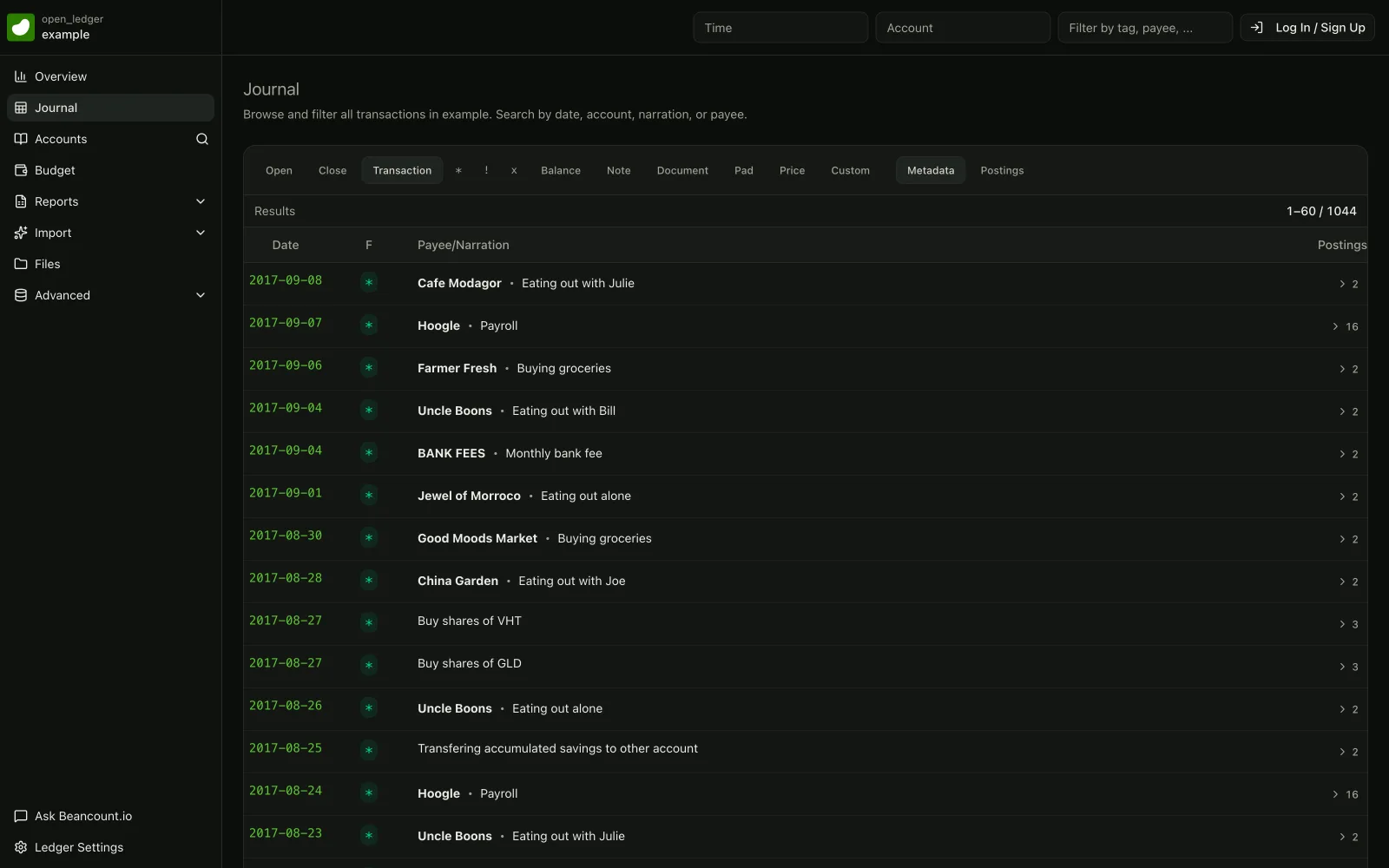
*[Explore the live ledger →](https://beancount.io/ledger/open_ledger/example/journal)*
## Initial Setup
### Creating Your First Ledger
```bean
; Basic structure for a new ledger
2024-01-01 open Assets:Checking
2024-01-01 open Equity:Opening-Balances
2024-01-02 * "Initial Deposit"
Assets:Checking 100.00 USD
Equity:Opening-Balances
```
### Essential Configuration
```bean
option "title" "Personal Finance Ledger"
option "operating_currency" "USD"
```
## File Organization
### Recommended Structure
```bean
; 1. Configuration Options
option "title" "Personal Ledger"
option "operating_currency" "USD"
; 2. Account Declarations
2024-01-01 open Assets:Checking USD
2024-01-01 open Assets:Savings USD
2024-01-01 open Expenses:Food USD
2024-01-01 open Equity:Opening-Balances
; 3. Initial Balances
; Pad fills the gap up to Equity:Opening-Balances, so it must be dated
; before the assertion. Balance assertions are checked at the start of
; their day, so assert the next morning.
2024-01-01 pad Assets:Checking Equity:Opening-Balances
2024-01-02 balance Assets:Checking 1000.00 USD
; 4. Transactions
2024-01-15 * "Grocery Store" "Weekly groceries"
Expenses:Food 50.00 USD
Assets:Checking
```
### Section Organization
1. **Eternal Accounts**
```bean
2024-01-01 open Liabilities:Payables USD
2024-01-01 open Assets:Receivables USD
```
2. **Bank Accounts**
```bean
2024-01-01 open Assets:Bank:Checking USD
2024-01-01 open Assets:Bank:Savings USD
2024-01-01 open Income:Bank:Interest USD
```
3. **Investment Accounts**
```bean
2024-01-01 open Assets:Investment:Cash USD
2024-01-01 open Assets:Investment:Stocks VTSAX
2024-01-01 open Income:Investment:Dividend USD
```
## Validation and Reporting
### Basic Validation
```bash
# Check for errors (exits 0 when clean)
bea --file ledger.beancount check
# Browse balances, reports, and charts in the web interface
fava ledger.beancount
```
`bea check` is the validator: it exits `0` when the ledger is clean, and lists every error and exits non-zero otherwise. Install it with the [CLI quick start](https://beancount.io/docs/Basics/bea-cli). [Fava](/fava) is the web interface — run it and open the printed `http://localhost:5000` address for the balance sheet, income statement, and account journals.
### Common Reports
Beancount 3 produces reports through Fava's web interface, the one-command `bea report`, or ad-hoc queries with `bea query`, which runs the [Beancount Query Language](https://beancount.io/docs/Basics/beancount-query-language). Beancount 3 removed its older report and web commands; `bea report` and Fava replace them.
```bash
# Balance sheet, in one command
bea --file ledger.beancount report balance-sheet
# Income statement, in one command
bea --file ledger.beancount report income-statement
# Balance-sheet numbers: balances by asset, liability, and equity account
bea --file ledger.beancount query "SELECT account, sum(position) AS balance WHERE account ~ '^(Assets|Liabilities|Equity)' GROUP BY account ORDER BY account"
# Income-statement numbers: totals by income and expense account
bea --file ledger.beancount query "SELECT account, sum(position) AS total WHERE account ~ '^(Income|Expenses)' GROUP BY account ORDER BY account"
# One account's journal, with a running balance
bea --file ledger.beancount query "SELECT date, narration, position, balance WHERE account = 'Assets:Checking'"
```
## Managing Initial Balances
### Padding Example
```bean
2024-01-01 open Assets:Checking USD
2024-01-01 open Equity:Opening-Balances
; Pad account to match a known balance
2024-01-01 pad Assets:Checking Equity:Opening-Balances
; Assert the known balance the next day: assertions are evaluated at the
; start of their date, and the pad transaction must fall before it
2024-01-02 balance Assets:Checking 1525.00 USD
```
A `balance` assertion checks the account at the **start** of its date, so it must be dated after the `pad` (or any transaction) it should include. Dating the `pad` and the `balance` on the same day leaves the pad unused and the assertion short — Beancount reports `Unused Pad entry` and `Balance failed`. The `Equity:Opening-Balances` account must be opened before it is padded against.
### Account Closure
```bean
2024-01-01 open Assets:OldBank:Checking USD
2024-06-30 close Assets:OldBank:Checking ; Account closed
```
## Transaction De-duplication
### Handling Transfers
```bean
; Credit card payment - combined view
2024-01-15 * "Credit Card Payment"
Assets:Checking -500.00 USD
Liabilities:CreditCard 500.00 USD
; Flag for pending match
2024-01-15 * "Pending CC Payment"
! Assets:Checking -500.00 USD
Liabilities:CreditCard 500.00 USD
```
### Balance Assertions
```bean
; Regular balance checks prevent duplicates
2024-01-31 balance Assets:Checking 2150.25 USD
2024-01-31 balance Liabilities:CreditCard -350.00 USD
```
## Best Practices
1. **File Organization**
- Keep one main file initially
- Use clear section headers
- Group related accounts together
2. **Account Names**
- Use consistent naming conventions
- Include country/institution prefixes
- Maintain logical hierarchy
3. **Balance Verification**
- Regular balance assertions
- Pad accounts appropriately
- Track account closures
4. **Currency Handling**
- Declare operating currencies
- Use consistent commodity codes
- Specify currency constraints
## Next Steps
Now that you have a basic ledger set up:
1. **Record Regular Transactions**: Start with your daily expenses and income
2. **Set Up Bank Account Imports**: Use CSV imports or bank connections to automate data entry. Paste a statement export into the [CSV to Beancount converter](/tools/csv-to-beancount) to get balanced entries in your browser, or use [OFX & QIF to Beancount](/tools/ofx-to-beancount) for `.ofx`, `.qfx` and `.qif` downloads.
3. **Copy a Proven Layout**: Download a runnable starter file from the [household](https://beancount.io/docs/examples#everyday-personal-finance), [envelope budgeting](https://beancount.io/docs/examples#envelope-budgeting-that-rolls-over), or [freelance](https://beancount.io/docs/examples#freelancer-invoicing-and-receivables) sections of the [working ledger examples](https://beancount.io/docs/examples), then adapt the property and investing patterns from the same gallery
4. **Learn Advanced Syntax**: Explore [syntax reference](https://beancount.io/docs/Basics/syntax) for more complex scenarios
5. **Generate Your First Reports**: Use the UI features to create financial reports and analyze your spending
6. **Work from the Terminal**: Install the `bea` command line with the [CLI quick start](https://beancount.io/docs/Basics/bea-cli), then close a full month end to end in [Your first month with bea](https://beancount.io/docs/Basics/bea-first-month)
## Quick Reference
**Common Account Types:**
- `Assets:Bank:Checking` - Your checking account
- `Expenses:Food:Groceries` - Grocery spending
- `Income:Salary:Company` - Employment income
- `Liabilities:CreditCard:Visa` - Credit card debt
**Essential Commands:**
- `bea --file ledger.beancount check` - Validate your ledger (exits non-zero on errors)
- `bea --file ledger.beancount report balance-sheet` - Print a balance sheet
- `bea --file ledger.beancount query "SELECT ..."` - Query balances and transactions
- `fava ledger.beancount` - Launch the web interface for reports and charts
These guidelines establish a solid foundation for managing personal finances with Beancount. Ready to add your first transaction? Check out our [UI transaction guide](https://beancount.io/docs/add-your-first-transaction-ui).
## Beancount lots, cost basis and booking methods
Canonical: https://beancount.io/docs/Basics/inventories
Content type: concept
Beancount's inventory system is a powerful feature for tracking assets that are bought and sold over time, such as stocks, mutual funds, or foreign currencies. It allows for precise tracking of cost basis, which is essential for [calculating capital gains](https://beancount.io/docs/tax-prep-guides) and understanding portfolio performance. This tutorial covers the core mechanics of managing inventories in your ledger.
## Core Concepts
At its heart, inventory management revolves around tracking positions. A "position" is simply an amount of a commodity held in an account. Beancount distinguishes between two fundamental types of positions.
### Position Types
1. **Simple Position (No Cost)**: This is a standard balance posting. It represents an amount of a commodity without any associated acquisition cost. It's suitable for cash or simple [balance assertions](https://beancount.io/docs/Basics/syntax).
```bean
Assets:Bank:Checking 100.00 USD
```
2. **Position with Cost Basis**: This type of position includes not only the number of units and the commodity but also the cost at which it was acquired. This is the foundation of inventory tracking. The cost is specified within curly braces `{}`.
```bean
Assets:Invest:VTSAX 10 VTSAX {100.00 USD, "lot-1"}
```
In this example, we hold 10 units of `VTSAX`. Each unit was acquired at a cost of $100.00 USD. This specific batch of shares is identified as a "lot."
### Inventory Operations
There are two primary operations you can perform on an inventory:
1. **Augmentations (Adding to inventory)**: When you buy a commodity, you augment your inventory. You create a new lot with a specific number of units and a cost basis.
```bean
2024-01-15 * "Buy shares"
Assets:Invest:STOCK 50 STOCK {25.00 USD, "lot-1"}
Assets:Bank:Checking -1250.00 USD
```
Here, we buy 50 units of `STOCK` at a per-unit cost of $25.00 USD. This creates a lot in the `Assets:Invest:STOCK` account.
2. **Reductions (Removing from inventory)**: When you sell a commodity, you reduce your inventory. You must specify which lot you are selling from. This is done by providing matching information in the curly braces.
```bean
2024-01-20 * "Sell shares"
Assets:Invest:STOCK -25 STOCK {25.00 USD}
Assets:Bank:Checking 625.00 USD
```
In this transaction, we are selling 25 units of `STOCK` from the lot that was purchased at $25.00 USD per unit.
## Booking Methods
When you reduce an inventory, Beancount needs a rule to decide which specific lot to pull from if several lots match the reduction. This rule is called the "booking method." You can set a default for the whole file with an option, or give one account its own method on the `open` directive.
Beancount 3.2.3 accepts seven method names: `STRICT` (the default), `STRICT_WITH_SIZE`, `NONE`, `FIFO`, `LIFO`, `HIFO` and `AVERAGE`. Six of them are implemented; `AVERAGE` parses but raises an error the moment it has to book a reduction, as the **AVERAGE** section below shows.
### 1\. STRICT (Default)
The `STRICT` method is the default and the safest booking method. It enforces explicit and unambiguous matching.
```bean
2024-01-01 open Assets:Invest:STOCK "STRICT"
```
- **Requires Exact Lot Match**: The reduction posting's cost specifier (`{...}`) must identify a single lot — by cost, by acquisition date, by label, or by any combination of them.
- **Errors on Ambiguous Matches**: If the specifier matches more than one lot, Beancount raises an `AmbiguousMatchError` instead of guessing.
- **Exception**: If a reduction removes exactly the total number of units the specifier matches, an empty specifier (`{}`) is allowed, and the reduction is split across those lots.
This ledger holds two lots and sells one of them by naming its cost, which is unambiguous:
```bean
1970-01-01 commodity STK
1970-01-01 open Assets:Broker:Strict STK "STRICT"
1970-01-01 open Assets:Broker:Cash USD
1970-01-01 open Income:Gains USD
2024-01-10 * "Buy the first lot"
Assets:Broker:Strict 10 STK {100.00 USD}
Assets:Broker:Cash -1000.00 USD
2024-02-10 * "Buy the second lot"
Assets:Broker:Strict 10 STK {120.00 USD}
Assets:Broker:Cash -1200.00 USD
; The cost identifies exactly one lot, so STRICT is satisfied.
2024-06-01 * "Sell the $120.00 lot"
Assets:Broker:Strict -10 STK {120.00 USD} @ 150.00 USD
Assets:Broker:Cash 1500.00 USD
Income:Gains
```
It loads without errors, books $300.00 of gain to `Income:Gains`, and leaves `10 STK {100.00 USD}` in the account.
Replace that last posting with an empty specifier and the same file **fails**:
```bean
; Rejected under STRICT: "-10 STK {}" matches both lots.
2024-06-01 * "Sell 10 shares"
Assets:Broker:Strict -10 STK {} @ 150.00 USD
Assets:Broker:Cash 1500.00 USD
Income:Gains
```
Beancount reports `Ambiguous matches for "-10 STK {}"` and lists the candidates. Selling the *whole* position is fine, though, because there is nothing left to choose between:
```bean
; Allowed under STRICT: -20 STK is the entire holding, so the empty
; specifier is split across both lots.
2024-06-01 * "Close the position"
Assets:Broker:Strict -20 STK {} @ 150.00 USD
Assets:Broker:Cash 3000.00 USD
Income:Gains
```
That books $800.00 of gain — $3,000.00 of proceeds against $1,000.00 + $1,200.00 of basis — and leaves the account empty. This is a property of `STRICT` itself, not something you have to switch to `STRICT_WITH_SIZE` for.
### 2\. FIFO (First-In, First-Out)
The `FIFO` method automatically books reductions against the oldest available lots first.
```bean
2024-01-01 open Assets:Invest:STOCK "FIFO"
```
- **Automatic Resolution**: It resolves ambiguity by selecting the oldest matching lots.
- **Chronological Matching**: You assume you are selling the assets you have held the longest. Several tax authorities treat this as the default when you have not identified a lot.
### 3\. LIFO (Last-In, First-Out)
The `LIFO` method is the opposite of FIFO. It books reductions against the **newest** available lots first.
```bean
2024-01-01 open Assets:Invest:STOCK "LIFO"
```
- **Reverse Chronological Order**: It selects the most recently acquired matching lots.
- **Newest, not most expensive**: LIFO picks by acquisition date only. It happens to sell the highest-cost shares when prices have been rising, but if your newest lot is your cheapest — which is what the example below is built to show — LIFO will realize the *largest* gain, not the smallest. The method that always sells the most expensive shares is `HIFO`, described next.
### 4\. HIFO (Highest-In, First-Out)
The `HIFO` method books reductions against the **most expensive** available lots first, whatever their date.
```bean
2024-01-01 open Assets:Invest:STOCK "HIFO"
```
- **Cost-Ranked Matching**: It selects the matching lots with the highest cost basis.
- **Smallest Realized Gain**: For a given sale price, selling the highest-cost shares realizes the smallest gain (or the largest loss). Whether you may use it is a jurisdiction question — in the United States, for example, choosing a lot at all requires specific identification at the time of sale — so treat the method as a bookkeeping mechanism and confirm the tax election separately.
### 5\. Comparing FIFO, LIFO and HIFO on the same lots
The three methods only differ when the oldest, the newest and the most expensive lot are three different lots. This ledger arranges exactly that — lot A is the oldest, lot C is the newest, and the middle lot B is the most expensive — and then sells 10 shares out of three accounts that differ only in their booking method:
```bean
1970-01-01 commodity STK
1970-01-01 open Assets:Broker:Fifo STK "FIFO"
1970-01-01 open Assets:Broker:Lifo STK "LIFO"
1970-01-01 open Assets:Broker:Hifo STK "HIFO"
1970-01-01 open Assets:Broker:Cash USD
1970-01-01 open Income:Gains USD
; Lot A - the oldest, at $100.00 per share
2024-01-10 * "Buy lot A"
Assets:Broker:Fifo 10 STK {100.00 USD}
Assets:Broker:Lifo 10 STK {100.00 USD}
Assets:Broker:Hifo 10 STK {100.00 USD}
Assets:Broker:Cash -3000.00 USD
; Lot B - the most expensive, at $120.00 per share
2024-02-10 * "Buy lot B"
Assets:Broker:Fifo 10 STK {120.00 USD}
Assets:Broker:Lifo 10 STK {120.00 USD}
Assets:Broker:Hifo 10 STK {120.00 USD}
Assets:Broker:Cash -3600.00 USD
; Lot C - the newest, at $90.00 per share
2024-03-10 * "Buy lot C"
Assets:Broker:Fifo 10 STK {90.00 USD}
Assets:Broker:Lifo 10 STK {90.00 USD}
Assets:Broker:Hifo 10 STK {90.00 USD}
Assets:Broker:Cash -2700.00 USD
; Sell 10 shares out of each account at $150.00 and let each
; account's booking method choose which lot leaves.
2024-06-01 * "Sell 10 shares from each account"
Assets:Broker:Fifo -10 STK {} @ 150.00 USD
Assets:Broker:Lifo -10 STK {} @ 150.00 USD
Assets:Broker:Hifo -10 STK {} @ 150.00 USD
Assets:Broker:Cash 4500.00 USD
Income:Gains
```
It loads with zero errors and books $1,400.00 of gain in total, split like this:
| Account | Method | Lot booked | Cost basis | Realized gain | Lots remaining |
| :------------------- | :----- | :--------------- | ---------: | ------------: | :------------------------------ |
| `Assets:Broker:Fifo` | FIFO | lot A, 2024-01-10 | $100.00 | $500.00 | 10 @ $120.00, 10 @ $90.00 |
| `Assets:Broker:Lifo` | LIFO | lot C, 2024-03-10 | $90.00 | $600.00 | 10 @ $100.00, 10 @ $120.00 |
| `Assets:Broker:Hifo` | HIFO | lot B, 2024-02-10 | $120.00 | $300.00 | 10 @ $100.00, 10 @ $90.00 |
The LIFO row is the one worth staring at: it realized the *biggest* gain of the three, because the newest lot was also the cheapest.
### 6\. STRICT_WITH_SIZE
`STRICT_WITH_SIZE` is `STRICT` plus one extra tie-breaker: when several lots match but exactly one of them holds precisely the number of units you are removing, that lot is chosen.
```bean
1970-01-01 commodity STK
1970-01-01 open Assets:Broker:Sized STK "STRICT_WITH_SIZE"
1970-01-01 open Assets:Broker:Cash USD
1970-01-01 open Income:Gains USD
2024-01-10 * "Buy 10 shares"
Assets:Broker:Sized 10 STK {100.00 USD}
Assets:Broker:Cash -1000.00 USD
2024-02-10 * "Buy 7 shares"
Assets:Broker:Sized 7 STK {120.00 USD}
Assets:Broker:Cash -840.00 USD
; Only one lot holds exactly 7 units, so the empty specifier resolves.
2024-06-01 * "Sell 7 shares"
Assets:Broker:Sized -7 STK {} @ 150.00 USD
Assets:Broker:Cash 1050.00 USD
Income:Gains
```
That books $210.00 of gain against the $120.00 lot. The identical file with `"STRICT"` on the `open` line fails with `Ambiguous matches for "-7 STK {}"`.
### 7\. AVERAGE (accepted, but not implemented)
`AVERAGE` is a valid name — `option "booking_method" "AVERAGE"` and `open … "AVERAGE"` both parse — but Beancount 3.2.3 has no implementation behind it. Everything here loads until the sale:
```bean
1970-01-01 commodity STK
1970-01-01 open Assets:Broker:Avg STK "AVERAGE"
1970-01-01 open Assets:Broker:Cash USD
1970-01-01 open Income:Gains USD
2024-01-10 * "Buy 10 shares at $10.00"
Assets:Broker:Avg 10 STK {10.00 USD}
Assets:Broker:Cash -100.00 USD
2024-02-10 * "Buy 10 more at $8.00"
Assets:Broker:Avg 10 STK {8.00 USD}
Assets:Broker:Cash -80.00 USD
; An average-cost engine would book this at $9.00 per share. This one refuses.
2024-06-01 * "Sell 5 shares"
Assets:Broker:Avg -5 STK {}
Assets:Broker:Cash 45.00 USD
Income:Gains
```
The moment that reduction has to be booked, the loader stops with:
```text
AVERAGE method is not supported
```
Do not plan a ledger around it. If you want average-cost behaviour today, keep the position in a `NONE` account and compute the average yourself, or track each lot and accept lot-level gains.
### 8\. NONE
The `NONE` method disables lot matching entirely.
```bean
2024-01-01 open Assets:Invest:STOCK "NONE"
```
- **No Lot Matching**: Beancount does not attempt to match reductions to augmentations.
- **Allows Mixed Signs**: This allows an account to hold both positive and negative balances of the same commodity simultaneously. This behavior is similar to how the Ledger CLI tool handles commodities.
## Lot Specification
A "lot" is a specific block of a commodity acquired at a particular time and price. When you create or reduce a position, you can specify its lot attributes in detail.
### Full Specification
When augmenting an inventory (buying), you can specify up to three attributes for the lot, comma-separated inside a single pair of braces:
```bean
Assets:Invest:STOCK 10 STOCK {100.00 USD, 2024-01-15, "lot-identifier"}
```
- `100.00 USD` — the cost basis, expressed **per unit**.
- `2024-01-15` — the acquisition date. Beancount fills this in from the transaction date when you omit it, which is why the error messages above show a date on every lot.
- `"lot-identifier"` — an optional string label.
While all three are optional, providing at least the cost basis is standard practice. The braces must stay on one line, and comments inside a ledger start with `;`, never `#`.
### Matching Methods
When reducing an inventory (selling), you use the same syntax to specify which lot(s) to sell from.
- **Match by cost**: This is the most common method.
```bean
Assets:Invest:STOCK -5 STOCK {100.00 USD}
```
- **Match by date**: If costs are identical, you can disambiguate using the acquisition date.
```bean
Assets:Invest:STOCK -5 STOCK {2024-01-15}
```
- **Match by label**: Labels provide a foolproof way to identify a lot.
```bean
Assets:Invest:STOCK -5 STOCK {"lot-identifier"}
```
- **Leave the lot to the booking method**: An empty set of braces `{}` names no lot, so the account's booking method chooses. Under `FIFO`, `LIFO` or `HIFO` that is the oldest, newest or most expensive matching lot; under the default `STRICT` it is an `AmbiguousMatchError` unless the reduction empties the matched lots exactly.
```bean
Assets:Invest:STOCK -5 STOCK {}
```
## Price Handling
It is crucial to understand the difference between **cost basis** (`{}`) and **price** (`@`). They serve different purposes and are not interchangeable.
### Price vs Cost
- `{cost}`: Defines the **acquisition cost** of an asset. It is part of the inventory lot itself and is used for booking reductions and calculating capital gains.
- `@ price`: An annotation that records a **market price** at the time of a transaction. It is used for currency conversions or to note the market value on a particular date.
Here are the three scenarios:
1. **Price Annotation (Conversion)**: Use `@` to convert from one currency to another.
```bean
Assets:Forex 1000 USD @ 0.85 EUR
```
2. **Cost Basis (Acquisition)**: Use `{}` when buying an asset to establish its cost.
```bean
Assets:Invest 10 STOCK {100.00 USD}
```
3. **Both (Sale with Price Record)**: When selling an asset, use `{}` to identify the lot being sold and `@` to record the sale price. This allows for automated capital gains calculation.
```bean
Assets:Invest -10 STOCK {100.00 USD} @ 105.00 USD
```
This entry sells 10 `STOCK` from the lot that cost $100.00 each, at a sale price of $105.00 each.
A standalone `price` directive supplies reference data for market valuation. [Live Prices](https://beancount.io/docs/live-prices) can maintain these directives for supported assets in hosted ledgers. A refresh leaves your lots, booking method, acquisition costs, and recorded sale proceeds unchanged.
### Price Usage Rules
1. Price annotations (`@`) **do not** affect which lot is booked. Lot matching is handled exclusively by the cost basis (`{}`) and the account's booking method.
2. The `@` symbol is used only for:
- Currency conversions.
- Recording the market value of an asset at the time of a transaction.
- Providing the sale price for capital gains calculations.
## Configuration
You can configure booking methods globally or on a per-account basis.
### Global Booking Method
You can set a default booking method for your entire Beancount file using the `option` directive.
```bean
option "booking_method" "STRICT"
```
The accepted values are `"STRICT"` (the default when you set nothing), `"STRICT_WITH_SIZE"`, `"NONE"`, `"FIFO"`, `"LIFO"`, `"HIFO"` and `"AVERAGE"`. Any other string is rejected at load time with `Error for option 'booking_method'`. `"AVERAGE"` is accepted here and on `open`, but booking a reduction under it fails, as the **AVERAGE** section above shows.
### Per-Account Override
It's often useful to have different methods for different accounts. For example, you might want `FIFO` for a retirement account but `STRICT` for a taxable brokerage account to ensure you are selling specific tax lots. You can set the booking method when you open the account.
```bean
2024-01-01 open Assets:Retirement:401K "FIFO"
2024-01-01 open Assets:Taxable:Stock "STRICT"
```
## Best Practices
1. **Inventory Organization**: To keep your ledger clean and simple, it is highly recommended to use separate accounts for each unique commodity you hold, and to constrain each one to that commodity on its `open` directive.
```bean
; GOOD: separate accounts by commodity, each constrained to one
2024-01-01 open Assets:Invest:VTSAX VTSAX
2024-01-01 open Assets:Invest:VFIAX VFIAX
```
Avoid mixing different stocks or funds in the same account, as it complicates inventory management. The commodity list on `open` makes Beancount reject a stray posting instead of silently mixing two inventories.
2. **Lot Management**:
- Use meaningful labels for lots, especially for specific transactions like [tax-loss harvesting](https://beancount.io/docs/Solutions/cryptocurrency-portfolio-tracking) or employee stock grants.
```bean
Assets:Invest:STOCK 10 STOCK {100.00 USD, "tax-loss-harvest-2024"}
```
- Document your trades with comments. This makes your ledger easier to read and understand later.
```bean
Assets:Invest:STOCK -10 STOCK {100.00 USD} @ 110.00 USD ; Gain: 10%
```
3. **Debugging**: If you encounter errors or unexpected behavior, Beancount provides tools to inspect the state of your inventory.
- **Examine Inventory State**: Use `bea doctor context main.beancount 42` to inspect the transaction at line 42, including its postings and the affected account balances. Replace the filename and line number with the transaction you want to inspect.
Replace `` with the line number just after a transaction to see its effect.
- **Verify Lot Matching**: The `bea check` tool validates your entire file. It will catch any booking errors, such as ambiguous lot matches in `STRICT` mode.
## Configure Beancount ledgers with option directives
Canonical: https://beancount.io/docs/Basics/options-configuration
Content type: reference
Beancount's behavior is customized with `option` directives placed at the top of [your main ledger file](https://beancount.io/docs/Tips/multi-file-support). These key-value pairs control the names of your root accounts, how much imbalance a transaction may carry, and which extensions run. ⚙️
Every option on this page was loaded against **Beancount 3.2.3**, and every error message quoted is the one that version prints. Beancount rejects an option it does not recognize — `option "default_tolerance" "USD:0.01"` fails with `Invalid option: 'default_tolerance'` — so an option copied from an older guide does not fail quietly. Run `bea check` on your file after changing anything here.
## Core Configuration Options
These options control the fundamental setup of your ledger.
### Basic Settings
These are some of the most common options you'll set.
```bean
option "title" "Personal Ledger"
option "operating_currency" "USD"
option "render_commas" "TRUE"
option "plugin_processing_mode" "default"
```
- **`title`**: Sets the title for reports and web interfaces. Defaults to `Beancount`.
- **`render_commas`**: If true, numbers in reports are formatted with thousands separators (e.g., `1,000,000.00`). Defaults to false. Any of `1`, `TRUE`, `true` or `yes` reads as true; every other string reads as false.
- **`plugin_processing_mode`**: Either `default` (the default) or `raw`. Any other value fails with `Error for option 'plugin_processing_mode'`.
`raw` is not a milder version of `default` — it is the switch that turns off Beancount's own processing stages. Under `default`, Beancount runs `beancount.ops.documents` before your plugins and `beancount.ops.pad` and `beancount.ops.balance` after them. Under `raw` it runs only the plugins you list yourself, so `pad` directives are never applied and **`balance` assertions are never checked**:
```bean
; Under "raw" the balance stage never runs, so this obviously
; false assertion is accepted in silence.
option "plugin_processing_mode" "raw"
1970-01-01 open Assets:Cash
1970-01-01 open Equity:Opening-Balances
1970-01-02 * "Opening balance"
Assets:Cash 100.00 USD
Equity:Opening-Balances -100.00 USD
1970-01-03 balance Assets:Cash 999.00 USD
```
Change that one line to `default` and the same file reports `Balance failed for 'Assets:Cash': expected 999.00 USD != accumulated 100.00 USD (899.00 too little)`. Use `raw` only when you are deliberately reimplementing those stages yourself.
### Account Name Customization
You can rename Beancount's [five fundamental account types](/blog/2026/04/08/debits-and-credits-explained-a-plain-english-guide-for-small-business-owners). **This is not cosmetic.** The option redefines which root names the parser accepts, so every account in your file has to use the new name, and the old one becomes invalid.
```bean
option "name_assets" "Actifs"
option "name_expenses" "Depenses"
2024-01-01 open Actifs:Banque:Courant
2024-01-01 open Depenses:Alimentation
2024-01-02 * "Boulangerie" "Pain"
Depenses:Alimentation 4.20 EUR
Actifs:Banque:Courant -4.20 EUR
```
Leave a single posting on the old root and the file stops loading with `Invalid account name: Assets:Banque:Courant`. The five options are `name_assets`, `name_liabilities`, `name_equity`, `name_income` and `name_expenses`; each value must be a single capitalized word with no colon, or you get `Error for option 'name_assets': Invalid root account name`. Rename roots when you start a ledger, not halfway through one.
### Equity Account Configuration
Beancount synthesizes several equity accounts when it summarizes a period — opening balances, retained earnings and currency conversions. These options name them.
**Each value is a leaf name, and Beancount joins it under `name_equity` for you.** Writing the equity root yourself produces `Equity:Equity:Opening-Balances`, which is a different account from the one you meant.
```bean
option "account_previous_balances" "Opening-Balances"
option "account_previous_earnings" "Earnings:Previous"
option "account_current_earnings" "Earnings:Current"
option "account_previous_conversions" "Conversions:Previous"
option "account_current_conversions" "Conversions:Current"
option "account_rounding" "Equity:Rounding"
```
| Option | Default leaf | Resulting account |
| --- | --- | --- |
| `account_previous_balances` | `Opening-Balances` | `Equity:Opening-Balances` |
| `account_previous_earnings` | `Earnings:Previous` | `Equity:Earnings:Previous` |
| `account_current_earnings` | `Earnings:Current` | `Equity:Earnings:Current` |
| `account_previous_conversions` | `Conversions:Previous` | `Equity:Conversions:Previous` |
| `account_current_conversions` | `Conversions:Current` | `Equity:Conversions:Current` |
`account_rounding` is the exception in this group: it takes a **complete** account name and is stored exactly as written, which is why `Equity:Rounding` above is correct and not a doubled prefix. It is also unset by default, and on Beancount 3.2.3 setting it has no effect on loading — see [Precision & Tolerances](https://beancount.io/docs/Basics/precision) for what actually happens to a residual.
## Precision and Tolerance Settings
These options control how much imbalance Beancount accepts in a transaction.
### Default Tolerance Configuration
Beancount [infers a tolerance](https://beancount.io/docs/Basics/precision) for every transaction from the number of decimal places in its postings. These three options adjust that inference.
```bean
option "inferred_tolerance_default" "USD:0.01"
option "tolerance_multiplier" "1.2"
option "infer_tolerance_from_cost" "TRUE"
```
- **`inferred_tolerance_default`**: A floor per currency, used when a transaction has no decimals to infer from. The syntax is `:`, and `*` sets every currency at once. Repeat the option to set several.
- **`tolerance_multiplier`**: The fraction of the smallest digit that counts as tolerable, **default `0.5`**. It is not a percentage bump: `1.2` makes every inferred tolerance 2.4 times the default one.
- **`infer_tolerance_from_cost`**: If true, postings held at cost widen the tolerance in the cost currency too. Off by default.
The old name `inferred_tolerance_multiplier` still sets the same value, but it reports `Renamed to 'tolerance_multiplier'.` as a load error, so `bea check` fails on a file that uses it. Rename it.
### Booking Method
This option sets the default rule for choosing which lot a reduction draws down. Give one account a different rule on its `open` directive.
```bean
; The file-wide default. An open directive overrides it per account.
option "booking_method" "STRICT"
```
Beancount 3.2.3 accepts exactly seven names: `STRICT` (the default), `STRICT_WITH_SIZE`, `NONE`, `FIFO`, `LIFO`, `HIFO` and `AVERAGE`. Anything else is rejected at load time with `Error for option 'booking_method'` — including `SIMPLE` and `FULL`, which are not booking methods and never were. `AVERAGE` is accepted here but has no implementation behind it; a reduction under it raises `AVERAGE method is not supported`. [Inventory Management](https://beancount.io/docs/Basics/inventories) works through all seven on the same ledger.
## Currency Management
Proper currency configuration is vital for accurate reporting.
### Operating Currency
An operating currency is a currency you want reports to total in. Repeat the option to declare more than one; the values accumulate rather than replacing each other.
```bean
option "operating_currency" "USD"
option "operating_currency" "EUR"
option "conversion_currency" "NOTHING"
```
Declaring operating currencies tells reporting tools to give each one its own column. `conversion_currency` names the imaginary currency Beancount books conversions into at a rate of zero; it already defaults to `NOTHING`, and the only reason to set it is to pick a different placeholder that your ledger definitely never uses as a real commodity.
## Document Management
Beancount can link transactions to external files like receipts or invoices. The `documents` option gives it a folder to scan.
```bean
option "documents" "/home/user/Documents/beancount"
```
The path in that block is an illustration — substitute your own before running it. Only the first rule below is reported as an error; break any of the others and the file is simply never found:
- **The folder must exist.** A missing one fails the load with `Document root '/no/such/place' does not exist`.
- **Sub-folders are account names.** A statement for `Assets:US:BofA:Checking` belongs at `/Assets/US/BofA/Checking/`. A file sitting loose at the root is ignored.
- **The account must be open.** Documents found under an account your ledger never opens are skipped without a warning.
- **File names start with a date**, in the form `YYYY-MM-DD.description.ext` (e.g., `2025-07-28.amazon-order.pdf`). Anything else in the folder is ignored.
- Paths can be absolute or relative to the main ledger file, and the option may be repeated for several folders.
## Plugin System
Beancount's functionality can be extended with plugins.
### Plugin Configuration
**A plugin is loaded with a standalone `plugin` directive, not with `option`.** `option "plugin" "..."` fails with `Option 'plugin' may not be set`.
```bean
plugin "beancount.plugins.auto_accounts"
2024-03-01 * "Coffee Shop" "Flat white"
Expenses:Food:Coffee 4.50 USD
Assets:US:BofA:Checking -4.50 USD
```
That file loads because `auto_accounts` opens both accounts for you; delete the `plugin` line and it reports `Invalid reference to unknown account 'Expenses:Food:Coffee'`. A plugin that takes configuration receives it as a second string, `plugin "module" "config"`. Plugins run in the order you write them, after Beancount's own `documents` stage and before its `pad` and `balance` stages — unless you set `plugin_processing_mode` to `raw`, which drops those stages entirely.
## Technical Limits and Constraints
These options control technical aspects of the Beancount parser.
### String Handling
You can set a limit on the number of lines allowed in a multi-line string, so an unterminated quote is reported near where you typed it rather than at the end of the file.
```bean
option "long_string_maxlines" "64"
```
### Interpolation Precision
By default Beancount uses one tolerance for two different jobs: filling in a missing amount, and deciding whether the transaction balances. Turning this on uses the finest inferred tolerance for the first and the loosest for the second, which stops interpolated amounts from drifting.
```bean
option "use_precise_interpolation" "TRUE"
```
There is no option for explicit tolerances on a posting. The only explicit-tolerance syntax Beancount 3.2.3 has is the tilde on a `balance` directive — `4.271 ~ 0.01 RGAGX` — and it needs no option at all. A tilde inside a transaction posting is a syntax error.
## Deprecated and Removed Options
Three options that older guides still recommend do not exist in Beancount 3.2.3. Every line in this block fails the load:
```bean
option "experiment_explicit_tolerances" "True"
option "use_legacy_fixed_tolerances" "True"
option "default_tolerance" "USD:0.001"
```
- `experiment_explicit_tolerances` — the posting-level `~` syntax it enabled is gone; use a `balance` directive's tilde instead.
- `use_legacy_fixed_tolerances` — the fixed `0.005`/`0.015` tolerances are gone; tolerance is inferred per transaction, tuned with `tolerance_multiplier` and `inferred_tolerance_default`.
- `default_tolerance` — replaced by `inferred_tolerance_default` for balancing and `display_precision` for rendering.
Three more still work but report a deprecation error, which is enough to fail `bea check`:
- `inferred_tolerance_multiplier` — renamed to `tolerance_multiplier`.
- `allow_pipe_separator` — accepts the old `|` between payee and narration.
- `allow_deprecated_none_for_tags_and_links` — accepts a literal `None` where tags and links belong.
## Fava Options Are Separate
Everything on this page is read by Beancount itself. Fava's own settings are not `option` directives at all — they are `custom "fava-option"` directives with a date, and Beancount ignores them. Writing a Fava setting as an `option` fails with `Invalid option`. See [Fava Options](https://beancount.io/docs/Basics/fava-options) for that list.
## Recommended Configuration ✅
For most users, the following configuration provides a robust and sensible starting point. It is one file, and it loads.
```bean
; Reporting
option "title" "Personal Ledger"
option "operating_currency" "USD"
option "render_commas" "TRUE"
; Precision: a floor for currencies with no decimals to infer from,
; and the default 0.5 multiplier left alone.
option "inferred_tolerance_default" "USD:0.005"
; Booking: identify the lot you are selling, explicitly.
option "booking_method" "STRICT"
; Equity account names are leaves under Equity:.
option "account_previous_balances" "Opening-Balances"
option "account_current_earnings" "Earnings:Current"
```
Comments start with `;`. A `//` comment is a syntax error in Beancount, and it takes the rest of the file down with it.
This setup provides a solid foundation for a [new Beancount ledger](https://beancount.io/docs/Basics/getting-started), ensuring clear reporting, sensible precision control, and a logical equity account structure.
## How Beancount rounds amounts and sets tolerances
Canonical: https://beancount.io/docs/Basics/precision
Content type: concept
Managing numerical precision is a cornerstone of [double-entry accounting](https://beancount.io/docs/introduction-to-beancount). In digital bookkeeping, especially when dealing with multiple currencies, stock prices, and fractional shares, small rounding discrepancies can quickly lead to frustrating balancing errors. Beancount provides a sophisticated but intuitive system for handling precision and setting acceptable tolerances. This guide will walk you through how it works. ⚙️
Every number on this page was checked against **Beancount 3.2.3**, including the boundaries: each example states which residual is accepted and which one is one digit too far.
## Core Precision Concepts
Beancount's primary goal is to ensure that every transaction balances to zero. However, [calculations involving prices or costs](https://beancount.io/docs/Basics/inventories) often produce results with more decimal places than are practical to record. The tolerance system allows for small, acceptable imbalances.
### Automatic Tolerance Inference
By default, Beancount **infers the required tolerance for each transaction automatically**. This inference is handled individually for every transaction and calculated separately for each currency involved.
The rule is one multiplication: the tolerance for a currency is the smallest digit seen in that currency's posting amounts, times the `tolerance_multiplier` option, which defaults to `0.5`. At that default the tolerance is **half of the last significant digit**.
For example, consider this purchase:
```bean
2013-04-03 * "Buy Fund"
Assets:Fund 10.22626 FUND {37.61 USD}
Assets:Cash -384.61 USD
```
Beancount infers the tolerances as follows:
- For the `FUND` commodity, the number `10.22626` has 5 decimal places. The tolerance is half of the last digit, so \$0.00001 \\div 2 = 0.000005$ `FUND`.
- For the `USD` commodity, the number `-384.61` has 2 decimal places. The tolerance is half of the last digit, so \$0.01 \\div 2 = 0.005$ `USD`.
The cash leg is what the tolerance is measured against: `10.22626 × 37.61` is `384.6096386`, so this transaction is `0.0003614 USD` short of zero and loads. Round the cash leg to `-384.60` and the gap becomes `0.0096386 USD`, past the `0.005` tolerance, and Beancount reports `Transaction does not balance`.
### Transaction Weight Rules
When checking if a transaction balances, Beancount calculates the "weight" of each posting. The rules for this calculation are:
1. **Simple Amount**: If a posting has only an amount (e.g., `Assets:Cash -100.00 USD`), its weight is that exact amount.
2. **Price Posting**: If a posting has a per-unit price (e.g., `10 FUND @ 38.46 USD`), its weight is the `amount × price`.
3. **Per-unit Cost**: Single braces hold the cost of **one unit**, so `10 FUND {384.61 USD}` weighs `10 × 384.61 = 3,846.10 USD`, not `384.61 USD`.
4. **Total Cost**: Double braces hold the cost of the **whole posting**, so `10 FUND {{384.61 USD}}` weighs `384.61 USD`. Beancount converts it to a per-unit cost of `38.461 USD` when it stores the lot.
5. **Cost and Price**: If a posting has both a cost and a per-unit price (e.g., `10 FUND {384.61 USD} @ 400.00 USD`), **only the cost is used** for balancing. The price is recorded for reporting, not for arithmetic.
Rules 3 and 4 are the ones that cost people an afternoon, so here they are side by side in a file that loads:
```bean
1970-01-01 open Assets:Fund
1970-01-01 open Assets:Cash
; Per-unit cost: ten units at 384.61 each, so 3,846.10 USD leaves the
; cash account.
2013-04-03 * "Broker" "Buy at a per-unit cost"
Assets:Fund 10 FUND {384.61 USD}
Assets:Cash -3846.10 USD
; Total cost: the braces double and 384.61 USD is the entire purchase.
; The lot is stored at 38.461 USD per unit.
2013-04-04 * "Broker" "Buy at a total cost"
Assets:Fund 10 FUND {{384.61 USD}}
Assets:Cash -384.61 USD
```
The account ends with 20 FUND in two lots, `4,230.71 USD` of cost basis between them.
### Precision Inference Rules
The automatic inference system follows a few specific rules:
1. **Number Format**
- Integer amounts (e.g., `10 USD`) **do not contribute** to precision inference.
- One decimal place is the coarsest an amount can imply: `0.1 × 0.5 = 0.05` units. Beyond that you need `tolerance_multiplier` or a per-currency default, both below.
- Costs and prices (e.g., `{37.61 USD}`) are **excluded** from tolerance inference by default. Only the primary amounts of the postings are used.
- If postings for the same currency have different precisions (e.g., `-10.10 USD` and `5.123 USD`), Beancount uses the **coarsest (largest)** tolerance. In this case, it would be based on `-10.10 USD`, yielding a tolerance of \$0.005$ `USD`.
2. **Default Handling**
You can [set a global or currency-specific default tolerance](https://beancount.io/docs/Basics/options-configuration) if a transaction has no numbers with decimal places from which to infer it.
```bean
; Sets a default tolerance for all currencies without explicit rules
option "inferred_tolerance_default" "*:0.001"
; Sets a specific default tolerance for USD
option "inferred_tolerance_default" "USD:0.003"
```
3. **Tolerance Multiplier**
The option is `tolerance_multiplier`, and it is the fraction of the smallest digit that counts as tolerable — not a percentage added on top. Its default is `0.5`, so setting `1.2` does not loosen checks by 20%: it makes every inferred tolerance **2.4 times** the default one.
```bean
option "tolerance_multiplier" "1.2"
1970-01-01 open Assets:Cash
1970-01-01 open Expenses:Fees
; The coarsest amount has two decimals, so the tolerance is
; 1.2 x 0.01 = 0.012 USD, and this residual of exactly 0.012 passes.
; At the default 0.5 the tolerance would be 0.005 and this would fail.
2024-05-01 * "Bank" "Wire fee"
Expenses:Fees 100.00 USD
Assets:Cash -99.988 USD
```
The older name `inferred_tolerance_multiplier` sets the same value but reports `Renamed to 'tolerance_multiplier'.` as a load error.
4. **Cost-Based Inference**
While costs are normally ignored for tolerance inference, you can instruct Beancount to use them. This is helpful when the final amount (e.g., a cash withdrawal) is the most precise number in a transaction.
```bean
option "infer_tolerance_from_cost" "TRUE"
```
Here is the plain default, with no options at all, at its exact boundary:
```bean
1970-01-01 open Assets:Cash
1970-01-01 open Expenses:Fees
; Two decimals on the coarsest amount, so the tolerance is
; 0.5 x 0.01 = 0.005 USD. This residual is exactly 0.005 and passes;
; -99.994 would be 0.006 and would fail.
2024-05-01 * "Bank" "Wire fee"
Expenses:Fees 100.00 USD
Assets:Cash -99.995 USD
```
## Balance Assertions
Balance assertions (`balance`) are used to verify that your account's balance matches a known value on a specific date. They also have an associated tolerance.
### Basic Format
The tolerance for a `balance` assertion is inferred from the number of decimal places in the amount, but it is **twice** as generous as the one used inside a transaction: `tolerance_multiplier × 2 × the smallest digit`. At the default multiplier that is exactly one unit of the last decimal place you wrote.
```bean
; Asserts the balance is 4.271 RGAGX with a tolerance of +/-0.001
2015-05-08 balance Assets:Fund 4.271 RGAGX
; Asserts the balance is 4.27 RGAGX with a tolerance of +/-0.01
2015-05-08 balance Assets:Fund 4.27 RGAGX
```
The comparison is inclusive: a difference exactly equal to the tolerance still passes. For the second example, any balance from $4.26$ to $4.28$ passes the check, and `4.2801` fails with `Balance failed for 'Assets:Fund': expected 4.27 RGAGX != accumulated 4.2801 RGAGX (0.0101 too much)`.
```bean
1970-01-01 open Assets:Fund
1970-01-01 open Equity:Opening-Balances
1970-01-02 * "Broker" "Opening position"
Assets:Fund 4.28 RGAGX
Equity:Opening-Balances -4.28 RGAGX
; 4.28 is 0.01 away from the asserted 4.27, which is the whole tolerance.
2015-05-08 balance Assets:Fund 4.27 RGAGX
```
### Explicit Tolerances
If the inferred tolerance is not suitable, you can specify one explicitly using the tilde (`~`) character. This is the only explicit-tolerance syntax Beancount has, and it works on `balance` directives only — a tilde inside a transaction posting is a syntax error.
```bean
1970-01-01 open Assets:Fund
1970-01-01 open Equity:Opening-Balances
1970-01-02 * "Broker" "Opening position"
Assets:Fund 4.281 RGAGX
Equity:Opening-Balances -4.281 RGAGX
; Asserts the balance is 4.271 RGAGX with a custom tolerance of
; +/-0.01 RGAGX, so anything from 4.261 to 4.281 passes.
2015-05-08 balance Assets:Fund 4.271 ~ 0.01 RGAGX
```
Push the holding to `4.2811` and the same assertion fails by `0.0101`.
## Rounding Management
Small residuals from cost and price arithmetic are normal. What Beancount does with them is narrower than it looks.
### Rounding Error Tracking
The `account_rounding` option names an account meant to absorb residuals. It takes a complete account name and is stored exactly as you write it — no equity prefix is added, unlike the [equity account options](https://beancount.io/docs/Basics/options-configuration).
```bean
option "account_rounding" "Equity:Rounding"
1970-01-01 open Assets:Invest
1970-01-01 open Assets:Cash
1970-01-01 open Equity:Rounding
; 1.245 x 43.23 = 53.82135, so this is 0.00135 USD short of balancing.
2013-02-23 * "Broker" "Purchase"
Assets:Invest 1.245 RGAGX {43.23 USD}
Assets:Cash -53.82 USD
```
In this transaction, $$1.245 \times 43.23 = 53.82135$$. The transaction is imbalanced by $-0.00135$ USD, which is inside the inferred `0.005 USD` tolerance, so it loads.
**On Beancount 3.2.3 nothing is posted to `Equity:Rounding`.** The option parses and is stored, but no stage of the loader inserts the residual posting, so the account ends at zero and a residual that is *outside* tolerance is still an error rather than being swept up:
```bean
option "account_rounding" "Equity:Rounding"
1970-01-01 open Assets:Invest
1970-01-01 open Assets:Cash
1970-01-01 open Equity:Rounding
; 0.10135 USD out, far past the 0.005 tolerance. Setting
; account_rounding does not rescue it:
; Transaction does not balance: (0.10135 USD)
2013-02-23 * "Broker" "Purchase"
Assets:Invest 1.245 RGAGX {43.23 USD}
Assets:Cash -53.72 USD
```
So treat `account_rounding` as inert on this version. If you want a residual recorded rather than tolerated, write the third posting yourself:
```bean
1970-01-01 open Assets:Invest
1970-01-01 open Assets:Cash
1970-01-01 open Equity:Rounding
2013-02-23 * "Broker" "Purchase"
Assets:Invest 1.245 RGAGX {43.23 USD}
Assets:Cash -53.82 USD
Equity:Rounding -0.00135 USD
```
That version balances to exactly zero, and the dust is visible in an account you can report on.
### Inferred Number Precision
Beancount does not round the numbers you write. There is no `default_tolerance` option — it does not exist and fails the load with `Invalid option: 'default_tolerance'` — and no setting quantizes stored amounts.
1. **Storage is always exact.** Write `53.82135 USD` and the ledger holds `53.82135 USD`, whatever your tolerance settings say. Tolerance decides whether a transaction is *accepted*; it never edits a number.
2. **Display is a separate setting.** `display_precision` fixes how many fractional digits a currency is rendered with, and changes nothing about the stored value or the balance check.
```bean
option "display_precision" "USD:0.01"
1970-01-01 open Assets:Cash
1970-01-01 open Income:Interest
; Rendered as 53.82 USD, stored as 53.82135 USD.
2024-06-30 * "Bank" "Interest"
Assets:Cash 53.82135 USD
Income:Interest -53.82135 USD
```
3. **Rounding is your posting to write.** If you want the residual out of the arithmetic, round the amount in the source and book the difference explicitly, as in the three-posting example above.
## Implementation Details
A few technical points clarify how Beancount achieves this reliability.
1. **Number Representation**: Beancount uses Python's `decimal` module, **not floating-point numbers**. The default context carries 28 **significant digits** — total digits, not digits after the point — which avoids the binary representation errors common to floats.
2. **DisplayContext Class**: This internal class handles all number formatting for display purposes. It infers each currency's precision from the numbers in your file unless `display_precision` pins it, and can format output with aligned columns and commas.
3. **Precision vs. Tolerance**: It's crucial to distinguish these two concepts:
- **Precision** relates to the _display format_ of a number (how many decimal places are shown).
- **Tolerance** is the _allowance for imbalance_ used during verification checks.
## Best Practices ✨
Here are some practical recommendations for managing precision in your ledger.
### Initial Setup
For most new ledgers, this is a robust starting configuration:
```bean
; A floor for currencies that have no decimals to infer from
option "inferred_tolerance_default" "*:0.005"
; Leave the multiplier at its 0.5 default unless a real institution
; forces your hand; 1.2 would mean 2.4x the usual tolerance.
option "tolerance_multiplier" "0.5"
```
### Troubleshooting Tips
If you encounter balancing errors:
- **Add decimal digits** to a posting's amount to create a tighter, more accurate local tolerance inference.
- Use **explicit tolerances** (`~`) on `balance` assertions that fail due to predictable discrepancies.
- Book the residual to a **dedicated account** with a real third posting, so you can report on how often it happens.
- Consider setting **currency-specific defaults** if you frequently deal with currencies that have different conventions (e.g., JPY has no decimals).
### Migration Strategy
When applying these concepts to an existing, messy ledger:
1. Start with a **generous global tolerance** (e.g., `*:0.05`) and a higher `tolerance_multiplier` to get the file to validate.
2. Gradually **tighten the tolerances** and fix the errors that appear.
3. **Add explicit digits** to amounts in problematic transactions to let inference do its job.
4. Monitor the **rounding account's balance**. A large or rapidly growing balance may signal a systemic issue that needs investigation.
## Beancount syntax reference: directives, accounts, amounts
Canonical: https://beancount.io/docs/Basics/syntax
Content type: reference
This provides a concise yet comprehensive reference for the Beancount language syntax, blending practical structure, rules, and examples. For more details, see the [Cheat Sheet](https://beancount.io/docs/Basics/cheatsheet).
## Overview
Beancount is a plain-text double-entry accounting system. Its language is structured around three main building blocks:
- **Commodities** (currencies, stocks, points, etc.)
- **Accounts** (hierarchical, categorized ledgers)
- **Directives** (dated entries recording events or configuration)
## Commodities
Commodities are always written in uppercase, e.g., `USD`, `EUR`, `AAPL`, `BTC`, `MILES`, `HOURS`.
## Accounts
Accounts are colon-separated, capitalized hierarchical names. They must begin with one of the five root account types:
| Name | Type | Typical Contents | Example |
| ------------- | ---- | ------------------------ | ------------------------- |
| `Assets` | + | Cash, Bank, Investments | `Assets:Checking` |
| `Liabilities` | - | Credit Cards, Loans | `Liabilities:CreditCard` |
| `Income` | - | Salary, Interest | `Income:EmployerA` |
| `Expenses` | + | Purchases, Bills | `Expenses:Food:Dining` |
| `Equity` | - | Opening/Closing Balances | `Equity:Opening-Balances` |
- Components must be capitalized, separated by colons (`:`), with no spaces.
- Numbers and dashes are allowed in components.
- The root account names can be customized via options (see below).
## Directives
Directives are the core statements in a Beancount file. Most start with a date, followed by a directive type and arguments. They are processed in chronological order (by date), not file order.
**General format:**
```bean
YYYY-MM-DD
```
### Common Directives & Examples
#### Opening and Closing Accounts
```bean
2023-01-01 open Assets:Checking USD,EUR ; Optionally specify allowed currencies
2023-12-31 close Assets:Checking
```
#### Declaring Commodities
```bean
2020-07-22 commodity AAPL
name: "Apple Inc."
```
#### Price Declarations
```bean
2022-04-30 price AAPL 150.00 USD
```
For automatic valuation quotes in a hosted ledger, [set up Live Prices](https://beancount.io/docs/live-prices). Managed feeds supply ordinary dated `price` directives. They do not replace transaction prices (`@`, `@@`) or lot costs (`{}`).
#### Notes & Documents
```bean
2022-03-20 note Assets:Checking "Asked about refund"
2022-03-20 document Assets:Checking "statements/2022-03.pdf"
```
#### Transactions
```bean
2024-01-05 * "Coffee Shop" "Morning coffee"
Expenses:Food 4.50 USD
Assets:Cash -4.50 USD
2024-01-06 ! "Phone Bill" "Monthly payment" #utilities ^phone
id: "INV12345" ; Metadata
Expenses:Utilities 60.00 USD
Assets:Checking
```
#### Posting Features
```bean
; With cost basis
Assets:Stocks 1 AAPL {150.00 USD}
; With price annotation
Assets:Cash -100 USD @ 1.25 CAD
; With total price
Assets:Cash -100 USD @@ 125.00 CAD
; Implicit balance
Assets:Cash -100 USD
Assets:Bank
```
#### Balance Assertions & Padding
The `pad` must be dated before the `balance` it feeds, because the assertion is checked at the start of its day:
```bean
2024-06-01 pad Assets:Checking Equity:Opening-Balances
2024-06-02 balance Assets:Checking 1000.00 USD
```
#### Events
```bean
2024-06-01 event "location" "San Francisco, CA"
```
## Options
Set file-wide configuration:
```bean
option "title" "My Ledger"
option "operating_currency" "USD"
option "documents" "docs/"
option "name_assets" "Vermoegen"
```
See the [Options Reference](http://furius.ca/beancount/doc/options) for more.
## Plugins & File Organization
```bean
plugin "beancount.plugins.module_name"
plugin "beancount.plugins.module_name" "config-string"
include "other/file.beancount"
pushtag #project
; ...
poptag #project
```
Hosted Beancount.io also resolves supported managed price URL includes. This is an extension to upstream Beancount: use the [Live Prices setup guide](https://beancount.io/docs/live-prices) for hosted and local compatibility.
## Important Rules
- All transactions must balance: the weights of all postings sum to zero. A posting's weight is its amount, or its cost (`{}`) or price (`@`) converted to the other currency when one is present.
- Accounts must be opened before use; closed accounts cannot accept postings.
- Balance assertions check only the specified currency, can be used on parent accounts, and are evaluated at the **start** of their date (so they exclude same-day transactions).
- Price annotations (`@` per unit, `@@` total) **do** affect balancing: they set the posting's weight in the other currency. `-100 USD @ 1.25 CAD` weighs `125 CAD` and offsets a `125 CAD` posting; remove the price and the transaction no longer balances.
## Common Patterns
### Opening Accounts with Initial Balance
Open both accounts, `pad` on the start date, and assert the balance the next day (the assertion is checked at the start of its date):
```bean
2024-01-01 open Assets:Checking USD
2024-01-01 open Equity:Opening-Balances
2024-01-01 pad Assets:Checking Equity:Opening-Balances
2024-01-02 balance Assets:Checking 1000.00 USD
```
### Investment Transaction
```bean
2024-01-01 * "Buy stock"
Assets:Broker:Stock 10 AAPL {150.00 USD}
Assets:Broker:Cash -1500.00 USD
```
### Multi-Currency Transaction
```bean
2024-01-01 * "Currency exchange"
Assets:USD -100.00 USD @ 1.25 CAD
Assets:CAD 125.00 CAD
```
### Comments
```bean
poptag #trip-to-peru
; inline comments begin with a semi-colon
* any line not starting with a valid directive is also ignored silently
```
## Beancount CLI reference
Canonical: https://beancount.io/docs/bea-cli-reference
Content type: reference
Use this reference to look up `bea` commands and their behavior. For your first ledger, follow the [CLI quick start](https://beancount.io/docs/Basics/bea-cli). To close a full month end to end, work through [Your first month with bea](https://beancount.io/docs/Basics/bea-first-month). For bank files, use the [import walkthrough](https://beancount.io/docs/Solutions/import-bank-exports-cli).
## Commands at a glance
| Command | Purpose |
| --------------------------------------- | --------------------------------------------------------------- |
| `bea init [DIRECTORY]` | Create a ledger with common accounts |
| `bea add TYPE` | Add a dated directive |
| `bea add transactions --from FILE.json` | Add a transaction batch |
| `bea import SOURCE` | Preview an export; add `--apply` to write |
| `bea list TYPE` | List and filter directives |
| `bea check` | Validate the complete ledger |
| `bea format PATH` | Align a file or recursively format a directory |
| `bea query [BQL]` | Run a query or open the interactive query shell |
| `bea report TYPE` | Produce financial reports |
| `bea balance [ACCOUNT...]` | Print balances for matching accounts |
| `bea ask [QUESTION]` | Use optional hosted AI assistance with a local ledger |
| `bea cloud …` | Sign in and manage hosted ledgers |
| `bea doctor COMMAND` | Inspect ledger context and diagnostics |
| `bea example [OPTIONS]` | Generate a sample ledger |
| `bea treeify [INPUT]` | Render account names as a text tree |
| `bea ingest COMMAND` | Identify, extract, or archive with a Beangulp configuration |
| `bea price [OPTIONS]` | Inspect, refresh, or export managed prices; otherwise fetch quotes through optional Beanprice |
| `bea engine COMMAND` | Inspect the managed engine or enable optional features |
| `bea upgrade [--check]` | Upgrade with the owning package manager, or check for an update |
## Global options and paths
Global options go **before** the command:
```bash
bea --file ~/my-books/main.bean check
bea --json list transaction --limit 100
```
| Option | Behavior |
| ---------------------- | ------------------------------------------------------------------------------------ |
| `--file / -f PATH` | Select the root ledger; overrides `BEA_FILE` and `./main.bean` |
| `--json` | Structured output; also disables CLI prompts |
| `--no-input` | Disable prompts; missing required input exits 2 |
| `--yes / -y` | Confirm operations such as cloud deletion; does not grant AI write permission |
| `--debug` | Include exception tracebacks |
| `--offline` | Resolve managed prices from the local cache without fetching |
| `--strict-prices` | Fail the load when a managed source is stale or unavailable |
| `--strict` | Refuse partial answers even in a terminal; a command's `--allow-errors` opts back in |
| `--version` | Show the installed version without a network request |
| `--help / -h` | Show help; also available on subcommands |
| `--show-completion` | Print shell completion |
| `--install-completion` | Install shell completion |
| `--shell NAME` | Select `bash`, `zsh`, `fish`, `powershell`, or `pwsh` instead of detecting the shell |
`init` creates its own directory/file target and ignores `BEA_FILE`. It accepts global `--file` instead of its directory argument. `format` uses its own positional target. Supply a filename or directory. Global `--file` does not choose the formatting target.
## Create a ledger
`bea init [DIRECTORY]` defaults to the current directory. A directory creates `main.bean`; a `.bean` or `.beancount` path names the new file directly.
| Option | Behavior |
| ------------------------------------ | -------------------------------------------------------------------------------- |
| `--currency / -c SYMBOL` | Operating currency; required unattended, interactive default `USD` |
| `--date YYYY-MM-DD` | Earliest history/opening date; otherwise a prompt or today |
| `--opening-balance "ACCOUNT NUMBER"` | Repeat for template asset/liability accounts; amounts use the operating currency |
The template opens `Assets:Checking`, `Assets:Savings`, `Assets:Cash`, `Liabilities:CreditCard`, `Income:Salary`, `Income:Interest`, `Expenses:Groceries`, `Expenses:Dining`, `Expenses:Rent`, `Expenses:Transport`, `Expenses:Utilities`, `Expenses:Fees`, `Expenses:Uncategorized`, and `Equity:OpeningBalances`.
Opening balances offset against `Equity:OpeningBalances`. Debt is negative. Currency input is uppercased. Custom symbols are allowed; a symbol that is not three uppercase letters triggers a typo warning. This is not an ISO currency-registry check.
Existing files are never overwritten. New files use owner-only permissions, mode `0600` on POSIX. Later add and import writes preserve permissions and respect read-only destinations. In-place formatting uses the native formatter and reports its own filesystem errors.
## Add transactions
```bash
bea add transaction -n "Groceries" --payee "Corner Market" \
-p "Expenses:Groceries 30" -p "Assets:Checking" \
--flag '!' --tag household --link receipt-42 --meta 'receipt:IMG_42.jpg'
```
| Option | Behavior |
| -------------------------- | --------------------------------------------------------------------- |
| `--posting / -p POSTING` | Required; repeat for each posting |
| `--date YYYY-MM-DD` | Default today |
| `--flag CHARACTER` | Default `*`; use `!` to mark a transaction for review |
| `--payee TEXT` | Optional other party |
| `--narration / -n TEXT` | Optional purpose; omitted text lists as `(no narration)` |
| `--tag TAG`, `--link LINK` | Repeatable; optional leading `#` or `^` is accepted |
| `--meta KEY:VALUE` | Repeatable transaction metadata |
| `--into FILE` | Write an included file while validating the root |
| `--allow-errors` | Explicitly permit semantic validation errors; syntax must still parse |
One posting may omit its amount. Numbered postings may omit currency when an account has one allowed currency or the ledger has one compatible operating currency. Otherwise, supply the symbol.
Native posting syntax supports arithmetic such as `84/2 EUR`, costs such as `{100 USD}`, total costs `{{1000 USD}}`, and prices `@` or `@@`. Use decimal amounts such as `1000`, not exponent notation such as `1e3`.
A currency exchange needs its actual transaction rate. For example, post `100 EUR @ 1.08 USD` to an account open in EUR and `-108 USD` to checking. An investment purchase can post `2 AAPL {100 USD}` to an account open in AAPL and `-200 USD` to checking. Add dated `price` quotes when reports need market valuation.
Metadata accepts bare strings such as `--meta 'receipt:IMG_42.jpg'`. Native numbers, booleans, dates, and amounts retain their types. Examples include `--meta 'reviewed:TRUE'`, `--meta 'received:2026-08-03'`, and `--meta 'fee:2.50 USD'`. Inner quotes force a string: `--meta 'code:"1234"'`. Keys must be distinct; `filename` and `lineno` are reserved.
Single adds, bulk adds, and imports replace line breaks in payees, narrations, and string metadata with spaces. Quotes and backslashes retain their contents.
## Add other directives
All these commands require `--date YYYY-MM-DD`. They also accept `--into FILE` and `--allow-errors`.
| Type | Required fields | Additional options |
| ----------- | ------------------------------------------------------------- | ----------------------------------------------- |
| `open` | `--account / -a` | Repeat `--currency / -c` to restrict currencies |
| `close` | `--account / -a` | — |
| `balance` | `--account / -a`, `--amount "NUMBER CURRENCY"` | `--pad-from ACCOUNT`, `--pad-date YYYY-MM-DD` |
| `pad` | `--account / -a`, `--source / -s` | — |
| `note` | `--account / -a`, `--comment / --message / -m` | — |
| `event` | `--type / -t`, `--description / -d` | — |
| `price` | `--currency / --commodity / -c`, `--amount "NUMBER CURRENCY"` | Currency names the commodity being priced |
| `commodity` | `--currency / --commodity / -c` | — |
| `document` | `--account / -a`, `--filename / --path` | Repeated `--tag` and `--link` |
| `custom` | `--type / -t` | Repeated `--value / -v KIND:VALUE` |
Account names have a capitalized root and colon-separated segments. Each subaccount starts with an uppercase letter or digit. Beancount supports Unicode letters and configured root names.
A balance checks the account at the start of its date. Tolerance syntax is supported, such as `--amount "1538 ~ 1 EUR"`. The tolerance must be nonnegative.
Use `add balance --pad-from Equity:OpeningBalances` to write a pad and its balance assertion together. The pad defaults to the previous day; `--pad-date` can select another earlier day. Both accounts must be active. A standalone pad needs a later balance to consume it. `--allow-errors` can stage that intermediate state but cannot bypass an invalid pad account.
`add price` skips an exact date/commodity/price duplicate across the root and its includes. It exits 0 and identifies the existing location. Different dates or prices are new additions.
Document paths resolve beside the file containing the directive. With `--into years/2026.bean`, `--filename receipt.pdf` means `years/receipt.pdf`, not a file beside your shell's working directory.
Custom value kinds are `text`, `number`, `amount`, `account`, `bool`, and `date`. For example, a budget can use `--value "text:travel" --value "amount:500 USD"`.
## Bulk JSON input
`bea add transactions --from transactions.json` accepts a JSON array:
```json
[
{
"date": "2026-08-04",
"narration": "Groceries",
"postings": [
{ "account": "Expenses:Groceries", "amount": "45.00 USD" },
{ "account": "Assets:Checking" }
],
"meta": { "receipt": "R-43", "reviewed": true }
}
]
```
Each transaction requires `date` and `postings`. Optional fields are `flag`, `payee`, `narration`, `tags`, `links`, and `meta`.
A posting uses either `amount` or `units`, such as `{"number":"45.00","currency":"USD"}`. Omit both for the balancing posting. Posting fields also include `cost`, `price`, `flag`, and `meta`. Costs contain `number` and `currency`, with optional `date` and `label`. Prices contain `number` and `currency`.
Use strings for decimals. Metadata uses ordinary strings and booleans, or tagged values such as `{"kind":"number","value":"1.125"}`, `{"kind":"date","value":"2026-08-04"}`, and `{"kind":"amount","number":"2.50","currency":"USD"}`. The optional transaction `source` location is never written as metadata.
The default is an atomic batch: any rejected row leaves the ledger unchanged and exits 1. `--partial` writes a valid subset and still exits 1 if any rows are rejected. JSON errors describe the outcome in `error.result`; row indexes there are zero-based. Human row numbers are one-based.
Bulk add accepts `--into` and `--allow-errors`. It does not deduplicate. Use `bea import` for bank-export review.
## Split ledgers and write safety
Keep `--file` pointed at the root. Add `--into` to select an existing included file:
```bash
bea --file ~/my-books/main.bean add transaction --into 2026.bean \
--date 2026-08-02 -n "Groceries" \
-p "Expenses:Groceries 30" -p "Assets:Checking"
```
The destination is relative to the root directory. It must already be included; naming an unrelated file is refused. Add commands, imports, and interactive AI writes support this separation.
Writes validate the complete candidate ledger, including plugins and cost-lot booking. A concurrent change to the root or its include graph exits 4. A read-only destination exits 3. Successful additions align only the new lines. Existing bytes remain unchanged. Use `bea format -i PATH` when you want to realign the whole file.
## List directives
`bea list TYPE` supports the eleven types: `transaction`, `open`, `close`, `balance`, `pad`, `note`, `event`, `price`, `commodity`, `document`, and `custom`.
| Option | Applies to | Behavior |
| -------------------------- | ------------------------------------------------------ | ---------------------------------------------------------------------- |
| `--limit / -l N` | All types | Positive limit; default 50 |
| `--from-date`, `--to-date` | All types | Inclusive `YYYY-MM-DD` bounds |
| `--allow-errors` | All types | Permit partial data despite loader errors |
| `--account / -a TEXT` | Transaction, open, close, balance, pad, note, document | Case-insensitive account substring |
| `--currency / -c SYMBOL` | Price, commodity | Case-insensitive exact symbol; price filters its base commodity |
| `--sort newest/oldest` | Transaction | Default newest; applied before the limit |
| `--flag CHARACTER` | Transaction | Filter entries such as `!` before the limit |
| `--details` | Transaction | Render Beancount syntax, every posting, metadata, and source locations |
Other directive types retain chronological order. An account-filtered transaction table labels its amount column `MATCHING POSTING AMOUNTS`. Details and JSON still include all postings of each selected transaction. Details render loaded entries, including inferred amounts; they are not raw source excerpts.
## Check, format, and query
`bea check` validates the root and includes. It exits 0 silently on success and 1 for ledger errors. Global `--json` returns the validation envelope. There is no `--allow-errors` option for `check`.
Queries, lists, and reports warn and return partial results in an interactive terminal. Global `--strict`, `--json`, `--no-input`, truthy `CI`, or non-terminal stdin makes reads strict. Their `--allow-errors` option explicitly permits partial results.
Formatting accepts files or recursively searches a directory. In the published 0.2.0 package, a path is required despite the stdin default shown in help. Global `--file` does not choose the formatting target.
| Formatting mode | Writes? | Exit behavior |
| --- | --- | --- |
| `bea format PATH` | Formatted text to stdout; source unchanged | 0 after success |
| `bea format -i PATH` | Rewrites the source | 0 after success |
| `bea format PATH -o formatted.bean` | Writes the named output file | 0 after success |
| `bea format PATH --dry-run` | No file changes | 0 even when formatting is needed |
| `bea format PATH --check` | No file changes | 1 when formatting is needed; 0 when clean |
Formatting aligns text; it does not validate ledger syntax or accounting. Run `bea check` separately. With global `--json`, select `-i`, `-o FILE`, `--check`, or `--dry-run` so stdout can carry the envelope. Do not redirect stdout over the input file: use `-i` to rewrite it.
`bea query "BQL"` runs a [Beancount query](https://beancount.io/docs/Basics/beancount-query-language). Omitting BQL reads queries from stdin or opens the shell when stdin is a terminal. Use `.exit`, `exit`, or `quit` to close the shell. BQL's default table has one row per posting. Query tables retain precision.
| Query option | Behavior |
| --- | --- |
| `--format / -f csv` | Export CSV instead of a text table |
| `--output / -o FILE` | Write the result to a file |
| `--numberify / -m` | Split text or CSV inventory values into numeric columns per currency |
| `--no-errors / -q` | Hide loader diagnostics; does not opt into partial results |
| `--source URI` | Use a native Beanquery source URI |
Select the ledger before the command, for example `bea --file main.bean query -f csv -o balances.csv "SELECT account, sum(position) GROUP BY account"`. Global `--json` uses the product envelope with `data.rows` and `data.columns`; it is distinct from CSV rendering. In the published 0.2.0 release, use shell redirection to save JSON, such as `bea --json query "SELECT account, sum(position) GROUP BY account" > result.json`: query `-o` and `-m` do not apply to JSON in that release.
## Native tools and optional features
`bea doctor context main.bean 42` shows the transaction context at line 42. `bea doctor --help` lists the other diagnostic commands. `bea example -o example.bean` creates a sample history. `bea treeify accounts.txt` renders hierarchical names from a text file; omit the file to read stdin. These commands forward native arguments. The examples above name those arguments explicitly.
Enable optional tools once with `bea engine enable beanprice` for quote fetching or `bea engine enable beangulp` for importer workflows. Enabling needs network access; Beangulp also needs the system `libmagic` library. Use `bea engine status` to inspect availability. `bea price --help` and `bea ingest --help` describe their interfaces. `bea import --csv` and `bea add price` do not need either optional feature.
### Managed price includes
[Live Prices](https://beancount.io/docs/live-prices) is a separate managed-include workflow. Hosted ledgers resolve supported price URLs; compatible `bea` versions also support managed includes and local price exports. Check the [version-specific managed-price guide](https://github.com/bex-co/beancount-io/blob/main/cli/docs/USAGE.md#managed-price-includes) if your installed version does not recognize these commands.
| Command | Purpose |
| --- | --- |
| `bea price status` | Inspect freshness, revision, observation time, and errors for each source |
| `bea price refresh` | Resolve feeds now and report which sources changed |
| `bea --offline balance` | Read managed prices only from the local cache |
| `bea --strict-prices check` | Reject a load with stale or unavailable managed prices |
| `bea price export --output audit` | Export a self-contained ledger with local price files for upstream tools |
The CLI resolves allowlisted managed URLs without sending credentials and refuses redirects. A feed that redirects to a hosted login is therefore unavailable to a fresh local fetch; signing in to the website does not authenticate the CLI price request. Inspect `price status` for source errors. Use cached data, a reachable supported feed, or local dated prices as appropriate.
`price export` writes feed files under `prices/` and rewrites includes to local relative paths. Upstream Beancount, Fava, and Beanquery can load that exported copy. An unavailable source refuses export unless `--allow-errors` is used, which can leave its source marker without prices.
Your own dated price overrides a managed price for the same date and pair. Feed entries are read-only. Failed refreshes retain a previously validated revision, which may be stale. Other arguments to `bea price` still forward to Beanprice; if a quote-job file is named `status`, pass `./status` to distinguish it from the subcommand.
Homebrew installs both the CLI and its managed engine. With PyPI, the first engine-backed command downloads the pinned dependencies; keep `uv` on `PATH` and allow network access for that first run. Later local commands reuse the engine offline. Customers install only `beancount-io`, with no separate Beancount package or native console scripts to manage.
## Financial reports
| Report | Output |
| ----------------------------- | --------------------------------------------------------------------- |
| `bea report overview` | Assets, liabilities, income, expenses, net worth, and interval series |
| `bea report income-statement` | Income/expense trees, net profit, and period rows |
| `bea report balance-sheet` | Asset/liability/equity trees and derived reconciliation |
| `bea report trial-balance` | Account balances |
All reports accept `--conversion / -x`, `--time / -t`, `--account / -a`, and `--allow-errors`. All except trial balance also accept `--interval / -i`: `monthly` by default, or `quarterly`, `yearly`, `weekly`, or `daily`.
`bea balance [ACCOUNT...]` prints balance subtrees for accounts matching case-insensitive substrings, or the whole ledger when you name none. It accepts `--conversion / -x`, `--time / -t`, and `--allow-errors`, and takes no interval or account option.
Time filters include a year, month, date, quarter, week, or range, such as `2026`, `2026-08`, `2026-08-31`, `2026-Q3`, `2026-W32`, or `"2026-01 - 2026-08"`. Relative periods include `year`, `quarter`, `month`, `week`, `day`, and offsets such as `month-1`. Account filters retain every posting of a matching transaction.
Conversion defaults to the ledger's sole operating currency. Otherwise, it defaults to `units`, keeping commodities separate. `at_cost` uses acquisition costs. `at_value` uses market values with a cost fallback.
An explicit currency conversion needs prices on or before **every valuation date**, including interval dates. A missing-price error names the actual gap, such as `No EUR → USD price on or before 2026-01-31`. A later quote cannot fill an earlier gap. Add a historically appropriate price, use `--conversion units`, or choose `--allow-errors` to inspect partial values.
Partial reports preserve source currencies and mark combined totals unavailable. JSON includes `valuation: "partial"`, `missing_prices`, and `missing_price_dates`. Affected net-profit/net-worth totals are `null` in the requested currency.
Income, liabilities, and equity normally use negative Beancount signs. Net profit is `-(income + expenses)`, positive for a gain. The same convention applies to income-statement period rows. Balance-sheet reconciliation is derived for the report; it writes no directives. `equity_reconciled` identifies whether a complete reconciliation is available.
Report JSON also identifies the period, exclusive end date, as-of date, conversion, account filter, and ledger validation status. Check those fields before comparing totals.
## Optional AI assistance
`bea ask` needs both the `ask` extra and Beancount.io credentials from `bea cloud login` or `BEA_TOKEN`. The default Homebrew installation omits AI dependencies. Homebrew users can run:
```bash
bea cloud login
uvx --from 'beancount-io[ask]' bea ask "What did I spend last month?" --print
```
For a uv installation, install `beancount-io[ask]` and run `bea ask` directly. `--print / -p` answers once and exits. Otherwise, a terminal session is interactive, and an optional question pre-fills its input. Non-interactive use requires a question. JSON mode is not supported.
Queries run locally. Questions, skill context, and tool results go to the hosted Beancount.io AI service. Interactive writes are previewed, confirmed, validated, and written atomically. They accept `--into`. Global `--yes` does not grant AI write permission. One-answer mode does not apply proposed writes.
Ask reads `NAME/SKILL.md` from `.agents/skills/` in the working directory and from `skills/` in the user configuration directory. Project definitions win by name. Each file needs YAML `name` and `description` fields. Full instructions load on demand. For the file layout and a worked example, see [Extend bea ask with skills](https://beancount.io/docs/Solutions/bea-ask-skills).
## Hosted ledgers
| Command | Options and behavior |
| ------------------------------------ | ----------------------------------------------------------------- |
| `bea cloud login` | Interactive browser/device sign-in |
| `bea cloud logout` | Attempts remote logout and clears stored credentials |
| `bea cloud status` | Account, credential source, and expiry |
| `bea cloud ledger list` | `--page` defaults to 1; `--limit` defaults to 50, API maximum 100 |
| `bea cloud ledger show OWNER/NAME` | Inspect a hosted ledger |
| `bea cloud ledger create NAME` | `--description / -d`, `--private / --public`; private by default |
| `bea cloud ledger clone OWNER/NAME` | SSH clone; optional `--dir PATH` |
| `bea cloud ledger delete OWNER/NAME` | Permanent deletion; confirmation or global `--yes` required |
With global `--json`, `bea cloud status`, `bea cloud ledger list`, `bea cloud ledger show`, `bea cloud ledger create`, and `bea cloud ledger delete` emit the standard envelope. Login requires interaction; successful logout and clone do not return a JSON success object.
Creation also accepts `--clone` and `--dir`. Git and SSH access are required to clone. If cloning fails after creation, the hosted ledger still exists. Local commands do not upload your ledger automatically. There is no global `--ledger` option.
## JSON and exit codes
Global `--json` puts successful results on stdout:
```json
{
"bea": "0.2.0",
"target": { "file": "/home/alice/my-books/main.bean" },
"data": [],
"truncated": false,
"limit": 50
}
```
`bea` is the installed version; `data` depends on the command. Targets identify a file, directory, server, or no target. Included writes also identify `into`. Decimal amounts and dates use strings. Limited lists include `limit` and `truncated`.
Failures write `{"error":{"category":"validation","message":"…","exit_code":1}}` to stderr. The error can also include `details`, `result`, a backend `request_id`, and a `traceback` with `--debug`.
| Code | Category | Meaning |
| ---- | ------------ | ------------------------------------------------------------------------------------------------ |
| 0 | — | Success, including previews and intentional duplicate skips |
| 1 | `validation` | Ledger/schema error, formatting check failure, or other runtime failure |
| 2 | `usage` | Invalid arguments, missing target/input, or missing optional dependencies |
| 3 | `auth` | Authentication or permission failure |
| 4 | `conflict` | Concurrent edit, import review required, existing init target, or uncertain remote write outcome |
Check `error.result` before retrying a mutation. A partial batch can write accepted rows, recursive formatting can change valid files, and create-and-clone can create a hosted ledger before exiting nonzero. For a script that reads this envelope with `jq` and branches on these codes, see [Automate bookkeeping with bea](https://beancount.io/docs/Solutions/automate-bookkeeping-with-bea).
CLI prompts are disabled by `--no-input`, JSON mode, non-terminal stdin, or truthy `CI`. Cloud deletion still needs explicit `--yes`. Imports need an explicit duplicate decision when matches need review.
Output exceptions: `doctor`, `example`, `treeify`, Beanprice-forwarded `price` invocations, and `ingest` preserve native output and exit status, even with global `--json`; the envelope and exit categories above do not describe those forwarded results. Ask rejects JSON; cloud login needs interaction; successful cloud logout and clone return no JSON success object. Help, version, and completion retain text output. `upgrade` can stream its package manager's output to stderr, including in JSON mode.
## Settings, updates, and stored state
| Environment variable | Purpose |
| ------------------------ | ------------------------------------------------------------------------------------- |
| `BEA_FILE` | Default root ledger after `--file` |
| `BEA_CONFIG_DIR` | Override the user configuration directory |
| `XDG_CONFIG_HOME` | Otherwise use `$XDG_CONFIG_HOME/bea`, falling back to `~/.config/bea` |
| `XDG_DATA_HOME` | Managed PyPI engine base; otherwise `~/.local/share/bea/engine/` |
| `XDG_CACHE_HOME` | Cache directory base; otherwise `~/.cache/bea` |
| `BEA_TOKEN` | Hosted credential override; takes precedence over stored credentials and is not saved |
| `BEA_API_URL` | API base; default `https://api.v3.beancount.io` |
| `BEA_DASHBOARD_URL` | Browser sign-in base; default `https://beancount.io` |
| `BEA_NO_UPDATE_NOTIFIER` | Disable passive update notices when truthy |
| `MANAGED_PRICE_ORIGINS` | Comma-separated allowlisted origins; defaults to `https://beancount.io`; empty disables managed includes |
| `MANAGED_PRICE_OFFLINE` | Truthy uses cached managed prices only, like `--offline` |
| `MANAGED_PRICE_STRICT` | Truthy rejects stale or unavailable managed sources, like `--strict-prices` |
| `CI` | Disable CLI prompts and passive update notices when truthy |
Truthy values are `1`, `true`, `yes`, and `on`, ignoring case and surrounding whitespace. Configuration state includes credentials, Ask prompt history, user skills, remembered importer paths, and update-check caches. Write locks live under the cache directory's `locks/`, outside your ledger directory.
`bea upgrade --check` reports versions and the installation method without upgrading. `bea upgrade` invokes `brew upgrade bea`, `uv tool upgrade beancount-io`, or `pipx upgrade beancount-io`. Editable installs receive manual update guidance. Passive checks run at most once a day in interactive installed copies; explicit `upgrade --check` still runs when the passive notifier is disabled.
Uninstall with the matching manager: `brew uninstall bea`, `uv tool uninstall beancount-io`, or `pipx uninstall beancount-io`. Your ledger files and user configuration remain.
## Common fixes
| Symptom | Next step |
| ----------------------------------- | ------------------------------------------------------------------------------------- |
| No ledger found | Select `--file PATH`, enter the ledger directory, or use `bea init` for new books |
| A global flag says “No such option” | Move it before the command, as in `bea --file main.bean check` |
| An account is unknown | Open it with `bea add open --date YYYY-MM-DD --account ACCOUNT` |
| An account is inactive | Read the cited open/close dates; correct the transaction date or account history |
| A pad is unused | Complete its later balance assertion; use `add balance --pad-from` for an atomic pair |
| Currency conversion is incomplete | Add prices covering the dates named in the error, or inspect `units` |
| A document cannot be found | Resolve its path beside the directive's file, including an `--into` destination |
| A ledger changed during a write | Inspect the new content, then retry from a fresh preview |
| Shell detection failed | Specify a shell, such as `bea --shell zsh --show-completion` |
Use `bea COMMAND --help` to inspect your installed version. The [source repository reference](https://github.com/bex-co/beancount-io/blob/main/cli/README.md) contains additional examples and the exact directive model definitions.
## Cash-flow roles: classify accounts in Beancount.io
Canonical: https://beancount.io/docs/cash-flow-roles
Content type: reference
Add `cash-flow-role` metadata to an account's `open` directive to declare how the cash-flow report classifies that account. One key, four values. Accounts without the metadata keep the default heuristics.
```beancount
2000-01-01 open Assets:US:Brokerage
cash-flow-role: "investing"
2000-01-01 open Assets:US:Marcus:Savings
cash-flow-role: "cash"
```
## Key and values
| Key | Where | Value type | Accepted values |
| --- | --- | --- | --- |
| `cash-flow-role` | `open` directive metadata | string | `"cash"`, `"operating"`, `"investing"`, `"financing"` |
Matching is case-sensitive and exact. The value must be a quoted string. Other metadata keys on the same directive are ignored by the report, and this key is ignored by every other tool.
## What each value does
A declared role answers two questions at once: whether the account is part of the cash pile, and which activity section it belongs to otherwise.
- `"cash"` — the account joins the cash-and-equivalents set. Cash accounts never appear as activity line items. The statement's bottom line, net change in cash and equivalents, equals the sum of their period changes. Transfers between two cash accounts cancel out. Use it for accounts the name heuristic misses, such as a money-market fund or a stablecoin wallet.
- `"operating"`, `"investing"`, `"financing"` — the account is not cash, and its period change appears as a line under that activity section. Declaring one of these on an account the name heuristic would treat as cash, such as `Assets:US:Bank:CD`, both removes it from the cash set and files it under the declared section.
Declarations are trusted over accounting conventions. An Equity account declared `"operating"` is honored verbatim.
## Precedence
Highest wins:
1. `cash-flow-role` metadata on the account's `open` directive.
2. The built-in default heuristics below.
## Default classifications
An account with no declared role is classified by its root, with a name check deciding cash membership:
| Account root | Default activity |
| --- | --- |
| `Income`, `Expenses` | Operating |
| `Assets` (non-cash) | Investing |
| `Liabilities`, `Equity` | Financing |
Asset accounts whose names contain `Cash`, `Checking`, `Savings`, or `Bank` are treated as cash and equivalents by default. A declared role overrides the name check in both directions.
## Invalid values
An unrecognized value is treated as absent. A typo such as `"invsting"`, a non-string value, or wrong casing falls back to the default heuristic, and the report flags the account in the status panel with an unknown-value note. Nothing fails to render, and nothing is silently accepted.
## Changing a classification
Classifications are not date-effective. A statement for any period uses the declarations as they stand today. To change one, edit the `open` directive; the ledger's version control records what changed and when.
## Where declarations apply
One shared resolver produces the final role for each account, and every consumer reads from it:
- The cash-flow report: activity sections, the cash-and-equivalents set, and the bottom-line reconciliation.
- CSV, Markdown, and print exports: the same numbers. The classification-is-inferred disclosure appears only for rows still resolved by the heuristic.
- The overview cash-flow diagram: `"cash"` excludes the account from flow nodes, and declared activity roles are honored for non-Income accounts. Income stays the source side and Equity stays excluded from the diagram; declarations never remap those two.
- The account-status panel: a declared account no longer appears as an unclassified asset.
## Portability
Metadata on `open` directives is core Beancount syntax. `bea check`, Fava and every Beancount tool parse it and ignore the unknown key, so the ledger remains fully usable outside Beancount.io. See [Beancount Syntax](https://beancount.io/docs/Basics/syntax) for the general metadata format.
## Beancount community setups, plugins, and workflows
Canonical: https://beancount.io/docs/community-showcase
Content type: reference
_Real-World Beancount Setups_
## Introduction
Beancount is a versatile plain-text accounting system, and its users have molded it to fit a wide range of real-world needs. In this community showcase, we present anonymized examples of how different people structure and use their Beancount accounting workflows – from freelancers and small business owners to personal finance enthusiasts. These examples highlight creative practices like tagging transactions with metadata, automating ledger updates with custom scripts, handling multiple currencies, budgeting and forecasting, and extending Beancount with plugins or integrations (such as the [Fava web interface](https://beancount.io/docs/Solutions/analytics)). The goal is to inspire and inform accountants, developers, and finance-savvy users about what’s possible with Beancount’s flexible system.
For living overviews of the same tooling cluster, see [Beancount v3: What's New?](/blog/2025/06/06/whats-new-in-beancount-v3), [Essential Beancount Native Plugins You Should Know](/blog/2026/01/02/beancount-plugin-you-should-know), [The Beancount Ecosystem](/blog/2025/04/15/beancount-ecosystem), and [Beancount's Technical Edge](/blog/2025/07/22/beancounts-technical-edge-a-deep-dive-on-performance-python-api-and-data-integrity-vs-ledger-hledger-and-gnucash).
_Example interface:_ Many Beancount users rely on Fava – an open-source web dashboard – or the hosted equivalent on beancount.io to visualize their finances. These tools turn a Beancount ledger into interactive reports and charts. For example, this **Income Statement** view breaks down income and expenses by category over time, giving a quick overview of where money is coming from and going. Users can filter this view by time, account, or tags to drill into specific projects or periods. Such visualizations help make plain-text data more accessible, allowing users to spot trends and anomalies at a glance.
Each Beancount setup is unique, but common themes emerge. Below, we dive into three scenarios – a freelancer, a small business owner, and a personal finance power-user – to see how they organize their accounts and leverage Beancount’s features. All personal details have been removed or generalized, focusing only on techniques and configurations.
## Freelancer: Project Tagging and Invoice Tracking
Our first example is a freelance consultant who uses Beancount as the backbone of their business finances. This freelancer’s ledger is organized to track income and expenses per project and to manage invoices for multiple clients. They’ve set up dedicated accounts for Accounts Receivable (A/R) under Assets for each client, which helps segregate who owes what. When they complete a project and invoice a client, they record a transaction debiting the client’s A/R account and crediting an income account. For instance, a new invoice might be recorded as:
```bean
2025-08-01 * "Project X Completed" ^INV-0001
Assets:AccountsReceivable:ClientA 5,000 USD
Income:Consulting -5,000 USD
```
Here the `^INV-0001` notation is a _link_ (a built-in Beancount metadata feature) used to tag this transaction with the invoice number. When the client pays part or all of that invoice, the payment transaction includes the same `^INV-0001` link, which ties the two entries together. This linking makes it easy to allocate payments to specific invoices and see outstanding balances. As one community member explained, you can use such tags or links to mark partial payments – e.g. a \$20 payment against a \$30 invoice – on both the invoice entry and the payment entry. By querying the ledger for that invoice link, the freelancer can instantly see how much of the invoice has been paid and what remains open.
In addition to links, the freelancer heavily uses **tags** for categorization. Tags in Beancount are labels prefixed with `#` that can mark transactions for later filtering. This user tags each expense that is billable to a client with the project’s code, like `#ProjectX`, and tags reimbursable expenses with `#Reimbursable`. For example, if they buy airline tickets for a client project, the expense entry might include `#ProjectX #Reimbursable`. This practice allows generating reports per project or client by filtering on tags. After a project, the freelancer can run a query to list all `#Reimbursable` expenses for that project and ensure they invoice the client for each. One Beancount user noted that tagging work-trip expenses helped catch any that weren’t reimbursed – ideally, a work trip’s expenses net out to \$0 when all refunds from the client are received. This highlights how tagging, combined with Beancount’s query capabilities, provides an extra layer of oversight for freelancers managing billable expenses.
To manage the status of outstanding payments, our freelancer uses a special convention for **pending receivables**. They apply the tag `#UNRESOLVED` to any invoice transaction that hasn’t been fully paid yet. Beancount (and Fava) doesn’t enforce this tag, but it’s a community-established pattern to mark transactions awaiting settlement. For example, until Client A pays the full \$5,000, the invoice transaction above would include `#UNRESOLVED`. By filtering on that tag, the freelancer can list all open invoices at any time. Once payment is received and applied (the corresponding A/R transaction is entered), they remove or ignore the `#UNRESOLVED` tag, and the receivable account for that client will balance to zero. This system ensures no invoice “falls through the cracks.” It’s essentially an aging report done in plain text – if an A/R remains non-zero and tagged unresolved, it needs attention.
Because freelancers often deal with multiple payment methods and sometimes multiple currencies, the Beancount setup accommodates that seamlessly. In our example, the consultant might bill some clients in USD and others in EUR. **Multi-currency handling** is straightforward in Beancount: any account can hold multiple commodities (currencies are treated as commodities). The freelancer can either keep separate subaccounts for each currency (e.g. `Assets:AccountsReceivable:ClientA:EUR` vs `...:USD`), or simply post transactions in the appropriate currency under the same account. Beancount will track balances per currency automatically. One user emphasized how nice it is that “Beancount can track quantities in any currency, whether USD or a ticker symbol,” all in one ledger. Our freelancer takes advantage of this by recording exchange rates with `price` directives whenever they need to convert currencies for reporting. They can generate an income report converted to their home currency once they’ve entered periodic exchange rates or market prices.
Finally, this freelancer integrates their Beancount ledger with practical tools to streamline their workflow. For instance, they attach PDF copies of each invoice to the ledger using **document metadata**. A typical invoice payment entry might look like:
```bean
2025-08-30 * "ClientA" "Payment for INV-0001" ^INV-0001
Assets:Bank:Checking 5,000 USD
Assets:AccountsReceivable:ClientA -5,000 USD
document: "Invoices/ClientA/INV-0001.pdf"
```
Beancount’s `document` directive or metadata allows associating files with entries, and Fava will show a hyperlink for these attachments. This means the freelancer (or their accountant) can click directly from the ledger report to view the original invoice PDF, ensuring easy access to backup documentation. The freelancer also uses Fava’s reports to monitor her business: by filtering the Income Statement or Balance Sheet by client, she can see profitability per client and check that all projects are paid up. In summary, this freelancer’s Beancount system demonstrates heavy use of tagging and linking to manage project-based accounting. It turns a plain text ledger into a robust freelance accounting tool, with clear visibility into project expenses, multi-currency income, and invoice statuses.
**Key practices in the Freelancer setup:** Using tags to group transactions by project or purpose, linking invoices and payments with unique IDs, marking outstanding receivables with an `#UNRESOLVED` tag, attaching invoice documents to ledger entries for reference, and leveraging Beancount’s multi-currency support to bill international clients without hassle. All of these are achieved with plain text entries plus a few helper tools, showcasing the power of metadata in Beancount.
## Small Business: Automation and Multi-Currency Accounting
Next, we look at a small business owner – specifically a startup founder – who adopted Beancount to run the company books. Small businesses have needs similar to freelancers (invoices, expenses, multi-currency) but often on a larger scale and with a greater emphasis on automation, consistency, and collaboration. In this case, the founder was technically savvy and built a highly automated Beancount workflow to minimize manual bookkeeping. After evaluating traditional accounting software like QuickBooks, they opted for Beancount’s plain-text approach to retain full control of the data. Over a few years, they iteratively developed custom tools to achieve a 95% automated bookkeeping process.
**Automated imports and reconciliation:** One of the first challenges was importing transactions from various sources (bank accounts, credit cards, payment processors) into the ledger. Instead of typing in each transaction, this user set up **import scripts** to fetch and translate data into Beancount format. They wrote custom Python importers for each financial institution’s CSV or API format, so that with one command they can pull new transactions and append them to the ledger. For example, using [beangulp](https://beancount.io/docs/Solutions/scriptable-workflows) importers, the founder can run a script that scans a downloads folder for new statements and outputs them as Beancount entries. Another user, Rhyd Lewis, described a similar setup where he has separate importer scripts for each bank and can invoke them via a simple command (using a Justfile) to update his ledger. Our small business owner does the same – all bank transactions, credit card swipes, and even PayPal or Stripe transactions are automatically fetched and added to the books, categorized with appropriate accounts.
To ensure data integrity even as these entries are added automatically, they validate the ledger before every commit and use **Beancount’s plugins**. For instance, the `beancount.plugins.noduplicates` plugin is enabled to prevent accidentally importing the same transaction twice, and `beancount.plugins.nounused` flags any accounts that have no entries (helpful for cleaning up stale accounts). We recommend [`bea check`](https://beancount.io/docs/Basics/bea-cli) for that validation step. The founder also uses a community formatter (such as _beancount-black_) to keep the ledger file consistently styled. This matters because with many automated edits, having a uniform style makes diffs and audits easier. In fact, the founder keeps the ledger in a Git repository, treating ledger updates like code changes. Every new batch of imported transactions becomes a Git commit, and they can review diffs to see what changed. In one screenshot, they show a Git history where a credit card transaction for “Costco” goes from a pending state to cleared in the ledger, all without manual intervention. Version control provides an audit trail: they can see exactly when a transaction was added or modified and even revert changes if something was imported incorrectly. This is a great example of bringing software development best practices (like source control) into accounting records.
**Multi-currency and international transactions:** Small businesses often transact in multiple currencies – for example, a startup might have USD expenses but also receive payments in EUR or hold a GBP bank account. Our showcase company uses Beancount’s multi-currency features to consolidate all this in one ledger. They opened separate accounts for each currency (e.g. `Assets:Bank:Checking:USD` and `Assets:Bank:Checking:EUR`), which is one common approach. However, even if different currencies share an account, Beancount will track each currency’s balance separately and require that transactions balance per currency. The founder frequently runs valuation reports to see the company’s total balances converted to the base currency. Since Beancount supports price lookups, he set up daily price feeds for currency exchange rates (and stock prices for any investments) using a scheduled quote-fetching script. The result is that at any time he can generate a balance sheet in, say, USD that includes the EUR account translated at the latest rate. Community members point out that handling multiple currencies in ledger-style accounting is simple – you just add transactions in the given currency and record exchange rates as needed. For instance, one user shared an example of converting USD to EUR to CAD through intermediate accounts as a way to manage currency conversions in Beancount. In our case, the small business doesn’t necessarily convert currencies in transactions (they keep them in native currency) but uses reports to consolidate. This flexibility has been crucial as the startup expanded globally.
**Custom scripts and extensions:** Not everything the founder needed was available out-of-the-box, so they extended Beancount with custom plugins. Over time, they ended up writing a parser library, a formatting tool, and a rule-based transaction importer, releasing many of these as open-source packages. For example, they built a **rule-based import engine** that uses a YAML configuration to categorize transactions automatically. A snippet of this configuration shows how specific payees or descriptions (like “Comcast” or “PG&E”) are mapped to certain expense accounts and narrations, so that when those appear in a bank feed, the correct Beancount entry is generated without manual editing. This is essentially a custom automation to apply bookkeeping rules (for utilities, subscriptions, etc.) on the fly. Another plugin ensures the ledger always stays balanced and formatted. All these tools run as part of the founder’s workflow whenever new data is ingested. The result is a ledger that “updates itself” with minimal intervention, which the founder says brings him “pure joy” as an automation-obsessed developer.
Security and accessibility were also concerns. The founder wanted his finance team (and even his spouse, acting as an overseer) to be able to view the books easily. For this, he set up a private deployment of Fava in the cloud. Every time he pushes a new ledger commit to the private Git repository, a CI pipeline (using GitHub Actions and AWS Elastic Beanstalk) deploys an updated Fava instance. The web interface is behind a password (using an Nginx proxy with basic auth), so only authorized people can see it. This way, the latest financial statements are always available through a browser dashboard, without needing to install anything locally. The architecture diagram below illustrates this setup: the Beancount file and necessary config are bundled into a Docker image along with Fava, and served on AWS, with Cloudflare in front for security.
```mermaid
flowchart LR
A[Edit ledger locally] --> B[Push to private Git repo]
B --> C[CI builds Docker image Fava + Nginx basic auth]
C --> D[Deploy to AWS Elastic Beanstalk]
D --> E[Cloudflare proxy]
E --> F[Owner & team view reports in browser]
```
_Automating Beancount in the cloud:_ the user updates the ledger file locally and pushes to Git; a Docker container (including Fava and Nginx for auth) is built and deployed to an AWS Beanstalk server, and Cloudflare acts as a proxy. The result is a secure **web portal** where the small business’s finance data can be accessed from anywhere (by the owner or team) in real-time. This advanced setup demonstrates how a small business can integrate Beancount with modern cloud tools to achieve convenience without giving up data ownership.
In day-to-day use, the small business owner’s focus is on **exception handling** rather than data entry. Each month, he briefly reviews the automatically imported transactions (using Git diffs or Fava’s journal view) to catch any uncategorized or incorrect entries. He also uses Beancount’s **balance assertions** to [reconcile accounts](/blog/2025/05/24/how-ai-powered-reconciliation-in-plain-text-accounting-reduces-manual-review-time-by-80). For example, after entering all June transactions, he might add a balance check to confirm that the bank account’s ending balance matches the statement; if not, Beancount will error out, indicating something is missing or mis-entered. This ensures the books remain accurate.
**Key practices in the Small Business setup:** Heavy automation through custom importers and scripts (making the ledger “95% automatic”), use of version control for audit trails and collaboration, multi-currency accounting with price feeds for valuation, and deployment of Fava for easy, shareable access to financial reports. The small business scenario shows how far Beancount can be taken with engineering effort – turning accounting into a largely automated pipeline while preserving transparency and flexibility. Even if one isn’t a programmer, many of these benefits can be achieved by using community plugins (for formatting, duplicate detection, etc.) and by adopting the plain-text workflow that encourages frequent reviews and backups.
## Personal Finance Enthusiast: Budgeting and Custom Analysis
Our final showcase is a personal finance enthusiast – someone using Beancount to manage household finances and investments with a high level of detail. This user treats their personal finances with the rigor of an accountant and the curiosity of a data analyst. The result is a Beancount ledger that not only tracks every penny, but also serves as a base for budgeting, forecasting, and analytical experiments.
**Organizing the personal ledger:** Many individuals start with a single Beancount file for all their accounts, and this enthusiast is no different. They maintain one master ledger (e.g. `main.beancount`) that includes all accounts (bank accounts, credit cards, loans, investment portfolios, etc.) and transactions. Over time, they introduced some structure by splitting out sections – for example, they have a file for opening/closing accounts and separate files for annual transactions – which are included into the main file. This modular organization makes it easier to navigate years of data (one can archive old years in separate files) while still being logically one ledger. Another personal user on the community forum described a similar layout: a main file that includes others by category (e.g. `Income.beancount`, `Expenses.beancount`, `Investments.beancount`). Our enthusiast keeps it straightforward for now: one file synced across devices.
Speaking of syncing, because it’s personal finance, this user wants to capture transactions wherever they are. They use a mobile app called **Beancount Mobile** to quickly add entries on the go (for example, logging a cash expense right at the store). The ledger file is shared via a cloud-sync (Syncthing, in this case) so that their phone, laptop, and a VPS (server) all have the latest copy. On a computer, they prefer using Emacs with _beancount-mode_ for comfortable editing with syntax highlighting. This setup ensures that whether they’re at their desk or out and about, they can record transactions immediately and avoid forgetting anything. It’s a great example of adapting tech tools for personal convenience – effectively building a self-hosted alternative to commercial budgeting apps.
**Tagging and metadata for granular tracking:** This user takes advantage of tags to add a second dimension to their data beyond the chart of accounts. For regular budgeting categories, accounts suffice (they have accounts like `Expenses:Groceries`, `Expenses:Rent`, etc.), but for cross-cutting themes like _events_ or _goals_, they use tags. For example, they tag all transactions related to their **home renovation** project with `#HomeReno`, whether it’s buying lumber at a hardware store (expense) or receiving a rebate from a manufacturer (income). This way, they can generate a report of total project cost easily without those expenses being siloed under different accounts. One Reddit user demonstrated this approach by tagging expenses like `#garage-improvement` or `#lighting-improvement` for home projects, making it trivial to filter and sum those via Beancount’s queries. Our enthusiast does the same for vacations (`#ItalyTrip2025`), major purchases, and one-off events.
Metadata (key-value pairs on transactions) is also used for some specific purposes. For instance, they add a `location: ...` metadata to big expenses to track where they spent the money, or a `note: ...` for additional context beyond the payee and narration. In a few cases, they even created custom metadata fields to help with **forecasting**. One example is adding `budget: X` and `frequency: monthly` to certain recurring expenses – an idea inspired by a discussion on the Beancount mailing list where a user was storing budget projections in metadata for each expense. Those metadata fields don’t affect Beancount’s core, but the enthusiast wrote a small Python script that reads them and compares the actual spending to the projected budget. This is an alternative to using Fava’s built-in budgets (described below), showing how metadata can be bent to the user’s will. As the Beancount creator noted, metadata is “only there for you \[to use in custom scripts] – Beancount parses it but ignores it” by itself. In short, this user isn’t afraid to extend the ledger with extra info to assist their personal analysis.
**Budgeting with Beancount:** One of the main goals for this user is to stick to a monthly budget. They previously used a budgeting app (YNAB) and wanted to replicate some of its envelope budgeting concepts. There are a few ways to do budgeting in Beancount, but the easiest is using Fava’s **[budget directives](https://beancount.io/docs/Tips/budgets)**. Our enthusiast adds `budget` entries in the ledger like so:
```bean
2025-01-01 custom "budget" Expenses:Groceries "monthly" 500 USD
2025-01-01 custom "budget" Expenses:DiningOut "monthly" 200 USD
2025-01-01 custom "budget" Expenses:Travel "yearly" 3000 USD
```
Each line sets a budget for an account (category) over a period. Fava then displays budget vs actual bars in the web interface, letting the user see, for example, that they spent 480 USD on Groceries this month out of the 500 budgeted, and maybe 220 on DiningOut (over budget). The enthusiast checks Fava’s **Income Statement** and **Expenses** reports regularly, which show both monthly totals and the budget targets. Fava conveniently rolls up the daily/weekly budgets into the appropriate time spans. By using the Fava UI for this, the user doesn’t need a separate spreadsheet for budgeting; it’s all integrated. (They also experimented with a more automated “envelope” system by moving funds into dummy accounts at the start of each month, as suggested on the forums, but found the custom budget directives simpler to maintain.)
For forecasting, beyond budgets, they keep an eye on upcoming bills. Some community members have built [plugins to generate future transactions](/blog/2022/05/30/forecast-plugin) for subscriptions or loan amortization schedules, but this user opted for a simpler approach: they maintain a separate section of the ledger with future-dated transactions for known items (like next month’s rent, or an upcoming annual insurance payment). Those remain in the ledger but don’t affect today’s balances, and once the date arrives and the transaction becomes current, it serves as a reminder (and they’ll adjust the amount if needed to match the actual charge). It’s a bit of a hack, but it works for forecasting cash flow without complex tooling.
**Investment tracking and multi-commodity accounting:** As a finance enthusiast, this user also uses Beancount to consolidate investment accounts – stocks, mutual funds, and crypto – alongside cash accounts. They have brokerage accounts whose holdings (e.g. shares of AAPL, GOOG, etc.) are recorded in Beancount as commodities. For example, buying 10 shares of Apple would be an entry that credits the brokerage cash and debits an asset account with `10 AAPL` as the commodity amount. Beancount’s ability to handle any commodity is very useful here; one can mix currencies and stocks freely. “Beancount can track quantities in any currency, whether USD or a ticker symbol,” as one user pointed out, which was a big improvement over personal finance apps that often don’t support stock positions well. Our enthusiast uses a nightly cron job to fetch the latest market prices for all their securities and foreign currencies. Every night at 4am, a script fetches prices (from Yahoo Finance or another source) and appends price records to the ledger for that day. This way, the next time they open Fava or run a report, they can see up-to-date portfolio values and even investment performance over time. The entire net worth, across bank accounts, retirement funds, and crypto wallets, is available in one unified view. This is a dream for a data-driven investor: no need to log into multiple platforms to see the whole picture. They’ve essentially built a personal financial dashboard powered by Beancount.
**Analysis and integration:** What truly sets this personal finance power-user apart is how they _analyze_ the data once it’s in Beancount. With all transactions in a SQLite database (Beancount can query data via its built-in query language, which is SQL-like), the user can do custom analysis. They wrote Python scripts to answer questions like “What’s the 3-month moving average of my grocery spending?” or “How does this year’s spending on utilities compare to last year?” One script queries the ledger for specific tags and outputs results to a Pandas dataframe for further number-crunching. Because the ledger is plain text, they have also used Jupyter notebooks to experiment with different visualizations (beyond what Fava offers). For example, they produced a custom bar chart of monthly savings rate using Matplotlib by aggregating Beancount data in Python. This kind of ad-hoc analysis is possible only because Beancount keeps data accessible and machine-readable. As one user put it, _extracting data is trivial_ – “I have one Python script that pulls data out of Beancount using the query language, and then I use a pandas dataframe to prepare the data into a report”. Our enthusiast has a repository of little scripts like this that they run for their annual financial review.
Of course, not everything requires coding – much of the time, they rely on Fava’s built-in charts. Fava provides a net worth line chart, income vs expenses trend, and even a treemap breakdown (as shown earlier) that are all just a click away. The user appreciates that the **entire history** of their finances since 2018 is queryable and auditable. For instance, if they wonder “how much have I spent on car repairs in the last 5 years,” they can write a quick query or filter in Fava to get the answer, instead of digging through receipts. This empowerment is exactly what attracted them to Beancount: full ownership of data and infinite flexibility in analysis. As a bonus, the plain text ledger is future-proof – it can be version controlled, migrated, or even parsed by other tools if needed. Unlike a closed-source app, there’s no risk of losing access to their financial history.
**Key practices in the Personal setup:** Utilizing mobile and desktop tools for convenient data entry, using tags and custom metadata to track life events and cross-category groupings, implementing budgets through Fava’s `budget` directives for ongoing spending targets, tracking investments and multiple currencies in the same ledger (with automated price updates), and performing custom analysis by querying the ledger data directly. This case shows that with a bit of setup, even personal finance enthusiasts can achieve a level of insight and control typically reserved for businesses – all while keeping things fun and engaging for a tech-savvy user.
For the hosted equivalent of the price-fetching scripts in these examples, use [Live Prices](https://beancount.io/docs/live-prices). Choose supported assets and a valuation currency, then add the generated includes to your hosted ledger. Local Fava setups still need local price files. Automatic prices update valuation data; they do not change the transactions or lot costs in these setups.
## Conclusion
Across these community examples, a clear theme is that **Beancount’s flexibility enables a highly personalized accounting system.** Power users in the community have leveraged simple text files to build solutions that rival commercial software in capability, yet are tailor-made to their workflows. Freelancers tag and link entries to manage client projects and invoices with ease. Small business owners script away tedious bookkeeping tasks and integrate Beancount with modern infrastructure for always-updated financials. Personal finance enthusiasts use the ledger as a single source of truth for budgeting, investing, and decision-making, augmenting it with tags and tools to answer virtually any question about their money. All of this is achieved while maintaining the core advantages of plain-text accounting: transparency, auditability, and control over one’s data.
Beancount’s community has also produced a rich ecosystem of plugins and integrations. From editor modes and mobile apps for input, to the Fava web interface for visualization, to countless importers and utilities on GitHub, there are resources to accommodate nearly every need. Users frequently share their ledger setups on forums and blogs, so others can learn and adopt best practices. Importantly, sensitive information can be kept private (or easily redacted for sharing) due to the human-readable format – as we’ve done in this showcase. The examples above demonstrate that whether you are a freelance developer, a startup founder, or a personal finance nerd, you can bend Beancount to your will. By using tagging and metadata creatively, automating where possible, handling multi-currency transactions, planning with budgets, and extending via plugins, the community continues to push the boundaries of what’s possible in plain text. The result is professional-grade accounting ledgers that are also engaging to maintain, giving users both **clarity and control** over their finances.
## Copyable Beancount ledger examples to start from
Canonical: https://beancount.io/docs/examples
Content type: reference
Copy a proven account structure from one of these six live Beancount ledgers, then rename the accounts and replace the fictional amounts with your own. Every embedded ledger is public, versioned in Git, and validated with `bea check`. To rebuild a public-company filing the same way, see [Model a public company in Beancount](https://beancount.io/docs/model-a-public-company-in-beancount).
## Start from a downloaded file
Skip copy-paste: the household, envelope, and freelance patterns each ship as a runnable starter ledger with fictional sample data.
1. Choose one pattern below: household for cash and cards, envelopes for budget targets, freelance for invoices.
2. Download its file from the link beside that pattern.
3. Validate the saved file with `bea --file check`. A clean ledger exits 0 from `bea check`; errors are listed with a non-zero exit.
4. Open it with `fava` and use the printed address in your browser.
## Everyday personal finance
Use one asset account per bank, one liability per credit card, and expense accounts for the questions you want your reports to answer. The full example also shows payroll, benefits, transfers, balance assertions, and investment holdings.
Copy this structure when you want one set of books for cash, cards, income, and ordinary spending:
```beancount
option "operating_currency" "USD"
2026-01-01 open Assets:Bank:Checking USD
2026-01-01 open Liabilities:CreditCard USD
2026-01-01 open Equity:Opening-Balances USD
2026-01-01 open Expenses:Food:Groceries USD
2026-01-01 * "Opening balance"
Assets:Bank:Checking 3,000.00 USD
Equity:Opening-Balances -3,000.00 USD
2026-01-18 * "Corner Market" "Weekly groceries"
Liabilities:CreditCard -71.90 USD
Expenses:Food:Groceries 71.90 USD
2026-01-25 * "Credit card" "Statement payment"
Liabilities:CreditCard 71.90 USD
Assets:Bank:Checking -71.90 USD
```
The credit-card account keeps the purchase date separate from the cash-payment date. Add a monthly `balance` assertion to each real-world account so an import error cannot hide.
Download this pattern as household-starter.bean, then run `bea --file household-starter.bean check` and `fava household-starter.bean`. The file matches the fence above: checking ends at 2928.10 USD, groceries at 71.90 USD, and the card at zero. Replace Corner Market, the 3,000.00 opening, and the 71.90 amounts with your own bank, card, and spending.
## Envelope budgeting that rolls over
Model each envelope as an equity subaccount layered over the real bank account. Allocating a paycheck moves value inside equity, while a purchase records both the cash movement and the budget decision.
Copy the `Equity:Budget` tree and keep the plan separate from the money:
```beancount
option "operating_currency" "USD"
2026-01-01 open Assets:Bank:Checking USD
2026-01-01 open Income:Salary USD
2026-01-01 open Expenses:Groceries USD
2026-01-01 open Equity:Budget:Unallocated USD
2026-01-01 open Equity:Budget:Groceries USD
2026-01-05 * "Acme Corp" "January salary"
Assets:Bank:Checking 4,100.00 USD
Income:Salary -4,100.00 USD
2026-01-05 * "Budget" "Fund groceries"
Equity:Budget:Unallocated -550.00 USD
Equity:Budget:Groceries 550.00 USD
2026-01-08 * "Whole Foods" "Weekly shop"
Assets:Bank:Checking -128.44 USD
Expenses:Groceries 128.44 USD
Equity:Budget:Groceries -128.44 USD
Equity:Budget:Unallocated 128.44 USD
```
The two pairs in the purchase balance independently. That separation lets you reset or reassign an envelope without changing the reconciled bank balance. For Fava's target-versus-actual display, use the simpler [budget directives](https://beancount.io/docs/Tips/budgets) instead.
Download this pattern as envelope-budgeting-starter.bean, then run `bea --file envelope-budgeting-starter.bean check` and `fava envelope-budgeting-starter.bean`. The file matches the fence above: checking ends at 3971.56 USD, and the Groceries envelope holds 421.56 USD against -421.56 USD Unallocated. Replace Acme Corp, the 4,100.00 salary, and the 550.00 allocation with your own pay and envelopes.
## Freelancer invoicing and receivables
Record an invoice when you earn the revenue, then clear the receivable when the client pays. A separate receivable account per client makes unpaid and partially paid invoices visible as ordinary balances.
Copy the receivable tree and put the invoice number on both events:
```beancount
option "operating_currency" "USD"
2026-01-01 open Assets:Bank:Business USD
2026-01-01 open Assets:Receivable:Northwind USD
2026-01-01 open Income:Consulting USD
2026-01-09 * "Northwind Traders" "January retainer"
invoice: "2026-001"
due: 2026-02-08
Assets:Receivable:Northwind 6,000.00 USD
Income:Consulting -6,000.00 USD
2026-02-05 * "Northwind Traders" "Payment — invoice 2026-001"
invoice: "2026-001"
Assets:Bank:Business 6,000.00 USD
Assets:Receivable:Northwind -6,000.00 USD
```
Add sales tax to a liability, not income, and move estimated-tax cash to a reserve asset before paying it. The live ledger shows both patterns, partial payments, rebilled costs, and a bad-debt write-off.
Download this pattern as freelance-starter.bean, then run `bea --file freelance-starter.bean check` and `fava freelance-starter.bean`. The file matches the fence above: Business ends at 6000.00 USD, Consulting at -6000.00 USD, and the receivable at zero. Replace Northwind Traders, invoice 2026-001, and the 6,000.00 amounts with your own clients and invoices.
## Rental property and mortgage principal
Treat the property as an asset, the mortgage as a liability, and a tenant's security deposit as money you owe back. Split each mortgage payment among interest, principal, and escrow so the balance sheet and income statement tell different truths.
Copy the property, debt, and operating account groups before adding monthly activity:
```beancount
option "operating_currency" "USD"
1970-01-01 commodity PROP123MAIN
2024-01-01 open Assets:RealEstate:Property PROP123MAIN
2024-01-01 open Assets:Bank:Checking USD
2024-01-01 open Assets:Bank:EscrowImpound USD
2024-01-01 open Liabilities:Mortgage USD
2024-01-01 open Income:RealEstate:Rent USD
2024-01-01 open Expenses:RealEstate:MortgageInterest USD
2024-03-15 * "Escrow" "Buy rental property"
Assets:RealEstate:Property 1 PROP123MAIN {400,000.00 USD}
Assets:Bank:Checking -80,000.00 USD
Liabilities:Mortgage -320,000.00 USD
2024-04-01 * "Bank" "Mortgage payment"
Expenses:RealEstate:MortgageInterest 1,866.67 USD
Liabilities:Mortgage 262.39 USD
Assets:Bank:EscrowImpound 566.67 USD
Assets:Bank:Checking -2,695.73 USD
```
Keep land, depreciable building value, capital improvements, accumulated depreciation, and escrow activity distinct. The [rental-property guide](https://beancount.io/docs/Solutions/real-estate-investment-tracking) explains how those balances feed reports.
## Crypto lots and cost basis
Give every purchase a cost in braces and identify the same lot when you sell. Beancount then carries acquisition date and basis through wallets, exchanges, and taxable disposals instead of reducing an investment to one blended balance.
Copy the commodity, exchange accounts, and explicit realized-gain posting:
```beancount
option "operating_currency" "USD"
1970-01-01 commodity BTC
2024-01-01 open Assets:Crypto:Coinbase:BTC BTC
2024-01-01 open Assets:Crypto:Coinbase:USD USD
2024-01-01 open Expenses:Crypto:Fees:Trading USD
2024-01-01 open Income:Crypto:CapitalGains:ShortTerm USD
2024-02-15 * "Coinbase" "Buy 0.10 BTC"
Assets:Crypto:Coinbase:BTC 0.10 BTC {43,800.00 USD, 2024-02-15}
Assets:Crypto:Coinbase:USD -4,380.00 USD
2024-08-20 * "Coinbase" "Sell the February lot"
Assets:Crypto:Coinbase:BTC -0.10 BTC {43,800.00 USD, 2024-02-15}
Assets:Crypto:Coinbase:USD 5,900.00 USD
Expenses:Crypto:Fees:Trading 8.85 USD
Assets:Crypto:Coinbase:USD -8.85 USD
Income:Crypto:CapitalGains:ShortTerm -1,520.00 USD
```
Transfers between your own wallets preserve the lot instead of creating income. The live ledger continues through staking, mining, decentralized finance, and NFTs; the [inventory guide](https://beancount.io/docs/Basics/inventories) explains booking methods and lot reduction.
The crypto example uses static dated prices so you can reproduce its reports. For your own supported holdings in a hosted ledger, [set up Live Prices](https://beancount.io/docs/live-prices) to maintain valuation quotes automatically. Matching symbols and quote currencies matter; feeds do not alter these transaction examples.
## Stock lots, dividends, and splits
A share is not a number, it is a lot: a quantity held at a known cost acquired on a known date. Write every brokerage purchase with an explicit `{cost, date}` and a later sale can name the exact lot it disposes of, so Beancount computes the realized gain and its holding period instead of averaging two lots together. A dividend stays visible as income rather than disappearing into an adjusted share price.
Copy the brokerage chart, the dated lot, and the specific-lot sale:
```beancount
option "operating_currency" "USD"
option "booking_method" "STRICT"
1970-01-01 commodity ACME
2024-01-01 open Assets:Brokerage:Cash USD
2024-01-01 open Assets:Brokerage:ACME ACME
2024-01-01 open Equity:Opening USD
2024-01-01 open Income:Dividends:Qualified USD
2024-01-01 open Income:CapitalGains:LongTerm USD
2024-01-01 open Expenses:Brokerage:Commissions USD
2024-01-08 * "Broker" "Wire funding to taxable brokerage account"
Assets:Brokerage:Cash 50,000.00 USD
Equity:Opening -50,000.00 USD
2024-06-18 * "Broker" "Buy 150 ACME @ $68.20"
Assets:Brokerage:ACME 150 ACME {68.20 USD, 2024-06-18}
Expenses:Brokerage:Commissions 4.95 USD
Assets:Brokerage:Cash -10,234.95 USD
2025-03-14 * "Broker" "ACME quarterly cash dividend"
Assets:Brokerage:Cash 63.00 USD
Income:Dividends:Qualified -63.00 USD
2026-02-20 * "Broker" "Sell 60 ACME from the 2024 lot — long-term gain"
Assets:Brokerage:ACME -60 ACME {68.20 USD, 2024-06-18}
Assets:Brokerage:Cash 5,778.00 USD
Expenses:Brokerage:Commissions 4.95 USD
Assets:Brokerage:Cash -4.95 USD
Income:CapitalGains:LongTerm -1,686.00 USD
2026-02-21 balance Assets:Brokerage:ACME 90 ACME
2026-02-21 balance Assets:Brokerage:Cash 45,601.10 USD
```
The gain posting is the arithmetic, not a plug: 60 shares sold for 96.30 USD each is 5,778.00 USD of proceeds against 4,092.00 USD of basis, and the lot's 2024-06-18 date is what makes it long-term. The live ledger continues through a reinvested ETF distribution, a 4-for-1 split that preserves total basis, a short-term sale out of a second lot, and year-end share-count assertions. `option "booking_method" "STRICT"` is what turns "sell 40 ACME" into an error rather than a silent average; the [options guide](https://beancount.io/docs/Basics/options-configuration) covers the alternatives.
The stock example uses fictional symbols such as `ACME` and static price files. Do not substitute a real ticker feed for a fictional commodity. Choose supported pairs for your own holdings with [Live Prices](https://beancount.io/docs/live-prices), while retaining manual prices for this reproducible example.
## Beancount FAQ: Plain-Text Accounting Questions
Canonical: https://beancount.io/docs/faq
Content type: faq
The questions below come from the plain-text accounting community — Reddit, Hacker News,
the Beancount mailing list — and cover how the *practice* works. For questions about the
Beancount.io service itself (pricing, plans, support, account management), see the
[product FAQ](/faq).
## Starting out
### How much accounting do I need to know before I start?
About five concepts, not a degree. You need the five account types (assets, liabilities,
equity, income, expenses), the idea that every transaction moves value between at least two
of them, and the rule that a transaction must balance. Beancount enforces the rest for you —
it flags any transaction whose numbers do not add up as an error instead of accepting it
silently, so the software catches the mistakes a beginner would otherwise miss.
Start with the [Introduction to Beancount](https://beancount.io/docs/introduction-to-beancount), keep the
[Glossary](https://beancount.io/docs/glossary) open in a tab, and add your first transactions in the
[Quick Start](https://beancount.io/docs/Basics/getting-started).
### Where are debits and credits in Beancount?
Beancount does not use the words "debit" and "credit" at all — it uses signed numbers that
must sum to zero. Money leaving an account is negative, money arriving is positive, and a
transaction is valid when its postings cancel out. This is the same double-entry
bookkeeping accountants do, with the vocabulary that confuses newcomers removed.
If you have used traditional accounting software, the translation is: a debit is a positive
number and a credit is a negative one. See the [Language Syntax](https://beancount.io/docs/Basics/syntax) reference
for how postings are written, or
[Debits and Credits Explained](/blog/2026/04/08/debits-and-credits-explained-a-plain-english-guide-for-small-business-owners)
for the accounting background in plain English.
### Why do transactions have to balance to zero?
Because money always comes from somewhere, and the zero-sum is what turns that fact into an
error check. If you spend \$40 on groceries, that money left a bank account — recording both
halves means the two must cancel, and any typo in either amount is flagged as an error
instead of quietly producing a wrong balance.
This is why a plain-text ledger is more trustworthy than a spreadsheet of expenses: the
structure itself is self-checking. A balance assertion is the related mechanism that
checks your ledger against reality.
### How do I set up my opening balances?
Record a transaction on your start date that moves each account's current balance from
`Equity:Opening-Balances`, then add a `balance` assertion to lock it in. You do not need to
reconstruct your financial history — pick a start date, take the balances as they are that
day, and go forward from there.
The [Quick Start](https://beancount.io/docs/Basics/getting-started) walks through a complete opening-balance
example.
### How detailed should my chart of accounts be?
Start coarse and split only when a finer split would change a decision. Twenty or so
accounts is plenty to begin with; if you find yourself wondering whether "Expenses:Food"
should separate groceries from restaurants, the useful test is whether you would actually do
something differently knowing the split.
Renaming and splitting later is a find-and-replace in a text file, so the cost of starting
simple is low. Account names nest, so you can start with a broad category and split it into
sub-accounts later without rewriting history — see
[How to Design a Chart of Accounts](/blog/2026/03/16/how-to-design-chart-of-accounts-small-business-guide)
if you want a structure to copy.
## Why plain text?
### Why use plain-text accounting instead of a spreadsheet?
A spreadsheet cannot tell you when it is wrong. Plain-text accounting enforces double-entry,
so every transaction is self-checking, and the file stays greppable, diffable, and
scriptable for as long as text files exist. You also get real version history: `git log` on
your ledger shows exactly what changed, when, and why.
The practical difference shows up with multiple accounts, currencies, or investments, where
a single-entry spreadsheet silently drifts out of true. See
[Transparent and Auditable Accounting](https://beancount.io/docs/Solutions/transparent-and-auditable).
### Isn't double-entry bookkeeping overkill for personal finance?
If you only want to know what you spent on coffee, yes — a spreadsheet is fine. Double-entry
earns its keep the moment you have several accounts, a mortgage, a brokerage, or more than
one currency, because those are exactly the situations where single-entry tracking loses
money without telling you.
A useful way to think about it: double-entry is a checksum for your finances. See the
[Introduction](https://beancount.io/docs/introduction-to-beancount) for the longer case.
### Do I have to use the command line?
No. [Fava](/fava) is a full web interface over the same text file —
balance sheets, income statements, charts, and transaction entry — and Beancount.io runs it
for you with your ledger in the cloud. The text file remains the source of truth, so you can
use the web UI day to day and drop to a terminal only when you want to. If you do prefer a
terminal, the `bea` command line creates, checks and reports on that same file — see the
[CLI quick start](https://beancount.io/docs/Basics/bea-cli).
See [UI Features](https://beancount.io/docs/Tips/ui-features) for what the interface can do, or
[try the live demo](/demo).
## Getting your data in
### How do I get my bank transactions into Beancount?
Most people import 80–95% of transactions and hand-enter the rest. In rough order of
reliability: a direct OFX/QFX download from your bank, a CSV export plus import rules, an
aggregator connection, and — only as a last resort — a PDF statement converted to CSV.
Beancount.io's [bank sync](/bank-sync) handles the connection and
categorization for you.
Expect to write or adjust a rule per institution: bank CSV exports are notoriously
inconsistent, and a merchant name containing an unescaped comma is a real and common
problem. See [Smart Import](/smart-import) for the automated path.
For a one-off file, two free browser converters do the mechanical part without uploading
anything: [CSV to Beancount](/tools/csv-to-beancount) for spreadsheet exports, and
[OFX & QIF to Beancount](/tools/ofx-to-beancount) for the `.ofx`, `.qfx`, `.qbo` and `.qif`
downloads banks offer when they offer no CSV at all.
### How do I avoid importing the same transaction twice?
Importers deduplicate against entries already in your ledger, matching on date, amount, and
payee, and flag anything ambiguous for you to confirm rather than guessing. The usual
workflow marks uncertain imports as pending so you review them before they become part of
the permanent record.
OFX makes this easier than CSV: every transaction carries a `FITID` the bank keeps stable
across downloads, so an importer can match on identity instead of inference — the
[OFX converter](/tools/ofx-to-beancount) preserves it as an `id:` metadata field.
The other half of the answer is transfers: money moving between two accounts you own shows
up in *both* banks' exports. Record it once as a single transaction with two postings.
### Do I have to give a third party my bank login?
No — and for many people this is the reason to use plain-text accounting at all. You can
export OFX or CSV from your bank yourself and never hand credentials to an aggregator. If
you prefer automated sync, Beancount.io uses a bank-sanctioned aggregator rather than
storing your online banking password.
Read the details on the [security page](/security).
### How do I reconcile my ledger against my bank statement?
Add a `balance` assertion for the statement's closing figure, dated the day **after** the
closing date. Balance assertions are evaluated at the start of their date, so the next
morning's assertion is what includes every transaction through the last statement day. If
your ledger disagrees with the bank, `bea check` reports a `Balance failed` error and exits
non-zero, which turns reconciliation from a manual comparison into something the software
checks every time it runs.
A monthly cadence is enough for most people. See
[Filtering and Searching](https://beancount.io/docs/Tips/filtering-and-searching) for tracking down a
discrepancy.
## Currencies and investments
### How does Beancount handle multiple currencies?
Natively, and this is one of its strongest advantages over consumer finance apps. Every
amount carries its currency, accounts can hold several at once, and conversions are recorded
explicitly with `@` for a price or `{}` for a cost, so an exchange-rate change never silently
rewrites your history.
Nothing is converted behind your back — you always see both the original currency and the
converted value. See [Language Syntax](https://beancount.io/docs/Basics/syntax),
[Precision & Tolerances](https://beancount.io/docs/Basics/precision), and
[Multi-Currency Accounting](/blog/2026/03/19/multi-currency-accounting-guide-small-business-international)
for the bookkeeping side.
### How do I keep valuation prices up to date?
Use [Live Prices](https://beancount.io/docs/live-prices) for supported assets in a hosted Beancount.io ledger, or fetch quotes into local price files for upstream Beancount and Fava. The picker lets you choose a quote currency and copy managed includes. Compatible `bea` versions also support managed includes; the setup guide links to their instructions.
Managed prices affect market valuation, not transaction amounts or cost basis. Your own price takes priority for the same date and pair. Refreshes can use stale cached prices during an outage, and a later quote cannot fill a missing historical valuation date.
### How do I track cost basis and capital gains?
Record purchases with a cost in braces — `10 AAPL {150.00 USD}` — and Beancount tracks each
lot separately. When you sell, you say which lot you are reducing, and the capital gain falls
out of the arithmetic automatically instead of being something you compute by hand.
Beancount supports STRICT, FIFO, LIFO, and NONE booking methods. Average-cost booking is
parsed but **not fully implemented** — if your tax jurisdiction requires average cost, plan
to track it with a plugin or explicit lots. See
[Inventory Management](https://beancount.io/docs/Basics/inventories).
### How do I record crypto trades and their cost basis?
Exactly like any other commodity: a cryptocurrency is a unit with a cost, so the same lot and
booking machinery applies. A swap of one token for another is a single transaction that
reduces one lot and opens another, which is also how you get the realized gain that most tax
authorities want reported.
See [Cryptocurrency Portfolio Tracking](https://beancount.io/docs/Solutions/cryptocurrency-portfolio-tracking) and
the ready-made [crypto templates](https://beancount.io/docs/Tips/cryptocurrency-templates-examples).
## Business and freelance books
### Can I use Beancount for a small business, or is it only for personal finance?
Businesses do use it, including companies with hundreds of thousands of transactions. It
handles accrual accounting, multi-entity structures, and the reports an accountant expects.
The honest limits are that there is no multi-user concurrent editing, no built-in invoicing
UI, and no accounts-payable approval workflow — it is a ledger, not an ERP.
See [Industry-Specific Setups](https://beancount.io/docs/industry-specific-setups) and the
[Open Ledger](/open-ledger) showcase of real company books.
### Should I keep separate ledgers for personal and business?
Keep them separate — either as distinct top-level account trees in one file or as two files
combined with `include`. Mixing them makes the business's income statement meaningless and
makes tax time harder, and separating them costs nothing up front.
Two files is usually the cleaner choice once the business has its own bank account. See
[Multi-File Support](https://beancount.io/docs/Tips/multi-file-support).
### How do I handle invoices and accounts receivable?
Model receivables as an asset account and payables as a liability, then record the invoice
when you issue it and the payment when it arrives — that is accrual accounting, and Beancount
supports it directly. What it does not have is an invoicing interface: it tracks what you are
owed, it does not generate or send the invoice.
See [Financial Reporting Templates](https://beancount.io/docs/financial-reporting-templates) for the report side,
[Industry-Specific Setups](https://beancount.io/docs/industry-specific-setups) for worked examples, and
[Understanding Accounts Receivable](/blog/2025/08/12/understanding-accounts-receivable)
for the concepts.
### How do I hand my books to my accountant at tax time?
Export the reports rather than the ledger. Your accountant almost certainly does not want a
text file — they want an income statement, a balance sheet, and a transaction list, which you
can produce as CSV or PDF from the web interface or with a query.
See the [Tax Preparation Guides](https://beancount.io/docs/tax-prep-guides),
[Financial Reporting Templates](https://beancount.io/docs/financial-reporting-templates), and
[Query with SQL](https://beancount.io/docs/Basics/beancount-query-language) for pulling exactly the numbers they ask
for.
## Tools and ecosystem
### How do Beancount, Ledger, and hledger differ?
All three are plain-text double-entry systems with similar file formats. Ledger is the
original and the most permissive parser; hledger is a Haskell reimplementation known for
friendly CSV import rules and documentation; Beancount has the strictest parser and the
strongest support for investments, lots, and multiple currencies, plus a Python plugin API.
Strictness is the real trade-off: Beancount refuses to load a file it finds ambiguous, which
catches errors early at the cost of being fussier. See
[Beancount vs Ledger CLI](/compare/beancount-vs-ledger-cli) and
[Beancount vs hledger](/compare/beancount-vs-hledger).
### Does Beancount do envelope budgeting like YNAB?
Not natively — this is a genuine gap rather than a hidden feature. Beancount's built-in
budgeting is limited, and people who want strict envelope behaviour typically use a community
plugin or model envelopes as accounts.
If envelope budgeting is the main thing you want, read
[Beancount vs YNAB](/compare/beancount-vs-ynab) before switching. For
what does work today, see [Budgeting in Beancount](https://beancount.io/docs/Tips/budgets).
### Can I attach receipts to transactions?
Yes. The `document` directive links a file to an account and date, and the web interface lets
you upload and browse those documents alongside the transactions they belong to. Receipts
stay as ordinary files on disk, so they are as portable as the ledger itself.
See [UI Features](https://beancount.io/docs/Tips/ui-features).
### Is there a mobile app?
Yes — Beancount.io publishes [iOS](/beancount-ios) and
[Android](/beancount-android) apps for viewing your ledger and capturing
transactions on the go, which is the gap most plain-text setups leave open.
For quick capture without an app, many people record a rough note and reconcile it into the
ledger later.
### How large can a ledger get before it slows down?
A decade of personal finances is a few megabytes and loads in well under a second. Beancount
recomputes balances from the full transaction history on each load, and that stays fast into
the hundreds of thousands of entries. Past that the limit is editing and diffing comfort, not
load time: splitting by year with `include` keeps individual files small, but the included
files still form one combined ledger that Beancount loads and recomputes in full, so it is a
file-organization convenience rather than a speed-up or a way to keep separate books.
See [Multi-File Support](https://beancount.io/docs/Tips/multi-file-support) for how to split a growing ledger.
## Still stuck?
The [Help Center](https://beancount.io/docs/help-center) indexes the full documentation, and the
[Glossary](https://beancount.io/docs/glossary) defines any term above that was unfamiliar.
## Beancount financial report templates and examples
Canonical: https://beancount.io/docs/financial-reporting-templates
Content type: reference
_Ready-to-Use Templates for Income Statements, Balance Sheets, and Cash Flow Statements_
## Introduction
Every freelancer, small business owner, or finance enthusiast needs a clear view of their finances. Core financial reports like the **Income Statement**, **Balance Sheet**, and **Cash Flow Statement** provide that clarity – they’re the same reports used by large companies to gauge performance and financial health. The good news is that with **Beancount** (the open-source plain-text accounting tool), you can generate these professional-grade statements easily. In this article, we introduce ready-to-use Beancount-compatible templates for all three reports, explain why they matter, and show how to use them. By the end, you’ll be empowered to produce your own profit/loss summaries, net worth snapshots, and cash flow analyses without leaving your plaintext ledger.
## Why Financial Reporting Matters
Understanding your numbers is key to making informed decisions and growing a healthy business. Proper financial statements give you a holistic view of your finances and can even help improve profitability. They keep you on top of cash flow, reveal the financial strength of your business, and make tasks like applying for loans or [preparing taxes](https://beancount.io/docs/tax-prep-guides) much easier. In short, these reports turn raw transaction data into insights. For example, seeing an Income Statement for last quarter can tell you if your freelance projects are truly profitable after expenses. A Balance Sheet shows whether your assets (what you own) outweigh your liabilities (what you owe), indicating your net worth. And a Cash Flow Statement can highlight whether you have enough cash coming in to cover your obligations. By regularly reviewing these, you can catch issues early (like creeping expenses or dwindling cash reserves) and make strategic adjustments. In the context of Beancount, robust reporting matters just as much as in any accounting system – after all, _numbers only matter if you can interpret them_. Our templates will help you do exactly that in a straightforward, open-source way.
## Overview of the Three Core Reports
Let’s briefly recap what each of the three core financial statements entails and why each is important:

*[Explore the live ledger →](https://beancount.io/ledger/open_ledger/apple/income-statement)*
- **Income Statement (Profit & Loss)** – Summarizes your revenues and expenses over a period (e.g. month, quarter, year) to determine your net profit or loss. In other words, it answers _“Did the business make money during this period?”_ by showing total income minus total expenses. Income statements reveal your profitability over time – a spike in revenue or an increase in expenses will be clearly reflected here.
- **Balance Sheet (Statement of Financial Position)** – Provides a snapshot of your financial position at a specific point in time, listing what you **own** (assets) versus what you **owe** (liabilities), with the difference being **equity**. It follows the fundamental equation Assets = Liabilities + Equity. A balance sheet essentially shows your net worth at a moment in time – for example, how much cash and equipment you have, balanced against debts or obligations, with equity representing your stake or retained earnings in the business.
- **Cash Flow Statement** – Tracks the movement of cash into and out of your business over a period. It categorizes cash flows into operating activities (day-to-day business), investing activities (buying equipment or investments), and financing activities (loans, owner contributions). This report shows _where_ your money came from and _how_ it was spent, revealing whether there’s enough incoming cash to sustain operations. For small businesses, cash flow is king – many profitable businesses still fail due to poor cash flow management, so understanding this statement is crucial. (In fact, studies show poor cash flow management is a top cause of small business failure.)
Together, these three statements give a comprehensive view of financial health. **Balance sheets** reveal what you own vs. owe at a glance, **income statements** show your profitability, and **cash flow statements** track liquidity by showing money in and out. Next, we’ll introduce templates for each of these reports, tailored for Beancount users.
## Downloadable Beancount-Compatible Templates
To make your life easier, we’ve prepared ready-to-use templates for each of the three core reports. These templates are complete Beancount ledger snippets below that you can copy and customize. There is nothing else to download. Each template provides a structured **chart of accounts** (and in the cash flow case, some query guidance) so that with minimal setup, you can start generating the respective report. Below is an overview of each template and what it includes:
1. **Income Statement Template (P&L Accounts)** – This template defines a basic hierarchy of income and expense accounts to capture your earnings and spending. It includes example revenue accounts (e.g. `Income:Sales`, `Income:Freelance`, `Income:Interest`) and expense accounts (e.g. `Expenses:Rent`, `Expenses:OfficeSupplies`, `Expenses:Utilities`). By using the standard top-level account names “Income” and “Expenses” (Beancount requires accounts to start with one of five categories: Assets, Liabilities, Equity, Income, or Expenses), all transactions recorded in these accounts will roll up into a proper profit-and-loss calculation. You can rename or add sub-accounts as needed – the key is that all your revenue accounts live under `Income:` and all your costs under `Expenses:`. With this structure, Beancount (or Fava) can automatically generate an Income Statement for any period, showing total income, total expenses, and net profit. _Example snippet:_
```bean
2025-01-01 open Income:Sales USD
2025-01-01 open Income:Freelance USD
2025-01-01 open Expenses:Rent USD
2025-01-01 open Expenses:Utilities USD
```
_(This snippet opens some common income and expense accounts; you would replace “USD” with your currency and adjust account names to fit your business.)_
2. **Balance Sheet Template (Assets, Liabilities, Equity)** – The balance sheet template sets up accounts for what you own and owe. It includes typical asset accounts (e.g. `Assets:Cash:Checking`, `Assets:AccountsReceivable`, `Assets:Equipment`), liability accounts (e.g. `Liabilities:CreditCard`, `Liabilities:Loans`), and equity accounts (e.g. `Equity:OwnerCapital`, `Equity:RetainedEarnings`). All account names start under **Assets**, **Liabilities**, or **Equity** so that Beancount knows their type. With this chart of accounts in place, you can record transactions (like buying equipment or taking a loan) and at any point generate a Balance Sheet that cleanly separates assets vs. liabilities vs. equity. The template also provides an `Equity:Opening-Balances` account for initializing starting balances and an `Equity:RetainedEarnings` (or Owner’s Equity) account to accumulate net profits over time. Notably, Beancount can calculate your retained earnings (net income) on-the-fly without requiring a manual “close the books” transaction for each period. That means even if you don’t explicitly transfer net income to equity at year-end, the Balance Sheet report will still balance – the software implicitly accounts for income vs. expense balances in equity when generating the report. This makes it easy to get a Balance Sheet at any date without special adjustments. _Example snippet:_
```bean
2025-01-01 open Assets:Cash:Checking USD
2025-01-01 open Assets:Equipment USD
2025-01-01 open Liabilities:CreditCard USD
2025-01-01 open Equity:OwnerCapital USD
2025-01-01 open Equity:RetainedEarnings USD
```
_You would customize these accounts to your situation (for instance, adding `Assets:Inventory` if you have products, or splitting `OwnerCapital` into common stock, etc. for a company). After populating with your balances and transactions, you’ll be able to produce a classic Balance Sheet showing totals for Assets, Liabilities, and Equity._
3. **Cash Flow Statement Template (Cash Flow Categories)** – Generating a cash flow statement requires knowing which transactions fall into operating, investing, or financing activities. Our cash flow template provides guidance to categorize cash movements accordingly. Rather than a list of accounts only, this template includes suggestions for structuring your accounts and using Beancount’s query capabilities to derive cash flows:
- It assumes you define **cash and cash-equivalent accounts** clearly (e.g. all your bank accounts and petty cash under `Assets:Cash`).
- It provides example tags (like `#operating`, `#investing`, `#financing`) that you attach to the transaction line when the category is not obvious from the accounts alone. Put each tag on the transaction’s first line, next to the narration. For instance, buying new equipment might be tagged `#investing`, while owner contributions or loan proceeds might be tagged `#financing`.
- With those conventions, run one Beancount Query Language (BQL) query per category. Each query totals the `Assets:Cash` legs of the transactions carrying that tag. Postings carry `position`, not `amount`, and tags form a set that cannot be grouped, so one query per tag replaces any single grouped query. Beancount doesn’t produce a formal categorized cash flow statement out-of-the-box, but by structuring accounts and using tags, you can mimic it. The three queries below were executed against Beancount 3.2.3 with beanquery 0.2.0:
```sql
SELECT sum(position) AS cash_flow FROM year = 2025 AND 'operating' IN tags WHERE account ~ "^Assets:Cash"
SELECT sum(position) AS cash_flow FROM year = 2025 AND 'investing' IN tags WHERE account ~ "^Assets:Cash"
SELECT sum(position) AS cash_flow FROM year = 2025 AND 'financing' IN tags WHERE account ~ "^Assets:Cash"
```
_Each query returns one row: the net cash movement for that category in 2025. The three totals add up to the period change in your cash accounts. Mind the date boundary: `FROM` selects whole transactions first, so an opening-balance transaction dated inside the period is counted. Date opening balances before the reporting period to keep them out of the flows._
On hosted Beancount.io ledgers, the cash-flow report classifies accounts itself instead of reading these tags. It follows the same defaults ([Cash-Flow Roles](https://beancount.io/docs/cash-flow-roles)): `Income` and `Expenses` are operating, non-cash `Assets` are investing, and `Liabilities` and `Equity` are financing, with `cash-flow-role` metadata overriding either way. Use the tags above with `bea query` or Fava’s Query page. Use the metadata for the hosted report.
In simpler cases (e.g. a freelancing practice without complex investments), you may not even need tags – you can infer that cash paid into `Assets:Equipment` is an investing outflow, an increase in `Liabilities:Loan` is a financing inflow, etc. Our template documentation explains how to adjust for your needs. The key is that **all cash transactions flow through identifiable cash accounts**, so the net change in those accounts between two dates represents your total cash flow, which you then break into categories. While this approach requires a bit more setup, it gives you a true cash flow statement experience using Beancount’s data. _(Note: Most Beancount users find that the balance sheet and income statement together already answer many cash-related questions. But if you need the formal breakdown, this template gets you there.)_
Each template above is a complete snippet: copy it into your ledger as-is, then customize. You can use them as starting points – feel free to customize account names or add/remove accounts to fit your personal finances or business. The goal is to have a solid chart of accounts and structure so that reporting becomes mostly automatic.
## How to Use These Templates with Beancount
Using the templates is straightforward, even if you already have a Beancount ledger. Here are some simple steps to follow:
1. **Copy the Templates** – Copy the `open` snippets for the Income Statement, Balance Sheet, and Cash Flow sections above into your working ledger or a separate file you include. There are no separate files to download: the snippets on this page are the complete templates.
2. **Incorporate into Your Ledger** – You have a couple of options:
- _If you’re starting a new ledger:_ You can simply begin with the template content. Copy the accounts from the templates into your main `.beancount` file. Ensure you have an `open` directive for each account (as in the examples above) with an appropriate start date and currency. This establishes your chart of accounts.
- _If you have an existing ledger:_ Compare the template accounts with your current accounts. You might already have similar accounts (for example, you may already use `Income:Sales` or `Assets:Bank:Checking`). In that case, you don’t need to duplicate – just ensure your accounts follow the standard categorization (Assets/Liabilities/Equity/Income/Expenses). If the template has accounts you don’t yet track (say `Equity:RetainedEarnings`), you can add an `open` for it if you want to start using it. You can also merge in any useful tags or conventions (especially for cash flow) into your transaction recording process.
- _Using includes:_ Beancount allows including one file from another. If you want to keep your account definitions separate, you could put all the `open` directives from the templates into a file like `chart_of_accounts.beancount` and then add a line in your main file: `include "chart_of_accounts.beancount"`. This way, you maintain a clean separation of your account schema and your transactions. It’s up to you – the reports will work as long as the accounts exist and follow a sensible hierarchy.
3. **Add Your Data** – The templates themselves contain only account definitions (and some query examples). To get meaningful reports, you’ll need to add your own transactions. As you record income and expenses, be sure to use the Income/Expense accounts for those entries. When recording asset purchases, loans, etc., use the asset and liability accounts from the balance sheet template. If you follow the template structure, everything is already in the right category. For example, recording `2025-08-01 * "Client Project X"` with `-5000.00 USD` to `Income:Freelance` against `Assets:Cash:Checking` feeds your Income Statement, and a second transaction with `2000.00 USD` to `Expenses:Subcontractor` records its cost. If you record `2025-08-15 * "Bought new laptop" #investing` with `1500.00 USD` to `Assets:Equipment` against `Assets:Cash:Checking`, it will reflect on your balance sheet (Equipment up, Cash down) and count toward investing cash outflow through the tag.
4. **Generate the Reports** – Once your accounts and transactions are in place, you can generate the financial statements at will:
- If you prefer a web interface, simply run **Fava**. For example: `fava my_ledger.beancount`. In Fava’s browser interface, navigate to the **Income Statement** page to see a P&L for the current year (you can adjust the time filter for different periods), or the **Balance Sheet** page for a net worth snapshot. The reports will display using the accounts from your ledger (which the templates set up). Fava automatically creates an Income Statement and Balance Sheet from your Beancount file – no further configuration needed. (If you set up the cash flow tagging, you can use Fava’s **Query** page to run the cash flow queries provided in the template and see the results in your browser.)
- If you prefer the command line or exportable files, validate the ledger with `bea check`, then use `bea report` for the one-command statements or the BQL lines below for row-level detail. The older upstream report command was removed in Beancount 3; `bea` is the product CLI that replaces it. Use these commands with `bea` 0.2.0 or newer:
```bash
# Fail first when the ledger has errors; a clean ledger exits 0; errors are listed with a non-zero exit
bea --file my_ledger.beancount check
# One-command forms for the same statements
bea --file my_ledger.beancount report income-statement --time 2025
bea --file my_ledger.beancount report balance-sheet
# Income-statement numbers: one row per income and expense account
bea --file my_ledger.beancount query "SELECT account, sum(position) AS total FROM year = 2025 WHERE account ~ '^Income|^Expenses' GROUP BY account ORDER BY account"
# Balance-sheet numbers as of a date: one row per asset, liability, and equity account
bea --file my_ledger.beancount query "SELECT account, sum(position) AS balance FROM close ON 2026-01-01 WHERE account ~ '^Assets|^Liabilities|^Equity' GROUP BY account ORDER BY account"
# One cash-flow leg, as CSV for a spreadsheet
bea --file my_ledger.beancount query -f csv "SELECT sum(position) AS cash_flow FROM year = 2025 AND 'operating' IN tags WHERE account ~ '^Assets:Cash'"
```
Income totals print negative and expense totals print positive, following Beancount’s sign convention; net profit is the negative of their sum. The balance-sheet accounts reconcile against that net figure for the period. The `-f csv` output opens directly in any spreadsheet, which covers the old scripted-report use case (for example, archiving a monthly income statement). The templates ensure that these reports, whether via Fava or `bea query`, organize the numbers correctly under each heading.
5. **Customize as Necessary** – Feel free to tweak the templates. Add new accounts if you have additional income streams or expense categories (e.g. maybe you want to break down `Expenses:Marketing` vs `Expenses:Travel`). The templates are just a starting point – every business is unique, and you should tailor your chart of accounts to what makes sense for you. The strength of Beancount is that it’s flexible and _you_ control the structure, not a one-size-fits-all software. Just remember: if you add a top-level account outside of Assets/Liabilities/Equity/Income/Expenses, it won’t automatically show up in the standard statements (since those five categories are what define the financial statements structure). Most people stick to the five categories (or their localized equivalents), which is what our templates use.
By following these steps, you’ll integrate the templates into your Beancount ledger and be ready to produce polished financial statements on demand.
## Tips and Tools for Visualizing Reports
Having the data and accounts is half the battle – presenting the information in a clear way is the other half. Here are some tips and tools to get the most out of your new financial reporting setup in Beancount:
*[Explore the live ledger →](https://beancount.io/ledger/open_ledger/example/trial-balance)*
- **Use Fava for Interactive Reports:** As mentioned, Fava is the go-to web interface for Beancount. It not only displays the Income Statement and Balance Sheet, but also adds charts and interactivity. For example, Fava can show your Income Statement as a chart (like a treemap or bar chart) to visualize how each expense category contributes to total spending. You can click on a specific account in the Income Statement or Balance Sheet to drill down into the transactions behind that number. You can also adjust the time range with a few clicks – view your Income Statement year-to-date, or last quarter, or any custom period. The Balance Sheet can be viewed as of any date you choose. This is incredibly useful for analysis: one moment you’re looking at the entire year, the next you filter to just a single month or a specific project tag, and the reports update instantly. Fava essentially turns your plain-text ledger into a full dashboard **without any additional coding**. It even supports multi-column layouts and has a dark mode for comfort. If you haven’t tried it yet, you’ll likely find that Fava becomes an indispensable tool for understanding your finances.
- **Leverage Filters and Queries:** Within Fava, take advantage of the filter bar. Say you want to see an Income Statement for just your **Freelancing** part of the business – if you’ve structured your accounts such that those revenues and expenses are under specific sub-accounts (or tagged accordingly), you can filter by that account or tag and Fava will show you a filtered Income Statement. Similarly, you could filter out one-off extraordinary items to see the impact on your profit. The ability to slice and dice on the fly means you don’t need to export to Excel for every little analysis; a lot can be done in Fava itself. The Query page in Fava is also powerful: you can run [arbitrary Beancount queries](https://beancount.io/docs/Basics/beancount-query-language) (using a SQL-like syntax) to generate custom mini-reports. For example, you can create a quick table of Expenses by Payee, or as we discussed, a custom cash flow breakdown for a certain period. This is great for advanced users – essentially, your ledger becomes a database you can query for answers.
- **Exporting and Sharing Reports:** If you need to [share your financial statements](https://beancount.io/docs/Tips/share-or-embed-your-ledger) with someone who doesn’t use Beancount, you have options. In Fava, you can go to the “Reports” and simply **export as CSV or Excel** for any of the tables (there’s an option to download query results). You can also print to PDF from your browser for a nicely formatted report (the HTML Fava generates is usually printer-friendly). Some users generate an HTML snapshot of Fava’s reports and send that to their accountant or colleagues. Because the data is always derived from your text ledger, you can regenerate and export updated reports anytime. If you prefer the command line, the CSV export lines in the command block above write CSV directly, which you could script to email or archive regularly. There are also community scripts (one mentioned on the Beancount mailing list) that compile all three statements into a single PDF for an “annual report” style output – with the templates and Beancount’s data, you could explore those for polished presentations.
- **Other Visualization Tools:** While Fava is the primary tool, remember that your data isn’t locked in – it’s plain text. If you love spreadsheets or have a favorite BI tool (like Tableau, PowerBI, etc.), you can always export data from Beancount and use those. For instance, some users periodically dump transactions to CSV and use Python or R to generate custom charts beyond what Fava offers. There’s even integration potential with platforms like Grafana or Metabase for real-time dashboards. However, for most use cases, Fava’s built-in visuals (net worth charts, income vs expense bar charts, pie charts of expenses, etc.) are more than enough. It’s recommended to start with Fava since it covers most needs out-of-the-box. As you grow more confident, you can explore these other tools if you need specialized analysis. The bottom line is that your financial data is _yours_ – you can visualize it any way you want, and you’re never stuck with a single output format.
- **Stay Consistent and Verify:** A tip when using templates – maintain consistency in how you use accounts and tags. If you suddenly start mixing personal expenses into a business expense account that feeds your Income Statement, it could muddy the waters. It’s fine if your ledger includes both personal and business finances (Beancount can handle that), but consider using separate account hierarchies (e.g., `Expenses:Business:...` vs `Expenses:Personal:...`) so you can report on them separately when needed. Also, take advantage of Beancount’s **balance assertions** and **`bea check`** to ensure your books are accurate. Nothing is more reassuring than a clean ledger exiting 0 — with errors listed on a non-zero exit — and knowing your balance sheet will balance to the penny. If something doesn’t look right on a report, double-check your entries – perhaps a transaction was miscategorized. The templates are designed to minimize setup mistakes (by giving you the proper account structure), so if you stick to them, your reports should come out correct. And if you ever need help, the Beancount community (mailing lists, forums, Slack, etc.) is very friendly – you can ask for advice on how to represent a certain scenario or verify a report.
In summary, using Fava in conjunction with these templates turns your plain-text accounting data into a rich dashboard. You get the best of both worlds: the flexibility and transparency of a text ledger, and the readability of polished financial statements and charts. Whether you’re glancing at a **Balance Sheet** to check your current net worth or drilling into an **Income Statement** to analyze which expenses went up, the tools will help you tell the story behind the numbers clearly and convincingly.
## Final Thoughts and Encouragement
Financial reporting doesn’t have to be reserved for big corporations or fancy accounting departments. With Beancount and these templates, **anyone** can produce professional-looking financial statements and understand their finances better. You’ve chosen an open-source, plaintext approach to accounting – which means you own your data and can shape it to your needs. These ready-to-use templates are here to give you a head start by applying tried-and-true accounting formats to your Beancount ledger.
We encourage you to take these templates and make them yours. Tweak the account names, add details that matter to you, and don’t be afraid to expand as your business or personal finances grow. Over time, you’ll develop a customized chart of accounts that perfectly fits your life, all while adhering to [standard reporting practices](/blog/2026/04/03/ifrs-international-financial-reporting-standards-guide). When you open Fava and see your Balance Sheet or Income Statement, you might almost forget that the source is a simple text file – but that transparency and control is what makes Beancount powerful.
Remember, the goal of accounting is to inform and empower you as the decision-maker. By regularly reviewing your income, expenses, assets, liabilities, and cash flows, you’ll gain insights that help you budget better, invest smarter, and sleep easier at night knowing exactly where you stand. And because everything is automated (no manual spreadsheet summing or tedious QuickBooks clicks), you can update your books in minutes and get up-to-date reports anytime – be it monthly check-ins or year-end reviews.
We hope these templates and tips set you on a path to painless financial reporting. With a little practice, you’ll find that generating an Income Statement or Cash Flow report in Beancount is as simple as writing a few transactions and clicking refresh. So go ahead – copy the templates, fire up Fava, and enjoy the confidence of being on top of your finances. Happy bean counting!
**Sources:**
1. Investopedia – _Financial Statements: List of Types and How to Read Them_
2. TD Bank – _4 Financial Statements to Manage Small Business Finances_
3. Beancount Documentation – _Account Naming Conventions_ (Five account categories)
4. Beancount Documentation – _Closing the books done by software (no manual year-end)_
5. Beancount Tutorial – Generating Reports (Income Statement, Balance Sheet via bea query and Fava)
6. Beancount Ecosystem Analysis – (Bean-report vs Fava, Fava’s reports out-of-the-box)
7. Beancount & Fava Guide – (Fava features: interactive Income Statement, Balance Sheet, query, etc.)
8. Beancount & Fava Guide – (Cash Flow statement via custom query/tagging)
9. Beancount & Fava Guide – (Visualization: treemaps, filtering, real-time updates)
10. Gary Peck (Beancount community) – _Common Reports Script discussion_ (cash flow categorization notes)
## Beancount and plain-text accounting glossary
Canonical: https://beancount.io/docs/glossary
Content type: reference
Plain-text accounting borrows vocabulary from double-entry bookkeeping and adds a
handful of Beancount-specific words of its own. This glossary defines the terms you
will meet while reading these docs or your own ledger file, each with a short example
where it helps. Every entry has its own link, so you can point a teammate straight at
a definition.
## Account
An account is a named bucket that tracks one stream of value, written as a
colon-separated hierarchy under one of five root types: `Assets`, `Liabilities`,
`Equity`, `Income` or `Expenses`. The hierarchy is the whole organizing structure of
your books — `Assets:US:BofA:Checking` and `Expenses:Food:Restaurant` sort and roll up
automatically. Every account must be declared before it is used. See
[Beancount Language Syntax](https://beancount.io/docs/Basics/syntax) for the naming rules.
## Accrual basis
Accrual-basis accounting records income when it is earned and expenses when they are
incurred, regardless of when the cash actually moves. Cash-basis accounting does the
opposite: it recognizes both only when money changes hands. Accrual gives a truer
picture of a period's performance, which is why an invoice you sent in March belongs
to March even if the client pays in May.
## Amortization
Amortization spreads a single large payment across the periods it actually covers, so
each month carries its fair share of the cost. An annual insurance premium paid in
January is an expense of all twelve months, not just January. In Beancount you either
write the split postings by hand or generate them with a plugin — see
[Amortize](https://beancount.io/docs/Tips/amortize).
## Balance assertion
A balance assertion is a `balance` directive that states what an account's balance
must be at the start of a given date, so your bank statement becomes an automatic
check on your books. If the computed balance differs by more than the assertion's
tolerance, Beancount fails loudly with the expected and actual amounts. That tolerance
is one unit of the last decimal place you wrote — `4.27 RGAGX` accepts anything from
4.26 to 4.28 — and a `~` before the currency sets your own. Sprinkling one assertion
per account per statement is the single cheapest way to keep a ledger trustworthy.
```beancount
2026-01-01 balance Assets:US:BofA:Checking 4,321.00 USD
```
## Beancount
Beancount is an open-source double-entry accounting system whose ledger is a
plain-text file you edit in any text editor and validate with a command-line tool.
It gives you a strict, parseable syntax, a query language, and a web interface,
without a database or a proprietary file format. Because the ledger is text, it lives
happily in Git alongside your code. Start with
[Introduction to Beancount](https://beancount.io/docs/introduction-to-beancount).
## Beancount Query Language
Beancount Query Language, usually abbreviated BQL, is the SQL-like language you use to
ask your ledger questions. It runs over the parsed directives rather than a database,
so `SELECT account, sum(position) WHERE year = 2026` answers immediately from the same
file you edit. Read the
[query language guide](https://beancount.io/docs/Basics/beancount-query-language) for the full grammar.
## Booking method
A booking method is the rule Beancount applies when a reduction has to pick which
existing lots to draw down. Beancount 3.2.3 accepts seven names: `STRICT` (the
default, where you identify the lot yourself), `STRICT_WITH_SIZE`, `NONE`, `FIFO`,
`LIFO`, `HIFO` and `AVERAGE`. Set one per account on its `open` directive, or for the
whole file with `option "booking_method"`. Six of the seven are implemented: `AVERAGE`
parses, but raises `AVERAGE method is not supported` the moment it has to book a
reduction. The method you choose changes your realized capital gains, so pick the one
your tax jurisdiction expects and keep it stable.
[Inventory Management](https://beancount.io/docs/Basics/inventories) runs all seven over the same lots, and
publishes the ledger that fails under `AVERAGE`.
## Chart of accounts
A chart of accounts is the complete list of accounts your ledger uses, together with
the structure that organizes them. In Beancount there is no separate chart file — the
set of `open` directives *is* your chart of accounts. Designing it well early on saves
a lot of renaming later; see
[Industry-Specific Setups](https://beancount.io/docs/industry-specific-setups) for starting points.
## Close directive
A `close` directive marks the date after which an account may no longer be used, which
is how you retire a bank account or a paid-off loan without deleting its history. Past
transactions stay valid and reportable; only new postings are rejected. Closing unused
accounts keeps reports readable as a ledger ages.
```beancount
2026-03-31 close Assets:US:OldBank:Checking
```
## Commodity
A commodity is any unit of value your ledger tracks — a currency like `USD`, a stock
ticker like `AAPL`, a crypto asset like `BTC`, or something you invent such as
`VACATION-DAYS`. Beancount never converts between commodities behind your back, so an
amount is always a number paired with the commodity it is denominated in. An optional
`commodity` directive lets you attach metadata such as a name or an asset class.
## Cost basis
Cost basis is what you actually paid for a holding, recorded in the currency you paid
with and carried alongside the holding for as long as you own it. Beancount writes it
in braces — `10 AAPL {150.00 USD}` means ten shares acquired at 150 dollars each.
Double the braces and the number becomes the total rather than the unit price, so
`10 AAPL {{1,500.00 USD}}` records the same lot. Because the basis travels with the
position, capital gains fall out of the arithmetic when you sell. See
[Inventory Management](https://beancount.io/docs/Basics/inventories).
## Directive
A directive is one instruction in a Beancount file, usually dated, and directives are
what a ledger is made of. Twelve kinds carry a date: `open`, `close`, `balance`,
`price`, `note`, `document`, `pad`, `event`, `commodity`, `custom`, `query`, and the
transaction itself. A few carry none and act on the file rather than on a day —
`option`, `include`, `plugin`, and the `pushtag`/`poptag` pair. Beancount sorts the
dated ones by date before processing, so you can keep those in whatever order reads
best; an undated one takes effect where it is written.
## Double-entry bookkeeping
Double-entry bookkeeping is the practice of recording every economic event as at least
two matching entries, so that their weights always sum to zero. Money is never created
or destroyed — it only moves between accounts, which is why the technique catches
mistakes that a single-column list never would. A weight is a posting's own amount, or
its cost or price converted back into one currency, so two legs in different
commodities still cancel. Beancount enforces the rule strictly: a transaction whose
postings do not balance is an error, not a warning.
```beancount
2026-03-02 * "Bank" "Buy euros"
Assets:US:BofA:EUR 100.00 EUR @ 1.08 USD
Assets:US:BofA:Checking -108.00 USD
```
## Envelope budgeting
Envelope budgeting sets aside money for a purpose before you spend it, so each
category has its own limit instead of competing for one pooled balance. The name comes
from the paper envelopes people once filled with cash on payday. In a plain-text
ledger you model envelopes with dedicated accounts or budget directives — see
[Budgets](https://beancount.io/docs/Tips/budgets).
## Fava
Fava is the web interface for Beancount: charts, balance sheets, income statements, a
query editor and an entry form, served from your ledger file. It is read-mostly and
runs locally, so it changes how you *see* your books without changing how you record
them. beancount.io hosts a managed version alongside its own tooling; the
[UI Features](https://beancount.io/docs/Tips/ui-features) guide covers what you can do there.
## Inventory
An inventory is the collection of positions an account currently holds, each with its
own commodity and, where relevant, its own cost basis and acquisition date. A
brokerage account that bought the same stock three times holds three separate lots in
one inventory, not one blended number. Keeping lots distinct is what makes accurate
gain calculations possible.
## Journal
The journal is the chronological list of everything that happened in your books — the
raw stream of transactions, in date order, before any grouping or summarizing. It is
the view you scan when you want to answer "what did I actually do in March?". Fava's
journal page is usually the fastest place to spot a miscategorized entry.
## Ledger
A ledger is the complete set of accounting records for one entity, which in Beancount
means your plain-text file (plus anything it includes). The word doubles as the name
of the whole book of accounts and the name of the file itself. Because it is text, a
ledger can be diffed, reviewed, branched and merged like source code.
## Lot
A lot is one specific acquisition of a commodity, identified by its cost basis and
acquisition date. Buying the same ETF in January and again in June creates two lots,
and selling later means choosing which lot you are selling. Lots are the reason
Beancount can compute realized gains exactly instead of approximating them.
```beancount
2026-06-15 * "Broker" "Buy VTI"
Assets:US:Broker:VTI 5 VTI {260.00 USD, 2026-06-15}
Assets:US:Broker:Cash -1,300.00 USD
```
## Narration
The narration is the free-text description of what a transaction was for, written as
the second quoted string on the transaction line. It is for humans: "Monthly rent",
"Groceries and household". Beancount does not parse it, but it is what you will read
when the entry no longer makes sense six months from now.
## Open directive
An `open` directive declares an account, the date it starts being usable, and
optionally the commodities it may hold and the booking method it uses. Beancount
requires every account to be opened before its first posting, which is what stops a
typo from silently creating a brand-new account. Restricting the allowed commodities
turns another whole class of mistakes into errors.
```beancount
2026-01-01 open Assets:US:Broker:VTI VTI "FIFO"
```
## Pad
A `pad` directive tells Beancount to insert whatever amount is needed to make the next
balance assertion on an account succeed, booking the difference to a second account.
It exists for exactly one job: opening a ledger part-way through life without
reconstructing years of history. Padding beyond that initial setup usually means a
real error is being papered over.
## Payee
The payee is who you transacted with, written as the first quoted string on a
transaction line. Keeping payees consistent — always `"Whole Foods"`, never sometimes
`"WholeFoods"` — is what makes payee-based reports and automated importers work.
Beancount treats the payee as optional; a transaction may carry only a narration.
## Plain-text accounting
Plain-text accounting is the practice of keeping your books in a human-readable text
file under version control, processed by open-source command-line tools. It trades a
point-and-click interface for durability, auditability and automation: your data
outlives any vendor, every change is a reviewable diff, and any script can read it.
Beancount, Ledger and hledger are the three best-known implementations.
## Plugin
A plugin is a Python module Beancount loads while processing your file, allowing it to
add, transform or validate directives before reports are built. Plugins are how
forecasting, amortization schedules and custom checks are implemented without changing
the core language. You enable one with a standalone `plugin` line at the top of your
ledger, never with an `option` — `option "plugin" "…"` is rejected with
`Option 'plugin' may not be set`. The [Forecast Plugin](https://beancount.io/docs/Tips/forecast-plugin) guide
walks through a real example.
## Posting
A posting is one leg of a transaction: an account, an amount, and optionally a cost or
price. What has to sum to zero across a transaction is not the raw amounts but their
weights: a plain amount weighs itself, `10 FUND @ 38.46 USD` weighs `384.60 USD`, and
`10 FUND {384.61 USD}` weighs `3,846.10 USD`, because single braces hold the cost of
one unit. At most one posting may leave its amount blank, in which case Beancount
computes the balancing figure for you. See
[Precision & Tolerances](https://beancount.io/docs/Basics/precision) for the full weight rules.
## Price directive
A `price` directive records the exchange rate between two commodities on a date, which
is how Beancount converts a holding to its market value in reports. A `price`
directive is pure reference data: it moves no money and belongs to no transaction. Do
not confuse it with the `@` price written inside a posting, which is arithmetic — it
gives `10 FUND @ 38.46 USD` a weight of `384.60 USD` and so decides whether the
transaction balances. Without price directives, a portfolio still balances at cost but
cannot be valued at market.
```beancount
2026-06-30 price VTI 271.40 USD
```
[Live Prices](https://beancount.io/docs/live-prices) supplies managed price directives for supported assets in hosted ledgers. Your own price wins for the same date and pair, including the reciprocal pair. A managed price on a later date can still apply to a later valuation.
## Reconciliation
Reconciliation is the act of proving that your books agree with an outside record such
as a bank or brokerage statement. In plain-text accounting it is largely mechanical:
add a balance assertion for each statement date and let the tool tell you whether the
numbers match. A ledger that reconciles cleanly every month is one you can file taxes
from without fear.
## Tags and links
Tags and links are the two labels you attach to transactions to group them outside the
account hierarchy: a tag with `#` marks a theme such as `#trip-japan`, and a link with
`^` ties related entries such as `^invoice-2026-014` together. Tags answer "show me
everything in this category"; links answer "show me the entries that belong to this
one event". Both are filterable in Fava and queryable in BQL — see
[Filtering and Searching](https://beancount.io/docs/Tips/filtering-and-searching).
## Transaction
A transaction is a dated economic event together with the postings that record it, and
it is the directive you will write most often. It carries a flag (`*` for confirmed,
`!` for needs-review), an optional payee, a narration, and two or more postings whose
weights sum to zero. Everything else in a Beancount file exists to declare, check or
annotate transactions.
```beancount
2026-02-14 * "Blue Bottle" "Coffee with Dana"
Expenses:Food:Coffee 9.50 USD
Assets:US:BofA:Checking -9.50 USD
```
---
Still stuck on a word? The [Help Center](https://beancount.io/docs/help-center) indexes every guide on this
site, and the [Cheatsheet](https://beancount.io/docs/Basics/cheatsheet) puts the syntax for each directive
side by side.
## Beancount help center: find a guide by task
Canonical: https://beancount.io/docs/help-center
Content type: get-started
Find the guide for the task you want to finish: start a ledger, record a purchase, import bank data, or check your reports.
## Start your books
| Your next step | Guide |
| ------------------------------------- | ------------------------------------------------------------------------ |
| Understand the accounting model | [What Beancount is: plain-text double-entry books](https://beancount.io/docs/introduction-to-beancount) |
| Learn the plain-text ledger structure | [Beancount tutorial: install and first ledger](https://beancount.io/docs/Basics/getting-started) |
| Record an entry in the browser | [Add your first transaction](https://beancount.io/docs/add-your-first-transaction-ui) |
| Create a ledger from your terminal | [Beancount CLI quick start](https://beancount.io/docs/Basics/bea-cli) |
| Finish your first month, import to report | [Your first month with bea](https://beancount.io/docs/Basics/bea-first-month) |
| Bring in a bank export | [Import bank exports with the CLI](https://beancount.io/docs/Solutions/import-bank-exports-cli) |
| Move your books out of QuickBooks | [Migrate from QuickBooks to Beancount](https://beancount.io/docs/Solutions/migrate-from-quickbooks) |
| Look up a terminal command | [Beancount CLI reference](https://beancount.io/docs/bea-cli-reference) |
Local CLI bookkeeping needs no Beancount.io account. Hosted ledgers and optional AI assistance use your Beancount.io credentials. The CLI guides explain which steps use each.
## Look up the basics
- [Beancount syntax reference: directives, accounts, amounts](https://beancount.io/docs/Basics/syntax): directives, postings, and metadata.
- [Cheatsheet](https://beancount.io/docs/Basics/cheatsheet): common ledger patterns.
- [Glossary](https://beancount.io/docs/glossary): accounting terms in plain language.
- [Frequently asked questions](https://beancount.io/docs/faq): importing, signs, currencies, and business books.
- [Working ledger examples](https://beancount.io/docs/examples): complete household, budgeting, freelance, property, and investing examples.
- [Model a public company in Beancount](https://beancount.io/docs/model-a-public-company-in-beancount): rebuild a filing as a balanced ledger.
- [Beancount v3: What's New?](/blog/2025/06/06/whats-new-in-beancount-v3) and [native plugins guide](/blog/2026/01/02/beancount-plugin-you-should-know): dated overviews of the modular v3 stack and built-in plugins.
## Review and organize your ledger
- [Filtering and searching](https://beancount.io/docs/Tips/filtering-and-searching): find entries and accounts.
- [Query language](https://beancount.io/docs/Basics/beancount-query-language): answer questions with BQL.
- [UI features](https://beancount.io/docs/Tips/ui-features): navigate the browser interface.
- [Multi-file support](https://beancount.io/docs/Tips/multi-file-support): organize one ledger across included files.
- [Budgets](https://beancount.io/docs/Tips/budgets): compare spending with a plan.
- [Beancount financial report templates and examples](https://beancount.io/docs/financial-reporting-templates): prepare statements from your records.
- [Cash-flow roles](https://beancount.io/docs/cash-flow-roles): classify accounts for the cash-flow statement.
- [Share or embed a ledger](https://beancount.io/docs/Tips/share-or-embed-your-ledger): publish a read-only view.
## Configure accounts and reports
- [Set up automatic prices in Beancount](https://beancount.io/docs/live-prices): choose managed feeds, understand manual overrides, and use prices with hosted or local tools.
- [Prices API reference](https://beancount.io/docs/prices-api-reference): inspect the price service endpoints and schemas.
- [Beancount options](https://beancount.io/docs/Basics/options-configuration): configure your ledger.
- [Fava options reference for the Beancount web UI](https://beancount.io/docs/Basics/fava-options): customize the Fava web interface.
- [Precision](https://beancount.io/docs/Basics/precision): understand decimal precision and tolerances.
- [Inventories](https://beancount.io/docs/Basics/inventories): track quantities, costs, and lots.
- [Sidebar links](https://beancount.io/docs/Tips/side-bar-link): customize navigation.
- [Amortization](https://beancount.io/docs/Tips/amortize): spread costs across periods.
- [Forecast plugin](https://beancount.io/docs/Tips/forecast-plugin): work with future scenarios.
## Use your records for a specific task
- [Industry-specific setups](https://beancount.io/docs/industry-specific-setups): choose accounts for your work.
- [Prepare taxes with Beancount country-by-country](https://beancount.io/docs/tax-prep-guides): organize records for tax season.
- [Track a crypto portfolio with cost basis in Beancount](https://beancount.io/docs/Solutions/cryptocurrency-portfolio-tracking) and [crypto templates](https://beancount.io/docs/Tips/cryptocurrency-templates-examples): record digital-asset activity.
- [Real-estate tracking](https://beancount.io/docs/Solutions/real-estate-investment-tracking) and [property templates](https://beancount.io/docs/Tips/real-estate-templates-examples): record rental income, costs, and financing.
- [Beancount community setups, plugins, and workflows](https://beancount.io/docs/community-showcase): see how other people organize their books.
## Automate a workflow
- [Automate bookkeeping with bea](https://beancount.io/docs/Solutions/automate-bookkeeping-with-bea): script the CLI with JSON output, exit codes, and a scheduled ledger check.
- [How Python scripts automate Beancount and Fava](https://beancount.io/docs/Solutions/scriptable-workflows): automate repeated local tasks.
- [Use LLMs with Beancount to import, review, and query](https://beancount.io/docs/Solutions/using-llms-to-automate-and-enhance-bookkeeping-with-beancount): use language models with accounting records.
- [Accounting with AI agents](https://beancount.io/docs/Solutions/accounting-with-ai-agents): import a statement and answer balance questions with an external agent.
- [Extend bea ask with skills](https://beancount.io/docs/Solutions/bea-ask-skills): teach the built-in assistant your own bookkeeping conventions with a SKILL.md file.
- [How Beancount and Fava power real-time dashboards](https://beancount.io/docs/Solutions/analytics): explore reporting and analysis tools.
- [How Beancount keeps books transparent and auditable](https://beancount.io/docs/Solutions/transparent-and-auditable): keep changes inspectable.
- [Bean Labs research notes](/bean-labs): open experiments on AI agents and plain-text accounting.
## Get help with your account
Check the [FAQ](https://beancount.io/docs/faq) for common questions, or visit the [Beancount community](https://t.me/beancount). For account-specific help, [contact the Beancount.io team](/contact). To remove your hosted account, follow the [account deletion instructions](https://beancount.io/docs/request-to-delete-account).
## Beancount chart of accounts setups by industry
Canonical: https://beancount.io/docs/industry-specific-setups
Content type: how-to
_Example Configurations for Freelancers, Small Businesses, and Personal Finance_
In this guide, we explore how to tailor a Beancount ledger for different needs: a freelance professional, a boutique small business, and personal household finance. Each scenario comes with unique account structures and considerations. We'll explain the rationale behind each setup, provide example Beancount snippets, and highlight useful features (like custom tags and automated imports) that make tracking easier. The tone is instructional yet approachable – whether you're a developer, tech-savvy professional, or finance enthusiast, these examples will help you apply Beancount in the real world.
## Freelancers
Freelancers (like software developers or graphic designers) often juggle multiple clients and project expenses. A simple Beancount setup can help track income from each client, business expenses (including any subcontractors hired), and money set aside for taxes. The goal is to keep it straightforward so it scales as your freelance business grows, without unnecessary complexity.
**Key Accounts for a Freelancer:** A freelance ledger typically separates business finances from personal finances. For example, you might use:
- **Assets:Business:Checking** – A business bank account for all client payments and business expenses.
- **Assets:Business:TaxSavings** – A savings account to set aside a portion of income for tax payments (since no employer is withholding taxes for you).
- **Income:Client:**_Name_ – Income accounts for client payments. You can create sub-accounts per major client (e.g., `Income:Client:ACME`), or use a single `Income:Freelance` account with client names tagged in transactions.
- **Expenses:Business:Contractors** – For payments to any subcontractors or outsourced work.
- **Expenses:Business:Software** (and other categories like **Travel**, **Supplies**) – For regular business expenses (software subscriptions, equipment, travel to client sites, etc.).
- **Equity:OwnerDraw** – (Optional) To record transfers of profit from the business to yourself personally. This helps distinguish business funds from personal funds when you pay yourself.
**Rationale:** This structure ensures all business-related money is tracked in dedicated accounts. Income from each client is recorded (making it easy to see who your top clients are), and expenses are categorized for tax time deductions. Setting aside taxes in a separate asset account (or recording a liability for taxes owed) prevents accidentally spending money that will be due to the government. The ledger remains simple: if you acquire new clients or expense categories, you can add new accounts or use tags without reorganizing everything. A common pitfall is mixing personal and business transactions in one account; by maintaining a dedicated business checking (and corresponding asset account), reconciliation and reporting become cleaner. Another pitfall to avoid is forgetting to record cash transfers for taxes or owner’s draws – by using accounts like TaxSavings and OwnerDraw, every dollar is accounted for.
To run this setup as a hosted ledger with income by client, invoice receivables and a tax reserve, see [Beancount.io for freelancers](/for-freelancers).
**Beancount Features to Highlight:** Tags and metadata are extremely useful to freelancers. For instance, you might tag transactions with a project or invoice number, or use a metadata field to note the client name if you choose not to use separate income accounts per client. This makes it easy to filter or query transactions for a specific client or project (e.g., summing all expenses tagged `#ProjectX`). Additionally, [Beancount’s automated importers](https://beancount.io/docs/Solutions/scriptable-workflows) can simplify data entry – for example, you could set up an importer for your bank or credit card statements to ingest transactions into your ledger, then just add the appropriate expense or income account names. This saves time when you have many small transactions (like software subscriptions or travel expenses).
### Freelancer Example Ledger Snippet
Below is a simplified Beancount snippet for a freelance developer. It shows opening a few key accounts, an incoming payment from a client, a payment out to a subcontractor, a typical business expense, and moving money into a tax savings account. (In practice, you would also record other expenses like travel or equipment purchases similarly.)
```bean
1970-01-01 open Assets:Business:Checking
1970-01-01 open Assets:Business:TaxSavings
1970-01-01 open Income:Client:ACME
1970-01-01 open Expenses:Business:Contractors
1970-01-01 open Expenses:Business:Software
; Client income – payment for an invoice
2025-08-15 * "Invoice payment from ACME Corp"
invoice: "INV-2025-08-15"
Assets:Business:Checking 5000 USD
Income:Client:ACME -5000 USD
; Regular expense – e.g. software subscription for the business
2025-08-05 * "GitHub Subscription"
Expenses:Business:Software 15 USD
Assets:Business:Checking -15 USD
; Contractor expense – paying a subcontractor for help
2025-08-20 * "Contractor payment – Jane Doe"
Expenses:Business:Contractors 2000 USD
Assets:Business:Checking -2000 USD
; Tax withholding – moving money to tax savings
2025-08-31 * "Set aside Q3 taxes" #tax
Assets:Business:TaxSavings 1500 USD
Assets:Business:Checking -1500 USD
```
Let’s break down what’s happening:
- We **open** the necessary accounts at the top (with a start date). Beancount requires every account to be opened before it is used — a posting to an undeclared account is a load error — so these `open` directives are mandatory, not optional style. The `Assets:Business:Checking` and `Assets:Business:TaxSavings` accounts will hold USD balances; income and expense accounts can be left without a currency in the open directive as they’ll inherit transaction currencies (USD in this case).
- **Invoice payment from client:** On _2025-08-15_, an income transaction records a client payment of \$5,000 for an invoice. We credit `Income:Client:ACME` (income increases with a negative amount in double-entry) and debit the checking account. A metadata field `invoice: "INV-2025-08-15"` is included to note the invoice number – this is optional but shows how you can attach extra information to a transaction. You could also tag this transaction with `#ACME` or `#client-ACME` for quick filtering. If you had multiple clients, you might use a general `Income:Clients` account and rely on such metadata or the Payee field to distinguish clients, instead of creating many subaccounts.
- **Business expense (software):** On _2025-08-05_, we record a \$15 expense for a GitHub subscription (perhaps for private repositories or other services). The posting goes to `Expenses:Business:Software` and reduces the business checking account. Small recurring expenses like this could be tagged (for example, we added `#tax` on the tax transaction below; similarly you might tag certain expenses as `#recurring` if they occur monthly, etc.). In this case, the account name itself (`Software`) makes it clear.
- **Contractor payment:** On _2025-08-20_, the freelancer paid a subcontractor (Jane Doe) \$2,000. This is logged as an expense in `Expenses:Business:Contractors` and cash out of the checking account. You could include the contractor’s name in the narration (as we did) or as a metadata field (e.g., `contractor: "Jane Doe"`). This keeps an audit trail of whom you paid and why (useful if you need details during tax filing or budgeting).
- **Tax savings transfer:** On _2025-08-31_, the freelancer transfers \$1,500 from the main checking to a dedicated tax savings account. We’ve tagged this transaction with `#tax` for visibility. This isn’t an expense (you’re just moving your own money), so it goes between two asset accounts. By doing this each month or quarter, you accumulate funds to cover estimated taxes. When it’s time to actually pay the taxes to the government, you would record an expense (say, `Expenses:Taxes`) and a deduction from the TaxSavings (or Checking) account. A common pitfall is to treat this transfer as an expense in your reports – remember, it’s not an expense, just a precautionary allocation. Only the actual tax payment to the IRS/Tax authority would be an expense (or reduction of an accrued tax liability if you track it that way).
**Summary:** A freelancer’s Beancount ledger emphasizes simplicity and clarity. All income and outflows tied to the business are recorded methodically. By using meaningful account names and occasional tags/metadata, you can generate reports per client or per expense category easily (e.g., total income per client, total spent on contractors this year, etc.). This setup is scalable – you can add new clients or expense categories as your business evolves. With features like automated imports (to pull in bank transactions) and custom tagging for projects or invoices, Beancount can greatly reduce bookkeeping overhead for freelancers while providing a clear picture of finances at any time.
## Small Businesses
Next, consider a small boutique e-commerce business – for example, an online store that sells handcrafted goods. This scenario adds complexity such as **inventory management**, **cost of goods sold (COGS)**, and handling **online payment processors**. Beancount can accommodate these with a thoughtful account structure and transaction recording method. We'll use a case where the business keeps track of products in inventory, records sales through an online platform (like Shopify with Stripe for payments), and logs typical business expenses.
**Key Accounts for a Boutique E-commerce Business:** In addition to basic bank and expense accounts, a retail business ledger will include accounts to track inventory and sales flows:
- **Assets:Bank:Checking** – The business’s checking account (for paying suppliers, operating expenses, and receiving transfers from payment processors).
- **Assets:Stripe:Balance** (or **Assets:PayPal**, etc.) – A clearing account for funds collected via online payments that haven’t yet hit the bank. For instance, when a customer pays via Stripe, the money might sit in a Stripe account before being deposited in your bank in batches.
- **Assets:Inventory:**_Product_ – Inventory accounts for your products. You can treat each product (or category of products) as a [commodity in Beancount](https://beancount.io/docs/Basics/inventories) to track quantities on hand. For example, `Assets:Inventory:Widgets` might hold the quantity of “Widget” items currently in stock, valued at their cost price.
- **Income:Sales** – Records revenue from product sales. You might use subaccounts for different sales channels (e.g., `Income:Sales:Online` vs `Income:Sales:InStore`) if the business had multiple channels, but we’ll keep it simple with one sales income account.
- **Expenses:COGS** – Cost of Goods Sold, to capture the cost basis of inventory items when they are sold. This account will effectively show how much the sold inventory cost you (as the business owner) over a period. It’s a key component for calculating gross profit.
- **Expenses:Fees** – For payment processing fees and platform fees (Stripe charges, Shopify fees, PayPal fees, etc. all can be recorded here). You could separate this into more detailed accounts (e.g., `Expenses:Fees:Stripe` and `Expenses:Fees:Shopify`) if desired, but one account may suffice for all transaction fees.
- **Expenses:Operating** – General business expenses not directly tied to COGS, such as marketing, web hosting, software, shipping supplies, etc. These could be broken into subaccounts (e.g., `Expenses:Marketing`, `Expenses:WebHosting`, `Expenses:Shipping`) to analyze different cost centers.
- **Liabilities:SalesTax** – (Optional, if applicable) If the business needs to collect sales tax or VAT on sales, this liability account tracks taxes collected but not yet remitted to the government. Each sale would then split out the tax portion into this account. This ensures taxes collected are not counted as income and are earmarked for payment to tax authorities.
- **Equity:OwnerEquity** – (Optional) Represents owner’s investment and retained earnings. When the business was started, any initial funding by the owner would be credited here (with a debit to the bank or inventory if they contributed cash or inventory). Also, if the owner takes profit out (distributions), that could be recorded against this equity account. This keeps the balance sheet balanced but for day-to-day operations, it doesn’t come into play often.
**Rationale:** This setup segregates the flow of goods and money. Inventory purchases are initially recorded on the balance sheet (as assets) rather than immediately as expenses. Only when you sell products do you expense their cost (COGS), matching revenue with the related expense for proper profit calculation. Income from sales is recorded at the gross sale price, while fees are recorded separately so you can see both gross revenue and fees paid (and thus net revenue). Using a clearing account like `Assets:Stripe:Balance` helps in reconciling deposits – money moves from Stripe to your bank in lumps, and you can record those transfers without confusion. A common pitfall for new shop owners is to neglect recording inventory properly – for example, expensing all inventory purchases immediately. That might be fine for cash flow tracking, but it skews your profit: you’ll look less profitable in months when you stock up, and more profitable in months when you sell, even though the inventory was bought earlier. By using an inventory asset account and COGS, you align the cost with the sale. Another pitfall is not accounting for fees or refunds, which can cause your bank or Stripe balances to not match your recorded income. We avoid that by explicitly recording fees and using the Stripe asset account to track what Stripe owes or has paid out.
To keep a small business's books hosted, with reports your accountant can read and a ledger you can export at any time, see [Beancount.io for small businesses](/for-small-business).
**Beancount Features to Highlight:** Inventory tracking in Beancount leverages its ability to handle commodities and costs. Each product can be a **commodity symbol** (e.g., WIDGET), allowing you to record both quantity and unit cost. When you sell items, you name which cost lot you are reducing, and Beancount draws from it — see [inventory and booking methods](/blog/2026/05/11/inventory-accounting-methods-fifo-lifo-weighted-average-specific-identification-small-business-2026-guide) for the full set. The default booking method is **STRICT**, which requires the lot to be unambiguous; that is why the example names it explicitly with `{10 USD}`. To have Beancount pick the lot automatically (oldest first), opt the account into FIFO on its `open` directive: `open Assets:Inventory:Widgets WIDGET "FIFO"`. We’ll use the explicit STRICT form in the example. You can also use **metadata** or **links** to tie sales and their corresponding COGS entries (for example, using the same order number in both transactions, or a shared tag like `#order1001` on the sale and the inventory reduction, making it easy to query or double-check that each sale has a matching COGS entry). Additionally, automated imports can help here: you might use a script to import sales data from Shopify or Stripe payout reports, or import your bank statements to catch expense transactions and payouts. Automating these repetitive data entry tasks means you spend more time analyzing and less time typing numbers.
### Small Business Example Ledger Snippet
Below is a condensed Beancount example for our boutique e-commerce business. We illustrate purchasing inventory, recording a sale (with the payment processor fee netted out), and recording the cost of goods sold for that sale. In practice, you would also record other expenses (like platform fees, advertising costs, etc.) similarly to the fee example shown. We assume USD as the currency and a product called “Widget” that we track as a commodity in inventory.
```bean
1970-01-01 open Assets:Bank:Checking
1970-01-01 open Assets:Stripe:Balance
1970-01-01 open Assets:Inventory:Widgets WIDGET
1970-01-01 open Income:Sales
1970-01-01 open Expenses:COGS
1970-01-01 open Expenses:Fees
; Purchase inventory (50 units of Widget at $10 cost each)
2025-03-10 * "Bought 50 Widgets from SupplierCo"
Assets:Inventory:Widgets 50 WIDGET {10 USD}
Assets:Bank:Checking -500 USD
; Sale to customer (Order #1001 via online store, 2 Widgets sold)
2025-04-05 * "Sale Order #1001 (2x Widget via Shopify)"
Assets:Stripe:Balance 58 USD ; net payment received after fees
Expenses:Fees 2 USD ; processing fee (Stripe)
Income:Sales -60 USD ; revenue for 2 Widgets (@ $30 each)
; Cost of goods sold for the above sale (2 Widgets at $10 cost each)
2025-04-05 * "COGS for Order #1001 (2x Widget)"
Expenses:COGS 20 USD
Assets:Inventory:Widgets -2 WIDGET {10 USD}
```
Here’s what’s happening step by step:
- **Opening accounts:** We open the checking account, the Stripe balance account, an inventory account for Widgets (declared with commodity `WIDGET` to track units), and the core income and expense accounts (Sales, COGS, Fees). By declaring `Assets:Inventory:Widgets WIDGET`, we signal that this account will hold quantities of the commodity "WIDGET". This ensures Beancount knows to expect commodity units there, and we can attach cost to those units.
- **Inventory purchase:** On _2025-03-10_, we buy inventory – 50 units of Widget from a supplier at \$10 each, costing a total of \$500. The transaction debits `Assets:Inventory:Widgets` with `50 WIDGET {10 USD}`. This means 50 units of commodity WIDGET, each with a recorded cost of 10 USD, are added to the inventory account. The credit is `Assets:Bank:Checking -500 USD` (cash outlay). Notice we didn’t directly touch an expense account here; we’re capitalizing the purchase as inventory asset. Now our balance sheet has 50 Widgets valued at \$500 total in inventory. (If you were to run a balance report, the Inventory account would show 50 WIDGET units with \$500 worth.)
- **Recording a sale (Order #1001):** On _2025-04-05_, we record a sale of 2 Widgets through our online store. The narration includes an order number for clarity. This transaction involves three postings:
- `Assets:Stripe:Balance 58 USD`: money received from the sale, but currently in Stripe (net of fees). Suppose the customer paid \$60 in total; Stripe took a \$2 fee, and \$58 is now in our Stripe account (to be transferred to our bank later). We record the \$58 as an asset in Stripe.
- `Expenses:Fees 2 USD`: the \$2 fee is recorded as a business expense. This ensures our income statement will reflect that cost, and our Stripe asset plus fee expense together equal the total customer payment.
- `Income:Sales -60 USD`: we record \$60 of income from sales. (Income accounts increase with credits, hence the negative amount in Beancount’s notation).
After this transaction, the net effect is: Income:Sales up by 60, an extra \$58 asset (receivable from Stripe), and \$2 expense for the fee. If Stripe later deposits the \$58 to our bank, we would record a simple transfer like `Assets:Bank:Checking 58 USD / Assets:Stripe:Balance -58 USD` on the date of payout – this moves the asset from the Stripe account to the bank, with no impact on income or expense (just shifting assets). We haven’t shown that transfer above, but it’s an important step in real bookkeeping to keep your Stripe account at \$0 once everything is transferred out.
- **Recording COGS for the sale:** Also on _2025-04-05_, we have a separate transaction to record the cost of the 2 Widgets sold. We debit `Expenses:COGS 20 USD` and credit `Assets:Inventory:Widgets -2 WIDGET {10 USD}`. What this does is remove 2 units from inventory (each had a cost of \$10 as recorded earlier, so \$20 total). We specify `{10 USD}` to tell Beancount which cost lot to draw from – in this case, it matches the lot we added on 2025-03-10. Now the inventory account will have 48 Widgets remaining, and an associated cost of \$480. The \$20 is moved into the COGS expense, which will appear on the income statement, reducing gross profit by the cost of those goods. (If we did not record this, our income would be overstated relative to expenses.) We use a separate transaction for clarity, but it’s also possible to combine the sale and COGS in one multi-line transaction. Some prefer splitting them as shown for readability and reconciliation (you can clearly tie each COGS entry to an order). We also echoed the order number in the narration to easily see that this COGS entry corresponds to Order #1001. A good practice is to ensure every sale has a matching COGS entry when inventory is involved – missing one would mean your inventory counts are off. A pitfall to avoid is forgetting to remove inventory for a sale, which would leave your balance sheet with phantom stock and your expenses understated. Using Beancount’s inventory features (the `{}` cost notation) helps catch if you try to remove more units than you have on hand (the software will error out in that case).
**Summary:** A small business using Beancount can maintain a surprisingly robust accounting system. By structuring accounts to track **where money is, where it comes from, and how costs flow**, you get an accurate picture of profitability. Our example showed how to handle inventory and sales; you would similarly record other transactions like paying an internet bill (`Expenses:Operating:Internet` vs. `Assets:Bank:Checking`), receiving a loan or investment (`Assets:Bank` vs. `Liabilities:Loan` or `Equity:OwnerEquity`), or paying sales tax (`Liabilities:SalesTax` vs. `Assets:Bank` when remitted). The key is consistency: record each type of transaction with the same pattern, and Beancount will keep the books balanced. With features like automated data import (for instance, pulling in monthly Stripe fees or bank transactions) and custom tags/links (to correlate related transactions like sales and refunds), the system can be both flexible and efficient. The result is an organized ledger that can scale as the business grows – you can add new product inventory accounts, new expense categories, or additional income streams (say a new online marketplace) without reworking the whole system.
## Personal Finance
Finally, let's consider using Beancount for personal or household finances. This setup is for an individual or family managing daily expenses, bank accounts, credit cards, loans, and investments. The emphasis here is on tracking **where your money goes (expenses)**, **where it comes from (income)**, and **how it's saved or invested (assets and liabilities)**. Beancount can replace or augment budgeting apps by providing a transparent and customizable view of your finances, with the rigor of double-entry accounting ensuring nothing is double-counted or forgotten.
**Key Accounts for Personal Finance:** A personal finance ledger will typically include a variety of asset, liability, income, and expense accounts:
- **Assets:Bank:Checking** – Your main checking account for income deposits and bill payments.
- **Assets:Bank:Savings** – Savings account for emergency fund or specific goals. (You might have multiple savings or investment accounts – each can be an asset account).
- **Assets:Cash** – If you use cash for expenses, you might have a cash account to track withdrawals and cash spending.
- **Assets:Investments:**_Broker_ – Investment accounts, such as a brokerage, retirement 401(k)/IRA, etc. These might further break down by investment types or just be lumped as one account per institution. For example, `Assets:Investments:VanguardIRA` or `Assets:Investments:Robinhood`. Tracking investments may also involve commodities for stocks or funds, but if this is too detailed, you can simply track contributions and account balances.
- **Liabilities:CreditCard:**_Name_ – One account per credit card (e.g., `Liabilities:CreditCard:Visa` or by bank name). All purchases on the card are recorded here (with an equal expense), and payments to the card are transfers that reduce this liability.
- **Liabilities:Loan:**_Name_ – Any loans (student loan, mortgage, car loan) can be tracked with a liability account. You’d record the principal balance and each payment splitting interest (expense) and principal (liability reduction). This is an advanced aspect, but important for a complete financial picture.
- **Income:Salary** (and/or **Income:Bonus**, **Income:Interest**, etc.) – To record paychecks, bonuses, interest income, dividends, etc. Income accounts let you see your total earnings from various sources. (If your paycheck already has taxes taken out, you might record the net deposit to checking as income, or record gross and tax withholdings as an expense or liability – different approaches exist, but many just record net pay as income for simplicity in personal books.)
- **Expenses:** Typically numerous, divided into categories meaningful to you. For example: **Expenses:Housing:Rent**, **Expenses:Food:Groceries**, **Expenses:Food:DiningOut**, **Expenses:Utilities:Electricity**, **Expenses:Entertainment**, **Expenses:Travel**, **Expenses:Taxes**, **Expenses:Misc** – whatever categories reflect your spending habits. You can be as granular or general as you like. The account hierarchy helps aggregate (e.g., `Expenses:Food` will total both groceries and dining out). Common practice is to have a hierarchy for major groups (Housing, Food, Transportation, Healthcare, etc.).
- **Equity:Opening-Balances** – Used to initialize account balances when you start your ledger (so that all assets minus liabilities equal your starting net worth recorded in equity). After starting, you might also use **Equity:Retained-Earnings** or similar to represent accumulated net profit (though in personal finance, you typically just let income minus expenses roll into net worth). Equity accounts are less visible day-to-day but ensure the accounting equation balances.
**Rationale:** The personal finance setup is about capturing your financial life in one coherent system. Each account above serves to separate different kinds of finances so you can answer questions like "How much did I spend on food this month?" (by summing Expenses:Food:\*), "How much debt do I have left?" (by looking at Liabilities accounts), or "What's my net worth?" (Assets minus Liabilities). A big advantage of double-entry here is accuracy: for example, when you charge a \$100 grocery bill to your credit card, you record it as an expense **and** a liability increase. Later, when you pay the credit card, you record a transfer from your bank to the card – this pays down the liability but does not double-count the grocery expense (which was already recorded). A common pitfall without double-entry is to treat the credit card payment as an expense itself, effectively counting the \$100 twice. Beancount prevents that by design. Another pitfall to avoid is failing to reconcile accounts: with Beancount, you can use balance assertions or the `balance` directive to ensure, for instance, your checking account balance in the ledger matches the actual bank statement. This catches missing or duplicate entries.
**Beancount Features to Highlight:** For personal finance, **automated imports** are especially helpful because of the volume of transactions. You can use Beancount's importer framework or community scripts to import bank transactions, credit card statements, and even investment transactions from CSV, OFX, or API sources. This means you spend less time manually typing out every coffee purchase. Custom **tags** are useful for slicing data in ways accounts might not. For example, tag all vacation-related expenses with `#vacation2025` regardless of whether they’re flights, hotels, or dining – then you can query the total cost of that vacation easily. Or tag certain expenses as `#deductible` if you need to track tax-deductible items for later reference. You could also tag recurring bills (e.g., `#monthly`) to review all your subscriptions and fixed costs annually. Metadata can be used to attach notes or receipts (for instance, `receipt: "path/to/file.jpg"` to note you have a saved receipt image, or `category: "Work Expense"` if tracking reimbursable items). The flexibility of tags and metadata means you can adapt the system to your personal tracking needs without creating dozens of extra accounts.
:::tip Try the converter before writing an importer
Run last month's bank export through the [CSV to Beancount converter](/tools/csv-to-beancount), or an `.ofx`, `.qfx` or `.qif` download through [OFX & QIF to Beancount](/tools/ofx-to-beancount). For most personal ledgers that is enough, and it shows you the entry shape a custom importer would have to produce.
:::
### Personal Finance Example Ledger Snippet
Below is an example snippet of a personal Beancount ledger capturing a few typical transactions: a daily expense charged to a credit card, a recurring bill paid from checking, and a contribution to a retirement investment account. (For brevity, we assume an initial setup has been done to open accounts and record any salary income; here we focus on the spending and saving side.)
```bean
1970-01-01 open Assets:Bank:Checking
1970-01-01 open Liabilities:CreditCard:Visa
1970-01-01 open Expenses:Food:Coffee
1970-01-01 open Expenses:Housing:Rent
1970-01-01 open Assets:Investment:401k
; Daily spending example (coffee on a credit card)
2025-09-10 * "Starbucks Coffee" #daily
Expenses:Food:Coffee 5.50 USD
Liabilities:CreditCard:Visa -5.50 USD
; Recurring monthly bill (rent paid from checking)
2025-09-01 * "Apartment Rent September" #recurring
Expenses:Housing:Rent 1200 USD
Assets:Bank:Checking -1200 USD
; Retirement contribution (transfer from checking to 401k investment)
2025-09-15 * "401(k) Contribution" #retirement
Assets:Investment:401k 500 USD
Assets:Bank:Checking -500 USD
```
Let’s interpret these transactions:
- **Opening accounts:** We open the checking account, a Visa credit card account, a Coffee expense account (as an example of a sub-category of Food expenses), a Rent expense account, and a 401k investment account. In a real ledger, you’d open all the accounts you plan to use (savings, other expense categories, income, etc.). We keep it to just what's needed for the snippet.
- **Daily expense – coffee:** On _2025-09-10_, a \$5.50 coffee purchase is recorded. The expense is categorized under `Expenses:Food:Coffee`, and since it was paid with a Visa credit card, we credit (increase) `Liabilities:CreditCard:Visa`. The tag `#daily` is added to indicate this was a day-to-day spending item – maybe later you want to filter all daily discretionary spends. Notice that after this, the credit card account will show a balance of \$5.50 (meaning you owe \$5.50 to Visa). If you had paid cash for this coffee, the transaction would instead credit `Assets:Cash` (reducing the cash you have on hand). If it was a debit card purchase, it would credit `Assets:Bank:Checking`. The mechanics are similar, just different accounts.
- **Recurring bill – rent:** On _2025-09-01_, we record paying the monthly rent of \$1200. This comes out of the checking account (crediting `Assets:Bank:Checking`) and is categorized as `Expenses:Housing:Rent`. We tagged it `#recurring` to mark that this is a repeating bill. In a full ledger, you might have an entry just like this every month. (Beancount doesn’t have an automatic recurring transaction feature built-in, but you could achieve it with scripts or simply copy-paste each month. Tags help to later ensure you haven’t missed a month or to sum up a year’s rent quickly.) Some users use the **periodic transaction** feature via the Beancount importer framework to generate these automatically, but that’s an advanced usage beyond the scope here. The key is that this transaction clearly shows where your money went – an expense for housing – and your reduced bank balance. A pitfall to watch: if you share expenses or have roommates, you might only pay part of the rent; in that case, you could split the transaction into your portion and the portion someone else pays (possibly recording the other portion as `Income:Reimbursements` if they pay you). In our simple case, we pay the full amount.
- **Retirement contribution:** On _2025-09-15_, \$500 is moved from checking to a 401(k) investment account. This is not an expense but rather transferring assets from one form (cash) to another (retirement fund). The transaction debits `Assets:Investment:401k` and credits `Assets:Bank:Checking`. We tag it `#retirement` for clarity. After this, your checking account balance will drop by 500, and your 401k account balance in the ledger will increase by whatever 500 USD represents (depending on how you track investments, you might subsequently buy mutual fund units with that cash – that would be another transaction in the investment account, e.g., buying X shares of a fund at Y price, with the cash going out of the 401k asset). In a basic personal ledger, you might simply treat the 401k like a savings account and update its balance periodically or record contributions like this and maybe use price quotes for growth. The important thing is this transaction is a **transfer**, not an expense – it’s building your assets. Many budgeting tools would count retirement contributions as “expenses” (since it leaves your checking), but in accounting terms, it’s just moving money to a different pocket. This distinction helps you understand savings rate versus spending.
For investments recorded as units of supported securities, [Live Prices](https://beancount.io/docs/live-prices) can maintain valuation quotes in a hosted ledger. A cash-only retirement balance cannot gain security market values from a feed; record the actual holdings and keep their purchase costs explicit.
If we had a transaction for paying the credit card bill, it would look like transferring money from Checking to the CreditCard liability (e.g., `Liabilities:CreditCard:Visa 100 USD / Assets:Bank:Checking -100 USD`). That would bring the credit card balance back down (perhaps to zero if you paid it in full) and reduce your bank balance accordingly, with no effect on expense accounts – because you already recorded the expenses at the time of purchase. Remembering to handle credit cards this way is crucial for accurate personal finance tracking. You might tag the payment as well (some use `#cc-payment` or similar) or include the statement period in narration for clarity.
**Summary:** A personal finance ledger in Beancount helps impose discipline and structure on your money tracking. By categorizing transactions with accounts (and optionally tags), you can produce insightful reports: monthly spending by category, yearly totals, how much you saved, and so on. The double-entry approach means every dollar is accounted for: if an account’s balance goes down, it went somewhere (another account goes up). This catches errors and prevents the common “missing money” problem in simpler tracking tools. With automation, you can import most transactions and then just review & classify them, making maintenance quite feasible. Over time, you build a financial diary that’s comprehensive – it can even handle things like splitting bills with friends (using equity accounts or payable/receivable accounts), tracking [loan amortization](https://beancount.io/docs/Tips/amortize), or investment performance, if you choose to expand into those areas. Even at its most basic (as shown in the snippet), Beancount gives you clarity on daily spending, recurring obligations, and progress towards long-term goals (like retirement savings). And since it’s plain text, you have full control: you can script it, query it, or integrate it with other tools (like the web interface Fava for a friendly view). In short, this setup turns your personal finances into data that you can analyze and trust, while remaining simple enough to not be a chore.
---
By tailoring your Beancount ledger to your situation – whether you're freelancing, running a small business, or managing personal funds – you get the benefit of a systematic, **double-entry** approach to financial tracking with the flexibility of a plain-text system. These example configurations demonstrate core patterns you can build on. As you grow your business or your financial life gets more complex, you can extend the chart of accounts or use advanced features (like budgets, variance analysis, or multi-currency handling) as needed. The key is to start with a clean, logical structure (like the ones shown) and consistently record transactions. With that in place, Beancount will be a powerful ally in understanding and managing your finances, across industries and personal scenarios alike. Happy accounting!
## What Beancount is: plain-text double-entry books
Canonical: https://beancount.io/docs/introduction-to-beancount
Content type: concept
This guide synthesizes best practices for plain-text accounting using the powerful, open-source, plain-text accounting tool, Beancount. It covers the foundational philosophy, [basic-to-advanced syntax](https://beancount.io/docs/Basics/syntax), practical case studies for complex assets, and long-term ledger management strategies.
## Part 1: The "Why" - Foundations of Smart Bookkeeping
Before diving into the "how," it's crucial to understand the "why." Effective bookkeeping is the bedrock of personal financial management and a necessary step toward financial clarity and freedom.
### **Beyond Expense Tracking: The Path to Financial Clarity**
Simple expense tracking apps tell you where your money went. A robust accounting system tells you that and much more: it provides a complete picture of your financial health, including your net worth, cash flow, and the performance of your investments. The primary goal is **observability**—gaining a clear, data-driven understanding of your financial life, which enables you to make informed decisions, assess risk, and work toward long-term goals like retirement.
### **Why Double-Entry? The Power of a Balanced System**
Unlike single-entry bookkeeping (a simple list of expenses), the double-entry method records every transaction as a flow of value between at least two accounts. Its core principle is the fundamental accounting equation:
$$\text{Assets} = \text{Liabilities} + \text{Equity (Net Worth)}$$
This system ensures that your books are always balanced, dramatically reducing errors. It provides a complete financial picture by generating essential reports like a Balance Sheet (what you own and owe) and an Income Statement (what you've earned and spent).
## Part 2: Getting Started with Beancount
Beancount is a powerful, Python-based tool for plain-text accounting.
### **Your First Look with Fava on Beancount.io**
Beancount.io provides a powerful environment that combines the Beancount engine with a mobile app ([iOS](https://beancount.io/beancount-ios), [Android](https://beancount.io/beancount-android)) and [web app](https://beancount.io/ledger) - Fava, a fantastic web-based interface for visualizing your ledger. There's no installation needed. When you use the platform, you are directly interacting with a text editor for your ledger file (e.g., `main.bean`) and seeing the Fava-generated reports update in real-time.
Fava takes the plain text you write and turns it into interactive charts, financial statements, and filterable transaction lists, giving you a clear view of your financial reports.
### **Or Start in the Terminal with bea**
If you would rather work from a shell, `bea` is the Beancount.io command line. No account is needed: install it with `brew install bex-co/tap/bea` or `uv tool install beancount-io`, and it creates, validates, queries and reports on the same plain-text file. The [CLI quick start](https://beancount.io/docs/Basics/bea-cli) gets you a first ledger in a few minutes, and [Your first month with bea](https://beancount.io/docs/Basics/bea-first-month) closes a full month end to end.
### **The Five Core Account Types**
Beancount uses five top-level account types, which form the structure of your ledger:
| Account Type | Description | Typical Balance |
| :------------ | :--------------------------------------------------------- | :-------------- |
| `Assets` | What you own (cash, bank accounts, investments, property). | Positive |
| `Liabilities` | What you owe (credit card debt, loans, mortgages). | Negative |
| `Income` | Where money comes from (salary, bonuses, interest). | Negative |
| `Expenses` | Where money goes (food, rent, travel, taxes). | Positive |
| `Equity` | Your net worth; used for initial balances. | Negative |
### **The Beancount Equation**
Beancount enforces its own version of the accounting equation where the sum of all postings across your entire ledger equals zero:
$$\text{Assets} + \text{Expenses} + \text{Liabilities} + \text{Income} + \text{Equity} = 0$$
This is why, by convention, `Income`, `Liabilities`, and `Equity` accounts hold negative values—they are the _sources_ of funds that increase your `Assets` and `Expenses`.
## Part 3: The Language of Beancount - Core Syntax
All entries in Beancount are directives that start with a date.
### **Defining Accounts (`open`) and Commodities**
Before you can use an account, you must declare it with the `open` directive. You can also optionally specify the currencies or "commodities" it will hold.
```beancount
; YYYY-MM-DD open Account:Name [Commodity1, Commodity2, ...]
2020-01-01 open Assets:Bank:US:Chase:Checking USD
2020-01-01 open Liabilities:CreditCard:US:Discover USD
2020-01-01 open Expenses:Food:Groceries
2020-01-01 open Income:Salary:Google
```
Commodities can be real-world currencies (e.g., `USD`, `JPY`) or any custom unit you define, like airline miles (`MILES_UA`) or stock tickers (`HOOL`).
### **Recording Your First Transaction (`*`)**
Transactions are the most common entry. They start with a date, a flag (`*` for a complete transaction or `!` for an incomplete one), an optional payee, and a description. Each line that follows (indented by two spaces) is a "posting" to an account.
```beancount
; YYYY-MM-DD * "Payee" "Description"
; Account1 Amount Commodity
; Account2 -Amount Commodity
2024-07-28 * "Trader Joe's" "Weekly groceries"
Expenses:Food:Groceries 125.50 USD
Liabilities:CreditCard:US:Discover -125.50 USD
```
For convenience, if a transaction has only two postings, you can omit the amount on the second line, and Beancount will calculate it automatically.
```beancount
2024-07-28 * "Trader Joe's" "Weekly groceries"
Expenses:Food:Groceries 125.50 USD
Liabilities:CreditCard:US:Discover
```
**Transaction-Level Balancing:** More importantly for day-to-day use, [every individual transaction must also balance](https://beancount.io/docs/Basics/precision)—the sum of all postings within a single transaction must equal zero. If a transaction doesn't balance, Beancount will show an error like this:
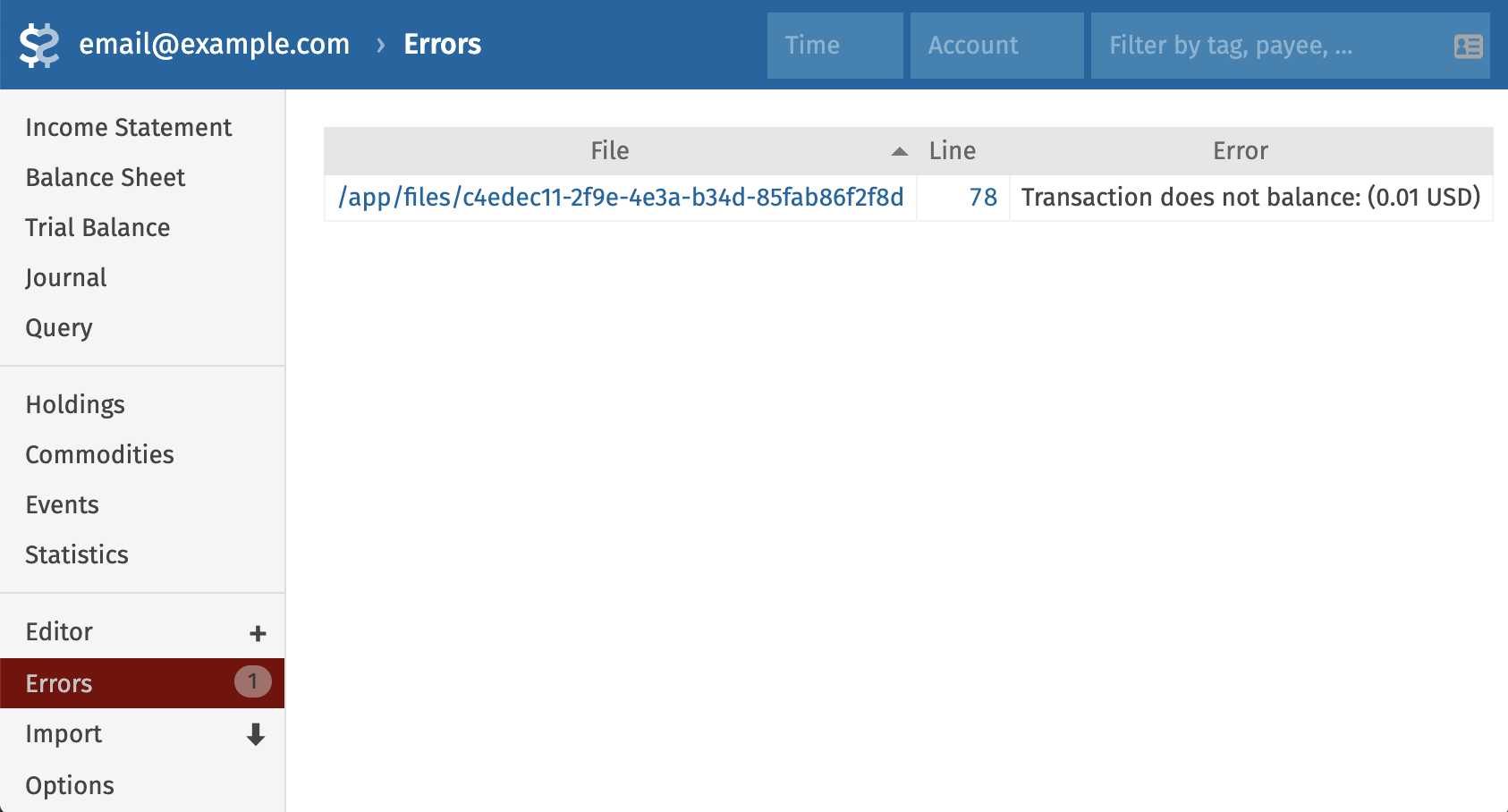
### **Handling Multi-Currency Transactions (`@` and `@@`)**
Beancount excels at multi-currency accounting.
- Use `@` to specify a per-unit conversion price.
- Use `@@` to specify the total cost of the conversion.
```beancount
; Buying a flight in EUR with a USD card
2024-08-01 * "Lufthansa" "Flight to Berlin"
Expenses:Travel:Flights 500.00 EUR @@ 545.00 USD ; 500 EUR cost me 545 USD in total
Liabilities:CreditCard:US:Discover -545.00 USD
```
## Part 4: Ensuring Accuracy - The Art of Reconciliation
A key practice for maintaining an accurate ledger is regular reconciliation. This involves comparing the balances in your Beancount ledger against official statements from your financial institutions.
### **Automating Checks with Balance Assertions (`balance`)**
The `balance` directive is your primary tool for automated checks. You assert that on a given date, an account had a specific balance. Beancount will raise an error if its calculated balance doesn't match your assertion. This is invaluable for quickly locating errors.
**Note:** The balance assertion checks the state of the account _at the beginning_ of the specified day (before any transactions on that day).
```beancount
; From your monthly credit card statement
2024-08-01 balance Liabilities:CreditCard:US:Discover -1432.78 USD
```
### **Linking Supporting Documents (`document`)**
You can link to external files like bank statements or receipts, creating an auditable trail. Fava makes these links clickable.
```beancount
2024-08-01 document Liabilities:CreditCard:US:Discover "statements/discover-2024-07.pdf"
```
### **Correcting Errors and Initializing Balances**
When you start your ledger or find a discrepancy you can't trace, you need to make an adjustment. The standard practice is to use a special `Equity` account.
```beancount
; Initializing a cash account when starting your ledger
2020-01-01 * "Initial Balance" "Setting up cash account"
Assets:Cash:Wallet 200.00 USD
Equity:Opening-Balances -200.00 USD
```
The `Equity:Opening-Balances` account holds amounts that enter your ledger from unknown or external sources.
For quick fixes where the exact discrepancy is unimportant, the `pad` directive can automatically adjust an account's balance to meet a subsequent `balance` assertion, booking the difference to an equity account. **Use this with caution**, as it can hide larger problems. Explicit adjustments are generally safer.
## Part 5: Advanced & Realistic Transaction Patterns
### **Tracking Debts: Managing Receivables and Payables**
Double-entry accounting is perfect for tracking money owed to you (`Assets:Receivables`) or by you (`Liabilities:Payable`).
**Example:** You pay for a group dinner of \$90, and your friend Bob owes you for his \$45 share.
1. **Record the initial expense and the receivable:**
```beancount
2024-08-05 * "Dinner Place" "Dinner with Bob"
Expenses:Food:Restaurant 45.00 USD ; Your share
Assets:Receivables:Bob 45.00 USD ; Bob owes you
Assets:Bank:US:Chase:Checking -90.00 USD
```
2. **When Bob pays you back:**
```beancount
2024-08-06 * "Bob" "Paid me back for dinner"
Assets:Bank:US:Chase:Checking 45.00 USD
Assets:Receivables:Bob -45.00 USD
```
The `Assets:Receivables:Bob` account is now zero, and your books are perfectly balanced.
### **Assets vs. Expenses: A Car Purchase and Depreciation**
A large purchase like a car is not a simple expense; it's the acquisition of an asset that loses value over time (depreciation).
1. **Record the purchase as an asset:**
```beancount
2023-01-15 * "Toyota Dealer" "Purchase of a new car"
Assets:Car:ToyotaCamry 30000.00 USD
Assets:Bank:US:Chase:Checking -30000.00 USD
```
2. **Record annual depreciation:** Assume you estimate the car loses $3,000 in value each year. At the end of the year, you record this as an expense.
```beancount
2023-12-31 * "Depreciation" "Annual car value depreciation"
Expenses:Depreciation:Car 3000.00 USD
Assets:Car:ToyotaCamry -3000.00 USD
```
After this entry, your `Assets:Car:ToyotaCamry` account correctly reflects the car's new value ($27,000), and you've properly accounted for the usage cost as an expense for that year.
## Part 6: Deep Dive - Modeling Complex Real-World Assets
### **Case Study 1: Accounting for Real Estate**
A home is often your largest asset and liability. Here’s how to model it.
1. **Create Accounts and a Custom Commodity:**
```beancount
2022-01-01 commodity HOUSE_123MAIN
name: "Property at 123 Main St"
2022-01-01 open Assets:Property:Home:123Main HOUSE_123MAIN
2022-01-01 open Liabilities:Mortgage:HomeLoan USD
2022-01-01 open Expenses:Home:Interest
2022-01-01 open Expenses:Home:PropertyTax
```
2. **Record the Purchase:** Let's say you buy a $500k house with a $100k down payment and a $400k loan.
```beancount
2022-03-15 * "Settlement Company" "Purchase of 123 Main St"
Assets:Property:Home:123Main 1 HOUSE_123MAIN {500000.00 USD}
Assets:Bank:DownPayment -100000.00 USD
Liabilities:Mortgage:HomeLoan -400000.00 USD
```
3. **Record Monthly Mortgage Payments:** Your monthly payment consists of principal (reduces liability) and interest (an expense).
```beancount
2022-04-01 * "Mortgage Bank" "Monthly Mortgage Payment"
Liabilities:Mortgage:HomeLoan 800.00 USD ; Principal
Expenses:Home:Interest 1200.00 USD ; Interest
Assets:Bank:US:Chase:Checking -2000.00 USD
```
4. **Tracking Appreciation (Unrealized Gains):** A house's market value changes. To track this without affecting your official net worth (as the gain is not realized until you sell), you can use a price directive with a "virtual" currency.
For supported market assets and currency pairs, [Live Prices](https://beancount.io/docs/live-prices) can maintain valuation quotes in a hosted ledger. Individual properties still need your own appraisals and dated prices, as in the example below.
```beancount
; The purchase price is the real cost basis
2022-03-15 price HOUSE_123MAIN 500000.00 USD
; An updated market estimate is an unrealized gain
2024-01-01 price HOUSE_123MAIN 550000.00 USD.UNREALIZED
```
This allows you to see the estimated value in Fava's charts without improperly inflating your balance sheet.
Explore a live real estate example ledger with mortgage tracking, depreciation, and property sale:
### **Case Study 2: Tracking Restricted Stock Units (RSUs)**
RSUs are a common form of equity compensation. Accounting for them involves tracking the initial grant, vesting events, and tax withholding.
1. **Initial Setup:** Create commodities for vested (`HOOL`) and unvested (`HOOL.UNVEST`) stock, along with every account the later entries touch. Declaring all of them up front is what makes the two transactions below load on their own.
```beancount
2021-01-01 commodity HOOL
2021-01-01 commodity HOOL.UNVEST
2021-01-01 open Assets:Brokerage:Etrade:HOOL HOOL
2021-01-01 open Assets:Grant:Unvested HOOL.UNVEST
2021-01-01 open Income:Grant:Awards HOOL.UNVEST
2021-01-01 open Expenses:Grant:Vested HOOL.UNVEST
2021-01-01 open Income:Salary:Hooli:RSU USD
2021-01-01 open Expenses:Taxes:Federal USD
2021-01-01 open Expenses:Taxes:State USD
```
2. **Record the Initial Grant:** This transaction shows the total grant moving into an unvested asset account. Nothing is taxable yet, so the whole entry is denominated in the tracking commodity `HOOL.UNVEST`.
```beancount
2021-02-01 * "Hooli" "Initial RSU Grant"
Assets:Grant:Unvested 1000 HOOL.UNVEST
Income:Grant:Awards -1000 HOOL.UNVEST
```
3. **Record a Vesting Event:** This is the key transaction. When shares vest you recognize income, the employer withholds shares to pay the tax, and you keep the rest. Assume **100 shares vest at $150.00**, so:
- Gross compensation: 100 × $150.00 = **$15,000.00**
- Shares withheld for tax: 40 × $150.00 = **$6,000.00** (federal $4,800.00 + state $1,200.00)
- Shares you keep: 60 × $150.00 = **$9,000.00** of cost basis
- Cash to you: **$0.00** — the whole withholding is paid in shares
Those amounts are the entry, and they reconcile: $6,000.00 of tax plus $9,000.00 of retained stock is exactly the $15,000.00 of income.
```beancount
2022-02-01 * "Hooli" "RSU Vesting Event"
; Ordinary income: 100 shares * $150.00
Income:Salary:Hooli:RSU -15000.00 USD
; Tax withheld, funded by 40 of the 100 shares (40 * $150.00 = $6,000.00)
Expenses:Taxes:Federal 4800.00 USD
Expenses:Taxes:State 1200.00 USD
; The 60 shares you keep, at their $150.00 vesting-day basis
Assets:Brokerage:Etrade:HOOL 60 HOOL {150.00 USD}
; Retire the 100 unvested units the grant was tracking
Assets:Grant:Unvested -100 HOOL.UNVEST
Expenses:Grant:Vested 100 HOOL.UNVEST
```
This single, balanced transaction models the entire event: the unvested grant is reduced, income is recognized, tax is withheld, and the 60 net vested shares appear in your brokerage account with the correct cost basis for future capital gains calculations.
Two details are worth copying into your own ledger. First, **write the withholding out account by account** rather than letting a catch-all balancing account absorb it — if the federal and state postings do not sum to the value of the withheld shares, the transaction will not balance and Beancount will tell you so. Second, do not leave a blank line between postings: a blank line ends the transaction, and Beancount reports a syntax error on the postings that follow it.
If your employer sells the withheld shares on the open market instead of taking them back at the vesting price, the sale is a separate transaction — a reduction of `Assets:Brokerage:Etrade:HOOL` against cash — and any difference between the sale price and the $150.00 basis is a small capital gain or loss. Keep it out of the vesting entry.
## Part 7: Project Management for Your Ledger
As your ledger grows, organization becomes key.
### **Using Version Control (Git) to Safeguard Your Data**
Since your ledger is a text file, it's perfect for version control with Git. This gives you a complete history of all changes, protecting you from accidental deletions or mistakes. **Warning:** Your financial data is highly sensitive. Use a private repository on services like GitHub/GitLab, or host your own.
### **Organizing with Tags (`#`) and Links (`^`)**
Beancount provides two ways to group transactions beyond accounts:
- **Tags (`#`):** Use for events or projects. You can filter all transactions related to a specific trip, for example.
`2024-07-20 * "Hotel" "Vienna" #trip-europe-2024`
- **Links (`^`):** Use to connect financially related transactions that occur at different times, such as a cash withdrawal and the associated bank fee.
### **A Scalable Strategy for Structuring Your Files (`include`)**
A single, massive file is hard to manage. Use the `include` directive to [split your ledger into multiple files](https://beancount.io/docs/Tips/multi-file-support).
`main.bean`:
```beancount
; Main ledger file
; Global options
option "title" "My Personal Ledger"
option "operating_currency" "USD"
; Include account declarations and other files
include "accounts.bean"
include "years/2023.bean"
include "years/2024.bean"
include "events/trip-europe-2024.bean"
```
A robust organizational strategy, in order of precedence:
1. **By Event:** Create a separate file for a major, self-contained event (e.g., `trip-europe-2024.bean`).
2. **By Category/Payee:** For highly regular, recurring transactions like utility bills or salary, group them in their own file (e.g., `recurring-rent.bean`).
3. **By Account:** For transactions tightly coupled to a specific account (interest, fees, credit card payments), consider an account-specific file.
4. **By Date:** For all other general transactions, a simple split by year (`2024.bean`) or month (`2024/07.bean`) is effective.
## Part 8: Conclusion
Beancount offers a steep learning curve but rewards the effort with unparalleled power, flexibility, and control over your financial data. By embracing the principles of double-entry accounting and the practical tools Beancount provides, you can move from simple expense tracking to a complete, accurate, and insightful system of personal financial management. Your ledger becomes a permanent, private, and invaluable asset for understanding your past and planning your future.
## Getting Started with Beancount.io
Beancount.io is a [modern cloud-based financial management platform](/blog/2019/09/07/introduction-to-beancount) that transforms your text-based transaction records into comprehensive financial statements, including income statements, balance sheets, and trial balances. By combining the reliability of plain text files with powerful visualization tools, Beancount.io helps you maintain precise control over your financial life while gaining valuable insights into your investment performance.
[Start your financial journey with Beancount.io](https://beancount.io/sign-up/?next=%2Fledger%2F) — see [current plans and pricing](/pricing) for what each tier includes.

*[Explore the live ledger →](https://beancount.io/ledger/open_ledger/example)*

*[Explore the live ledger →](https://beancount.io/ledger/open_ledger/apple/income-statement)*
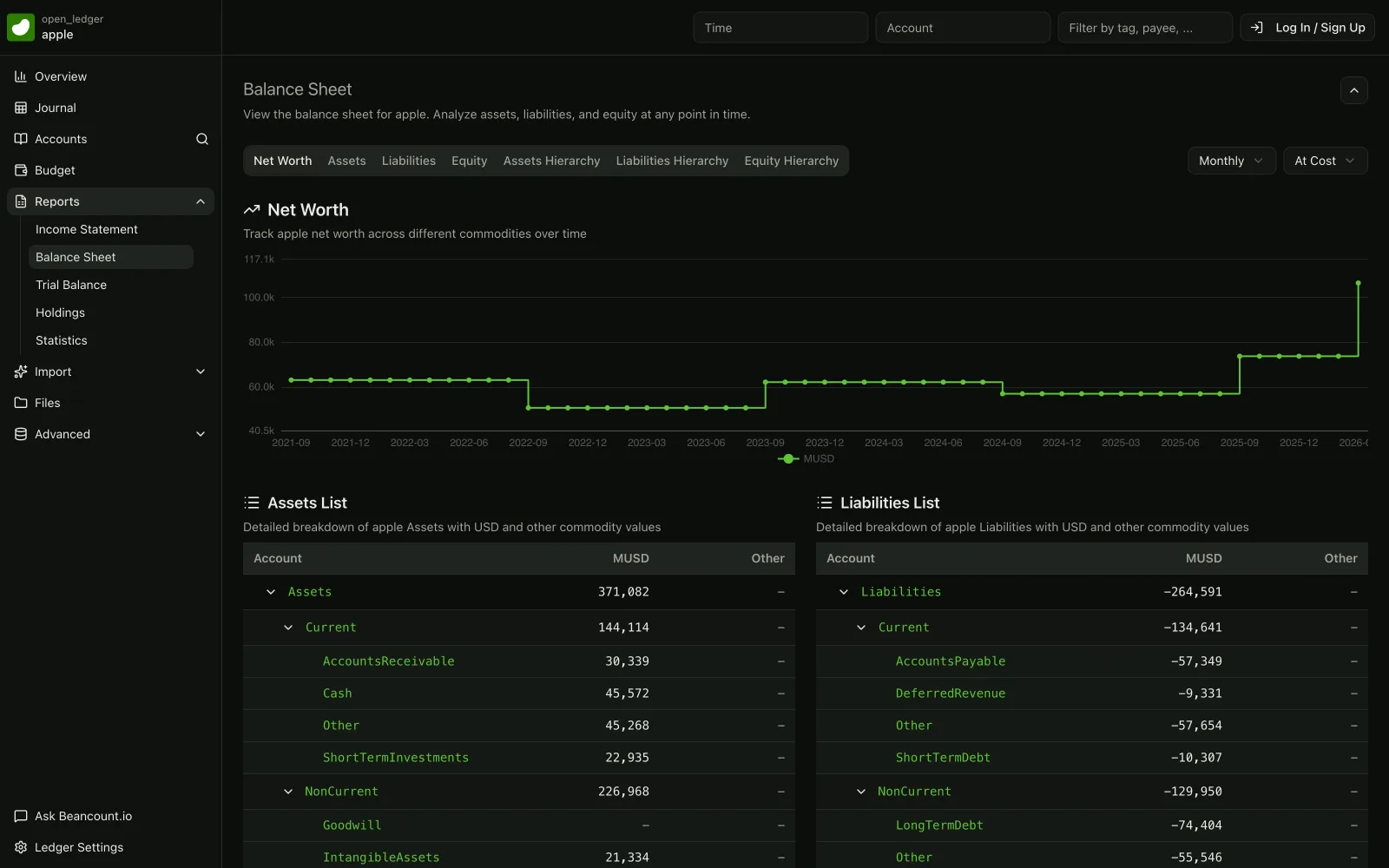
*[Explore the live ledger →](https://beancount.io/ledger/open_ledger/apple/balance-sheet)*
## Set up automatic prices in Beancount
Canonical: https://beancount.io/docs/live-prices
Content type: how-to
Use [Live Prices](/live-prices) to add automatically refreshed valuation prices to a hosted Beancount.io ledger. Managed feeds supply dated `price` directives for supported crypto, stocks, funds, and foreign currencies. You keep recording purchases, sales, and transfers as usual.
## Choose your price sources
1. Open the [price-source picker](/live-prices#price-picker).
2. Choose the currency in which you want to value your assets.
3. Select your assets from the shortcuts or search by symbol, such as `BTC` or `AAPL`. You can also paste a ledger excerpt to find its assets; the excerpt stays in your browser.
4. Check that each asset symbol matches the commodity in your ledger. The picker generates includes for listed pairs. An unlisted pair may support on-demand derivation, but the picker leaves it out until support is confirmed.
5. Copy the generated includes. Sign in to Beancount.io to use your hosted ledger and inspect feeds that require authentication.
Choose the valuation currency for your books, not for the language of this page. Selecting a quote currency does not rename commodities or change your transactions.
## Include the feeds in your hosted ledger
Paste the generated lines into `main.bean`, or another file your ledger already includes. Each line identifies one price source. For example, the hosted include for Bitcoin in US dollars is shown commented out below so this example remains safe to load with upstream Beancount:
```beancount
; Hosted Beancount.io ledger: remove the leading semicolon to enable this feed.
; include "https://beancount.io/prices/BTC-USD"
```
Remove the leading `;` when adding the line to your hosted ledger. URL includes are a Beancount.io extension. Ordinary local includes still take filenames, as described in [multi-file support](https://beancount.io/docs/Tips/multi-file-support).
Open your ledger as usual. Its loader resolves managed feeds into read-only price entries. It checks for new data when the ledger loads after the five-minute refresh window. Refreshing prices does not rewrite your source files or create ledger commits. Managed price entries do not count toward your ledger's entry limit.
## Read prices and valuations
A feed contains dated prices and may include `price-source`, `price-kind`, `observed-at`, and `provisional` metadata. Inspect the observation time and price kind when judging a quote. The loader's refresh time is not the provider's observation time.
These are automatically refreshed valuation prices, not streaming trading quotes. A report needs a price for the relevant commodity pair on or before its valuation date. Today's price cannot fill a gap in an earlier report.
Prices make market valuation possible in tools and reports that use price directives. An account view showing cost will still show cost; connecting a feed does not switch that view to market value. See the [query guide](https://beancount.io/docs/Basics/beancount-query-language) for the distinction between cost and market valuation.
A price refresh does not change quantities, purchase costs, cash flows, fees, or realized gains recorded in your ledger. It also does not fill in a transaction's `@` price or `{cost}`. Record those from the transaction itself. Property appraisals, fictional example commodities, and assets without a supported feed still need your own dated prices.
## Override a managed price
Write your own dated `price` directive in an editable ledger file when you need a particular valuation. For the same date and commodity pair, your price takes precedence over the managed feed. This also applies to the reciprocal pair and does not depend on include order.
A manual price is not a permanent lock: a managed quote on a later date can still be used for a later valuation. Managed entries themselves are read-only. Edit your own price directive, or remove the include to stop using that feed.
## Use prices with local tools
| Where you load the ledger | How to supply prices |
| --- | --- |
| Hosted Beancount.io | Use the managed URL includes from the picker. |
| A compatible `bea` CLI version | Follow the CLI's managed-price instructions for URL resolution and exporting local price files. |
| Upstream Beancount or Fava | Load local price files; these tools do not fetch URL includes themselves. |
For version-specific CLI behavior, use the [bea managed-price guide](https://github.com/bex-co/beancount-io/blob/main/cli/docs/USAGE.md#managed-price-includes). Compatible versions offer `bea price status`, `bea price refresh`, and `bea price export --output audit`. Use `bea --offline balance` for cache-only reads or `bea --strict-prices check` to reject stale or unavailable sources. See the [CLI reference](https://beancount.io/docs/bea-cli-reference) for details and the alternative local Beanprice workflow.
The CLI fetches without credentials and refuses redirects. A feed that redirects to the hosted login is not available to a fresh CLI fetch, even if you are signed in through your browser. Use a reachable supported feed or local dated prices instead. Older CLI versions may treat any URL include as an unmatched file glob.
Keep local dated price files when you need a reproducible offline report. A ledger commit alone does not capture the managed feed revision used by a past valuation. Preserve the prices used alongside the ledger and report.
For integrations with the price service, consult the [Prices API reference](https://beancount.io/docs/prices-api-reference). Its endpoints are separate from adding an include to a hosted ledger.
## Troubleshoot a missing or unexpected valuation
| Symptom | What to check |
| --- | --- |
| The catalog does not load | Retry the picker. Do not guess an include URL from an unsupported symbol. |
| A selected asset is left out of the copied includes | Check support for that asset in your chosen quote currency and match the ledger's symbol. |
| Opening a feed redirects to login | Sign in to inspect it in the hosted workflow. The CLI does not send that session and refuses redirects. |
| Prices look old | Compare the observation time with the report date. A failed refresh can retain a previously validated cached feed; cached data may be stale. |
| No price is available | With no validated cached price, the books can still load, but the holding may lack a market valuation. Supply a suitable manual price if needed. |
| Your manual price appears ignored | Check the exact date and pair. A later managed quote can apply to a later report. |
| A local loader reports an unmatched include | Use a compatible `bea` version or replace the URL include with a local price file. |
| The account value has not changed | Check whether the view shows cost and whether the report has prices covering its valuation date. |
See the [price syntax reference](https://beancount.io/docs/Basics/syntax) for manual directives and the [working ledger examples](https://beancount.io/docs/examples) for static, reproducible investment records.
## Model a public company in Beancount
Canonical: https://beancount.io/docs/model-a-public-company-in-beancount
Content type: how-to
Turn a filing's balance sheet and income statement into a balanced Beancount ledger with the same conventions every [Open Ledger](/open-ledger) company uses.
This guide models PepsiCo’s quarterly income statement and a partial balance-sheet excerpt from the [PepsiCo Q2 2026 earnings release](https://investors.pepsico.com/docs/pepsico-5v9wci20/media/Files/investors/q2-2026-earnings-release.pdf). Use the 12-week column ending June 13, 2026 on printed page A-1 (PDF page 6), and the same-date balance sheet on A-4 (PDF page 9). The release was published July 9, 2026. Every figure stays in millions of US dollars (`MUSD`).
## What you get
You finish with five balance assertions and one zero-sum income-statement transaction. `bea check` passes. The income statement reproduces consolidated net income; the balance-sheet excerpt covers current assets and one combined current-liability line. It is not a complete company balance sheet. The same pattern powers every company on the [Open Ledger](/open-ledger) and every post under the [open-ledger](/blog/tags/open-ledger) tag.
## Pick the unit and fiscal year
Set `operating_currency` to a millions unit that matches the filing. Use `MUSD` for US-dollar reporters. Use `MEUR`, `MJPY`, or another `M` form when the filing reports in that currency.
One `MUSD` means USD 1,000,000. A balance of `10251 MUSD` means \$10.251 billion of cash.
The reported quarter contains 12 weeks, or 84 days, through June 13, 2026. Counting inclusively gives March 22–June 13, 2026. Use those fiscal dates rather than April–June. The balance sheet’s prior-year column is December 27, 2025; do not replace fiscal year ends with December 31.
Put each fiscal period in its own file under a year directory. Name annual files `FY2025/FY2025.bean`. Name quarterly files `FY2026/FY2026Q2.bean`. Include them from `main.bean` oldest first.
## Open the chart of accounts
`main.bean` holds options, account opens, and includes. It holds no balances and no income entries.
Open every account on `1970-01-01` in `MUSD`. Keep the core names identical across companies so readers can diff one ledger against another.
```beancount
option "title" "PepsiCo, Inc. FY2026Q2 income statement and partial balance sheet"
option "operating_currency" "MUSD"
; Currency convention:
; MUSD = Millions of USD (custom unit for readability)
; 1 MUSD = USD 1,000,000
; Example: "1000 MUSD" means USD 1,000,000,000
; Source: PepsiCo Q2 2026 earnings release, A-1 and A-4.
; Fiscal quarter: 2026-03-22 through 2026-06-13 (12 weeks).
; Partial balance sheet: current assets and combined payables only.
; ── ASSETS ──────────────────────────────────────────────────────────────────
1970-01-01 open Assets:Current:Cash MUSD
1970-01-01 open Assets:Current:ShortTermInvestments MUSD
1970-01-01 open Assets:Current:AccountsReceivable MUSD
1970-01-01 open Assets:Current:Other MUSD
1970-01-01 open Assets:NonCurrent:PropertyPlantEquipment MUSD
1970-01-01 open Assets:NonCurrent:Goodwill MUSD
1970-01-01 open Assets:NonCurrent:IntangibleAssets MUSD
1970-01-01 open Assets:NonCurrent:Other MUSD
; ── LIABILITIES ─────────────────────────────────────────────────────────────
1970-01-01 open Liabilities:Current:AccountsPayable MUSD
1970-01-01 open Liabilities:Current:ShortTermDebt MUSD
1970-01-01 open Liabilities:Current:DeferredRevenue MUSD
1970-01-01 open Liabilities:Current:Other MUSD
1970-01-01 open Liabilities:NonCurrent:LongTermDebt MUSD
1970-01-01 open Liabilities:NonCurrent:Other MUSD
; ── EQUITY ──────────────────────────────────────────────────────────────────
1970-01-01 open Equity:OpeningBalance MUSD ; opening balances when needed
1970-01-01 open Equity:Adjustments MUSD ; balancing offset for this statement model
1970-01-01 open Equity:CommonStockAndAPIC MUSD
1970-01-01 open Equity:RetainedEarnings MUSD
1970-01-01 open Equity:OtherComprehensiveIncome MUSD
; ── INCOME ──────────────────────────────────────────────────────────────────
1970-01-01 open Income:Revenue MUSD
1970-01-01 open Income:OtherNet MUSD ; net other income (interest income, etc.)
; ── EXPENSES ────────────────────────────────────────────────────────────────
1970-01-01 open Expenses:CostOfRevenue MUSD
1970-01-01 open Expenses:ResearchAndDevelopment MUSD
1970-01-01 open Expenses:SellingGeneralAdministrative MUSD
1970-01-01 open Expenses:OtherNet MUSD
1970-01-01 open Expenses:IncomeTax MUSD
include "FY2026/FY2026Q2.bean"
```
The chart provides account names for other companies and later extensions. Unused accounts do not imply a reported zero. Only the accounts posted below have amounts mapped in this example. `…:Other` accounts need an explicit source line or residual calculation; they are not a license to invent a split.
## Assert the balance sheet with pad and balance
Pad from `Equity:Adjustments` on the day before period end. Assert the filing's value on the period-end date. Write one pad and balance pair per account.
Assets carry positive balances. Liabilities carry negative balances. These five assertions map the June 13, 2026 column on A-4:
| Account | Source mapping (MUSD) |
| --- | --- |
| `Assets:Current:Cash` | Cash and cash equivalents: 10,251 |
| `Assets:Current:ShortTermInvestments` | Short-term investments: 465 |
| `Assets:Current:AccountsReceivable` | Accounts and notes receivable, net: 13,496 |
| `Assets:Current:Other` | Total current assets 32,775 − 10,251 − 465 − 13,496 = 8,563; inventories 6,734 + prepaid and other current assets 1,829 |
| `Liabilities:Current:Other` | Combined accounts payable and other current liabilities: −24,504 |
The release does not split the last line into standalone accounts payable and other liabilities. Keep the aggregate together; do not post an invented amount to `Liabilities:Current:AccountsPayable`.
```beancount
; PepsiCo, Inc. FY2026Q2 — 2026-03-22 through 2026-06-13; MUSD
; Source: https://investors.pepsico.com/docs/pepsico-5v9wci20/media/Files/investors/q2-2026-earnings-release.pdf
; A-4, 2026-06-13 column: partial balance-sheet snapshot
2026-06-12 pad Assets:Current:Cash Equity:Adjustments
2026-06-13 balance Assets:Current:Cash 10251 MUSD
2026-06-12 pad Assets:Current:ShortTermInvestments Equity:Adjustments
2026-06-13 balance Assets:Current:ShortTermInvestments 465 MUSD
2026-06-12 pad Assets:Current:AccountsReceivable Equity:Adjustments
2026-06-13 balance Assets:Current:AccountsReceivable 13496 MUSD
2026-06-12 pad Assets:Current:Other Equity:Adjustments
2026-06-13 balance Assets:Current:Other 8563 MUSD ; 32775 - 10251 - 465 - 13496 = 6734 + 1829
2026-06-12 pad Liabilities:Current:Other Equity:Adjustments
2026-06-13 balance Liabilities:Current:Other -24504 MUSD ; combined payables and other current liabilities
```
Beancount checks a balance at the start of its date. The prior-day pads create synthetic snapshot entries, not actual cash movements on June 12. This example has no later asset or liability postings on June 13, so the asserted amounts also remain its closing balances.
This excerpt omits noncurrent assets, short-term debt and the remaining liabilities and equity. A complete model must map those lines too, including treasury stock and noncontrolling interests. The filing’s complete totals are assets 112,189 = liabilities 89,919 + equity 22,270 MUSD; the excerpt does not reproduce those totals. `Equity:Adjustments` is a balancing offset, not reported shareholders’ equity. Start each period file with a banner naming the company, fiscal window, unit and source URL.
## Record the income statement as one transaction
Date the transaction on the fiscal period end. Income postings are negative. Expense postings are positive. `Equity:Adjustments` absorbs net income so the entry sums to zero.
Put the arithmetic check in a comment above the transaction. The check must evaluate to zero before you trust the entry.
```beancount
; Check: -24181 + 11070 + 9088 + 171 + 848 + 3004 = 0
2026-06-13 * "PepsiCo, Inc." "FY2026Q2 Income Statement"
Income:Revenue -24181 MUSD
Expenses:CostOfRevenue 11070 MUSD
Expenses:SellingGeneralAdministrative 9088 MUSD
Expenses:OtherNet 171 MUSD ; 230 expense - 59 pension income
Expenses:IncomeTax 848 MUSD
Equity:Adjustments 3004 MUSD ; consolidated net income offset
```
Map A-1’s quarterly column as follows: revenue 24,181 minus cost of sales 11,070 gives gross profit 13,111. Subtract selling, general and administrative expenses of 9,088 to get operating profit 4,023; the impairment line is zero. The release does not disclose a separate quarterly R&D line, so leave `Expenses:ResearchAndDevelopment` unused.
Pension and retiree medical benefits income of 59 offsets net interest expense and other of 230. Post their net expense, 171, to `Expenses:OtherNet`. This gives pretax income of 3,852. Tax of 848 leaves **consolidated net income of 3,004 MUSD**. If the same aggregation instead yields net income in another period, use `Income:OtherNet` for the aggregate and leave `Expenses:OtherNet` unused.
The release also reports net income attributable to PepsiCo of 2,981 MUSD. The bridge is 3,004 − 23 attributable to noncontrolling interests = 2,981. This transaction models the consolidated measure; the 23 is an allocation of profit, not another expense. Do not substitute 2,981 as its balancing offset.
## Validate and read the reports
Run a check on the root ledger:
```bash
bea --file main.bean check
```
A clean ledger exits 0 with no output. Prefer `bea --json --no-input --file main.bean check` when you want machine-readable validity and require `data.valid: true`.
Read the income statement for the company's fiscal window, not a calendar quarter that happens to share the label:
```bash
bea --json --no-input --file main.bean report income-statement --time '2026-03-22 - 2026-06-13'
```
Open the same file in Fava to browse the balance sheet and income statement. Check arithmetic and source agreement separately: the `; Check:` comment sums to zero, each posted amount matches its mapped source, and the report shows consolidated net income of 3,004 MUSD. A wrong revenue amount can still balance if the offset is also wrong. Only after extending this excerpt into a complete model should its balance-sheet totals equal the filing’s totals.
## Start from the template
Clone the shape before you invent a new chart. The live template below is a fictional Example Industries Inc. FY2025 ledger in `MUSD`. It uses the same account names, pad and balance pattern, and single income-statement transaction.
Download the real PepsiCo excerpt as public-company-starter.bean, then run `bea --file public-company-starter.bean check`. It combines the three Beancount fences above, separately from the fictional live template. Cash ends at 10251 MUSD, combined payables and other current liabilities at -24504 MUSD, Revenue at -24181 MUSD, and Income Tax at 848 MUSD. The five pads offset 32775 − 24504 = 8271 MUSD to `Equity:Adjustments`; adding the consolidated profit offset leaves -5267 MUSD there. That offset is not a filing line. The download is a partial balance-sheet example, not PepsiCo’s full ledger. Replace its figures and fiscal dates with your own source mappings.
Browse every real company on the [Open Ledger](/open-ledger). Copy the template's structure, then replace the fictional amounts with figures from your filing.
## Where to go next
- Study more live company ledgers on the [Open Ledger](/open-ledger).
- Read earnings walkthroughs under the [open-ledger](/blog/tags/open-ledger) tag.
- Copy personal-finance patterns from [Working Ledger Examples](https://beancount.io/docs/examples) when you need a household or freelance starter instead of a 10-K.
- Review [Financial Reporting Templates](https://beancount.io/docs/financial-reporting-templates) for income-statement and balance-sheet report shape in smaller books.
## Delete your Beancount.io account and data
Canonical: https://beancount.io/docs/request-to-delete-account
Content type: how-to
At Beancount.io, we value your privacy and ensure that your personal information is handled with care. If you decide that you no longer wish to use our services and would like your account and associated data deleted, you can do so directly from the dashboard.
## Steps to Delete Your Account:
You can delete your account directly from the dashboard:
1. **Navigate to Settings**
Log in to your Beancount.io dashboard and click on **Settings** in the navigation menu.
2. **Go to General Settings**
Select **General** from the settings sidebar.
3. **Access the Danger Zone**
Scroll down to the **Danger Zone** section at the bottom of the page.
4. **Delete Your Account**
Click the **Delete Account** button and confirm your action. Your account and all associated data will be permanently deleted immediately.
:::warning
This action is immediate and cannot be undone. All your data will be permanently deleted.
:::
## What Happens to Your Data?
### Data That Will Be Deleted:
- Personal information including:
- Your name and contact details
- Email address
- Account credentials
- Your financial ledger data
- Transaction history
- User preferences and settings
- Any uploaded documents or files
### Data That May Be Retained:
Deleting your account removes your personal data from our live systems. A few narrow categories can still exist afterward, and none of them let us restore your account:
- **Anonymized usage statistics**: Aggregate analytics used to improve the service. These are not linked to your identity and cannot be traced back to you.
- **Records held by third-party providers**: Some records live with our processors rather than in your account — for example, your payment provider keeps its own record of past payments to meet its legal and tax obligations. Those are governed by that provider's policies and by law, independent of your account deletion.
- **Routine system backups**: Where operational backups exist, they are maintained by our infrastructure for disaster recovery, are not used to restore deleted accounts, and are overwritten in the normal backup rotation. We do not keep a separate copy of your data on a delayed-deletion schedule.
### Data Retention Period:
- Deletion is **immediate and permanent**. When you confirm, your account, ledger data, and the underlying repositories are removed from our live systems in the same step — there is no soft-delete, no grace period, and no self-service way to recover the account afterward.
- Because the removal is immediate rather than staged, there is no multi-day retention window on our side. The only lingering copies are the third-party and backup categories above, which follow their own providers' policies and rotation rather than an account-deletion timeline.
At Beancount.io, our goal is to ensure a secure, transparent process that respects your privacy rights. If you have any questions about the account deletion process or our data retention policies, please [contact our support team](https://beancount.io/docs/help-center).
## Give your AI agent a Beancount ledger with bea
Canonical: https://beancount.io/docs/Solutions/accounting-with-ai-agents
Content type: how-to
Hand an external AI agent two bookkeeping jobs and keep every ledger change under your review: import a bank CSV with a preview-first check, then answer a balance question from query and report output.
Install `bea` with the [CLI quick start](https://beancount.io/docs/Basics/bea-cli). Local import, query, and report commands need no Beancount.io account. Your chat agent needs only its own subscription or API key. Only the built-in `bea ask` helper needs hosted credentials, and these recipes do not use it.
Choosing between tools? [Five accounting tools for AI agents](/compare/best-accounting-tools-for-ai-agents) compares Beancount.io, hledger, Xero, QuickBooks Online and Puzzle on the same agent-workflow criteria, with dated sources.
## What the agent does and what bea does
The agent proposes categories and drafts queries. Bea validates the ledger structure and computes the totals. You run every command below yourself. The agent never writes your ledger directly.
## Recipe 1: import a statement with agent-proposed categories
Turn a bank export into validated entries. The agent suggests the categorization rules. Preview and duplicate review decide what gets written.
### Prerequisites
You need `bea` and a fresh demo directory. No account and no Python importer.
### Prepare the inputs
Create the directory and the ledger. Explicit `--file` targets keep every command pointed at the demo books.
```bash
mkdir ai-agent-demo && cd ai-agent-demo
bea --no-input init books --currency USD --date 2026-08-01 --opening-balance "Assets:Checking 1000"
bea --file books/main.bean add open --date 2026-08-01 --account Expenses:Transport:Fuel -c USD
```
Save this sample as `statement.csv`:
```csv
Date,Payee,Narration,Amount
2026-08-02,Whole Foods,groceries,-20.00
2026-08-03,Shell,gas,-40.00
2026-08-04,Unknown Shop,mystery,-9.99
```
Save these categorization rules as `rules.toml`:
```toml
[[rule]]
match = "whole foods|trader joe|corner market"
account = "Expenses:Groceries"
[[rule]]
match = "shell|chevron|exxon"
account = "Expenses:Transport:Fuel"
```
### Copy the task prompt
Paste this prompt to your external agent along with the CSV contents:
```text
Propose Beancount categorization rules for my bank CSV rows.
Suggest one TOML rule per merchant with a match pattern and a
destination expense account. Never change dates, payees, or amounts.
Leave rows you cannot categorize confidently unmatched: they post to
Expenses:Uncategorized with flag ! for my review. I run bea import
preview and apply locally. You do not write my ledger.
```
### Run the CLI equivalents
Preview first, then apply the reviewed entries and verify the result:
```bash
bea --file books/main.bean import statement.csv --csv date=Date,amount=Amount,payee=Payee,narration=Narration --account Assets:Checking --rules rules.toml
bea --file books/main.bean import statement.csv --apply
bea --file books/main.bean check
bea --file books/main.bean list transaction --flag '!'
bea --file books/main.bean query "SELECT account, sum(position) WHERE account = 'Assets:Checking' GROUP BY account"
```
### Check the expected output
The preview reports `3 ready, 0 exact duplicates, 0 possible duplicates` and exits 0. It writes nothing. The apply run reports `Wrote 3 entries`. The check reports no errors. The `!` queue lists the one unmatched row from `Unknown Shop` at `-9.99 USD`. The balance query reports `930.01 USD` in checking. Repeating the apply reports `0 ready, 3 exact duplicates` and writes 0 entries.
### Review and correct
Recategorize the `!` row deliberately in your ledger after reading it. A passing check only proves the ledger balances. It says nothing about whether `Expenses:Uncategorized` is the right account. For duplicate policy, conflict handling, and the advanced Python path, follow the [bank CSV walkthrough](https://beancount.io/docs/Solutions/import-bank-exports-cli).
## Recipe 2: answer a balance question without writes
Answer one question from the demo books: how much went to groceries and fuel in August 2026. The agent drafts the query. Read-only commands produce the answer.
### Prerequisites
You need the demo ledger from recipe 1 or your own books. Every command below is read-only.
### Copy the task prompt
Paste this prompt to your external agent:
```text
Draft a Beancount query (BQL) that answers: how much did I spend on
groceries and fuel in August 2026. Use my account names exactly as
listed by bea list open. Propose read-only commands only: bea query
or bea report with an explicit --file target. Do not propose ledger
edits to fix a surprising total. A surprising total means the query
or the books need review, not a compensating entry.
```
### Run the CLI equivalents
Run the drafted query against an explicit ledger target, then cross-check with a report:
```bash
bea --file books/main.bean query "SELECT account, sum(position) WHERE account ~ 'Expenses' GROUP BY account"
bea --file books/main.bean report income-statement --time 2026-08
```
Machine consumers add the global `--json` flag before the subcommand:
```bash
bea --file books/main.bean --json query "SELECT account, sum(position) WHERE account ~ 'Expenses' GROUP BY account"
```
JSON envelopes, exit codes, and global flag placement follow the [CLI reference](https://beancount.io/docs/bea-cli-reference). The [query language guide](https://beancount.io/docs/Basics/beancount-query-language) documents the full BQL surface.
### Check the expected output
The query reports `20.00 USD` for `Expenses:Groceries`, `40.00 USD` for `Expenses:Transport:Fuel`, and `9.99 USD` for `Expenses:Uncategorized`. Groceries plus fuel is `60.00 USD`. The income statement agrees: `69.99 USD` of August expenses with a net profit of `-69.99 USD`. The JSON variant returns the same rows inside `data.rows` with column metadata in `data.columns`.
### Review and correct
A query against a wrong account name prints `(no rows)` on stderr and still exits 0. Compare the name with `bea list open` output and run the query again. Never correct a surprising total by editing the ledger to match the answer. Fix the query or fix the books, then re-run `bea check`.
## First challenge: balance three synthetic rows
A portable first challenge with explicit inputs and an independently derived answer. Download the three files below, run the import, and check the two totals. No account and no product checkout.
Open books on 2026-09-01 in USD with 1000 USD in checking. Post three September rows: a 2000.00 USD client payment, a 29.00 USD hosting bill, and a 12.50 USD cafe visit. Checking ends at `2958.50 USD`, from 1000 + 2000 - 29 - 12.50. September profit is `1958.50 USD`, from 2000 - 29 - 12.50. Both expectations come from that arithmetic, not from report output.
### Prepare the inputs
Create the directory and open the two accounts the template does not carry. `Expenses:Dining` already comes from the CLI template.
```bash
mkdir agent-challenge && cd agent-challenge
bea --no-input init books --currency USD --date 2026-09-01 --opening-balance "Assets:Checking 1000"
bea --file books/main.bean add open --date 2026-09-01 --account Income:Consulting -c USD
bea --file books/main.bean add open --date 2026-09-01 --account Expenses:Software -c USD
```
Those three commands produce the ledger below. Download it as main.bean instead of typing it.
```beancount
option "title" "Personal ledger"
option "operating_currency" "USD"
; Add more accounts with bea add open. Amounts on credit accounts are negative.
; bea import books rows it cannot categorize to Expenses:Uncategorized with flag '!'.
2026-09-01 open Assets:Checking USD
2026-09-01 open Assets:Savings USD
2026-09-01 open Assets:Cash USD
2026-09-01 open Liabilities:CreditCard USD
2026-09-01 open Income:Salary USD
2026-09-01 open Income:Interest USD
2026-09-01 open Expenses:Groceries USD
2026-09-01 open Expenses:Dining USD
2026-09-01 open Expenses:Rent USD
2026-09-01 open Expenses:Transport USD
2026-09-01 open Expenses:Utilities USD
2026-09-01 open Expenses:Fees USD
2026-09-01 open Expenses:Uncategorized USD
2026-09-01 open Equity:OpeningBalances USD
2026-09-01 * "Opening balances"
Assets:Checking 1000 USD
Equity:OpeningBalances -1000 USD
2026-09-01 open Income:Consulting USD
2026-09-01 open Expenses:Software USD
```
Save this statement as `statement.csv`, or download it as statement.csv:
```csv
Date,Payee,Amount
2026-09-02,Client,2000.00
2026-09-03,Hosting,-29.00
2026-09-04,Cafe,-12.50
```
Save these rules as `rules.toml`, or download it as rules.toml. Each rule names an account the starter ledger opens.
```toml
[[rule]]
match = "client"
account = "Income:Consulting"
[[rule]]
match = "hosting"
account = "Expenses:Software"
[[rule]]
match = "cafe"
account = "Expenses:Dining"
```
### Run the challenge
Preview first, then apply and verify. Amounts, dates, field names, and account names are identical in every locale. Only the prose around them is translated.
```bash
bea --file books/main.bean import statement.csv --csv date=Date,amount=Amount,payee=Payee --account Assets:Checking --rules rules.toml
bea --file books/main.bean import statement.csv --csv date=Date,amount=Amount,payee=Payee --account Assets:Checking --rules rules.toml --apply
bea --file books/main.bean check
bea --file books/main.bean query "SELECT account, sum(position) WHERE account = 'Assets:Checking' GROUP BY account"
bea --file books/main.bean report income-statement --time 2026-09
```
### Check the expected output
The preview reports `3 ready, 0 exact duplicates, 0 possible duplicates` and exits 0. The apply run reports `Wrote 3 entries`. The check reports no errors. The balance query holds `2958.50 USD` in checking. The income statement shows `2000.00 USD` of Consulting income against `41.50 USD` of expenses, for a net profit of `1958.50 USD`. Repeating the apply reports `0 ready, 3 exact duplicates` and writes 0 entries.
## When a recipe becomes a repeat job
The prompts above suit one-off tasks driven by hand. Jobs you repeat weekly suit the versioned skills in the product repository. Each link below opens the skill's current source, which carries its own setup and trigger instructions. This CMS keeps no copy of these files.
- Start a fresh ledger from an empty directory with [beancount-init](https://github.com/bex-co/beancount-io/tree/main/skills/.claude/skills/beancount-init). It creates the ledger file, a Fava runner, and a Python project.
- Turn a bank export into categorized entries with [beancount-import](https://github.com/bex-co/beancount-io/tree/main/skills/.claude/skills/beancount-import). It stages every row, suggests categories from ledger history, skips rows already imported, and writes only after confirmation. Recipe 1 above is the manual form of this job.
- Prove one account matches its statement with [beancount-reconcile](https://github.com/bex-co/beancount-io/tree/main/skills/.claude/skills/beancount-reconcile). It diffs the ledger against the statement and lands a period-end balance assertion after confirmation.
- Answer a question from the books with [beancount-ask](https://github.com/bex-co/beancount-io/tree/main/skills/.claude/skills/beancount-ask). It runs read-only queries and shows each query beside its figure. Recipe 2 above is the manual form of this job.
- Close out a month with [beancount-close](https://github.com/bex-co/beancount-io/tree/main/skills/.claude/skills/beancount-close). It reconciles every active account, checks recurring entries and review flags, and records the close as a commit.
The full collection lives in the [canonical skills tree](https://github.com/bex-co/beancount-io/tree/main/skills/.claude/skills).
## Give a shell-capable agent bea, or load a skill into a client
These are two separate steps. Installing `bea` never installs or configures skills.
A shell-capable agent needs the command on its path. Install it with the [CLI quick start](https://beancount.io/docs/Basics/bea-cli), then the agent runs the same `bea` commands the recipes show. The agent proposes, you review, and `bea` validates.
A skill loads into the agent client itself, through that client's own skill mechanism. The product repository exposes one canonical tree to both supported clients: Claude Code reads it under `.claude/skills` and Codex under `.agents/skills`, as linked directories into the same source. Point the client's skill location at the skill folder you need, and keep reading its current source for trigger phrases and updates.
`bea ask` loads its own skills separately, from a `SKILL.md` beside your ledger — see [Extend bea ask with skills](https://beancount.io/docs/Solutions/bea-ask-skills).
## Ask-like questions without `bea ask`
Recipe 2 answers ledger questions with an external agent plus read-only `bea query` and `bea report` commands. That path is local. It needs no account and no extra install.
`bea ask` is a separate built-in helper. It is neither the recipe above nor the `beancount-ask` skill. It routes the question through the hosted AI service, so it needs the `ask` extra and hosted credentials, as documented in the [CLI reference](https://beancount.io/docs/bea-cli-reference). Install the base CLI first, then add the extra only when you want hosted answers.
## Quoted outputs and CLI verification
Every command above was executed against the published `bea 0.1.0` package in a fresh directory. Quoted counts, balances, and messages are CLI verification.
One client has completed the first challenge on a fresh copy of the downloads with no rules supplied in advance. Muse Code 1.1.1 (model `muse-spark-1.3-contributor`) derived its own categorization, previewed 3 ready with nothing written, applied 3 entries, and reported `2958.50 USD` checking with `1958.50 USD` September profit — matching the expectations above. Its one failed apply (a sandboxed cache lock, recovered via `XDG_CACHE_HOME`) is kept in the record. Read the full prompt, tool sequence, and verification in the run transcript, or replay the working path with the demo script and its captured output.
That run is CLI-output verification of a single execution, not a model benchmark. It claims nothing about other clients, accounting accuracy in general, or unattended production use.
The full proof story — inputs, methodology, observed results, failures, limitations, and downloads — is published as [Can your agent balance these books?](/bean-labs/research-logs/2026/09/10/can-your-agent-balance-these-books).
Explore the broader research behind these workflows at [Bean Labs](/bean-labs), Beancount.io's accounting automation research hub.
## How Beancount and Fava power real-time dashboards
Canonical: https://beancount.io/docs/Solutions/analytics
Content type: concept
## Introduction
**Beancount** is an open-source double-entry accounting system that uses plain text files as the ledger. It emphasizes simplicity, transparency, and flexibility in tracking finances. **Fava** is a powerful web-based front-end for Beancount, providing an interactive interface for viewing reports, visualizations, and managing your ledger. In this report, we explore the core capabilities of Beancount and Fava, and how to achieve real-time or near-real-time financial analytics with these tools. We cover configuration tips for automation and data refresh, Fava’s visualization features (for instant cash flow views and trend spotting), integration with external dashboards (Grafana, Metabase, etc.), examples of custom dashboards and plugins, use cases in personal and small-business finance, comparisons with other platforms (Power BI, QuickBooks), and the pros/cons of using Fava+Beancount for data-driven insights.
Explore a live example ledger:
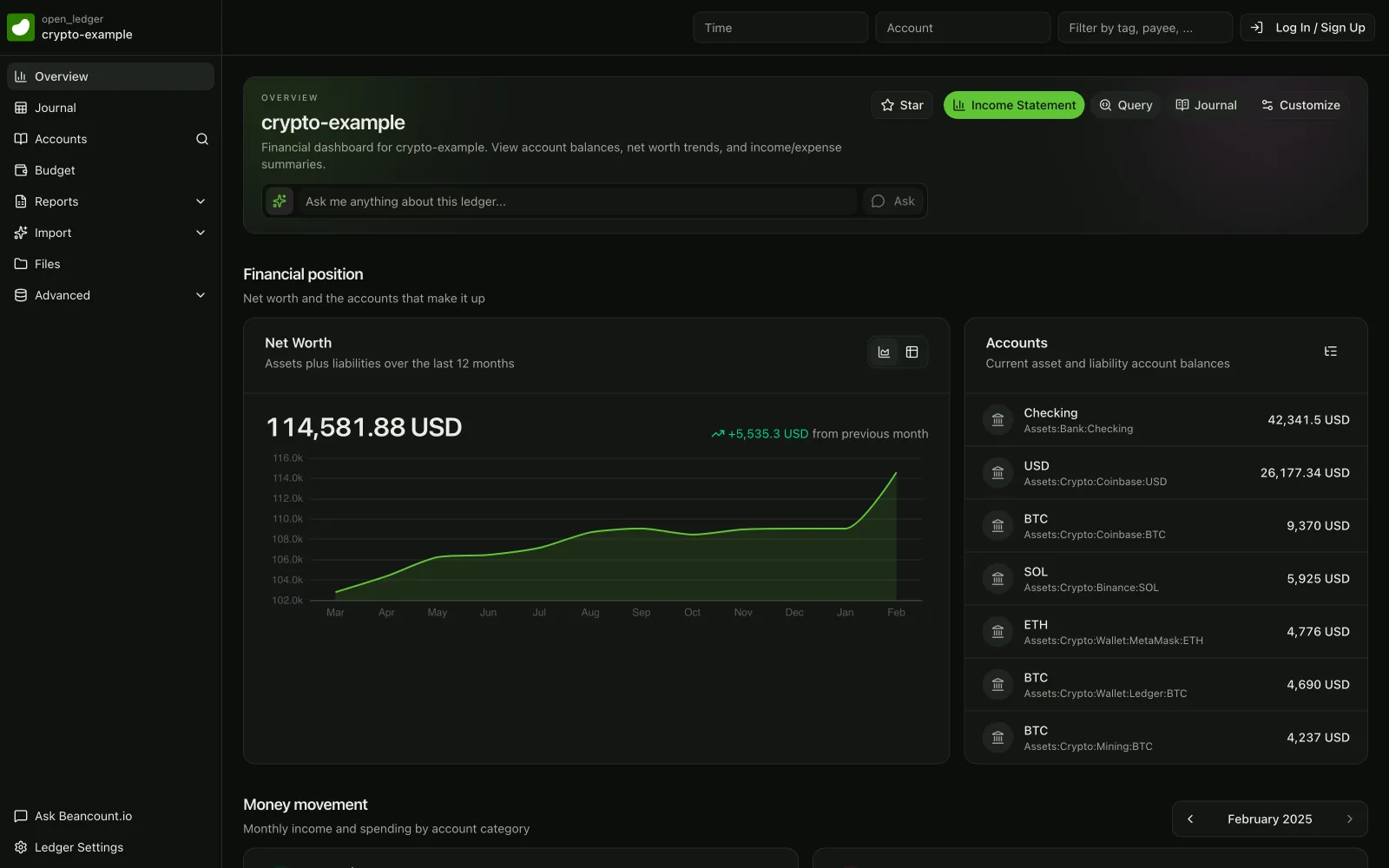
*[Explore the live ledger →](https://beancount.io/ledger/open_ledger/crypto-example)*
## Core Capabilities of Beancount and Fava
### Beancount (Plain-Text Accounting Engine)
- **Double-Entry Ledger in Plain Text:** Beancount stores transactions in a single `.beancount` text file (or multiple files included together). Every transaction must balance (total debits = total credits) across accounts, enforcing accounting integrity. The plain text format means your data is human-readable, version-controllable, and not locked into any vendor.
- **Flexible, Hierarchical Accounts:** You can define any accounts (e.g. `Assets:Bank:Checking`, `Expenses:Food:Coffee`) in a hierarchy. Beancount isn’t opinionated about your chart of accounts, so it works for personal finance, small business books, investments, etc. – it’s _“flexible: works for personal finance, small business bookkeeping, crypto, stock investments, and more.”_
- **Multiple Currencies and Commodities:** Beancount has first-class support for multiple currencies and commodities (e.g. stocks, crypto). You can record transactions in different currencies, define exchange rates (price directives), and track cost bases. It can produce reports “at cost” or “at market value” if price data is provided. This makes it suitable for portfolios and international finance.
- **Automated Checks and Balances:** The system supports **balance assertions** (you can declare what an account’s balance _should_ be at a date, and Beancount will error if it doesn’t match) and **balance transactions** for closing books. It also supports **equity opening/closing entries** and retains earnings calculation for period closes. These help ensure your books remain consistent and catch errors early.
- **Powerful Query & Reporting Engine:** Beancount comes with a query language BQL ([Beancount Query Language](https://beancount.io/docs/Basics/beancount-query-language)). Use `bea query` for BQL at the terminal and `bea report` for the standard statements; install the [CLI quick start](https://beancount.io/docs/Basics/bea-cli) rather than the older upstream console scripts. You can query the ledger for custom reports (e.g. list of expenses by payee, cash flow for a period) – essentially treating the ledger like a database. It stays fast even with thousands of transactions. Export CSV with `bea query -f csv -o report.csv "BQL"`, replacing `BQL` with your query. See [Financial Reporting Templates](https://beancount.io/docs/financial-reporting-templates) for complete examples.
- **Extensibility via Plugins:** Beancount is written in Python and allows custom **plugins** to extend its functionality. Plugins can enforce additional rules or calculations when the file is processed. (For example, there are plugins to handle tax lots, or to ensure no purchase is missing a cost.) The plugin system and Python API let advanced users script custom behaviors or integrate Beancount with other systems.
- **Importers for External Data:** A key practical feature is the importer framework in the separate `beangulp` package (there is no `beancount.ingest` module in Beancount 3.2.3). You write an importer class that subclasses `beangulp.Importer` and implements `identify`, `extract`, and `account`. It parses a downloaded file (CSV, OFX, PDF statements, etc.) and converts it into Beancount entries. This is essential for automation (more on this later).
- **Auditable and Version-Control Friendly:** Because it’s plain text, you can keep your ledger in Git or other version control. Every change is transparent, and you have a full history of edits. This makes audits or reviewing changes straightforward (many users commit each day’s changes to a Git repo, providing a tamper-evident log of all financial entries). This level of transparency is a major differentiator from closed accounting software – _“no SaaS lock-in—just clean, transparent accounting with powerful reporting.”_
### Fava (Web Interface for Beancount)
- **Interactive Web UI:** Fava provides a local web server that renders your Beancount ledger into a rich UI. It displays core reports (Income Statement, Balance Sheet, etc.), account registers, and journals in the browser with interactive controls. The UI is dynamic and user-friendly compared to the command line. You start it with a simple `fava yourfile.beancount` and get a web app for your books.
- **Graphs and Charts Built-In:** Fava generates graphs to help visualize your data. For example, it includes a **Net Worth** line chart over time, bar charts for income vs. expenses per month, and pie/treemap charts for expense breakdowns. These visuals update with your data and support different views (e.g. “at cost” vs “market value” for investments). We’ll explore these visualization capabilities in detail later.
- **Filtering and Search:** At the top of Fava’s pages, a filter bar lets you slice and dice your data in real-time. You can filter by time (e.g. year, quarter, month), by account regex, by payee, by narration, or by tags/links. This makes it easy to do _real-time data inspection_ – for example, quickly filter to “Tag=Travel” and “Year=2025” to see all travel expenses in 2025, with totals. The interface supports complex queries through this filter bar or via the Query page (where you can directly execute BQL queries).
- **Multiple File Support and Consolidation:** Fava can [load multiple Beancount files at once](https://beancount.io/docs/Tips/multi-file-support) (useful if you separate ledgers) and switch between them. It can also consolidate them if needed (for example, personal and business ledgers viewed together).
- **Data Entry and Editing:** Uniquely, Fava isn’t read-only – it has an **editor** and transaction entry form. You can add new transactions through a web form (it will insert the entry into your .beancount file). You can also open the source file in an external editor from Fava. Fava also supports keyboard shortcuts for power users. This turns Fava into a lightweight accounting system where you can input and view data from the same interface.
- **Reports and Account Drilldown:** Fava provides standard accounting reports: Income Statement (Profit & Loss), Balance Sheet, Trial Balance, and a holdings list for investments. The **Balance Sheet** and **Income Statement** are interactive – you can click an account to drill down into its details, or toggle between viewing at cost vs market value for assets. Fava also shows “unrealized gains” for investments if you have price data. It generates a **journal** view of all entries and allows filtering that journal by various criteria (great for finding specific transactions).
- **Document Management:** If you attach receipts or statements, Fava helps organize those. Beancount has a notion of a documents folder, and Fava lets you drag-and-drop files onto accounts or transactions – it will store them and add a document entry in your ledger. This is useful for keeping supporting documents linked with your ledger data.
- **Customization via Extensions:** Fava can be extended with plugins (written in Python) to add new reports or functionality. Some extensions are bundled (e.g. a **portfolio list** report for investments). We will discuss custom extensions later, but essentially Fava’s design allows injecting new pages, and even custom JavaScript, through its extension API. This means if a certain analysis or dashboard isn’t built-in, an advanced user can add it.
- **Performance:** Fava is efficient – it reloads the data in memory and serves pages quickly. The underlying Beancount parsing is fast, so typical personal ledgers load in a second or two. In practice, Fava can handle personal ledgers of many years, though extremely large files (tens of thousands of transactions) might benefit from some optimization (e.g. archiving old entries).
- **Web Access and Mobility:** By running Fava on a server or even your laptop, you can access your finances from any browser. Some users host Fava on a private server or Raspberry Pi so that they can check their finances on the go (possibly securing it behind a password or VPN since Fava doesn’t have built-in auth). This essentially gives you a self-hosted “web app” for your finances, without giving your data to a third party.
**In summary**, Beancount provides a robust foundation for transparent, text-based accounting with rigorous double-entry rules and multi-currency support. Fava builds on that by offering an accessible interface with immediate insights (reports, charts) and the ability to interact with your data. Together, they form a highly flexible accounting and analytics system that you control end-to-end.
## Real-Time (or Near-Real-Time) Analytics with Beancount & Fava
Achieving **real-time or near-real-time analytics** with Beancount and Fava involves automating the flow of data into your ledger and ensuring the tools display up-to-date information. By default, Beancount is a batch process (you add entries to the file, then view reports), and Fava will detect changes and require a refresh. However, with the right setup, you can streamline updates so that new transactions and changes appear almost instantly.
**File Change Detection:** Fava monitors the ledger file for changes. If you edit the `.beancount` file (or include files) in an editor, the page shows a “File change detected. Click to reload.” notification. Fava polls its `get_changed` endpoint. When the watcher reports a change, Fava reloads the ledger server-side and the notification offers one click to refresh the view. In practice, this reload is very fast (usually under a second for typical ledgers). This means Fava can serve as a live dashboard _if_ your ledger file is being updated frequently. It waits for your click by default to avoid disrupting your view.
**Continuous Import/Update Pipeline:** To get real-time data, you need to automate the addition of transactions to the Beancount file. There are a few common strategies:
- **Scheduled Import Jobs (Cron):** Many users set up a cron job (or scheduled task) to fetch new transactions from financial institutions periodically (say every night, or every hour) and append them to the ledger. For example, you might run a `beangulp` importer over the latest bank download (CSV or OFX). One Beancount user built an automation pipeline such that their books update themselves: _“seeing my accounting book updating itself without me touching it in an open format brings me pure joy”_. This was achieved by connecting to bank APIs and scheduling regular updates. A custom Python script using bank APIs (e.g. Plaid) can run on a schedule and write new entries to the ledger. Validate each run with `bea check` before it touches your main file. After each scheduled import, if you have Fava running, you can simply refresh Fava to see the new data.
- **File Watchers and Triggers:** Instead of time-based schedules, you can use file watchers to react to events. For instance, if your bank can email you a daily statement or you drop a CSV in a folder, a script could detect that file (using `inotify` on Linux or similar) and immediately run the import routine, then signal Fava to reload. While Fava doesn’t yet support pushing a live reload to the browser, you would at least have the data updated so that next time you check the page or click reload, it’s current. Some community projects go further: for ledger (a cousin of Beancount), one user created a small server that exposes ledger data to Grafana in real-time, showing that a similar approach can be taken with Beancount – essentially build a daemon that feeds data to your dashboards continuously.
- **Direct API Integration:** Instead of going through files, advanced users might connect directly to bank APIs (like Plaid or regional Open Banking APIs) to pull transactions frequently. A motivated individual can script “live” imports in a loop (with appropriate rate limiting) – effectively polling the bank for new data every few minutes. There is nothing stopping you from _“signing up with Plaid API and doing the same [automation] locally”_. Each new transaction can be appended to the Beancount file as it arrives. With this approach, Fava truly becomes a real-time dashboard for your accounts, rivaling the up-to-date feed in commercial apps.
**Data Refresh in Fava:** Once your data is being updated, getting Fava to show it is straightforward: a browser refresh (F5) or clicking the reload notification will load the latest ledger state. Note that `fava --debug` does not push ledger changes to the browser. Its help text is “Turn on debugging”. It runs the Werkzeug debugger and code reloader for Fava’s own code and sets Jinja template auto-reload. That reloads server code and page templates during extension development. It is unrelated to the file watcher that detects ledger changes. Alternatively, if you’re building a custom front-end, you could have it poll Fava’s `get_changed` endpoint and refresh when it reports new data.
**Instant Calculations:** Beancount’s fast parsing means even if you update your ledger file every few minutes, the turnaround from data fetch → file update → Fava reload is quick. For example, one user notes that reloading Fava after editing the file “is barely noticeable… definitely less than a second” for reasonably sized ledgers. Thus, you can keep a Fava window open and hit refresh periodically to mimic a live dashboard. (For a truly live experience, one could build a small script to auto-refresh the browser or use the browser’s refresh every N seconds feature.)
**Reconciliation and Alerts:** To trust real-time data, you also want to reconcile balances frequently. Beancount makes this easy with balance assertions and an _“up-to-date” indicator._ In fact, Fava colors accounts green, yellow, or red when the `open` directive carries `fava-uptodate-indication` metadata. The color reflects whether recent balance checks cover the account’s latest entries. This can be used to quickly see if an account’s balance in the ledger matches the latest statement from the bank. In a near-real-time setup, you might automate daily balance checks (so each morning, the ledger has yesterday’s closing balance from the bank for each account). Fava’s indicator would then tell you if your auto-import missed something or if there’s a discrepancy, providing confidence that the “live” data you see is accurate.
**Automation Example:** Suppose you want **daily cash flow updates**. You could set a cron job to run at 3am every night: it executes a Python script that uses your bank’s API to fetch the last day’s transactions, writes them into `import_today.beancount`, and then appends that file to your main ledger. It also writes a balance assertion for end-of-day. When you wake up, you open Fava – it shows all transactions through yesterday, and you see the current month’s income/expenses updated. If you make a spending during the day, you could manually add it (via Fava’s new transaction form on your phone, for example), or wait for the nightly import. This hybrid approach (mostly automated, with ability to manual add ad-hoc) gives a close-to-real-time picture. Another approach is to leave Fava’s **Journal** page open and use it as a register: as you spend, you quickly record the transaction (like entering in a checkbook) – then you _are_ the real-time feed. This is more manual, but some users enjoy the awareness it brings. For truly _streaming_ updates without manual steps, you’ll need to invest in scripting and possibly use third-party APIs as discussed.
In summary, by combining Beancount’s import automation with Fava’s rapid refresh, you can get near-real-time financial data. It may not be “push-button easy” to achieve the same level of live feed as a service like QuickBooks (which automatically pulls bank feeds), but it **is** possible – and importantly, you retain full control and transparency of the process. As one plaintext accounting advocate noted, a little effort up-front can yield an automated system that is _“way better than commercial solutions, and far more flexible and extensible”_. In the next section, we’ll see how Fava’s visualization capabilities let you immediately make sense of this up-to-date data, turning raw transactions into insights.
### Managed prices for hosted valuations
[Live Prices](https://beancount.io/docs/live-prices) supplies supported valuation quotes to hosted Beancount.io ledgers. The loader checks for new data when a ledger loads after the five-minute refresh window; a provider observation can be older. This is not a streaming feed.
The Fava controls described here belong to Fava. Adding a managed include does not add those controls to the hosted viewer or change a cost view into a market-value view. Upstream Fava needs local price files. A compatible `bea` version can export them; see the setup guide for compatibility.
## Visualization Capabilities in Fava (Cash Flows, Trends, Real-Time Inspection)
([GitHub - beancount/fava: Fava - web interface for Beancount](https://github.com/beancount/fava)) _Fava’s Income Statement report (in the web UI) supports rich visualizations like **treemaps** (pictured) and sunburst charts for quick insight into the composition of income and expenses. In this treemap, each rectangle represents an expense category, sized by its amount – you can instantly see **Rent** (large green block) dominates expenses. The top filter bar and controls (upper right) allow changing the currency, chart type, and time period (e.g. viewing Monthly data). Fava also provides line charts (e.g. net worth over time) and bar charts (e.g. income vs. expenses by month) to help spot trends in your financial data._
One of Fava’s greatest strengths is turning the ledger data into visual, interactive reports instantly. As soon as the ledger is loaded, Fava generates charts that make it easy to understand cash flows and trends at a glance:
- **Income & Expenses Treemap/Sunburst:** On the Income Statement page, Fava can display your income and expenses as either a _treemap_ or _sunburst_ diagram. These are great for “at-a-glance” cash flow visualization. For example, if your monthly expenses are shown as a treemap, the area of each rectangle corresponds to the magnitude of each expense category. Large blocks immediately show where most of your money went (e.g. rent or mortgage, taxes, etc.), while smaller blocks show minor expenses. This is extremely useful for _spotting trends_ in spending – if the “Dining Out” block has been growing each month, you’ll notice it visually. You can toggle to a sunburst chart to see hierarchical breakdowns (e.g. the outer ring might show subcategories like Groceries vs Restaurants within the Food category). These charts update for whatever period you have filtered (one month, year-to-date, etc.), giving you **instant cash flow visualization** for that period. A user on the plaintext accounting forum noted: _“I make a lot of use of the income and expense treemaps. They give a great visual sense of our fiscal movements.”_ – this kind of immediate understanding is exactly what Fava’s charts aim for.
- **Net Worth and Balance Over Time:** Fava provides a **line chart for net worth** over time (on the “Balance Sheet” or “Statistics” page). This chart plots the sum of your assets minus liabilities at each point in time (by day, week, or month). It’s invaluable for trend spotting – you can see the trajectory of your finances (e.g. steadily upward, or dips at certain times). If you have investments, you can toggle between showing value at cost vs market (if price data is recorded) – for instance, you might see your net worth at market value fluctuates with stock prices, while at cost it’s smoother. Fava also can display account balances over time. If you click an account (say Assets:Bank:Checking), the account page shows a graph of that account’s balance history. You can instantly inspect how your cash account is moving – which is effectively a cash flow graph (the slope of the balance line indicates net cash flow). If it’s trending down, you know you’re spending more than earning in that period. By examining these trends, you might spot patterns like “every December my savings dip (holiday expenses)” or “my investments grew sharply this quarter”.
- **Bar Charts for Periodic Comparison:** In the Income Statement view, Fava has tabs for “Monthly Profit”, “Monthly Income”, “Monthly Expenses” etc. Selecting these shows bar charts by month. For example, **Monthly Net Profit** will show each month’s surplus/deficit as a bar, making it easy to compare performance across months. You can quickly identify outliers (e.g. a big negative bar in April means that month had an unusual loss/expense). Similarly, “Monthly Expenses” bar chart stacks or groups expenses by category per month, so you can see which categories fluctuate. This is great for trend spotting across time – e.g. you might notice your “Travel” expenses spike every summer, or “Utilities” bills are higher in winter. Fava essentially gives you some of the capabilities of a budgeting app (tracking trends) but with full customizability (since you define the categories and how they roll up).
- **Real-Time Filtering and Data Inspection:** The visualizations in Fava aren’t static; they work in tandem with Fava’s filtering. Suppose you want to inspect a specific scenario: “How do my quarterly cash flows look for my business accounts only?” You can set the time filter to Q1 2025 and filter accounts to your Business hierarchy – Fava will instantly update the charts to show net income, treemap of expenses, etc., but only for that subset. This interactive slicing means you can do ad-hoc analysis very quickly, without writing queries. The **Journal** view also supports live filtering: you can search by payee or narration substring and see a filtered list of transactions immediately. If you’re looking at real-time data (say you just imported last week’s transactions), you could filter by a tag like `#uncategorized` to see new transactions that might need categorization, or by `@pending` (if you mark pending entries) to see what’s still not cleared. This real-time inspection capability helps ensure data quality as well—because you can [isolate and address anomalies on the fly](/blog/2026/07/26/ai-fraud-detection-small-business-real-time-continuous-auditing-guide).
- **Cash Flow Statement (indirect):** While Beancount/Fava doesn’t produce a formal cash flow statement (Operating/Investing/Financing breakdown) out-of-the-box, you can mimic it with custom queries or by structuring accounts. For instance, you could tag certain transactions or use specific accounts for investing and financing, then query totals. Fava’s query interface runs BQL such as `SELECT sum(position) WHERE account ~ 'Assets:Bank:Checking'`. It returns the checking balance behind the charts. The worked example below shows the full round trip. That said, most personal users find the combination of balance trends and income/expense charts sufficient for understanding cash flows.
- **Holdings and Portfolio Visualization:** On the **Holdings** page, Fava lists your current holdings of commodities (e.g. stocks, bonds, crypto) with quantities, cost, market value, and unrealized gains. While this is a table, not a chart, it’s very useful for real-time inspection of your portfolio’s status. Some community extensions (like _fava-investor_, discussed later) add more visuals for portfolios, such as allocation pie charts or performance graphs. Even without extensions, you can see e.g. how your stock portfolio value changes as of the latest prices – if you update price quotes regularly (which could be automated daily), Fava’s charts will reflect the latest available dated prices, which may be older than the time you open the report.
### Worked example: two months of spending
This example runs end to end on Beancount 3.2.3 with beanquery 0.2.0. Save the ledger as `example.beancount`. It holds two salary payments and four expenses.
```bean
option "title" "Analytics example"
option "operating_currency" "USD"
2024-01-01 open Assets:Bank:Checking USD
2024-01-01 open Expenses:Food:Groceries USD
2024-01-01 open Expenses:Food:Dining USD
2024-01-01 open Expenses:Housing:Rent USD
2024-01-01 open Income:Salary USD
2024-01-01 open Equity:Opening-Balances USD
2024-01-05 * "Employer" "January salary"
Income:Salary -3000.00 USD
Assets:Bank:Checking 3000.00 USD
2024-01-08 * "Grocery Store" "Weekly groceries"
Expenses:Food:Groceries 120.00 USD
Assets:Bank:Checking -120.00 USD
2024-01-12 * "Restaurant" "Dinner out"
Expenses:Food:Dining 80.00 USD
Assets:Bank:Checking -80.00 USD
2024-02-01 * "Landlord" "February rent"
Expenses:Housing:Rent 1000.00 USD
Assets:Bank:Checking -1000.00 USD
2024-02-05 * "Employer" "February salary"
Income:Salary -3000.00 USD
Assets:Bank:Checking 3000.00 USD
2024-02-10 * "Grocery Store" "Weekly groceries"
Expenses:Food:Groceries 150.00 USD
Assets:Bank:Checking -150.00 USD
```
Check it first. Then run the spending-by-category query.
```bash
bea --file example.beancount check
bea --file example.beancount query "SELECT account, sum(position) WHERE account ~ 'Expenses' GROUP BY account ORDER BY account"
```
A clean ledger exits 0 from `bea check`; errors are listed with a non-zero exit. The query returns one row per expense account.
```text
account sum(position)
----------------------- ------------
Expenses:Food:Dining 80.00 USD
Expenses:Food:Groceries 270.00 USD
Expenses:Housing:Rent 1000.00 USD
```
Two more queries complete the picture. Total income and total expenses:
```sql
SELECT sum(position) WHERE account ~ 'Income'
SELECT sum(position) WHERE account ~ 'Expenses'
```
They return `(-6000.00 USD)` and `(1350.00 USD)`. So the household earned 6,000.00 USD, spent 1,350.00 USD, and saved 77.5%. The checking balance confirms it:
```sql
SELECT sum(position) WHERE account ~ 'Assets:Bank:Checking'
```
It returns `(4650.00 USD)`. The same queries run unchanged in Fava’s Query page. Fava 1.30.16 renders the same three expense rows as an interactive table.
In practice, Fava’s visual reports update as quickly as the underlying data. The moment a new transaction is added and the page reloaded, the charts recompute. There’s no lengthy reprocessing needed. This means if you have a semi-automated pipeline feeding in data throughout the day, you can keep Fava open and periodically hit refresh to get updated charts – effectively _real-time financial monitoring_.
For example, imagine you’re running a small business and you want to monitor cash on hand and daily expenses. You could have Fava open to a custom dashboard (perhaps using an extension or the query screen) that shows “Cash account balance today” and “Expenses – Today vs. Yesterday”. Each time you refresh after new data comes in, you’d see those numbers update. This is akin to what expensive real-time dashboards provide, but using open-source tools. The difference is you might need to manually refresh or schedule refreshes, whereas those tools push updates automatically. But functionally, the insight you get is the same, with the added benefit that you can drill down into any number on Fava (click it to see underlying transactions) – something many BI dashboards lack.
In summary, Fava turns your accounting data into immediate visual insights: **cash flow breakdowns, trend lines, comparisons over time, and interactive filtering** all help you see the story behind the numbers. Whether you’re inspecting last week’s spending for anomalies or reviewing multi-year trends in net worth, Fava’s charts and reports provide clarity in real-time (as soon as your data is there). Next, we will see how you can extend these capabilities or integrate them with external tools if you need even more customized analytics.
## Integration with External Dashboards and Visualization Tools
While Fava provides a rich set of built-in reports and charts, you might want to integrate Beancount’s data with other business intelligence (BI) or dashboard tools such as **Grafana**, **Metabase**, or custom web frontends (e.g. a React app). The motivation could be to combine financial data with other data sources, use advanced charting capabilities, or share dashboards with others in a different format. Thanks to Beancount’s openness, there are multiple ways to achieve integration:
- **Database Integration (BeanSQL / Beanpost):** One straightforward approach is to export or sync your Beancount ledger to a SQL database. Once in SQL, any BI tool can query the data. In fact, community members have created tools for this. For example, **Beanpost** is an experiment that mirrors a Beancount ledger into a PostgreSQL database, implementing much of Beancount’s logic as SQL functions. This provides _“a flexible backend that can integrate with other tools like web apps or reporting systems.”_ You can run Beanpost to continuously sync your text ledger to Postgres. Then, a tool like **Metabase** or **Tableau** can connect to that Postgres database and you can build any charts or dashboards you like (live updating as the DB updates). One user reported using Postgres + PostGraphile to automatically expose a GraphQL API for the ledger data and then writing a custom React front-end on top of that – essentially treating the ledger as a web service. This approach addresses cases where Fava’s interface might not be sufficient (e.g. multi-user access, or more mobile-friendly UIs). It’s more engineering-heavy, but it shows the potential: you can integrate Beancount with modern web stacks relatively easily. A lighter-weight variant is exporting query results into SQLite – running `bea --file ledger.beancount query "SELECT ..."` prints a table you can paste or pipe, and spreadsheet CSV from the CLI waits on native export options for `bea query`. Some people use SQLite as an intermediate to plug into tools like Metabase (which can read SQLite files via a connection).
- **Grafana (Time-Series Dashboards):** Grafana is popular for monitoring and time-series data. Financial data over time (expenses, balances) can be treated as time-series. There has been community discussion on connecting Beancount to Grafana. One idea was a Grafana **Data Source Plugin** that could run BQL queries against a Beancount file on the fly. This would allow Grafana panels to directly display, say, “Balance of Checking account” as a gauge or “Expenses over last 30 days” as a graph, by querying the ledger. As of now (2025), a dedicated plugin isn’t published, but enthusiasts have built ad-hoc solutions. For instance, a Reddit user _aquilax_ built a simple server that makes Ledger CLI data available to Grafana, and shared it as **grafana-ledger-datasource-server**. A similar concept can be applied to Beancount: you’d write a small HTTP server in Python that loads the Beancount ledger (using Beancount’s API to query data) and exposes endpoints that return JSON data frames for Grafana. Grafana has a generic JSON data source plugin which could then pull from this API. In practice, this means you could design a Grafana dashboard with panels like “Monthly Revenue (bar chart)” or “Daily Cash Balance (line chart)”, and those panels fetch data from your Beancount-driven API. Grafana would allow rich visualization options (annotations, thresholds, combine with server metrics, etc.). Andreas Gerstmayr (one of Fava’s maintainers) suggested exactly this approach and even mentioned he created a _Fava extension_ called **fava-dashboards** (more on that below) to render charts from BQL queries, as an alternative to a full Grafana setup. If you prefer Grafana’s UI, integration is feasible – it just requires building the data bridge.
- **Metabase (Ad-hoc Queries and Dashboards):** Metabase is a user-friendly BI tool that lets you run queries and make dashboards without code. If you export your ledger to a relational format (via Beanpost or by writing out tables of transactions, postings, etc.), you can point Metabase at that database. You might create custom tables like `expenses (date, category, amount)` from your ledger, and then in Metabase you can generate charts easily (e.g. a pie chart of expenses by category for last month). The benefit is non-technical users (or colleagues) could then interact with the data through Metabase’s GUI without needing to touch the Beancount file. The downside is you need to maintain the export/sync. Some users have automated nightly conversion of the Beancount ledger to SQLite, then let Metabase read the SQLite; others might use the Postgres approach mentioned. The key is that **data portability of Beancount enables this** – you’re free to duplicate the data into any form your external tool needs.
- **Custom Frontends / Applications:** If you have specific needs, you can always write a custom application on top of Beancount. The Beancount Python library gives you access to all parsed entries, balances, etc., so a Python web framework (Flask, Django, FastAPI) can be used to build a tailored app. For example, a small business might build a dashboard that shows KPI metrics (like gross margin, daily sales, etc.) by querying the ledger and perhaps combining with non-ledger data (like number of customers served). One community member built a mobile-friendly web UI because Fava wasn’t intuitive for their spouse – they leveraged the ledger in a database to drive this custom UI. If you prefer JavaScript/TypeScript, you could use a tool to convert the ledger into JSON and build from there. Fava itself exposes its Query page through a JSON query API, so a custom frontend can send it BQL and render the returned tables instead of building a new query backend.
- **Excel/PowerBI Integration:** It’s worth noting you can even integrate with Excel or PowerBI. Until `bea query` gains native CSV export, use Fava’s Query page export for spreadsheet files Excel opens directly. A workflow could be: a nightly job generates a CSV file of key financials from Beancount, and PowerBI is set to import that file. This is a bit indirect, but for organizations that already use Excel/PowerBI heavily, it’s a low-friction integration. PowerBI also supports Python data sources, so one could write a short Python script that runs BQL queries and use it as a data source within PowerBI, achieving a direct connection.
**Case Study – Grafana Integration Idea:** Josh, a Beancount user, asked on the mailing list about pushing Beancount metrics to Prometheus and viewing in Grafana. The core devs responded that instead of duplicating data in Prometheus, a better approach is a Grafana plugin or service that directly queries the Beancount ledger. Andreas shared his `fava-dashboards` extension which renders custom charts within Fava itself as an example solution. The takeaway is: you have options – either integrate via existing BI infrastructure (Prometheus+Grafana or SQL+Metabase) or extend Fava to meet your needs (the next section will dive into that).
**Security and Multi-User Considerations:** If integrating into external tools, be mindful of data sensitivity. Beancount’s plain text often contains private financial info, so any server exposing it should be secured (authenticated). If you move data to a cloud BI tool, you might lose some privacy. Self-hosted tools (Grafana/Metabase open-source versions) can be run locally to mitigate that. Also, if multiple people need to view dashboards, an external read-only dashboard might be preferable to giving everyone access to Fava (where they could edit data if not careful). For example, a startup could use Beancount internally but use Metabase to let department heads see spend vs budget without touching the ledger files.
In summary, **Beancount and Fava play well with others**. You can leverage the entire ecosystem of data tools with a bit of glue code: push ledger data to a SQL database for BI tools, serve it via APIs for web apps, or even use specialized libraries to stream it to time-series systems. This flexibility means you’re never stuck if Fava’s built-in visuals don’t fulfill a niche requirement – you can always integrate into another platform while continuing to use Beancount as your source of truth. Next, we’ll look at extending Fava itself with plugins and custom dashboards, which is often an easier route than external integration if you just need a few extra features.
## Custom Dashboards and Extending Fava with Plugins (Code Examples)
Fava is designed to be extensible: you can add new pages, charts, and behaviors by writing **Fava plugins (extensions)** in Python. This allows tailoring the web interface to your specific needs without building an entire separate app. We’ll explore two key avenues for customization: (1) Using or writing Fava Extensions, and (2) Setting up custom dashboards via community plugins like _fava-dashboards_.
### Fava Extensions (Custom Plugins)
A Fava **extension** is essentially a Python module that defines a subclass of `fava.ext.FavaExtensionBase`. When Fava starts, it can load this module and integrate it into the app. Extensions can register new report pages, hook into events, and even include custom JavaScript for interactivity. Fava 1.30.16 bundles two: `fava.ext.auto_commit` and `fava.ext.portfolio_list`. Others can be installed via pip or written from scratch.
To enable an extension, you use the Beancount **custom directive** in your ledger file:
```bean
2010-01-01 custom "fava-extension" "my_extension_module" "{'option': 'value'}"
```
This tells Fava to load the given module. If you installed an extension via pip, you’d reference its module name here. The optional string at the end is configuration for the extension. Fava parses it as a Python literal, so `"{'option': 'value'}"` arrives as a dict.
**Example – Auto-Commit Extension:** The bundled `fava.ext.auto_commit` commits changes to git when you edit the file through Fava. If you wanted to use it, you’d add:
```bean
2025-01-01 custom "fava-extension" "fava.ext.auto_commit"
```
It overrides `after_write_source`, `after_insert_entry`, `after_entry_modified`, `after_delete_entry`, and `after_insert_metadata`. Each hook runs a `git commit` in the ledger file’s own directory. So the ledger must already live in a git checkout. It demonstrates how extensions hook into Fava’s edit events.
**Example – Portfolio List Extension:** The bundled `fava.ext.portfolio_list` adds a page that lists your investment accounts. It sets `report_title = "Portfolio List"` and ships a template. Fava detects that and adds a new sidebar entry “Portfolio List” under Reports. It also sets `has_js_module = True` to load its companion JavaScript. To enable it explicitly, you’d add:
```bean
2025-01-01 custom "fava-extension" "fava.ext.portfolio_list"
```
(No config needed in this case.)
**Writing a Custom Extension:** Suppose you want a custom report page, say “Receivables Aging” for invoices. You could create a file `receivables.py` like:
```python
# receivables.py
from fava.ext import FavaExtensionBase
class ReceivablesReport(FavaExtensionBase):
report_title = "Receivables Aging"
def after_load_file(self):
# Runs after Fava loads the ledger. Summarise open
# invoices here so the template only renders.
self.overdue = [
txn for txn in self.ledger.all_entries
if "invoice" in getattr(txn, "tags", set())
]
```
You’d also create a `templates/ReceivablesReport.html` next to the module to define the HTML for the page. In that template, you can read attributes like `self.overdue` that your hook prepared. Once this extension is written, you add to your ledger:
```bean
2025-01-01 custom "fava-extension" "receivables"
```
(assuming `receivables.py` is in the Beancount file directory or PYTHONPATH, Fava can find it by name). On starting Fava, you’d now see a “Receivables Aging” page.
Under the hood, Fava calls your extension’s methods at fixed points. The available hooks in Fava 1.30.16 are `after_load_file`, `before_request`, `after_entry_modified`, `after_insert_entry`, `after_delete_entry`, `after_insert_metadata`, and `after_write_source`. A method decorated with `@extension_endpoint` additionally becomes a JSON API endpoint under the extension. Typically the provided hooks plus a template are enough.
The Fava docs note the extension system is still evolving, but it’s usable. In fact, many advanced features have been prototyped as extensions.
### Custom Dashboards with _fava-dashboards_ (Community Extension)
Instead of writing an extension from scratch, you might use the third-party **fava-dashboards** plugin created by a Fava maintainer. This extension allows you to define arbitrary dashboards via a YAML config file, mixing text, tables, and charts, powered by BQL queries. It’s basically a way to create new “pages” in Fava that contain multiple custom panels.
**Installation and Setup:** First, you install the package (e.g. `pip install fava-dashboards`). Version 2.0.2 loads cleanly next to Fava 1.30.16. Then in your Beancount file, activate it with a custom directive pointing to your dashboards config. For example:
```bean
2010-01-01 custom "fava-extension" "fava_dashboards" "{ 'config': '/path/to/dashboards.yaml' }"
```
([fava-dashboards/README.md at main · andreasgerstmayr/fava-dashboards · GitHub](https://github.com/andreasgerstmayr/fava-dashboards/blob/main/README.md#:~:text=2010,yaml%27)). This tells Fava to load the `fava_dashboards` module and read your YAML file for configuration.
**Dashboards YAML format:** In the `dashboards.yaml`, you define one or more dashboards and their panels. Two rules come from the extension’s own pipeline. Aggregate columns need an `AS` alias. And BQL sign convention applies: income sums arrive negative, expenses positive. For instance:
```yaml
dashboards:
- title: "Cash Flow Dashboard"
panels:
- title: "Net Cash This Month"
width: 50%
queries:
- bql: "SELECT sum(position) AS net_cash WHERE account ~ 'Income' OR account ~ 'Expenses'"
type: "jinja2"
template: "
{{ panel.queries[0].result[0][0] }}
"
- title: "Spending by Category"
width: 50%
queries:
- bql: "SELECT account AS category, sum(position) AS total WHERE account ~ 'Expenses' GROUP BY account ORDER BY account"
type: "jinja2"
template: "
{% for row in panel.queries[0].result %}
{{ row[0] }}
{{ row[1] }}
{% endfor %}
"
```
The first panel displays the summed position directly. On the worked-example ledger it renders `(-4650.00 USD)`. That is 6,000.00 USD of income net of 1,350.00 USD of expenses. The second panel loops over the query rows into a table. The project also renders chart panels from the same queries. See the linked README for the chart script API.
The extension takes care of rendering these when you open the dashboard page in Fava. You can create multiple dashboards (each appears as a tab or separate page). This is extremely powerful for creating **custom financial dashboards**. For example, you could make a “Budget vs Actual” dashboard: one panel shows a table of budget vs actual per category (via a query comparing two accounts sets), another panel shows a bar chart of year-to-date spending vs prior year, etc. All of this with just configuration and minimal scripting, leveraging your ledger data via BQL.
**Code Example – Enabling fava-dashboards:** As shown above, adding the extension is one line in your ledger. For completeness, here’s a minimal example of that in context:
```bean
option "title" "My Ledger"
option "operating_currency" "USD"
plugin "beancount.plugins.auto_accounts" ; (auto-opens accounts)
1970-01-01 custom "fava-extension" "fava_dashboards" "{ 'config': 'dashboards.yaml' }"
```
And in `dashboards.yaml`:
```yaml
dashboards:
- title: "Overview"
panels:
- title: "Net Worth"
queries:
- bql: "SELECT sum(position) AS net_worth WHERE account ~ 'Assets' OR account ~ 'Liabilities'"
type: "jinja2"
template: "
Net Worth: {{ panel.queries[0].result[0][0] }}
"
```
On the worked-example ledger this renders `
Net Worth: (4650.00 USD)
`. A real dashboard would format nicely and add more panels.
With this in place, when you run Fava and navigate to the “Overview” dashboard, it will show your computed net worth. You can then refine the template or add charts as needed.
**Other Notable Extensions:** Aside from fava-dashboards, community members have built plugins such as **fava-investor** for investment analysis and **fava-review** for transaction review. These are third-party packages with their own install steps and Fava compatibility ranges. Check their READMEs before installing. The community maintains an “awesome-beancount” list of plugins and tools. By browsing it, you might find a pre-built extension that meets your needs.
**When to extend vs integrate externally:** Generally, if your need is purely presentation or calculation on the existing ledger data, a Fava extension is ideal (keeps everything in one place, respects filters, etc.). If your need involves combining external data or you require a drastically different UI, external integration (previous section) might be warranted. For example, showing website analytics alongside finances – better in Grafana/Metabase; but adding a new financial KPI or report – better as a Fava plugin.
**Example – A Custom KPI in Fava:** Let’s say you want to track “Savings Rate” (percentage of income saved). You could do this with an extension that calculates it and shows a little box on the main page. Or with fava-dashboards, one panel could be a Jinja2 that outputs `Savings Rate: X%` by querying total income and total expenses. This kind of custom metric is very easy to inject with these tools, whereas in a closed system like QuickBooks it might be impossible to create a new metric on the dashboard.
The same two queries feed a savings-rate panel. Mind the signs: BQL `sum(position)` returns income as a negative position and expenses as positive, and Jinja cannot subtract one position from another. So display both legs and state the rate in the template text:
```yaml
- title: "Savings Rate"
panels:
- title: "Savings Rate"
queries:
- bql: "SELECT sum(position) AS income_total WHERE account ~ 'Income'"
- bql: "SELECT sum(position) AS expense_total WHERE account ~ 'Expenses'"
type: "jinja2"
template: "
"
```
On the worked-example ledger this renders `Savings Rate: 77.5% ((-6000.00 USD) earned, (1350.00 USD) spent)`. The rate is (6,000.00 − 1,350.00) / 6,000.00. Compute it from the magnitudes. Do not negate or subtract the positions inside the template.
The key point: **Fava is not a static tool** – it’s an extensible platform. With a bit of Python or even just config code, you can tailor it extensively. Many users share small scripts or extensions on forums to do things like show upcoming bills, generate PDF invoices from transactions, or integrate Beancount with tax calculation libraries. When you invest in learning or using these extensions, you get a very bespoke financial analytics system without starting from scratch.
## Use Cases: Personal Finance vs. Small Business Accounting
Beancount and Fava can be used for both personal and small business accounting, but the use cases and benefits differ slightly in emphasis:
### Personal Finance
For individuals, Beancount+Fava shines in giving **full visibility and insight into one’s finances** without relying on proprietary apps. Common personal finance use cases include:
- **Expense Tracking and Budgeting:** Many use Beancount to log every expense and then analyze spending patterns. With Fava, they can see where the money goes each month (treemap of expenses) and track budgets by comparing against expected values (some do this via the Budgets extension or custom queries). One user described that after adopting Beancount, _“analysis of financial data (spending, giving, taxes, etc.) is trivial. It’s easy to do with Fava, but also easy with scripts... I have one Python script that pulls data out of Beancount using BQL, then I use pandas to prepare a report.”_. This demonstrates how personal users benefit from both the built-in UI and the ability to script custom analysis when needed.
- **Net Worth and Goal Tracking:** Because you can include all assets (bank accounts, investments, even physical assets if you want) in one ledger, you get a single view of net worth. Personal finance aficionados use this to track progress towards goals (e.g. “FI number” or debt payoff). Fava’s charts showing net worth over time are motivating – you can literally see the curve of your wealth. It’s common to track liabilities like student loans or mortgages in Beancount and update their balances; the ledger then gives a complete picture of financial health.
- **Investments and Crypto:** Personal use often extends to tracking a portfolio. Beancount can handle stocks, crypto, etc., with cost basis and realized gain calculations (via plugins or queries). The advantage over a broker’s site is that you can consolidate across all accounts and see true asset allocation. Community plugins such as **fava-investor**, for example, add investment analysis pages to Fava. This is something typically done in Excel by hobbyist investors; Beancount provides a more rigorous, automated way. A blog post titled “Beancount: DeFi Accounting For Noobs” even illustrates using it to track cryptocurrency transactions and yield farming, which shows its flexibility in modern personal finance scenarios.
- **Multi-Currency Personal Finances:** If you live abroad or hold foreign investments, Beancount is extremely useful as it can convert and aggregate currencies. Users have noted that _“many accounting software are not good at multi-currencies… With Beancount, you can define any commodity you want”_, and get reports in your preferred currency. For a personal user dealing with say USD salary but EUR expenses, this is a big plus.
- **Life Tracking and Journaling:** An unconventional but real use case: some treat the ledger as a life log, tagging transactions with life events (like `#wedding` or `#vacation2025`) and then using it to calculate costs of events or even as a diary of activities (financial metadata as a proxy for life events). The plaintext format and tagging make this possible in a way traditional tools don’t easily allow.
- **Simplicity and Ownership:** Personal finance is also about mentality. Many choose Beancount because they _“wanted to own this data and easily analyze it, and didn’t want to be locked into a subscription or vendor”_. The recent demise of Mint.com (a popular free budgeting tool) has driven enthusiasts to plaintext accounting for longevity. With Beancount, they know they can still open their ledger in 20 years. For a single individual’s finances, Beancount’s data (perhaps synced via Dropbox or Git) and Fava’s web UI (which can be run locally or on a private server) give a balance of convenience and control that is hard to find elsewhere.
Potential challenges for personal use: initial setup and learning double-entry can be a hurdle for some. But many resources (like the Beancount tutorial and community forums) help new users. Once set up, maintenance can be largely automated as described, which is great for someone managing their household finances with minimal effort.
### Small Business Accounting
Small businesses, startups, and freelancers can also use Beancount+Fava, though the requirements here include more formal reporting and maybe collaboration:
- **Bookkeeping and Financial Statements:** A company can maintain its general ledger in Beancount, recording invoices, bills, payroll, etc., and produce Balance Sheet and Profit/Loss statements. Beancount supports the accrual accounting needed (you can mark accounts as Accounts Receivable/Payable and record invoices with postings to income and AR, then later a payment to clear AR). Fava will then show those under Assets or Liabilities appropriately. A Reddit discussion asked if Beancount is suitable for companies and if it can generate proper financial statements – yes, it can produce balance sheets, income statements and (with some query help) cash flow statements, since those are just views of the double-entry data. The catch is that Beancount doesn’t enforce any particular accounting standards (that’s up to how you use it). So a knowledgeable user (or accountant) should set up the chart of accounts correctly for the business. There are community examples of Beancount being used for startups – one HN commenter said: _“I really enjoy using Beancount + Git for managing the accounting book for my own startup company”_, though they noted it was a bit tedious to add entries periodically. That tedium can be alleviated with import automation as we saw.
- **Real-Time Financial Monitoring:** For a small business, cash flow is king. Using Fava, a business owner can monitor the bank balances and cash flow in near real-time, much like personal – but it’s even more critical here. By automating bank feeds or imports, they can catch if a client payment came in or if a big expense cleared. QuickBooks offers bank feeds that _“let you see how your business is doing in real time”_; with Beancount, you replicate this by your own bank integration. The benefit of Beancount is transparency – you see exactly what’s been imported and how it’s categorized, rather than trusting QuickBooks’ sometimes inscrutable matching logic.
- **Invoicing and AR/AP:** Beancount doesn’t have a built-in invoicing module (like generating PDF invoices or tracking invoice numbers). However, creative users have managed this with add-ons. For instance, one could generate an invoice PDF from a transaction using a Jinja2 template or even an external script that reads open AR entries. There is a project “Beanie” that acts as a lightweight AR system on top of Beancount. Small businesses might use Beancount for the ledger and another tool for issuing invoices, then import the invoice data to Beancount. It’s an extra step compared to QuickBooks (which can send invoices and then automatically record them once paid), but it ensures all data ends up in the open ledger.
- **Payroll and Depreciation:** These are accounting tasks small businesses handle. Beancount can certainly record payroll entries (splitting gross pay, taxes, withholdings, etc. into the appropriate accounts) – but you’d typically calculate those with external tools or your payroll provider and then input them. Fixed asset depreciation schedules would likewise be manually input (or you could write a plugin to automate monthly depreciation entries). Beancount doesn’t have magic for these, but neither do many small biz software tools beyond offering some templates. The **advantage** is you can script anything unusual. For example, if you have a custom revenue recognition schedule, you could script those journal entries in Python and include them.
- **Transparency and Auditability:** Businesses might appreciate that Beancount provides a clear audit trail. Every transaction is plain and can be annotated with links to documents (receipts, contracts). If audited, you can show the ledger file along with attached documents, which is quite straightforward. Also, version control means you have an audit log of who/when changes were made (if multiple people collaborate via Git). Compare this to QuickBooks where an accountant might need to examine change logs that are not easily accessible to the user.
- **Cost:** Beancount+Fava is free, which is attractive to startups or small businesses trying to minimize software costs. QuickBooks, Xero, etc., have monthly fees. However, the trade-off is that those come with support and easier setup. A tech-savvy business owner might gladly trade some time to save costs and gain flexibility.
Real examples: Another user on HN said they used it for a consulting LLC and it worked well, but when transactions grew, they started splitting files yearly to maintain speed. The consensus is: for a _small_ business (say tens of thousands of transactions per year or fewer), Beancount is perfectly capable. If you were a larger SME with hundreds of thousands of transactions, performance might warrant either using a database approach or choosing a purpose-built accounting system – though we have Beanpost to try to address that by using Postgres as a backend.
**Collaboration:** One area of difference – QuickBooks Online allows multiple users (owner, accountant, etc.) to work simultaneously. With Beancount, collaboration could be via Git (multiple users commit changes). This works, but requires some Git knowledge and conflict resolution if people edit at the same time. Some have used online Git platforms or even Google Drive to share the ledger file. It’s doable, but not as seamless as cloud accounting software. However, for a small team (or solo bookkeeper + owner) it’s manageable, and you can always grant read-only access through Fava (host it on an internal server and let others view reports without editing).
**Regulatory compliance:** For personal finance, not an issue. For business, you might need to produce official reports or follow accounting standards. Beancount can be used to generate GAAP-compliant statements, but it requires the user to input data accordingly. There’s no built-in enforcement of GAAP rules (e.g. no built-in fixed asset module to ensure you depreciate correctly). An external accountant can still work with a Beancount ledger (since it’s basically a generalized journal) – they might export it to Excel and do adjustments if needed. Some businesses may prefer a known software for this reason, or at least have an accountant comfortable with plain text data.
**Who uses it for business?** Likely power-users: tech startups, freelancers with coding background, or companies that highly value data control (e.g. perhaps financial trading firms wanting custom reporting). A Reddit thread had someone ask if Beancount would suit a trading company – answers indicated yes, it handles multi-currency and can produce the needed statements, but you’ll be building some tooling around it.
To conclude this section: **Personal finance users** love Beancount for the insight and control it gives over their personal money – it turns finances into a dataset they can query and learn from, yielding things like easily tracking every expense and calculating metrics that typical budgeting tools can’t. **Small business users** appreciate the transparency, cost savings, and hackability – they can integrate accounting with the rest of their software stack, and avoid vendor lock-in or monthly fees. Both use cases benefit from real-time analytics: a person might watch their monthly budget progress, a business might watch daily cash flows – in both cases, Fava can present up-to-date info when fed timely data.
## Comparison with Other Real-Time Analytics Platforms
It’s useful to compare Beancount+Fava with other solutions that offer “real-time” financial analytics, such as **QuickBooks (with live bank feeds)** and **Power BI** (or similar BI dashboards). Each approach has its strengths and trade-offs in terms of transparency, flexibility, and responsiveness:
| **Aspect** | **Beancount + Fava** (Open-Source) | **QuickBooks (with Bank Feeds)** | **Power BI / Generic BI** |
| --------------------------------- | ---------------------------------------------------------------------------------------------------------------------------------------------------------------------------------------------------------------------------------------------------------------------------------------------------------------------------------------------------------------------------------------------------------------------------------------------------------------------------------------------------- | ----------------------------------------------------------------------------------------------------------------------------------------------------------------------------------------------------------------------------------------------------------------------------------------------------------------------------------------------------------------------------------------------------------------------------------------------------------------------------------------------------------------------------------------------------------------------------------------------------------------------------------------------------------------------------------------- | --------------------------------------------------------------------------------------------------------------------------------------------------------------------------------------------------------------------------------------------------------------------------------------------------------------------------------------------------------------------------------------------------------------------------------------------------------------------------------------------------------------------------------------------------------------------------------------------------------- |
| **Transparency & Data Ownership** | Fully transparent – data is plain text, you can inspect every transaction. The logic is all visible (no hidden algorithms). You own the format forever. Version control can show an audit trail of changes. | Opaque – data stored in a proprietary cloud database. You rely on Intuit’s export for backups. Some processes (e.g. auto-categorization) are not fully visible. Limited audit logs. If you stop paying, you risk losing easy access to your data. | Depends on data source – Power BI itself is just a tool. If connected to an open database, you retain ownership of that data. However, Power BI files or dashboards are proprietary format and require Power BI to view. Transparency of calculations is good (you define them), but the overall system is complex. |
| **Flexibility & Customization** | Extremely flexible. You can define any account structure, any commodity/currency. You can script custom behavior or analysis (Python, plugins). No imposed workflow – you tailor it to your needs (personal or business). Fava’s extension system and tools like fava-dashboards allow custom dashboards within the app. If something is missing, you can likely build or integrate it yourself. | Moderate. QuickBooks is feature-rich for standard small-biz accounting (invoicing, payroll (separate add-on), basic reports). But you are limited to the features Intuit provides. Chart of accounts and categories must fit into its paradigm. Custom reports are limited; you cannot arbitrarily query the database. Integrations exist but are through Intuit’s API (which is limited) or exporting to Excel. You trade flexibility for convenience. | Very flexible for analysis and visualization. You can create almost any chart or KPI if the data is accessible. Power BI can mash financial data with other data (sales, web analytics, etc.) easily. However, it’s not an accounting system – you need to have the data prepared (which could be from Beancount!). It doesn’t enforce double-entry or accounting principles; it’s a blank slate. Flexibility in visualization is high (custom DAX measures, etc.), but requires expertise. |
| **Real-Time Responsiveness** | Near-real-time with setup. If you automate data input (feeds or frequent imports), Fava will reflect it as soon as the ledger is updated and reloaded. It’s not “push” real-time by default (manual refresh needed), but you can update as frequently as desired (minutely, hourly). The speed of update is very fast (text parse in milliseconds for small changes). You control the frequency – could be continuous if scripted. No waiting for vendor sync cycles. | Designed for near-real-time for bank transactions: _“Bank feeds let you see how your business is doing in real time.”_ In practice, bank feeds in QuickBooks Online update once a day or on-demand (depends on bank). It automatically pulls new transactions and tries to categorize them, so you don’t have to manually import. Changes appear on the dashboard without manual intervention. However, some data (like pending transactions) might not show until cleared. Also, certain reports might not update until an action is taken. Generally good responsiveness for bank data; less so for things like manual journal entries (still real-time, but those you input yourself). | If set up with a live connection, dashboards can update in real-time or on a schedule. For example, a Power BI dashboard using DirectQuery on a SQL database can update every time you open or even automatically. With Import mode, you’d refresh on a schedule (e.g. hourly). So it can be near-real-time, but the complexity is in maintaining the data pipeline. Also, any change to underlying data requires a refresh of the model or queries. There may be slight lag depending on how it’s configured (and if using Power BI cloud, there are limits on frequency of auto-refresh in free tiers). |
| **Automation & Data Entry** | Imports can be highly automated but require custom setup. You may need to write/maintain scripts or use community importers for each bank or data source. No out-of-the-box bank connections (aside from what you create). So initial automation setup is effort. On the flip side, once set up, it can be fully automated with no manual entry (as some users have achieved ~95% automation). Also supports manual entry for things that can’t be automated (with Fava’s web form or text editing). | Very automated for bank/credit card feeds (no coding needed – just connect your accounts in QuickBooks). It also auto-suggests categories (using past data and some ML). _“Every transaction is instantly synced and sorted for you… QuickBooks recommends categories and gets smarter over time.”_. This is a big convenience advantage – less manual work. However, automation is mostly for financial accounts; other things (like splitting an expense into classes) still might need manual review. Also, if bank feed breaks, user has to reconnect or upload files. | Power BI isn’t about data entry at all – it relies on whatever automation the data source has. If your data source is a manual spreadsheet, then it’s not real-time. If it’s a database updated by some ETL process, it can be close to real-time. So automation depends on what you feed into Power BI. Power BI itself can be scheduled to refresh data from sources. In short, Power BI can reflect automated data well but doesn’t _create_ the automation (you must have an automated data pipeline feeding it). |
| **Collaboration & Sharing** | Collaboration via text (e.g., Git) is powerful but technical. Multiple people can contribute by editing the ledger file(s) and merging changes. Fava can be hosted read-only for sharing reports with others, but it lacks user roles or granular access control out-of-box. For a single-user or tech-savvy team, it’s fine. Auditors or accountants might need data exported (e.g., trial balance in Excel) to work with it if they aren’t comfortable with the format. | Multi-user web access with permissions (QuickBooks Online supports accountants, multiple business users with roles). Easy sharing – your accountant can log in and see the books live. This is a strong point for businesses. For personal finance, multi-user is less relevant, but cloud access across devices is a perk (though you can similarly run Fava on a personal cloud/VPS). QuickBooks also integrates with other services (payroll, bank loans, etc.) which is useful for businesses and hard to replicate in Beancount. | Power BI excels in sharing dashboards, especially if using Power BI Service: you can publish dashboards to colleagues, embed in websites (with appropriate license), and so forth. It’s built for collaboration on insights. However, this is read-only sharing of analysis, not collaborative editing of data. If multiple users need to analyze, they can if given access to the BI project. In summary, for communicating financial results in a flashy way to stakeholders, Power BI is hard to beat. But it’s not collaborative bookkeeping; it’s collaborative analysis. |
| **Cost** | Free (open source). You may spend time instead of money (for setup/maintenance). Hosting Fava yourself might have a negligible cost (if on your PC or a cheap server). No license fees for additional users. | Paid (monthly or yearly subscription). QuickBooks Online can range from \$20 to \$70+ per month depending on plan. There’s also fees for payroll or advanced features. Many small businesses pay this as it includes support and continuous updates. But over years, cost adds up. Also, if you stop subscribing, you may lose full access. | Mixed. Power BI Desktop is free, but the Pro subscription (for sharing dashboards) is ~\$10/user/month. If you already have it via an Office 365 or similar, then the additional cost might be zero. Other BI tools vary (some open source like Metabase are free to run). However, consider the time cost of developing BI solutions and possibly the cost of maintaining a database or cloud infrastructure for it. |
In summary, **Beancount+Fava vs QuickBooks:**
Beancount offers superior transparency (you see and control everything, and your data is not going to disappear or be locked up) and flexibility (you can model anything in the ledger, not just what QuickBooks expects). It requires more DIY, especially for automation and nice UI touches. QuickBooks is a plug-and-play solution optimized for small business needs – bank feeds, invoicing, payroll (with add-ons) – and provides real-time-ish updates with minimal user effort. However, it’s a black box in many ways; you trust the software to handle your data correctly, and sometimes that means it’s hard to correct mistakes or understand how it arrived at a number. Many Beancount users are folks who got frustrated with those black boxes. They trade some convenience for clarity.
**Beancount+Fava vs Power BI (or other BI):**
They can be complementary. Power BI is not an accounting system; it’s for analysis. In fact, an advanced setup might use Beancount to consolidate and ensure data accuracy, then use Power BI to create executive dashboards from that data. If we compare directly, Power BI is more about visual flexibility and combining data sources. Fava’s charts are simpler by design (focused on accounting needs) but require far less work to get going (they work out-of-the-box on your ledger, no modeling needed). If your goal is purely to get insights and pretty visuals and you’re willing to prepare the data, a BI tool might be appropriate. But if your goal is to maintain the books and get interactive reports as a byproduct, Fava alone often suffices.
One could also compare with other personal finance tools (e.g., Mint or YNAB) or ERP systems, but the question specifically mentions real-time analytics platforms. In the realm of real-time financial views: Beancount+Fava is like having a **custom, open-source “live” finance dashboard**, QuickBooks is a **closed-source automated bookkeeping with live bank sync**, and Power BI is a **flexible analytics platform** (not finance-specific but can be used for finance if fed data).
A telling quote contrasting open-source vs commercial: _“With a little effort upfront, open source tooling can actually be way better than commercial solutions, and far more flexible and extensible.”_ This sums up the trade-off. QuickBooks is polished and works out-of-the-box for common scenarios with minimal effort. But once you want something it doesn’t do, you hit a wall. With Beancount, you rarely hit a wall – you have the source and data, you can extend or integrate as needed. The cost is that you must be willing to tinker.
## Pros and Cons of Using Fava and Beancount for Data-Driven Insights
Finally, let’s distill the advantages and disadvantages of Beancount+Fava as a solution for financial analytics:
### Pros
- **Transparency and Trust:** All calculations (totals, balances) are derived from a plain text ledger that you can inspect. There’s no mysterious behavior. This builds great trust in the numbers – crucial if you’re basing decisions on them. It’s _“clean, transparent accounting”_ with no lock-in. You can always trace a reported figure back to the underlying transactions, which is the essence of data-driven insight.
- **Reproducibility and Audit Trail:** Because you can version-control the ledger, you have a timeline of changes. If something seems off this month, you can diff the ledger to see what changed. This also means you can experiment (“what if I reclassify this expense?”) and undo easily. Data-driven work often involves iterations, and an auditable ledger encourages that.
- **Flexibility in Analysis:** You are not limited to pre-built reports. The combination of BQL queries, Python scripting, and Fava’s filters means you can answer almost any financial question. Want to know _“How much have I spent at Starbucks each year for the last 5 years?”_ – one query away. Or _“What’s the moving average of my 3-month expenses vs income?”_ – scriptable with Python+pandas on top of a query. This flexibility is a huge pro for those who like to dig into data. Power users have even built extensions to compute financial indicators (e.g., portfolio performance metrics) within Fava. In short, you can get **very granular insights** that many canned software can’t provide.
- **Integration and Extensibility:** Fava’s plugin system and the accessible Beancount API mean the tools can grow with your needs. If tomorrow you start needing to track a new kind of asset or want to integrate a new data feed, you can extend the system. The architecture (plain text in, various outputs out) is very extensible. This stands in contrast to closed systems where you might have to request a feature and wait.
- **Data Consolidation:** For individuals and even businesses, being able to consolidate all accounts (multiple banks, brokers, etc.) into one system is powerful. Many commercial solutions silo you (or charge extra for multi-currency or multiple entities). With Beancount, you can bring everything together. This gives a _holistic_ data view, enabling insights across the board. For example, you can calculate your true overall asset allocation or net cash flow across personal and business if you wanted, since it’s just data entries.
- **Cost Effectiveness:** It’s free and open-source. For personal use, this is a big plus (no subscription like many budgeting apps). For startups or small orgs, those savings can add up. But beyond monetary cost, it’s also efficient in terms of running (Fava can run on a tiny server) and porting (no costly migrations if you outgrow it – it’s just text).
- **Community and Knowledge Sharing:** The plaintext accounting community (Beancount, Ledger, etc.) is very collaborative. People share their configurations, custom scripts, and tips on forums and blogs. This means if you have a niche need, someone might have tackled something similar. For instance, multiple users contributed to smart importing tools and even machine learning categorization (e.g., the “smart*importer” library that uses scikit-learn to auto-categorize payees based on past data). Over time, using Beancount can actually get \_smarter* if you leverage these community tools – approaching the convenience of commercial software while retaining transparency.
- **Empowerment and Learning:** Using Fava/Beancount forces you to engage with your financial data at a deeper level. Many users report that they gained a much better understanding of their finances through this system than they ever did with automated apps. It’s a bit like the difference between cooking your own meal vs getting fast food – more effort, but you know exactly what’s in it and it can be healthier in the long run. For data-driven insights, this “ownership” of the process can lead to more meaningful discoveries, because you can frame and re-frame how you look at the data easily.
### Cons
- **Initial Setup and Learning Curve:** Let’s be honest – Beancount and Fava are not as plug-and-play as, say, QuickBooks or Mint. You need to learn double-entry accounting basics (if you don’t know them), the Beancount file syntax, and possibly some Python if you want to highly customize. This up-front investment can be a barrier. For non-technical users, it might be daunting (though Fava’s interface helps a lot by providing a friendlier experience once set up). In contrast, many commercial tools hide accounting concepts behind simpler interfaces (which can be both a pro and a con).
- **No Built-In Bank Sync:** By design, it doesn’t automatically connect to bank APIs (which often are proprietary or require agreements). So you either manually download statements or set up your own automation (via Python scripts or services like Plaid which often cost money). For those used to bank feeds “just working,” this can feel like a step backward. As one user noted, when trying Beancount they _“did not find a reasonable way to get bank feeds”_ – this can be a frustration unless you’re willing to code or use third-party solutions.
- **Real-Time means Your Time:** Achieving real-time responsiveness is possible but not out-of-the-box. You have to configure cron jobs or triggers as described. If something breaks (e.g., a bank changes its CSV format), you have to fix your importer. With a service like QuickBooks, the vendor deals with such changes. Essentially, you are your own IT support. This is the classic open-source trade-off. For a hobbyist, that might be fine or even fun; for a busy small business owner, it could be a nuisance.
- **Scaling and Performance Limits:** For very large datasets (many years of detailed transactions), Beancount can become slower. It’s generally efficient (people have tens of thousands of entries without issues). But as seen in the HN thread, one user had to “close books” yearly after 3 years as the file grew to keep queries fast. The Beancount v2 code is Python and can be a bit slow for huge data, though v3 (under development with a C++ core) improves this. There are mitigations (split files, use Beanpost to offload to DB, etc.), but it’s a consideration. QuickBooks probably has internal scaling and most BI tools are built on databases meant for large data – so they might handle big datasets more gracefully.
- **Feature Gaps (relative to dedicated software):** Beancount+Fava focuses on bookkeeping and analysis. It lacks some auxiliary features: e.g., no payroll processing, no invoice generation (without custom scripting), no integrated tax prep forms, etc. If your goal is _comprehensive_ financial management, you might need to supplement with other tools. For instance, you might do payroll via a payroll service and just import the journal entries. That works, but it’s not as seamlessly integrated as something like an ERP that does everything in one. For personal finance, Beancount doesn’t have things like built-in debt payoff planners or budgeting envelopes (though you can simulate these). It’s expected you derive insights and then make decisions, rather than providing prescriptive advice or planning modules.
- **User Interface and Polish:** While Fava is quite nice, it’s not as polished or guided as some commercial offerings. There’s no “wizard” to walk you through setup or ensure you don’t make mistakes. You might have to read docs to know how to do X. And certain UI features one might expect (drag-and-drop categorization, multi-step undo, mobile push notifications, etc.) are not there. The Fava UI is improving all the time (with contributions), but it’s built by a small community. If you’re used to sleek modern SaaS UIs, Fava might feel a bit utilitarian (though some actually prefer its clean simplicity). On mobile, Fava works (especially read-only) but it’s not fully optimized for small screens; QuickBooks has dedicated mobile apps for example.
- **Reliance on the Community/Maintainer:** Martin Blais (Beancount’s author) and contributors maintain Beancount, and others maintain Fava. Development can be sporadic (as is normal in OSS). While the software is very usable now, if you need a new feature or there’s a bug, you may have to either fix it yourself or wait. With a paid product, you have support to call (quality varies, but at least it’s there). That said, the community is usually quite helpful via the mailing list or GitHub issues.
- **Accounting Knowledge Required:** For business use especially, you need to know what you’re doing. Beancount won’t stop you from making an entry that is “wrong” from an accounting standpoint (except imbalance or unmatched transaction). QuickBooks in contrast has guardrails (and also hidden complexity like automatic deferred revenue tracking, etc., if you enable them). If you’re not careful in Beancount, you could mess up an accrual and not realize it until you notice a report issue. Essentially, Beancount assumes you either have basic accounting down or are willing to learn. This is actually a pro for some (forces doing it right), but a con if you want a no-thought-required system.
To sum up the pros and cons: **Beancount + Fava provides unparalleled control and adaptability for those who want to deeply engage with their financial data**, making it a powerful tool for data-driven insights. It turns your books into a queryable dataset and your reports into an extensible web app. The price for this power is the work you invest in setting it up and maintaining it, and the need to be somewhat self-sufficient in managing your system. In contrast to something like QuickBooks or a BI suite, which hand-hold more and deliver certain features automatically, Beancount gives you a toolkit. If you’re analytically inclined, this toolkit can be incredibly liberating – you can extract insights that canned reports might never show. As one user who automated his Beancount ledger over years wrote, _“open-source tools (like Beancount) don’t meet all my needs [out-of-the-box]… I am obsessed with automating everything… I built what I needed”_. This encapsulates the approach: if you are willing to build what you need, however small or large, Fava/Beancount will support you and never hide your data from you. For a data-driven mindset, that’s a huge advantage.
In conclusion, using Fava and Beancount for real-time financial analytics is a bit like having your own customizable laboratory for your finances. You get **clarity**, **flexibility**, and **ownership** that is hard to match with proprietary platforms, making it ideal for those who value these aspects and are willing to trade off some convenience to get them. The modern landscape even shows hybrid approaches – for instance, some might use a commercial tool but periodically export to Beancount for deeper analysis, or vice versa use Beancount as primary and a BI tool for presentation. With the knowledge from this investigation, one can make an informed decision on whether Fava+Beancount aligns with their needs and, if so, confidently proceed to leverage its capabilities for rich, real-time financial insights.
**Sources:**
- Blais, M. (2020). _Beancount Documentation_ – _Design principles and usage_. [Online]. Available: beancount.github.io
- Aumayr, D., Gerstmayr, A. (2025). _Fava Documentation & GitHub Repository_. [Online]. Available: beancount.github.io/fava/ and github.com/beancount/fava
- LowEndBox. (2025). “Beancount: Lightweight FOSS Double-Entry Accounting...from the Command Line!” _LowEndBox Tutorial_.
- Fang-Pen Lin. (2024). “My Beancount books are 95% automatic after 3 years.” _Personal Blog Post_.
- Google Groups – Beancount Forum. (2023). Discussion on Grafana integration (Josh D. and Andreas G.)
- QuickBooks Marketing Page. “Bank Feeds – Understand all your transactions in an instant.” _Intuit QuickBooks_.
- Watt, A. (2023). “Beancount for Personal Finance.” _Alex Watt Blog_.
- Reddit – r/plaintextaccounting. Various discussions (2021-2023) on business use of Beancount and ledger visualization.
- **Fava Extension Documentation** – _Help: Extensions_.
- **fava-dashboards** GitHub README – Andreas Gerstmayr’s custom dashboards plugin.
- _Awesome Beancount_ list – community-curated resources for Beancount.
## Automate bookkeeping with bea
Canonical: https://beancount.io/docs/Solutions/automate-bookkeeping-with-bea
Content type: how-to
A script drives `bea` with four decisions: which ledger it reads, `--json` for machine-readable output, `jq` for the value it needs, and the exit code it branches on. This guide walks those four decisions end to end, then schedules them.
You need `bea` on the machine that runs the job and a ledger it can reach. If you are starting new books, follow the [CLI quick start](https://beancount.io/docs/Basics/bea-cli) first. Every fact about flags, envelope keys and exit codes is looked up in the [Beancount CLI reference](https://beancount.io/docs/bea-cli-reference), not repeated here.
## Pick the ledger explicitly
Name the file. A local command resolves its target from `--file`, then `$BEA_FILE`, then `./main.bean` in the working directory, and a scheduled job rarely runs where you think it does.
```bash
bea --file ~/books/main.bean check
BEA_FILE=~/books/main.bean bea check
cd ~/books && bea check
```
Global options go before the command, as in `bea --file main.bean check`. If the resolved file does not exist the command exits `2` and names all three sources, so a typo in a cron entry fails loudly instead of validating the wrong books. Hosted targeting through a `--ledger` flag does not exist yet; `bea` never uploads a local file implicitly.
## Read the JSON envelope
Add global `--json` and every supported command answers with the same envelope: `bea`, `target`, `data`, `truncated`, and `limit` on bounded lists. Amounts are decimal strings and dates are ISO `YYYY-MM-DD`, so a value is safe to compare without a float ever entering the pipeline. The envelope's keys are tabulated in the [JSON and exit-code reference](https://beancount.io/docs/bea-cli-reference#json-and-exit-codes).
```bash
bea --json --file main.bean report income-statement | jq .data.net_profit
bea --json --file main.bean list transaction --limit 2 | jq '.data[0].postings[0].units'
bea --json --file main.bean import statement.csv --csv date=Date,amount=Amount,payee=Payee \
--account Assets:Checking --apply --duplicates skip | jq '.data | {written, ready, duplicates}'
```
Those three commands — `report`, `list` and `import` — keep their result shapes, so a `jq` path written against them stays valid. `bea --json check` and `bea --json query` also emit the envelope today, but they are the commands being handed to the native Beancount executables, so a script should key on `check`'s exit status rather than its output shape. Pick your duplicate policy deliberately: `--duplicates` is still required when an import needs a decision, as the [import walkthrough](https://beancount.io/docs/Solutions/import-bank-exports-cli) explains.
## Stop on the right exit code
Branch on the status, and read the error object before retrying anything that writes. In `--json` mode a failure writes nothing to stdout and exactly one object to stderr, whose `error.category` names the class: `validation` (1), `usage` (2), `auth` (3), `conflict` (4).
```bash
#!/usr/bin/env bash
set -euo pipefail
out=$(mktemp)
err=$(mktemp)
status=0
bea --json --file main.bean report income-statement >"$out" 2>"$err" || status=$?
case "$status" in
0) jq -r '.data.net_profit | to_entries[] | "net profit: \(.value) \(.key)"' "$out" ;;
4) echo "conflict — inspect the ledger before retrying" >&2
jq -r '.error.message' "$err" >&2
exit 4 ;;
*) jq -r '.error | "\(.category) (exit \(.exit_code)): \(.message)"' "$err" >&2
exit "$status" ;;
esac
```
Exit `4` is the one a script must never retry blindly: it means the outcome is a conflict or is unknown, such as an external edit arriving mid-write or an `init` target that already exists. Inspect the ledger, then retry from a fresh read. Exit `1` covers validation failures and any other runtime error; `error.details` carries the individual ledger errors, and `error.result` carries what a partial write actually did. A nonzero exit never guarantees that nothing changed.
## Run without a terminal
`bea` stops prompting on its own. `--no-input` is implied whenever stdin is not a terminal, whenever `--json` is set, and whenever `CI` is truthy — `1`, `true`, `yes` or `on`. In that mode a missing confirmation fails with exit `2` instead of waiting forever.
```bash
CI=true BEA_NO_UPDATE_NOTIFIER=1 bea --json --file main.bean report balance-sheet
bea --json --file main.bean list transaction --limit 100 --sort oldest
```
Reads are lenient in a terminal and strict everywhere else. When the ledger has loader errors, `query`, `list` and `report` exit `1` under `--json`, under a piped stdout, under a truthy `CI`, or with `--strict`; pass the command's own `--allow-errors` to accept the partial answer instead, which also sets `ledger_valid: false` and fills `ledger_errors` in the JSON. `--strict` is the mirror image: it refuses partial answers even in a terminal, which is what you want when a human runs the same script by hand. `bea check` has no `--allow-errors` — reporting errors is its whole job — and always exits `1` when it finds any. Set `BEA_NO_UPDATE_NOTIFIER=1` to silence the passive update notice; a truthy `CI` already does.
## Schedule a check
Run a validation every night and let the exit code be the alert. Both blocks below are templates — the paths, the schedule and the runner are yours.
```bash
# crontab -e — 07:15 daily; cron mails you only when bea exits nonzero
15 7 * * * BEA_NO_UPDATE_NOTIFIER=1 /opt/homebrew/bin/bea --file /home/alice/books/main.bean check
```
```yaml
name: ledger
on:
schedule:
- cron: "15 7 * * *"
push:
jobs:
check:
runs-on: ubuntu-latest
env:
BEA_NO_UPDATE_NOTIFIER: "1"
steps:
- uses: actions/checkout@v4
- uses: astral-sh/setup-uv@v5
- run: uv tool install beancount-io==0.2.0
- run: bea --file main.bean check
- run: bea --json --file main.bean report balance-sheet > balance-sheet.json
```
The first engine-backed command downloads the managed engine, so the runner needs network access. To reuse it across jobs, cache `~/.local/share/bea/engine` with a key containing the runner OS, architecture, Python version, and pinned `bea` version. Pin the version when the job must be reproducible, and drop the pin when you would rather track releases. `CI` is already truthy on GitHub Actions, so prompts are off and the update notice is silent before you set anything. There is no formatting step here on purpose. A scheduled job should not rewrite files it did not have to, so reach for `bea format main.bean --check` in a pre-commit hook, which touches nothing and exits `1` when a file needs formatting.
## Use a hosted credential in a job
Set `BEA_TOKEN`, from your CI provider's secret store, and skip the browser sign-in entirely. The token is read from the environment and never written to disk, so nothing lands in the runner's home directory for the next job to find.
```bash
export BEA_TOKEN="$YOUR_CI_SECRET"
bea --json cloud status
```
Exit `0` means the credential resolved and the envelope names the account it belongs to; exit `3` with `error.category` of `auth` means it did not, and the message distinguishes an unset credential from a rejected one. `bea cloud logout` does nothing to a token supplied this way — it neither revokes it nor unsets it, since another job may share it — so revoke a leaked token from the dashboard instead. Local commands need no credential at all; only `bea cloud` and `bea ask` reach the hosted service. The full variable list is in the [settings reference](https://beancount.io/docs/bea-cli-reference#settings-updates-and-stored-state).
Not everything answers in JSON. `bea ask` rejects JSON mode outright, `bea cloud login` needs a human, and a successful `bea cloud logout` or `bea cloud ledger clone` returns no JSON success object — read their exit status instead. Help, version and shell-completion output stay textual.
## Next steps
- Automate bank files with the [CLI import walkthrough](https://beancount.io/docs/Solutions/import-bank-exports-cli).
- Look up any flag, envelope key or exit code in the [Beancount CLI reference](https://beancount.io/docs/bea-cli-reference).
- Reach for Python only when the CLI runs out: see [scriptable workflows](https://beancount.io/docs/Solutions/scriptable-workflows).
## Extend bea ask with skills
Canonical: https://beancount.io/docs/Solutions/bea-ask-skills
Content type: how-to
Drop a `SKILL.md` file next to your ledger and `bea ask` follows your own bookkeeping conventions — your category names, your report layout, your house rules — without you repeating them in every question.
A skill is plain Markdown with a small YAML header. `bea ask` discovers it at startup and offers it to the hosted assistant, which loads the full text when a question calls for it.
This page assumes `bea ask` already works for you. It needs the `ask` extra (`uv tool install 'beancount-io[ask]'`) and Beancount.io credentials from `bea cloud login` or `BEA_TOKEN`. Queries run against your local ledger, but the question and the skill context go to the hosted Beancount.io AI service. `bea ask` has no JSON output. See the [CLI reference](https://beancount.io/docs/bea-cli-reference) for the full command contract.
## Where a skill lives
`bea ask` reads two directories, in this order:
| Location | Scope |
| --- | --- |
| `/.agents/skills/` | Project level — one ledger, and usually checked into its repository |
| `~/.config/bea/skills/` | User level — every ledger you open on this machine |
The project directory is resolved from the working directory you run `bea ask` in, not from `--file`. When both directories hold a skill with the same `name`, the project copy wins and the user copy is ignored.
`BEA_CONFIG_DIR` relocates the user-level directory: set it and skills are read from `$BEA_CONFIG_DIR/skills/`. Otherwise `$XDG_CONFIG_HOME/bea/skills/` applies, falling back to `~/.config/bea/skills/`.
## Write the skill file
One directory per skill, holding one file named `SKILL.md`:
```text
.agents/skills/
└── monthly-report/
└── SKILL.md
```
The file is a YAML header followed by your instructions:
```markdown
---
name: monthly-report
description: Generates monthly expense summaries grouped by category.
---
When the user asks for a spending summary or monthly report:
1. Group all expenses by the top-level account category.
2. Show totals for each category, sorted highest to lowest.
3. Include a grand total at the end.
4. Always specify the currency next to each amount.
```
Two fields are required. A file missing either one is skipped in silence, so an absent skill is usually a header problem.
| Field | Required | What it does |
| --- | --- | --- |
| `name` | yes | Lowercase letters and hyphens. Keep it equal to the directory name — precedence between the two locations is matched on this value, so a mismatch makes overrides hard to predict. |
| `description` | yes | One line telling the assistant when to apply the skill. It is what the assistant sees before it decides to load the body. |
| `license` | no | Free text, recorded with the skill. |
| `compatibility` | no | Free text, recorded with the skill. |
| `metadata` | no | A key-value map, recorded with the skill. |
| `allowed-tools` | no | A space-separated list, parsed and recorded. |
Write the body as instructions to a colleague: what to do, in what order, and how to present the result. Keep it to the conventions that are genuinely yours. Facts the assistant can read out of your ledger do not belong in a skill.
`allowed-tools` is **not** a permission boundary. `bea` 0.1.0 parses the field and nothing else reads it, so it restricts nothing. Treat it as documentation of intent. The controls that do hold are the ones in the command itself: interactive writes are previewed, confirmed and validated before they touch the file, global `--yes` does not grant write permission, and `--print` mode never applies a proposed write.
## Check that it loaded
Give a throwaway skill an instruction you cannot miss, then ask anything at all.
Create the skill:
```bash
mkdir -p .agents/skills/test-skill
cat > .agents/skills/test-skill/SKILL.md << 'EOF'
---
name: test-skill
description: Test skill to verify skill loading works.
---
IMPORTANT: Whenever the user asks any question, start your response with the exact phrase "SKILL LOADED".
EOF
```
Ask a question in one-answer mode:
```bash
bea ask "what accounts do I have?" --print
```
A response starting with `SKILL LOADED` means the skill was discovered and offered to the assistant.
Then prove the phrase came from the skill, by moving the directory out of the skills tree and asking again:
```bash
mv .agents/skills/test-skill ./test-skill.off
bea ask "what accounts do I have?" --print
mv ./test-skill.off .agents/skills/test-skill
```
The phrase should be gone. Move the directory out of `.agents/skills/`, rather than renaming it in place: discovery matches on the `name` field in the header, so a directory renamed to `test-skill.bak` is still found and still loads.
To check a user-level skill, put the same file under `~/.config/bea/skills/test-skill/SKILL.md` and repeat. To check precedence, keep both copies with the same `name` and give them different phrases: the project phrase is the one you should see.
Clean the test skill up when you are done. It applies to every question you ask from that directory.
## Skills for bea ask are not skills for your agent
These skills extend the built-in `bea ask` helper only. They are a different thing from the canonical Beancount.io skills you install into an external coding agent such as Claude Code or Codex, which drive `bea` commands from outside. If that is what you are after, read [Accounting with AI agents](https://beancount.io/docs/Solutions/accounting-with-ai-agents) instead — it covers the external-agent recipes end to end, and none of them need the `ask` extra or a hosted account.
## Track a crypto portfolio with cost basis in Beancount
Canonical: https://beancount.io/docs/Solutions/cryptocurrency-portfolio-tracking
Content type: how-to
Managing a cryptocurrency portfolio across multiple exchanges, wallets, and [DeFi protocols](/blog/2026/04/01/defi-accounting-guide-tax-compliance-decentralized-finance) can be challenging. This comprehensive guide shows you how to set up and maintain accurate cryptocurrency portfolio tracking using Beancount.io's powerful plain-text accounting system.
Explore a live cryptocurrency example ledger:
## Why Traditional Portfolio Trackers Fall Short
### Common Problems with Crypto Portfolio Tools
- **Limited Exchange Support**: Many tools don't support all exchanges or DeFi protocols
- **Inaccurate Cost Basis**: Simplified FIFO/LIFO calculations miss complex scenarios
- **Missing Transactions**: API limitations and manual entry gaps
- **No Customization**: Fixed categories and reporting structures
- **Privacy Concerns**: Sharing API keys with third-party services
- **Vendor Lock-in**: Proprietary data formats and limited export options
### Beancount.io Advantages
- **Complete Control**: Own your data in plain-text format
- **Unlimited Customization**: Create any account structure you need
- **Precise Cost Basis**: Lot-based tracking with specific identification
- **Multi-Protocol Support**: Handle any exchange, wallet, or DeFi protocol
- **Transparent Calculations**: See exactly how numbers are computed
- **Future-Proof**: Plain-text format ensures long-term accessibility
## Setting Up Your Crypto Portfolio Structure
### Basic Account Hierarchy
Start with a [comprehensive account structure](https://beancount.io/docs/Tips/cryptocurrency-templates-examples) that reflects your crypto ecosystem:
```bean
; Exchange Accounts - Organized by Platform
1970-01-01 open Assets:Crypto:Coinbase:USD
1970-01-01 open Assets:Crypto:Coinbase:BTC
1970-01-01 open Assets:Crypto:Coinbase:ETH
1970-01-01 open Assets:Crypto:Coinbase:ADA
1970-01-01 open Assets:Crypto:Binance:USD
1970-01-01 open Assets:Crypto:Binance:BTC
1970-01-01 open Assets:Crypto:Binance:ETH
1970-01-01 open Assets:Crypto:Binance:BNB
1970-01-01 open Assets:Crypto:Kraken:USD
1970-01-01 open Assets:Crypto:Kraken:BTC
1970-01-01 open Assets:Crypto:Kraken:ETH
1970-01-01 open Assets:Crypto:Kraken:ADA
1970-01-01 open Assets:Crypto:Binance:ADA
; Wallet Accounts - Organized by Type
1970-01-01 open Assets:Crypto:Wallet:Ledger:BTC
1970-01-01 open Assets:Crypto:Wallet:Ledger:ETH
1970-01-01 open Assets:Crypto:Wallet:MetaMask:ETH
1970-01-01 open Assets:Crypto:Wallet:MetaMask:USDC
1970-01-01 open Assets:Crypto:Wallet:MetaMask:UNI
1970-01-01 open Assets:Crypto:Wallet:TrustWallet:BNB
; DeFi Protocol Accounts
1970-01-01 open Assets:DeFi:Uniswap:ETH-USDC-LP
1970-01-01 open Assets:DeFi:Compound:CUSDC
1970-01-01 open Assets:Staking:Ethereum:ETH
1970-01-01 open Assets:Staking:Cardano:ADA
; Income Tracking
1970-01-01 open Income:Crypto:Staking:ETH
1970-01-01 open Income:Crypto:Staking:ADA
1970-01-01 open Income:Crypto:Mining:BTC
1970-01-01 open Income:Crypto:Airdrops
1970-01-01 open Income:Crypto:DeFi:Yield
1970-01-01 open Income:Crypto:Arbitrage
1970-01-01 open Income:CapitalGains:Crypto
1970-01-01 open Income:CapitalGains:LongTerm
; Expense Tracking
1970-01-01 open Expenses:Crypto:Fees:Trading
1970-01-01 open Expenses:Crypto:Fees:Network
1970-01-01 open Expenses:Crypto:Fees:Withdrawal
1970-01-01 open Expenses:CapitalLoss:Crypto
```
One naming rule bites here, and the parser enforces it rather than convention: **every account component, and every commodity symbol, must start with a capital letter or a digit.** Compound writes its receipt token `cUSDC` throughout its own interface, but `Assets:DeFi:Compound:cUSDC` and a `cUSDC` commodity are both lexer errors. Spell them `CUSDC` and keep the protocol's own spelling in the commodity's `name:` metadata.
### Commodity Definitions with Metadata
Define your cryptocurrencies with rich metadata for better tracking:
```bean
1970-01-01 commodity BTC
name: "Bitcoin"
asset-class: "cryptocurrency"
sector: "digital-currency"
price-source: "coinbase"
website: "https://bitcoin.org"
1970-01-01 commodity ETH
name: "Ethereum"
asset-class: "cryptocurrency"
sector: "smart-contract-platform"
price-source: "coinbase"
website: "https://ethereum.org"
1970-01-01 commodity ADA
name: "Cardano"
asset-class: "cryptocurrency"
sector: "smart-contract-platform"
price-source: "binance"
website: "https://cardano.org"
1970-01-01 commodity DOT
name: "Polkadot"
asset-class: "cryptocurrency"
sector: "interoperability"
price-source: "kraken"
website: "https://polkadot.network"
```
## Multi-Exchange Portfolio Tracking
### Recording Purchases Across Exchanges
Track the same cryptocurrency across different exchanges with precise cost basis:
```bean
; Bitcoin purchases on different exchanges
2024-01-15 * "Buy BTC on Coinbase"
Assets:Crypto:Coinbase:BTC 1.0 BTC {45000.00 USD}
Assets:Crypto:Coinbase:USD -45000.00 USD
Expenses:Crypto:Fees:Trading 50.00 USD
Assets:Crypto:Coinbase:USD -50.00 USD
2024-01-20 * "Buy BTC on Binance"
Assets:Crypto:Binance:BTC 0.5 BTC {46000.00 USD}
Assets:Crypto:Binance:USD -23000.00 USD
Expenses:Crypto:Fees:Trading 25.00 USD
Assets:Crypto:Binance:USD -25.00 USD
2024-01-25 * "Buy BTC on Kraken"
Assets:Crypto:Kraken:BTC 0.8 BTC {44000.00 USD}
Assets:Crypto:Kraken:USD -35200.00 USD
Expenses:Crypto:Fees:Trading 30.00 USD
Assets:Crypto:Kraken:USD -30.00 USD
```
### Cross-Exchange Transfers
Track transfers between exchanges while maintaining cost basis:
```bean
2024-02-01 * "Transfer BTC from Coinbase to Ledger"
Assets:Crypto:Coinbase:BTC -0.5 BTC {45000.00 USD}
Assets:Crypto:Wallet:Ledger:BTC 0.5 BTC {45000.00 USD}
Expenses:Crypto:Fees:Withdrawal 0.0005 BTC {45000.00 USD}
Assets:Crypto:Coinbase:BTC -0.0005 BTC {45000.00 USD}
```
### Arbitrage Opportunities
An arbitrage is one economic event across two venues, so record it as **one transaction**. This entry sells 10 ETH you already hold on Coinbase at $2,580.00 and immediately restores the position on Binance at $2,500.00:
```bean
2024-02-10 * "Arbitrage: Buy ETH on Binance, Sell on Coinbase"
; Buy leg on Binance
Assets:Crypto:Binance:ETH 10 ETH {2500.00 USD}
Assets:Crypto:Binance:USD -25000.00 USD
Expenses:Crypto:Fees:Trading 25.00 USD
Assets:Crypto:Binance:USD -25.00 USD
; Sell leg on Coinbase, at the higher price
Assets:Crypto:Coinbase:ETH -10 ETH {2500.00 USD} @ 2580.00 USD
Assets:Crypto:Coinbase:USD 25800.00 USD
Expenses:Crypto:Fees:Trading 30.00 USD
Assets:Crypto:Coinbase:USD -30.00 USD
Income:Crypto:Arbitrage -800.00 USD ; 25,800.00 proceeds - 25,000.00 basis
```
Three things to copy:
- **Never leave a blank line between postings.** A blank line ends the transaction, and Beancount reports a syntax error on the postings after it. Use indented `;` comments to label the legs instead — which is what the two comment lines above are doing.
- The gain is the disposal's gain, $800.00, and it is negative because `Income` accounts hold credits. The $55.00 of fees is separate: it is what turns $800.00 of gross spread into $745.00 of profit, and it is already recorded on its own two postings.
- The sell leg reduces a lot you must already hold. This entry assumes 10 ETH bought earlier on Coinbase at $2,500.00; without that lot the reduction has nothing to book against.
## Advanced Cost Basis Management
### Lot-Based Tracking
Beancount.io's [lot-based system](https://beancount.io/docs/Basics/inventories) provides precise cost basis tracking:
```bean
; Multiple purchases at different prices
2024-01-01 * "BTC Purchase Lot 1"
Assets:Crypto:Coinbase:BTC 1.0 BTC {40000.00 USD}
Assets:Crypto:Coinbase:USD -40000.00 USD
2024-02-01 * "BTC Purchase Lot 2"
Assets:Crypto:Coinbase:BTC 1.0 BTC {45000.00 USD}
Assets:Crypto:Coinbase:USD -45000.00 USD
2024-03-01 * "BTC Purchase Lot 3"
Assets:Crypto:Coinbase:BTC 1.0 BTC {50000.00 USD}
Assets:Crypto:Coinbase:USD -50000.00 USD
```
### The sign convention for gains and losses
`Income` accounts hold credits, so Beancount stores them as negative numbers. Every gain below is therefore a **negative** posting to an income account, and every loss is a **positive** posting to an expense account. The fee is separate from both: it is an expense in its own right, so subtracting it from the gain as well would deduct it twice and leave the transaction unbalanced.
For one disposal the arithmetic is always:
```text
gain (or loss) = gross proceeds - cost basis of the lots removed
net cash = gross proceeds - fees
```
### Specific Identification Method
Sell specific lots for [optimal tax management](/blog/2026/01/16/cryptocurrency-tax-guide-what-you-need-to-know). Naming the lot's cost in the reduction posting is what "specific identification" means in Beancount, and it works under the default `STRICT` booking:
```bean
; Sell the most expensive lot: 1.0 BTC bought at $50,000.00
2024-04-01 * "Sell BTC Lot 3 for tax optimization"
Assets:Crypto:Coinbase:BTC -1.0 BTC {50000.00 USD} @ 48000.00 USD
Assets:Crypto:Coinbase:USD 48000.00 USD ; gross proceeds
Expenses:Crypto:Fees:Trading 50.00 USD
Assets:Crypto:Coinbase:USD -50.00 USD
Expenses:CapitalLoss:Crypto 2000.00 USD ; 50,000.00 basis - 48,000.00 proceeds
```
### Selling the oldest or the newest lot
Naming a different cost selects a different lot. These two sales take the $40,000.00 lot and then the $45,000.00 lot — the two still standing after the $50,000.00 one went in the example above — which is the same selection FIFO and LIFO would make automatically, spelled out by hand:
```bean
; Sell the oldest lot (bought 2024-01-01 at $40,000.00)
2024-05-01 * "Sell 0.5 BTC from the oldest lot"
Assets:Crypto:Coinbase:BTC -0.5 BTC {40000.00 USD} @ 52000.00 USD
Assets:Crypto:Coinbase:USD 26000.00 USD ; gross proceeds, 0.5 * 52,000.00
Expenses:Crypto:Fees:Trading 30.00 USD
Assets:Crypto:Coinbase:USD -30.00 USD
Income:CapitalGains:Crypto -6000.00 USD ; 26,000.00 proceeds - 20,000.00 basis
; Sell the newest remaining lot (bought 2024-02-01 at $45,000.00)
2024-05-02 * "Sell 0.5 BTC from the newest lot"
Assets:Crypto:Coinbase:BTC -0.5 BTC {45000.00 USD} @ 52000.00 USD
Assets:Crypto:Coinbase:USD 26000.00 USD
Expenses:Crypto:Fees:Trading 30.00 USD
Assets:Crypto:Coinbase:USD -30.00 USD
Income:CapitalGains:Crypto -3500.00 USD ; 26,000.00 proceeds - 22,500.00 basis
```
Same sale price, different lot, $2,500.00 difference in realized gain. If you would rather Beancount choose the lot for you, set a booking method on the account instead of naming a cost — `"FIFO"`, `"LIFO"` or `"HIFO"` on the `open` directive, described in [Inventory Management](https://beancount.io/docs/Basics/inventories).
## Portfolio Performance Analysis
### Price Tracking Setup
Set up automated price feeds for accurate valuation:
For hosted books, [Live Prices](https://beancount.io/docs/live-prices) supplies supported pairs automatically. The static directives below show the data a valuation uses and remain useful for reproducible local examples.
```bean
; Daily price updates
2024-01-15 price BTC 45000.00 USD
2024-01-15 price ETH 2500.00 USD
2024-01-15 price ADA 0.50 USD
2024-01-16 price BTC 46000.00 USD
2024-01-16 price ETH 2550.00 USD
2024-01-16 price ADA 0.52 USD
```
### Portfolio Allocation Tracking
Use Beancount.io's reporting features to analyze allocation:
```sql
-- Query for portfolio allocation by asset
SELECT
account,
sum(position) as balance,
value(sum(position)) as market_value
WHERE account ~ "Assets:Crypto"
GROUP BY 1
ORDER BY market_value DESC
```
### Performance Metrics
Track key performance indicators:
```sql
-- Total portfolio value query
SELECT
sum(value(position)) as total_portfolio_value
WHERE account ~ "Assets:Crypto"
-- Realized gains/losses
SELECT
sum(position) as realized_gains
WHERE account ~ "Income:CapitalGains:Crypto"
```
## Staking and DeFi Integration
### Staking Rewards Tracking
Record staking rewards with proper income recognition. The units arriving and the income recognized are the same event seen from two sides, so their weights must cancel: `[units] × [price]` of asset in, the same number of dollars of income out — and income is a credit, so it is negative.
```bean
2024-01-31 * "ETH Staking Rewards - January"
Assets:Staking:Ethereum:ETH 0.08 ETH {2500.00 USD}
Income:Crypto:Staking:ETH -200.00 USD ; 0.08 * 2,500.00
2024-01-31 * "ADA Staking Rewards - January"
Assets:Staking:Cardano:ADA 25 ADA {0.50 USD}
Income:Crypto:Staking:ADA -12.50 USD ; 25 * 0.50
```
The `{2,500.00 USD}` and `{0.50 USD}` are **external valuations**. Beancount stores whatever you write; it does not fetch a price or decide which quote is the right one. Pick a source — the exchange you would actually sell on, or a published index — and use it consistently, because that number is both your income and your future cost basis.
#### The reward's basis is recognized once
The $200.00 recognized above becomes the 0.08 ETH's cost basis. Selling it later realizes only the movement since the reward date:
```bean
2024-06-30 * "Sell the January ETH staking reward"
Assets:Staking:Ethereum:ETH -0.08 ETH {2500.00 USD} @ 3000.00 USD
Assets:Crypto:Coinbase:USD 240.00 USD ; gross proceeds, 0.08 * 3,000.00
Income:CapitalGains:Crypto -40.00 USD ; 240.00 proceeds - 200.00 basis
```
$40.00 of capital gain, not $240.00 — the first $200.00 was already income in January. Booking the whole $240.00 as gain is the most common way reward income gets counted twice. When the reward becomes taxable, and at what rate, varies by jurisdiction; the ledger records receipt and disposal separately so either treatment can be reported from it.
### DeFi Yield Tracking
Track complex DeFi positions:
Providing liquidity swaps two commodities for a third, so **every leg has to weigh in the same currency** before the transaction can balance. The ETH and LP legs already do, because they carry a cost; the stablecoin leg needs an explicit `@ 1.00 USD`, otherwise Beancount sees 25,000 units of `USDC` leaving and $25,000.00 of value arriving, which are different commodities and do not cancel.
```bean
2024-02-01 * "Uniswap LP Position"
Assets:Crypto:Wallet:MetaMask:ETH -10 ETH {2500.00 USD}
Assets:Crypto:Wallet:MetaMask:USDC -25000 USDC @ 1.00 USD
Assets:DeFi:Uniswap:ETH-USDC-LP 100 UNI-V2-ETH-USDC {500.00 USD}
2024-02-28 * "Uniswap LP Rewards - February"
Assets:Crypto:Wallet:MetaMask:UNI 50 UNI {8.00 USD}
Income:Crypto:DeFi:Yield -400.00 USD ; 50 * 8.00
```
## Automated Portfolio Management
### Importing exchange data
Beancount ships no exchange API client, and there is no configuration file that makes it talk to Coinbase or Binance. The supported path is an **importer**: you download the exchange's CSV export (or fetch it with your own script) and convert it to Beancount transactions with [beangulp](https://github.com/beancount/beangulp), the importer framework that succeeded Beancount 2's built-in `beancount.ingest`. `beancount.ingest` does not exist in Beancount 3.
If you do write a fetch script, its credentials file is yours alone — nothing in the Beancount toolchain reads it:
```yaml
# Configuration for YOUR OWN fetch script. No Beancount tool reads this file.
exchanges:
coinbase:
api_key: "your_api_key"
api_secret: "your_api_secret"
passphrase: "your_passphrase"
binance:
api_key: "your_api_key"
api_secret: "your_api_secret"
```
### Automated Reconciliation
Set up automated balance verification:
```bean
; Balance assertions for automated verification
2024-01-31 balance Assets:Crypto:Coinbase:BTC 2.5 BTC
2024-01-31 balance Assets:Crypto:Binance:ETH 15.0 ETH
2024-01-31 balance Assets:Crypto:Kraken:ADA 1000.0 ADA
```
Those three numbers come from **your** exchange screens, not from this page, so the block above will not verify against anything until your own transactions are in the ledger. Two rules decide whether it verifies at all. A `balance` directive asserts the balance **at the start of** the named day, so an assertion dated 2024-01-31 does not see anything posted on 2024-01-31 — date it the day after the period you are closing. And every asserted account must be open, which is why `Assets:Crypto:Kraken:ADA` appears in the **Basic Account Hierarchy** section above.
### Managed prices in a hosted ledger
Use [Live Prices](https://beancount.io/docs/live-prices) to choose a valuation currency and supported crypto assets, then paste the generated includes into your hosted ledger. The asset symbols must match your holdings. Feeds provide dated valuation prices; they do not set the income amount or acquisition cost of staking rewards and airdrops.
Your own price takes precedence for the same date and pair, including the reciprocal pair. A cached quote may be stale during an outage, so check its observation time. The local fetching workflow below remains useful for upstream Beancount and Fava.
### Keeping prices up to date
Prices live in the ledger as `price` directives. Upstream Beancount 3.2.3 does not fetch them itself; hosted managed includes use the Beancount.io loader extension described above. There is **no `custom "price-source"` directive** — a bare commodity symbol is not even a valid `custom` value, so that line is a syntax error — and **no `beancount.plugins.forecast` module**; the loader stops with an import error if you name it.
Enable [beanprice](https://github.com/beancount/beanprice) inside the managed engine with `bea engine enable beanprice`, then fetch quotes with `bea price main.beancount`. It reads a `price:` metadata field on each `commodity` directive, in the form `":/"`, and writes `price` directives you append to your ledger:
```bean
1970-01-01 commodity BTC
name: "Bitcoin"
asset-class: "cryptocurrency"
price: "USD:beanprice.sources.coinbase/BTC-USD"
1970-01-01 commodity ETH
name: "Ethereum"
asset-class: "cryptocurrency"
price: "USD:beanprice.sources.coinbase/ETH-USD"
; Example quotes to append after reviewing the output of bea price - and what you would otherwise type by hand
2024-01-15 price BTC 45000.00 USD
2024-01-15 price ETH 2500.00 USD
```
Any other metadata you attach to a commodity — `sector`, `website`, or the `price-source` field used earlier in this guide — is free-form documentation for your own benefit. The loader stores it and no tool acts on it.
## Tax Optimization Strategies
### Tax Loss Harvesting
Implement systematic tax loss harvesting:
```bean
; The lot being harvested, so this block stands on its own
2024-03-01 * "Buy ADA on Binance"
Assets:Crypto:Binance:ADA 1000 ADA {0.60 USD}
Assets:Crypto:Binance:USD -600.00 USD
; Identify positions with unrealized losses
2024-12-15 * "Tax loss harvesting - Sell ADA at loss"
Assets:Crypto:Binance:ADA -1000 ADA {0.60 USD} @ 0.45 USD
Assets:Crypto:Binance:USD 450.00 USD ; gross proceeds
Expenses:Crypto:Fees:Trading 5.00 USD
Assets:Crypto:Binance:USD -5.00 USD
Expenses:CapitalLoss:Crypto 150.00 USD ; 600.00 basis - 450.00 proceeds
; Repurchase after wash sale period (31 days)
2025-01-16 * "Repurchase ADA after wash sale period"
Assets:Crypto:Binance:ADA 1000 ADA {0.45 USD}
Assets:Crypto:Binance:USD -450.00 USD
Expenses:Crypto:Fees:Trading 5.00 USD
Assets:Crypto:Binance:USD -5.00 USD
```
### Long-term vs Short-term Gains
Track holding periods for tax optimization:
```bean
; Use metadata to track purchase dates
2024-01-01 * "BTC Purchase - Long-term hold" ^long-term-btc
Assets:Crypto:Coinbase:BTC 1.0 BTC {40000.00 USD}
Assets:Crypto:Coinbase:USD -40000.00 USD
; Sell after one year for long-term capital gains treatment
2025-01-02 * "BTC Sale - Long-term capital gains" ^long-term-btc
Assets:Crypto:Coinbase:BTC -1.0 BTC {40000.00 USD} @ 55000.00 USD
Assets:Crypto:Coinbase:USD 55000.00 USD
Income:CapitalGains:LongTerm -15000.00 USD ; 55,000.00 proceeds - 40,000.00 basis
```
The `^long-term-btc` link on both entries is what lets you pull the purchase and the sale up together later; Beancount does not track holding periods itself.
## Reporting and Analytics
### Portfolio Summary Reports
Calculate each cryptocurrency's share of the portfolio in one valuation currency. This example uses USD prices available on March 31, 2024, and holdings before April 1. Change both dates together for a different reporting date. Run the `SELECT` statement below in your local BQL query tool.
```sql
-- Portfolio allocation by cryptocurrency
SELECT
currency,
units(sum(position)) AS total_units,
convert(sum(position), 'USD', 2024-03-31) AS allocation_value
FROM close ON 2024-04-01
WHERE account ~ '^Assets:Crypto:'
GROUP BY currency
ORDER BY currency;
```
Check that every nonzero `allocation_value` is in USD before calculating percentages. Conversion uses recorded prices available on or before the valuation date. A missing conversion can leave an amount in its original currency. If any BTC, ETH or other non-USD amount remains, the valuation is incomplete. Add the missing dated prices and rerun; do not treat unpriced assets as zero or add unrelated currency units.
Add the USD amounts to get the portfolio total. Then calculate each asset's allocation as `asset USD value / total USD value * 100`. Keep full precision until displaying the percentage. For example, holdings of 1 BTC and 3 ETH, priced at 200 USD per BTC and 20 USD per ETH, give:
| Asset | USD value | Allocation calculation | Displayed share |
| --- | --- | --- | --- |
| BTC | 200 | 200 / 260 * 100 | 76.92% |
| ETH | 60 | 60 / 260 * 100 | 23.08% |
| Total | 260 | 260 / 260 * 100 | 100.00% |
Rounding individual shares to two decimal places can make their displayed sum differ slightly from 100%. A zero-valued inventory may display as blank. For an empty portfolio or a zero USD total, report allocations as unavailable and do not divide by zero. This example describes positive asset holdings; negative balances require interpreting signed exposures instead of ordinary portfolio shares.
### Performance Analytics
Report each month's closing portfolio value using all holdings before the next month. Set the valuation date to the month end so later prices cannot change the snapshot. These examples report in USD. Run each `SELECT` separately in your local BQL query tool.
For January 31:
```sql
SELECT convert(sum(position), 'USD', 2024-01-31) AS portfolio_value
FROM close ON 2024-02-01
WHERE account ~ '^Assets:Crypto:';
```
For February 29:
```sql
SELECT convert(sum(position), 'USD', 2024-02-29) AS portfolio_value
FROM close ON 2024-03-01
WHERE account ~ '^Assets:Crypto:';
```
For March 31:
```sql
SELECT convert(sum(position), 'USD', 2024-03-31) AS portfolio_value
FROM close ON 2024-04-01
WHERE account ~ '^Assets:Crypto:';
```
`FROM close ON` excludes postings dated on or after its cutoff. The date inside `convert` selects prices available on or before the reporting date. For another month, change both dates together. Request every month you want to report, including months with no transactions. Check for unconverted currencies as described above before treating the result as a USD total.
For example, suppose January ends with 2 BTC priced at 100 USD each and 3 ETH at 10 USD each. Selling 1 BTC in February leaves 1 BTC and 3 ETH. If March has no trades but the recorded prices rise to 200 USD per BTC and 20 USD per ETH, the snapshots are:
| Month end | Closing crypto value |
| --- | --- |
| January 31 | 2 * 100 + 3 * 10 = 230 USD |
| February 29 | 1 * 100 + 3 * 10 = 130 USD |
| March 31 | 1 * 200 + 3 * 20 = 260 USD |
The February value assumes no new price directives that month. A sale's `@` price records its proceeds; it does not create a market price directive. These queries cover only `Assets:Crypto:` accounts, so cash proceeds held elsewhere are excluded.
Grouping postings by transaction month measures each month's movements, not cumulative closing holdings. It also omits months without transactions. Changes between closing values include purchases, sales, transfers and price changes. They are not investment returns adjusted for cash flows.
### Income Analysis
Analyze income sources:
```sql
-- Income breakdown by source
SELECT
account,
sum(position) as total_income
WHERE account ~ "Income:Crypto"
GROUP BY account
ORDER BY total_income DESC;
```
## Best Practices and Tips
### 1. Consistent Recording
- Record transactions immediately after execution
- Use standardized transaction descriptions
- Include transaction hashes in metadata
### 2. Regular Reconciliation
- Verify balances weekly across all platforms
- Use balance assertions to catch discrepancies
- Monitor for missing transactions
### 3. Backup and Security
- Regularly backup your Beancount files
- Use version control (Git) for change tracking
- Encrypt sensitive data
### 4. Documentation
- Document your account structure decisions
- Maintain notes on complex transactions
- Keep records of API configurations
### 5. Tax Preparation
- Generate reports quarterly for tax planning
- Maintain detailed records for audit purposes
- Consult with tax professionals for complex situations
## Conclusion
Effective cryptocurrency portfolio tracking requires precision, consistency, and the right tools. Beancount.io provides the flexibility and power needed to manage complex crypto portfolios across multiple exchanges, wallets, and DeFi protocols.
Key benefits of using Beancount.io for crypto portfolio tracking:
- **Complete Data Ownership**: Your data in plain-text format
- **Precise Cost Basis**: Lot-based tracking with specific identification
- **Unlimited Flexibility**: Custom account structures and reporting
- **Tax Optimization**: Advanced strategies for minimizing tax liability
- **Future-Proof**: Open format ensures long-term accessibility
Start with a basic setup and gradually expand your tracking as your portfolio grows in complexity. The investment in proper setup will pay dividends in accurate reporting, tax optimization, and portfolio insights.
Ready to take control of your cryptocurrency portfolio? [Get started with Beancount.io](https://beancount.io/sign-up) today.
## Import a bank CSV into Beancount with bea
Canonical: https://beancount.io/docs/Solutions/import-bank-exports-cli
Content type: how-to
An ordinary bank CSV needs no Python importer. Map its columns with `--csv`, name the source account with `--account`, categorize rows with `--rules`, then preview and apply the entries with `bea import`.
You need an existing ledger. If you are starting new books, follow the [CLI quick start](https://beancount.io/docs/Basics/bea-cli). Keep the original bank export so you can compare it with the preview.
## 1. Map the CSV columns
Save this sample as `statement.csv`, then run the commands below from the same directory:
```csv
Date,Payee,Narration,Amount
2026-08-02,Whole Foods,groceries,-20.00
2026-08-03,Shell,gas,-40.00
2026-08-04,Unknown Shop,mystery,-9.99
```
Amounts use the bank sign convention: spending is negative and a deposit is positive. The currency defaults to the ledger's operating currency, so this file needs no currency column. Put a bank description column in `narration` and keep `payee` for the merchant.
Create the ledger and open the fuel subaccount used below:
```bash
bea --no-input init books --currency USD --date 2026-08-01 \
--opening-balance "Assets:Checking 1000"
bea --file books/main.bean add open --date 2026-08-01 --account Expenses:Transport:Fuel -c USD
```
The template already opens `Expenses:Groceries` and the other common accounts. It does not open `Expenses:Transport:Fuel`, so the second command opens it before the import. Global options such as `--file` go before the subcommand.
## 2. Preview the entries
Save these categorization rules as `rules.toml`, then preview:
```bash
cat > rules.toml <<'EOF'
[[rule]]
match = "whole foods|trader joe|corner market"
account = "Expenses:Groceries"
[[rule]]
match = "shell|chevron|exxon"
account = "Expenses:Transport:Fuel"
EOF
bea --file books/main.bean import statement.csv --csv date=Date,amount=Amount,payee=Payee,narration=Narration --account Assets:Checking --rules rules.toml
```
Rules match the payee first, then the narration, ignoring case. The first matching rule wins. Rows no rule matches post to `Expenses:Uncategorized` with flag `!` for later review. The product [IMPORTING guide](https://github.com/bex-co/beancount-io/blob/main/cli/docs/IMPORTING.md) documents the full mapping reference, including the `debit` and `credit` pair, the `category` column, and `--csv auto` header reading.
Nothing is written to the ledger yet. The preview reports `3 ready, 0 exact duplicates, 0 possible duplicates` and exits 0. Its `RULE` column names the winning pattern per row, or `unmatched` for the `Unknown Shop` row. Review the dates, payees, signed source amounts, destination accounts, duplicate matches, and proposed file diff. Fix an incorrect rule or category, then preview again. Open any missing accounts before applying the import: a rule naming an account the ledger does not open fails validation.
## 3. Apply the reviewed entries
```bash
bea --file books/main.bean import statement.csv --apply
bea --file books/main.bean check
bea --file books/main.bean list transaction --flag '!'
bea --file books/main.bean query "SELECT account, sum(position) WHERE account = 'Assets:Checking' GROUP BY account"
```
The column mapping is remembered per ledger, header row, and source account, so `--apply` re-runs with no flags and reports using the remembered column mapping. It recomputes the preview against the current files, validates the complete candidate ledger before writing, and writes 3 entries. `bea check` reports no errors. The `!` queue lists the one unmatched row: `Unknown Shop` with `mystery` at `-9.99 USD`. A passing check only proves the ledger balances and validates. It says nothing about whether that row belongs in `Expenses:Uncategorized`, so recategorize it deliberately in your ledger. Checking ends at `930.01 USD`: the `1,000 USD` opening balance minus `69.99 USD` of spending.
## 4. Repeat imports add nothing
```bash
bea --file books/main.bean import statement.csv --apply
```
The preview reports `0 ready, 3 exact duplicates`, and the run writes 0 entries with exit 0. Every written row carries `import-id` metadata with a content hash, so the identical file matches every row. Retain that metadata when editing imported entries. Importing adds entries; it does not update or delete an existing transaction. Make corrections deliberately in your ledger and run `bea check` afterward. Bulk JSON entry with `bea add transactions` has no duplicate detection.
## 5. Resolve possible duplicates
A later download can repeat a row with different narration or bank IDs. Date, normalized payee, and signed source amount still mark it as a possible match:
| Preview status | Meaning | What to do |
| -------------- | ------- | ---------- |
| `new` | No duplicate evidence found | Check the amounts and categories |
| `duplicate` | A stable ID and transaction details match, or an identical nontransaction directive exists | Already skipped |
| `possible_duplicate` | The date, normalized payee, and signed source amount/currency match | Compare the preview with the existing entry |
| `conflict` | A stable ID matches different transaction details | Resolve the ID or data discrepancy, then preview again |
A different bank ID does not rule out a duplicate. Banks can change IDs on later downloads. Two real purchases can also share a date, payee, and amount, so a possible match is evidence and not proof. Bea does not guess with an AI model and never categorizes for you beyond your rules.
The default `--duplicates review` refuses to apply unresolved matches. In a verification run, a second file repeating the `2026-08-02 Whole Foods -20.00 USD` row under a different narration previewed as 1 possible duplicate, and `--apply` exited 4 with nothing written. After reviewing every possible match, choose one of these alternatives:
```bash
bea --file books/main.bean import statement.csv --apply --duplicates skip
bea --file books/main.bean import statement.csv --apply --duplicates include
```
Choose `include` to preserve legitimate repeated purchases. The decision applies to all possible matches in that invocation. Exact duplicates remain skipped. ID conflicts still block the write. `--no-input` and `--yes` do not bypass that review. An intentional decision to skip every row exits 0 with no ledger additions.
## 6. Use a Python importer for other formats
For formats the column mapping cannot express, such as OFX or QIF or a CSV with an unusual layout, `bea import` calls a configured importer using the current Beangulp interface: `identify(filepath)`, `account(filepath)`, and `extract(filepath, existing)`. The importer owns bank-specific parsing and categorization. It must supply explicit amounts on source-account postings so duplicate matching uses actual bank amounts. A Python importer remains the advanced path for these formats. For a bank's native CSV, try `--csv` first.
For a first practice run, save the [example categorized CSV configuration](https://github.com/bex-co/beancount-io/blob/main/cli/docs/examples/csv_importers.py) as `importers.py` beside your root ledger. It uses only Beancount and Python's standard library, so it works with the Homebrew installation. Its sample `bank.csv` uses a signed checking-account amount: a `-5.25 USD` dining expense and a `1,000 USD` salary deposit. The sample configuration expects exactly its documented columns. Only execute Python configurations you trust.
```bash
bea --file books/main.bean import bank.csv --config importers.py
bea --file books/main.bean import bank.csv --config importers.py --importer categorized-checking
bea --file books/main.bean import bank.csv --config importers.py --apply
```
Your `importers.py` configuration exports `CONFIG = [importer, ...]`. If several importers recognize the file, select one by name. An unknown name lists the configured names. A known importer that does not recognize the file reports that separately.
The CLI remembers the configuration path for this root ledger. Future runs choose the explicit `--config`, then the remembered path, then `importers.py` beside the root. The output names the path and where it came from.
`--apply` recomputes the preview against the current files. It validates the complete candidate ledger before writing. A validation failure leaves the original ledger unchanged and exits 1. A concurrent ledger change exits 4; inspect the change and run a fresh preview before retrying.
## Keep imports repeatable
By default, duplicate matching checks `bank_id`, `fitid`, `transaction_id`, and `imported_id` metadata within the importer's source account. Use repeated `--id-key KEY` options to replace that set.
A row with a stable bank ID is written with `import-id` metadata naming its kind, such as a `bank:` or `ofx:` prefix. A row without one is written with a `csv:sha256:` content hash over its date, amount, description, and account, so re-importing the same file skips every row. Entries written before this convention may still carry `bea_import_id` metadata, and those still match on re-import. Possible matches are checked against existing transactions and accepted rows in the same batch.
Payees, narrations, and string metadata replace line breaks with spaces before preview and writing. Quotes and backslashes keep their contents. Imported merchant text therefore stays readable on a single ledger line.
## Write to an included file
Keep `--file` pointed at the root and select the destination with `--into`:
```bash
bea --file books/main.bean import statement.csv --into 2026.bean
bea --file books/main.bean import statement.csv --into 2026.bean --apply
```
`2026.bean` must already exist and be included by the root. Its path is relative to the root directory. The export path remains relative to your working directory. The preview identifies the file that will change.
## Use imports in a script
```bash
bea --file books/main.bean --json --no-input import statement.csv --apply --duplicates skip
```
Choose `skip` only when that is your intended policy for possible matches. JSON returns the preview and write count inside `data`. Refused applications put the preview in `error.result` on stderr, with `written: 0`. Always check the exit status. See the [JSON and exit-code reference](https://beancount.io/docs/bea-cli-reference) before scheduling unattended imports.
## Troubleshoot an importer
Importer configurations run in the managed engine. If a configuration imports Beangulp, install the system `libmagic` library and enable Beangulp there once:
```bash
bea engine enable beangulp
bea --file books/main.bean import bank.ofx --config importers.py
bea --debug --file books/main.bean import bank.csv --config importers.py
```
`bea engine status` reports the enabled features. Installing a bank importer alongside the `bea` frontend does not make it available inside the engine. A configuration that imports additional packages needs those dependencies in the engine; enabling Beangulp alone does not install them. Use the CSV mapper or the converters below when those importer dependencies are unavailable.
For an importer exception, put `--debug` before the command to show its traceback. Importer output is captured in `importer_output` so it does not corrupt JSON. In JSON debug mode, the traceback is `error.traceback`.
For a one-time conversion without a Python importer, try the [CSV converter](/tools/csv-to-beancount) or [OFX and QIF converter](/tools/ofx-to-beancount). Review the generated entries before adding them to your books.
## Migrate from QuickBooks to Beancount: a cutover guide
Canonical: https://beancount.io/docs/Solutions/migrate-from-quickbooks
Content type: how-to
Pick a cutover date, export the QuickBooks trial balance for the day before it, and open your Beancount ledger with one `pad` and one `balance` per balance-sheet account. When `bea check` passes and the equity balance matches QuickBooks, your books have moved. Everything after the cutover is recorded in Beancount.
This guide works for QuickBooks Online and QuickBooks Desktop. It does not depend on a QuickBooks importer, because none ships with Beancount. You move balances first, then decide how much history to bring along.
If you are still deciding whether to switch, read [Beancount vs QuickBooks](/compare/beancount-vs-quickbooks) first.
## 1. Decide the cutover date and what you keep
Choose the first day of a fiscal year, such as `2026-01-01`. A year boundary keeps one tax year in one system. It also means your first Beancount income statement starts from zero.
Decide now how much history Beancount should hold:
- **Balances only.** Open at the cutover and keep the QuickBooks reports as your archive for earlier years. This is the fastest path, and the rest of this guide assumes it.
- **Yearly summaries.** Add one summary entry per past year from each year's trial balance. Your multi-year reports then work in Beancount.
- **Full transaction history.** Convert the General Ledger export with a script. This is the most work, and section 5 explains what it involves.
Finish reconciling every bank and card account in QuickBooks up to the day before the cutover. An unreconciled balance moves its error into your new ledger.
## 2. Export from QuickBooks
You need three reports, all ending on the day before the cutover (`2025-12-31` in this guide):
| Report | What it gives you |
| --- | --- |
| Account List | Every account name and type, for the mapping in step 3 |
| Trial Balance | The ending balance of each account, which becomes your opening balances |
| General Ledger | Every transaction, for history and for your archive |
**QuickBooks Online.** Go to **Reports**, then **Standard reports**, and open each report by name. Select **Export/Print**, then **Export to Excel**. The Account List is the chart of accounts report. The **Export data** tool under **Settings**, in the **Tools** column, exports a set of reports and lists as Excel files in one zip file. Intuit documents both paths in [Export your QuickBooks Online data](https://quickbooks.intuit.com/learn-support/en-us/help-article/list-management/export-reports-lists-data-quickbooks-online/L1xleDrLp_US_en_US).
These QuickBooks Online exports are Excel files. Open each one in a spreadsheet and save a CSV copy if a script will read it.
**Attachments** are exported separately. In QuickBooks Online, go to **Settings**, then **Attachments**, select the files, and choose **Batch actions** then **Export**. Keep the zip with your archive.
**QuickBooks Desktop.** On Windows, open each report from **Reports**, then **Reports Center**. Select **Excel**, then **Create New Worksheet**. The next window can save an Excel workbook or a CSV file directly, as described in [Export reports as Excel workbooks](https://quickbooks.intuit.com/learn-support/en-us/help-article/export-reports/export-reports-excel-workbooks-quickbooks-desktop/L4cLJEeXt_US_en_US). Desktop can also export lists, including the chart of accounts, as an IIF file: **File**, then **Utilities**, then **Export**, then **Lists to IIF Files**. IIF export covers lists only. Intuit states that you can import transactions but cannot export them, as explained in [Export, import, and edit IIF files](https://quickbooks.intuit.com/learn-support/en-us/help-article/import-export-data-files/export-import-edit-iif-files/L56LT9Z0Q_US_en_US).
Keep the original exports unchanged. They are your evidence if a number is questioned later.
## 3. Map accounts to a Beancount hierarchy
Beancount has five root accounts. Every QuickBooks account type lands under one of them:
| QuickBooks account type | Beancount account |
| --- | --- |
| Bank | `Assets:Bank:Checking`, `Assets:Bank:Savings` |
| Accounts receivable (A/R) | `Assets:AccountsReceivable` |
| Other Current Assets, Fixed Assets | `Assets:Prepaid:…`, `Assets:Equipment:…` |
| Credit Card | `Liabilities:CreditCard:Visa` |
| Accounts payable (A/P), Other Current Liabilities | `Liabilities:AccountsPayable`, `Liabilities:SalesTax` |
| Long Term Liabilities | `Liabilities:Loans:…` |
| Equity, Retained Earnings, Opening Balance Equity | `Equity:Opening-Balances` |
| Income, Other Income | `Income:Sales`, `Income:Interest` |
| Cost of Goods Sold | `Expenses:COGS:…` |
| Expenses, Other Expense | `Expenses:Rent`, `Expenses:Software` |
Account names start with a capital letter and contain no spaces, so "Office Supplies" becomes `Expenses:Office-Supplies`. QuickBooks sub-accounts become deeper segments, such as `Expenses:Vehicle:Fuel`.
Retained Earnings and Opening Balance Equity collapse into one `Equity:Opening-Balances` account. Beancount computes current-year earnings from your income and expense accounts, so no separate retained-earnings account needs to be carried forward.
## 4. Open the ledger at the cutover
This example company has a four-line trial balance on `2025-12-31`. Income and expense lines are already folded into Retained Earnings. QuickBooks Online does the same itself when a new fiscal year starts, as described in [View retained earnings account details](https://quickbooks.intuit.com/learn-support/en-us/help-article/financial-reports/view-retained-earnings-account-details/L7d6Ugx58_US_en_US).
| Account | Debit | Credit |
| --- | --- | --- |
| Checking | 12,450.00 | |
| Accounts Receivable (A/R) | 3,200.00 | |
| Visa credit card | | 1,875.40 |
| Retained Earnings | | 13,774.60 |
| **Total** | **15,650.00** | **15,650.00** |
Save this as `main.bean`:
```beancount
option "operating_currency" "USD"
2025-12-31 open Assets:Bank:Checking USD
2025-12-31 open Assets:AccountsReceivable USD
2025-12-31 open Liabilities:CreditCard:Visa USD
2025-12-31 open Equity:Opening-Balances USD
; Opening balances from the QuickBooks Trial Balance as of 2025-12-31
2025-12-31 pad Assets:Bank:Checking Equity:Opening-Balances
2025-12-31 pad Assets:AccountsReceivable Equity:Opening-Balances
2025-12-31 pad Liabilities:CreditCard:Visa Equity:Opening-Balances
2026-01-01 balance Assets:Bank:Checking 12450.00 USD
2026-01-01 balance Assets:AccountsReceivable 3200.00 USD
2026-01-01 balance Liabilities:CreditCard:Visa -1875.40 USD
2026-01-01 balance Equity:Opening-Balances -13774.60 USD
```
Each `pad` asks Beancount to insert the entry that makes the next `balance` assertion true. The balancing side of every pad goes to `Equity:Opening-Balances`. A `balance` assertion is checked at the start of its date, so the pads are dated the day before the cutover.
Debits become positive numbers and credits become negative ones. That is why the Visa balance is `-1875.40 USD`.
The last line is the tie-out. Equity must come to `-13774.60 USD`, the Retained Earnings credit. A mistyped asset or liability figure changes the padded equity, and that assertion fails.
For a real company, add one `open`, one `pad` and one `balance` for every balance-sheet account on the trial balance. Split A/R and A/P into one sub-account per customer or vendor if you track open invoices by name.
## 5. Bring history in
After the cutover, record new activity in Beancount. Bank and card statements are the main source. Convert a bank CSV export in the browser with the [CSV to Beancount converter](/tools/csv-to-beancount), or use the [bank import guide](https://beancount.io/docs/Solutions/import-bank-exports-cli) for the command line.
Past years are optional. There is no one-click import from a QuickBooks General Ledger export. Moving that history is a scripted or manual mapping step:
1. Save the General Ledger export as CSV.
2. Group its rows into transactions by date and transaction number.
3. Rename each account with your step 3 mapping.
4. Write each group as a Beancount transaction whose postings sum to zero.
If you bring history in, open the accounts at the start of that history instead of the cutover. Then keep the `2026-01-01` balance assertions. They prove that the converted history arrives at the same balances QuickBooks reported.
## 6. Verify against QuickBooks
Check the ledger, then list every balance:
```bash
bea --file main.bean check
bea --file main.bean query "SELECT account, sum(position) GROUP BY account ORDER BY account"
```
`bea check` reports no errors. The query returns four rows: `Assets:AccountsReceivable` at `3200.00 USD`, `Assets:Bank:Checking` at `12450.00 USD`, `Equity:Opening-Balances` at `-13774.60 USD`, and `Liabilities:CreditCard:Visa` at `-1875.40 USD`. Compare each row with the QuickBooks Trial Balance line by line, with credits as negative numbers.
New to the command line? Install `bea` with the [CLI quick start](https://beancount.io/docs/Basics/bea-cli).
## 7. What does not come across
A ledger migration moves accounting balances and history. It does not move the operations QuickBooks runs around them:
- **Invoices and payment links.** Open invoices remain as A/R balances. Use a separate invoicing service from now on.
- **Payroll.** Pay runs, tax forms and employee records stay with your payroll provider.
- **Sales-tax filings.** Beancount records the liability. Filing remains a separate task.
- **Attachments.** Receipts and documents come out in their own zip export, not in the reports.
- **Bank-feed rules and reconciliation history.** Rebuild categorization as import rules.
The comparison page says it plainly: do not choose Beancount on the assumption that a few plugins recreate the entire QuickBooks operating suite. Choose it when the ledger itself is your long-lived system of record.
Running a small business on Beancount? See [Beancount.io for small business](/for-small-business) for hosted ledgers, Bank Sync and accountant collaboration.
## Track real estate investments in Beancount.io
Canonical: https://beancount.io/docs/Solutions/real-estate-investment-tracking
Content type: how-to
Managing rental property accounting across mortgages, escrow accounts, depreciation schedules, and eventual property sales can be challenging. This comprehensive guide shows you how to set up and maintain accurate real estate investment tracking using Beancount.io's powerful plain-text accounting system.
Explore a live real estate example ledger:
## Why Traditional Tools Fall Short
### Common Problems with Real Estate Accounting Software
- **No Depreciation Tracking**: Most tools don't support 27.5-year straight-line depreciation with mid-month convention
- **Poor Mortgage Handling**: Simplified views don't split payments into interest, principal, and escrow
- **Missing Cost Basis Adjustments**: Capital improvements that add to basis are treated as regular expenses
- **No Sale Gain Decomposition**: Can't split sale proceeds into depreciation recapture vs. long-term capital gains
- **Inflexible Account Structures**: Fixed categories don't accommodate land/building splits or contra-asset accounts
- **Vendor Lock-in**: Proprietary formats make it impossible to maintain 27.5 years of continuous records
### Beancount.io Advantages
- **Complete Control**: Own your data in plain-text format that lasts decades
- **Unlimited Customization**: Model any property structure with custom accounts
- **Precise Cost Basis**: Track original cost, improvements, and depreciation separately
- **Transparent Calculations**: See exactly how depreciation accumulates and gains are computed
- **Property as Commodity**: Use price directives for Fava Holdings view with appreciation tracking
- **Future-Proof**: Plain-text format ensures long-term accessibility across your entire holding period
## Setting Up Your Property Account Structure
### Account Hierarchy
Start with a [comprehensive account structure](https://beancount.io/docs/Tips/real-estate-templates-examples) that reflects your real estate investment:
```bean
; ============================================================
; Property Asset Accounts
; ============================================================
; The property commodity — 1 unit purchased at cost basis
1970-01-01 open Assets:RealEstate:Property
; Contra-asset: accumulated depreciation reduces building value on balance sheet
; Note: Land ($80K, 20%) is non-depreciable; Building ($320K, 80%) is depreciated
1970-01-01 open Assets:RealEstate:AccumDepreciation
; Capital improvements added to basis
1970-01-01 open Assets:RealEstate:CapitalImprovements
; ============================================================
; Bank Accounts
; ============================================================
1970-01-01 open Assets:Bank:Checking
1970-01-01 open Assets:Bank:Savings
; Escrow impound: monthly contributions for property tax & insurance
1970-01-01 open Assets:Bank:EscrowImpound
; ============================================================
; Liability Accounts
; ============================================================
; 30-year fixed mortgage at 7.0% APR
1970-01-01 open Liabilities:Mortgage
; Tenant security deposit — not income until forfeited
1970-01-01 open Liabilities:SecurityDeposit
; ============================================================
; Income Accounts
; ============================================================
1970-01-01 open Income:RealEstate:Rent
1970-01-01 open Income:RealEstate:CapitalGains:LongTerm
1970-01-01 open Income:RealEstate:DepreciationRecapture
; ============================================================
; Expense Accounts
; ============================================================
1970-01-01 open Expenses:RealEstate:MortgageInterest
1970-01-01 open Expenses:RealEstate:LoanOrigination
1970-01-01 open Expenses:RealEstate:PropertyTax
1970-01-01 open Expenses:RealEstate:Insurance
1970-01-01 open Expenses:RealEstate:PropertyManagement
1970-01-01 open Expenses:RealEstate:Repairs
1970-01-01 open Expenses:RealEstate:Maintenance
1970-01-01 open Expenses:RealEstate:Depreciation
; Buyer-side closing costs (purchase only). There is deliberately no
; SellingCosts expense account: costs of sale reduce the amount realized
; at closing instead — see Property Disposition below.
1970-01-01 open Expenses:RealEstate:ClosingCosts
```
### Commodity Definition with Metadata
Define your property as a commodity for portfolio-style tracking:
```bean
1970-01-01 commodity PROP123MAIN
name: "123 Main St, Anytown, CA 90210"
asset-class: "real-estate"
1970-01-01 commodity USD
```
This enables [Fava's Holdings view](https://beancount.io/docs/Basics/fava-options) to display your property's current market value alongside stocks, bonds, and other investments.
## Property Acquisition Tracking
### Recording the Purchase
Track a \$400,000 purchase with 20% down payment and 30-year fixed mortgage:
```bean
; Down payment — 20% of $400,000
2024-03-15 * "Escrow" "Down payment — 20% of $400,000"
Assets:RealEstate:Property 1 PROP123MAIN {400,000.00 USD, 2024-03-15}
Assets:Bank:Checking -80,000.00 USD
Liabilities:Mortgage -320,000.00 USD
```
### Closing Costs
Record each closing cost as a separate transaction for clear audit trails:
```bean
2024-03-15 * "Lender" "Loan origination fee — 1% of $320,000"
Expenses:RealEstate:LoanOrigination 3,200.00 USD
Assets:Bank:Checking -3,200.00 USD
2024-03-15 * "Title company" "Title insurance, escrow fees, recording"
Expenses:RealEstate:ClosingCosts 2,800.00 USD
Assets:Bank:Checking -2,800.00 USD
2024-03-15 * "Appraiser" "Property appraisal"
Expenses:RealEstate:ClosingCosts 450.00 USD
Assets:Bank:Checking -450.00 USD
```
### Land/Building Allocation
The IRS requires separating non-depreciable land from the depreciable building. Document the allocation using comments:
```bean
; Land / building cost allocation (from county assessor):
; County assessor shows 20% land ($80K) / 80% building ($320K).
; Only the building portion ($320K) is depreciated — see depreciation section.
; Source: County Assessor parcel record, assessed 2024-01-01
```
### Initial Escrow Impound
Lenders typically require an initial escrow deposit at closing:
```bean
; Initial escrow: 3 months property tax + 1 year insurance prepaid
; Property tax: ~$5,000/yr → $416.67/mo × 3 = $1,250.00
; Insurance: ~$1,800/yr prepaid
2024-03-15 * "Escrow" "Initial escrow impound — property tax (3 mo) + insurance (1 yr)"
Assets:Bank:EscrowImpound 1,250.00 USD
Expenses:RealEstate:Insurance 1,800.00 USD
Assets:Bank:Checking -3,050.00 USD
```
## Mortgage Management
### Monthly Payment Breakdown
Each mortgage payment splits into interest expense, principal reduction, and escrow:
```bean
; 30-year fixed: $320,000 at 7.0% APR
; Monthly P&I: $2,129.06
; Monthly escrow: $566.67 ($416.67 tax + $150.00 insurance)
; Total payment: $2,695.73
; Month 1: Interest = $320,000.00 × 0.07 / 12 = $1,866.67
2024-04-01 * "Bank" "Mortgage payment — April 2024"
Expenses:RealEstate:MortgageInterest 1,866.67 USD
Liabilities:Mortgage 262.39 USD
Assets:Bank:EscrowImpound 566.67 USD
Assets:Bank:Checking -2,695.73 USD
; Month 2: Interest = ($320,000.00 - $262.39) × 0.07 / 12 = $1,865.14
2024-05-01 * "Bank" "Mortgage payment — May 2024"
Expenses:RealEstate:MortgageInterest 1,865.14 USD
Liabilities:Mortgage 263.92 USD
Assets:Bank:EscrowImpound 566.67 USD
Assets:Bank:Checking -2,695.73 USD
```
### Escrow Disbursements
Track when the escrow account pays out for taxes and insurance:
```bean
; Semi-annual property tax disbursement
2024-09-15 * "County tax collector" "Property tax — first installment"
Expenses:RealEstate:PropertyTax 2,500.00 USD
Assets:Bank:EscrowImpound -2,500.00 USD
; Annual insurance renewal
2025-03-15 * "Insurance company" "Homeowner insurance renewal — year 2"
Expenses:RealEstate:Insurance 1,850.00 USD
Assets:Bank:EscrowImpound -1,850.00 USD
```
## Rental Income & Property Management
### Gross Rent with PM Fees
Track gross rental income and property management fees separately:
```bean
; Rent: $2,400/mo, PM fee: 8% = $192
; Net to owner: $2,208
2024-04-01 * "Tenant" "April 2024 rent"
Assets:Bank:Checking 2,208.00 USD
Expenses:RealEstate:PropertyManagement 192.00 USD
Income:RealEstate:Rent -2,400.00 USD
```
### Security Deposits
Security deposits are liabilities, not income:
```bean
; Receive deposit — creates liability
2024-03-20 * "Tenant" "Security deposit — 1 month rent"
Assets:Bank:Checking 2,400.00 USD
Liabilities:SecurityDeposit -2,400.00 USD
; Return deposit — eliminates liability
2025-11-01 * "Tenant" "Return security deposit — lease ended"
Liabilities:SecurityDeposit 2,400.00 USD
Assets:Bank:Checking -2,400.00 USD
```
### Rent Increases
Document rent increases clearly:
```bean
; 2025 rent increase: $2,400 → $2,500/mo
; New PM fee: 8% × $2,500 = $200
2025-01-01 * "Tenant" "January 2025 rent (increased to $2,500)"
Assets:Bank:Checking 2,300.00 USD
Expenses:RealEstate:PropertyManagement 200.00 USD
Income:RealEstate:Rent -2,500.00 USD
```
## Depreciation Tracking
### 27.5-Year Straight-Line with Mid-Month Convention
US federal depreciation rules for residential rental property (MACRS — IRS Publication 946):
- **Recovery period**: 27.5 years
- **Method**: Straight-line
- **Convention**: Mid-month (half-month in first and last months)
```bean
; Building cost: $320,000 (80% of purchase price)
; Monthly depreciation: $320,000 / 27.5 / 12 = $969.70
; Half-month: $484.85
; First month — half-month (placed in service 3/15)
2024-03-31 * "Depreciation" "March 2024 — half-month (placed in service)"
Expenses:RealEstate:Depreciation 484.85 USD
Assets:RealEstate:AccumDepreciation -484.85 USD
; Full months
2024-04-30 * "Depreciation" "April 2024"
Expenses:RealEstate:Depreciation 969.70 USD
Assets:RealEstate:AccumDepreciation -969.70 USD
2024-05-31 * "Depreciation" "May 2024"
Expenses:RealEstate:Depreciation 969.70 USD
Assets:RealEstate:AccumDepreciation -969.70 USD
```
Continue the monthly entries for every month you hold the property, and in the month of sale record a final half-month under the same mid-month convention — see the [disposition-month template](https://beancount.io/docs/Tips/real-estate-templates-examples). Held from mid-March 2024 to mid-November 2025, this schedule accumulates 9.5 months of depreciation in 2024 and 10.5 months in 2025: 20 months × \$969.70 = \$19,394.00, the accumulated depreciation the sale below clears.
### Contra-Asset Pattern
The contra-asset approach keeps the original property cost visible while tracking the accumulated depreciation reduction:
- `Assets:RealEstate:Property` — always shows original cost (\$400,000)
- `Assets:RealEstate:AccumDepreciation` — accumulates negative balance over time
- **Net book value** = Property - |AccumDepreciation| = adjusted basis for depreciation
This separation is essential for the sale calculation, where you need the original cost, total improvements, and total depreciation as distinct values.
## Capital Improvements vs. Repairs
### The Critical Distinction
**Repairs** (current deduction — fully deductible in the year incurred):
```bean
2024-05-18 * "HVAC Pro" "A/C repair — replaced capacitor"
Expenses:RealEstate:Repairs 285.00 USD
Assets:Bank:Checking -285.00 USD
2024-06-10 * "Joe's Plumbing" "Fix leaking kitchen faucet"
Expenses:RealEstate:Repairs 180.00 USD
Assets:Bank:Checking -180.00 USD
```
**Capital improvements** (add to basis — not deductible now, reduce gain at sale):
```bean
2024-08-12 * "Home Depot" "Replace water heater — 50 gal gas"
Assets:RealEstate:CapitalImprovements 1,800.00 USD
Assets:Bank:Checking -1,800.00 USD
2024-10-05 * "Lowe's" "New kitchen appliances — stove + dishwasher"
Assets:RealEstate:CapitalImprovements 4,200.00 USD
Assets:Bank:Checking -4,200.00 USD
```
### How to Decide
| Category | Examples | Tax Treatment |
| ----------------------- | ---------------------------------------------------- | ------------------------------ |
| **Repair** | Fix leaky faucet, replace capacitor, patch roof | Current deduction (Schedule E) |
| **Capital Improvement** | New water heater, new appliances, new roof, addition | Add to cost basis |
| **Maintenance** | Landscaping, pest control, cleaning | Current deduction (Schedule E) |
## Property Disposition
### Sale Gain Calculation
When you sell, the gain splits between [depreciation recapture](/blog/2026/07/18/depreciation-recapture-explained-guide) and long-term capital gain. Selling costs — the sales commission and the seller-paid closing costs — reduce the amount realized on the sale (IRS Publication 544); they are not separate operating expenses:
```bean
; === Gain Calculation ===
;
; Purchase price: $400,000.00
; + Capital improvements: + 6,000.00
; - Accumulated depreciation: - 19,394.00
; = Adjusted basis: $386,606.00
;
; Sale price: $435,000.00
; - Selling costs (6%): - 26,100.00 (itemized in the closing statement below)
; = Net proceeds: $408,900.00
;
; Total gain: $ 22,294.00 (net proceeds - adjusted basis)
; Depreciation recapture: $ 19,394.00 (unrecaptured §1250 gain — taxed at max 25%)
; Long-term capital gain: $ 2,900.00 (taxed at LTCG rates)
```
### Recording the Sale
Reconcile the closing statement before recording anything. The escrow agent deducts the commission, the seller closing costs and the mortgage payoff from the buyer's \$435,000.00 and wires you the remainder — each deduction happens exactly once:
```bean
; === Closing Statement ===
;
; Contract price: $435,000.00
; - Sales commission (5%): - 21,750.00
; - Seller closing costs (1%): - 4,350.00
; = Net proceeds: $408,900.00
; - Mortgage payoff: -314,744.09
; = Cash wired to seller: $ 94,155.91
```
Record the closing as two entries. The payoff clears the remaining loan principal — the lender's payoff quote after the October 2025 payment. The disposal receives the net proceeds of \$408,900.00: the \$26,100.00 of selling costs is already subtracted inside that figure, so there is no separate commission or closing-cost payment from checking:
```bean
; Mortgage payoff — remaining principal per the lender's payoff quote
2025-11-15 * "Bank" "Mortgage payoff at closing"
Liabilities:Mortgage 314,744.09 USD
Assets:Bank:Checking -314,744.09 USD
; Dispose property and recognize gain — the cash posting is net of the
; $26,100.00 selling costs, which reduce the amount realized at closing
2025-11-15 * "Sale" "Dispose property — recognize gain"
Assets:RealEstate:Property -1 PROP123MAIN {400,000.00 USD, 2024-03-15}
Assets:RealEstate:CapitalImprovements -6,000.00 USD
Assets:RealEstate:AccumDepreciation 19,394.00 USD
Assets:Bank:Checking 408,900.00 USD
Income:RealEstate:DepreciationRecapture -19,394.00 USD
Income:RealEstate:CapitalGains:LongTerm -2,900.00 USD
```
Together the two entries move checking by exactly the wired amount: \$408,900.00 in, \$314,744.09 out, net \$94,155.91. Do not also record the commission or closing costs as expense payments — that would deduct the same \$26,100.00 from cash a second time and misstate income by the same amount. Note that the realized gain (\$22,294.00) and the cash you walk away with (\$94,155.91) are different numbers: the gain compares net proceeds with adjusted basis, while the cash is what remains after the loan payoff.
## Portfolio Performance
### Price Directives for Appreciation Tracking
Set up quarterly property valuations:
```bean
2024-03-15 price PROP123MAIN 400,000.00 USD
2024-06-30 price PROP123MAIN 405,000.00 USD
2024-09-30 price PROP123MAIN 412,000.00 USD
2024-12-31 price PROP123MAIN 418,000.00 USD
2025-03-31 price PROP123MAIN 425,000.00 USD
2025-06-30 price PROP123MAIN 430,000.00 USD
```
Sources for property valuations: Zillow Zestimate, Redfin estimate, comparable sales, or professional appraisals.
[Live Prices](https://beancount.io/docs/live-prices) can supply supported market quotes and currency pairs for other holdings in your hosted ledger. It does not appraise a property or price a custom property commodity. Continue recording property valuations with your own dated directives.
### Fava Holdings View
With the property modeled as a commodity, Fava's Holdings view shows:
- **Cost basis**: Original purchase price
- **Market value**: Based on latest price directive
- **Unrealized gain**: Appreciation since purchase
This lets you see real estate alongside stocks, crypto, and other investments in a unified portfolio view.
## Tax Optimization Strategies
### Schedule E Categorization
Beancount's account structure maps directly to Schedule E line items:
| Schedule E Line | Beancount Account |
| --------------------------- | ---------------------------------------- |
| Line 3 (Rents received) | `Income:RealEstate:Rent` |
| Line 5 (Advertising) | `Expenses:RealEstate:Advertising` |
| Line 8 (Insurance) | `Expenses:RealEstate:Insurance` |
| Line 9 (Legal/professional) | `Expenses:RealEstate:Legal` |
| Line 10 (Management fees) | `Expenses:RealEstate:PropertyManagement` |
| Line 12 (Mortgage interest) | `Expenses:RealEstate:MortgageInterest` |
| Line 14 (Repairs) | `Expenses:RealEstate:Repairs` |
| Line 16 (Taxes) | `Expenses:RealEstate:PropertyTax` |
| Line 18 (Depreciation) | `Expenses:RealEstate:Depreciation` |
### 1031 Exchange Concepts
A [1031 exchange](/blog/2026/07/27/1031-like-kind-exchange-small-business-guide) defers capital gains and depreciation recapture by reinvesting into like-kind property. While the full implementation requires CPA guidance, Beancount can track the deferred gain through metadata and memo entries.
## Reporting & Analytics
### Net Rental Income Query
```sql
SELECT account, sum(position) as total
WHERE account ~ "Income:RealEstate" OR account ~ "Expenses:RealEstate"
GROUP BY account
ORDER BY total;
```
### Cash Flow Analysis
```sql
-- Monthly net cash flow from property
SELECT year(date), month(date), sum(position) as net_flow
WHERE account ~ "Assets:Bank:Checking"
AND (narration ~ "rent" OR narration ~ "Mortgage" OR narration ~ "repair")
GROUP BY year(date), month(date)
ORDER BY year(date), month(date);
```
### Year-End Verification
Use balance assertions to catch errors before tax filing:
```bean
2025-01-01 balance Assets:RealEstate:Property 1 PROP123MAIN
2025-01-01 balance Assets:RealEstate:CapitalImprovements 6,000.00 USD
2025-01-01 balance Assets:RealEstate:AccumDepreciation -9,212.15 USD
2025-01-01 balance Liabilities:SecurityDeposit -2,400.00 USD
```
## Best Practices and Tips
### 1. Document the Land/Building Split
Record the county assessor's allocation in comments with the source and date. The IRS may challenge aggressive building allocations.
### 2. Track Depreciation Monthly
Even though it's reported annually, monthly entries keep your balance sheet accurate and make year-end straightforward.
### 3. Classify Improvements vs. Repairs Carefully
When in doubt, consult IRS Publication 527. The distinction between a capital improvement (adds to basis) and a repair (current deduction) can save or cost you thousands.
### 4. Use Balance Assertions
Assert balances quarterly. If `bea --file check` reports an assertion failure, you'll catch data-entry mistakes early.
### 5. Keep Security Deposits as Liabilities
Never record security deposits as income until they are legally forfeited.
### 6. Maintain Price Directives
Update property valuations quarterly using comparable sales, Zillow estimates, or professional appraisals.
### 7. Plan for the Sale
Keep your accounts clean so both sides of the sale calculation are already computed when the time comes: the adjusted basis (original cost + improvements - accumulated depreciation) and the amount realized (sale price - selling costs).
## Conclusion
Effective real estate investment tracking requires precision, consistency, and the right tools. Beancount.io provides the flexibility and power needed to manage complex rental property accounting across the full investment lifecycle.
Key benefits of using Beancount.io for real estate tracking:
- **Complete Data Ownership**: Your data in plain-text format that lasts decades
- **Precise Cost Basis**: Track purchase, improvements, and depreciation separately
- **Tax-Ready Reporting**: Account structure maps directly to Schedule E
- **Portfolio View**: Property as commodity enables Fava Holdings integration
- **Future-Proof**: Open format ensures accessibility across the 27.5-year depreciation period and beyond
Start with a single property and expand your tracking as your portfolio grows. The investment in proper setup pays dividends in accurate reporting, tax optimization, and peace of mind.
Ready to take control of your real estate accounting? [Get started with Beancount.io](https://beancount.io/sign-up) today.
## How Python scripts automate Beancount and Fava
Canonical: https://beancount.io/docs/Solutions/scriptable-workflows
Content type: concept
**Beancount** (a plain-text double-entry accounting tool) and **Fava** (its web interface) are highly extensible and scriptable. Their design allows you to automate financial tasks, generate custom reports, and set up alerts by writing Python scripts. In the words of one user, _“I really like having my data in such a convenient format, and I like that I can automate things to my heart’s content. There is no API like a file on your disk; it’s easy to integrate with.”_ This guide will walk through creating scriptable workflows—from beginner-friendly automation to advanced Fava plugins.
Explore a live example ledger:
## Start with the bea command line
Before writing any Python, check whether `bea` already does the job. It validates the ledger, runs BQL queries, produces the four financial reports and imports bank exports, and global `--json` turns each of those into a parseable envelope your shell can pipe into `jq`. Its exit codes are the contract a scheduled job branches on, so cron or CI needs no loader script at all. See [automate bookkeeping with bea](https://beancount.io/docs/Solutions/automate-bookkeeping-with-bea) for the target resolution, envelope and exit-code branching, and come back here when you need a custom calculation the CLI does not expose.
## Getting Started: Running Beancount as a Python Script
For the custom Python scripts below, install the scripting libraries (`pip install beancount beanquery beangulp`). The `bea` command workflows use the managed engine instead; follow the [CLI quick start](https://beancount.io/docs/Basics/bea-cli) to install it. Since Beancount is written in Python, you can **use it as a library** in your own scripts. The scripts below were executed with Beancount 3.2.3, beanquery 0.2.0, and beangulp 0.2.0. The general approach is:
- **Load your Beancount ledger**: Use Beancount’s loader to parse the `.beancount` file into Python objects. For example:
```python
from beancount import loader
entries, errors, options = loader.load_file("myledger.beancount")
if errors:
for error in errors:
print(error)
raise SystemExit(1)
```
The loader returns entries **and** errors together. An unbalanced or invalid file still returns entries, so check `errors` and stop before trusting the data. All your accounts, transactions, and balances are now accessible in code.
- **Leverage [Beancount Query Language (BQL)](https://beancount.io/docs/Basics/beancount-query-language)**: Instead of manually iterating, you can run SQL-like queries on the data. Queries live in the separate `beanquery` package. There is no `beancount.query` module in Beancount 3.2.3. For instance, to get total expenses by month, connect the loaded entries and execute the query directly:
```python
import beanquery
conn = beanquery.connect("beancount:", entries=entries, errors=errors, options=options)
cur = conn.execute(
"SELECT year, month, sum(position) WHERE account ~ 'Expenses' GROUP BY year, month"
)
for row in cur.fetchall():
print(row)
```
This uses beanquery to aggregate data. It is the same engine behind `bea query`, but here you call it in a script. That avoids shelling out to an external command in a loop.
- **Set up a project structure**: Organize your scripts alongside your ledger. A common layout is to have directories for **importers** (to fetch/parse external data), **reports** or **queries** (for analysis scripts), and **documents** (to store downloaded statements). For example, one user keeps:
- `importers/` – custom Python import scripts (with tests),
- `queries/` – scripts to generate reports (runnable via `python3 queries/...`),
- `documents/` – downloaded bank CSVs/PDFs organized by account.
With this setup, you can run scripts manually (e.g. `python3 queries/cash_flow.py`) or schedule them (via cron or a task runner) to automate your workflow.
## Automating Reconciliation Tasks
**Reconciliation** means making sure your ledger matches external records (bank statements, credit card reports, etc.). Beancount’s plain-text ledger and Python API make it possible to [automate much of this process](/blog/2026/04/06/how-to-automate-your-bookkeeping-a-complete-guide-for-small-businesses).
### Importing and Matching Transactions (Beginner)
For beginners, the recommended approach is to use **importers from the separate `beangulp` package**. Beancount 3 removed the v2 ingest module and its extract command. You write a small Python class that subclasses `beangulp.Importer` to parse a given format (CSV, OFX, PDF, etc.) and produce transactions. Register it in a short ingest script, then run it through `bea ingest` in the managed engine:
- Write an importer (a Python class with methods `identify()`, `account()`, and `extract()`) for your bank’s CSV format.
- Add an ingest script that registers your importers. `bea ingest` runs the script's `identify`, `extract`, and `archive` commands. For instance, one workflow runs `extract` on all files in `~/Downloads` and outputs transactions to a temporary file.
- Manually review and copy transactions from the temp file into your main ledger, then run `bea check` to ensure balances reconcile.
A minimal example: a `statement.csv` with `date,description,amount` columns, parsed by this importer (`checking_importer.py`):
```python
import csv
import datetime
from beancount.core import data
from beancount.core.amount import Amount
from beancount.core.number import D
import beangulp
class CheckingImporter(beangulp.Importer):
def identify(self, filepath: str) -> bool:
return filepath.endswith("statement.csv")
def account(self, filepath: str) -> str:
return "Assets:Bank:Checking"
def extract(self, filepath: str, existing):
entries = []
with open(filepath, newline="") as f:
for row in csv.DictReader(f):
date = datetime.date.fromisoformat(row["date"])
amount = Amount(D(row["amount"]), "USD")
meta = data.new_metadata(filepath, 0)
entries.append(
data.Transaction(
meta, date, "*", None, row["description"],
data.EMPTY_SET, data.EMPTY_SET, [
data.Posting("Expenses:Food:Groceries", amount,
None, None, None, None),
data.Posting("Assets:Bank:Checking",
Amount(-amount.number, "USD"),
None, None, None, None),
]))
return entries
```
The ingest script (`ingest.py`) wires it up:
```python
from checking_importer import CheckingImporter
from beangulp import Ingest
ingest = Ingest([CheckingImporter()])
if __name__ == "__main__":
ingest()
```
Run it against a downloaded file. No credentials are needed for a local CSV. Install the system `libmagic` library first. The one-time enable command downloads Beangulp into the managed engine:
```bash
bea engine enable beangulp
bea ingest identify --config ingest.py statement.csv
bea ingest extract --config ingest.py statement.csv -o new.beancount
```
`identify` reports `checking_importer.CheckingImporter` for the file. `extract` writes the transactions in Beancount format:
```bean
2024-01-08 * "Grocery Store"
Expenses:Food:Groceries 120.00 USD
Assets:Bank:Checking -120.00 USD
```
Review `new.beancount`, copy the entries into your main ledger, and run `bea check`.
:::tip Skip the importer for a one-off
You do not need to write an importer to convert a single statement. Paste the file into the [CSV to Beancount converter](/tools/csv-to-beancount), or use [OFX & QIF to Beancount](/tools/ofx-to-beancount) for `.ofx`, `.qfx` and `.qif` downloads. Both run entirely in your browser, so the statement never leaves your machine.
:::
While this process still involves a review step, much of the grunt work of parsing and formatting entries is automated. Importer scripts can also auto-assign categories and even set balance **assertions** (statements of expected balances) to catch discrepancies. For example, after importing, you might have a line like `2025-04-30 balance Assets:Bank:Checking 1234.56 USD` which asserts the closing balance. When you run `bea check`, Beancount will _verify that all of these balance assertions are correct_, and flag any errors if transactions are missing or duplicated. This is a **best practice**: auto-generate balance assertions for each statement period to let the computer spot unreconciled differences for you.
### Custom Reconciliation Scripts (Intermediate)
For more control, you can write a custom Python script to compare a bank’s transaction list (CSV or via API) with your ledger entries:
1. **Read the external data**: Parse the bank’s CSV file using Python’s `csv` module (or Pandas). Normalize the data into a list of transactions, e.g. each with a date, amount, and description.
2. **Load ledger transactions**: Use `loader.load_file` as shown earlier to get all ledger entries. Filter this list to the account of interest (e.g. your checking account) and perhaps the date range of the statement.
3. **Compare and find mismatches**:
- For each external transaction, check if an identical entry exists in the ledger (match by date and amount, maybe description). If not found, mark it as “new” and possibly output it as a Beancount-formatted transaction for you to review.
- Conversely, identify any ledger entries in that account that don’t appear in the external source – these could be data entry errors or transactions that haven’t cleared the bank.
4. **Output results**: Print a report or create a new `.beancount` snippet with the missing transactions.
As an example, a community script called **`reconcile.py`** does exactly this: given a Beancount file and an input CSV, it prints a list of new transactions that should be imported, as well as any existing ledger postings that aren’t in the input (potentially a sign of misclassification). With such a script, monthly reconciliation can be as simple as running it and then appending the suggested transactions to your ledger. One Beancount user notes that they _“do a reconciliation process on all the accounts each month”_ and use a growing collection of Python code to **eliminate much of the manual work** in importing and reconciling data.
**Tip:** During reconciliation, leverage Beancount’s tools for accuracy:
- Use **balance assertions** as mentioned, to have automated checks on account balances.
- Use the `pad` directive if desired, which can auto-insert balancing entries for minor rounding differences (use with caution).
- Write unit tests for your importer or reconciliation logic (Beancount provides test helpers). For example, one workflow involved taking a sample CSV, writing **failing tests** with expected transactions, then implementing the importer until all tests passed. This ensures your import script works correctly for various cases.
## Generating Custom Reports and Summaries
While Fava provides many standard reports (Income Statement, Balance Sheet, etc.), you can create **custom reports** using scripts. These can range from simple console outputs to rich formatted files or charts.
### Querying Data for Reports (Beginner)
At a basic level, you can use the Beancount Query Language (BQL) to get summary data and print or save it. For example:
- **Cash Flow Summary:** Use a query to compute net cash flow. “Cash flow” could be defined as the change in balance of certain accounts over a period. Using BQL, you might do:
```sql
SELECT year, month, sum(position)
WHERE account ~ 'Income' OR account ~ 'Expenses'
GROUP BY year, month
```
This nets all income and expense postings by month. Filter with `~` and a regular expression: `LIKE` is a syntax error in beanquery 0.2.0. Postings carry `position`, not `amount`. Each row holds one Inventory, so every currency is listed separately instead of being converted. Income arrives negative and expenses positive. You could run this through `bea query` or via the beanquery Python API shown earlier, and then format the result.
- **Category Spending Report:** Query total expenses per category:
```sql
SELECT account, sum(position)
WHERE account ~ 'Expenses'
GROUP BY account
ORDER BY sum(position) ASC
```
This yields a table of expenses by category. Each total is an Inventory in its original currency. Do not wrap the aggregate in `round()`: there is no `round(inventory, int)` function, so `round(sum(position), 2)` fails to compile. You can run multiple queries in a script and output the results as text, CSV, or even JSON for further processing.
One user found it _“trivial” to analyze financial data with Fava or with scripts_, citing that they use **one Python script to pull data out of Beancount via the Query Language and then put it into a Pandas DataFrame to prepare a custom report**. For instance, you might fetch monthly totals with a query and then use Pandas/Matplotlib to plot a cash flow chart over time. The combination of BQL and data science libraries allows you to build reports beyond what Fava offers by default.
### Advanced Reporting (Charts, Performance, etc.)
For more advanced needs, your scripts can compute metrics like investment performance or create visual outputs:
- **Investment Performance (IRR/XIRR)**: Since your ledger contains all cash flows (buys, sells, dividends), you can calculate portfolio return rates. For example, you could write a script that filters transactions of your investment accounts and then calculates the Internal Rate of Return. There are libraries (or formulas) to compute IRR given cash flow data. Some community-developed Fava extensions (like **PortfolioSummary** or **fava_investor**) do exactly this, computing IRR and other metrics for investment portfolios. As a script, you could use an IRR function (from NumPy or your own) on the series of contributions/withdrawals plus ending value.
- **Multi-period or Custom Metrics**: Want a report of your **savings rate** (ratio of savings to income) each month? A Python script can load the ledger, sum up all Income accounts and all Expense accounts, then compute savings = income - expenses and the percentage. This could output a nice table or even generate an HTML/Markdown report for your records.
- **Visualization**: You can generate charts outside of Fava. For example, use `matplotlib` or `altair` in a script to create a **net worth over time** chart, using ledger data. Because the ledger has all historic balances (or you can accumulate them by iterating entries), you can produce time series plots. Save these charts as images or interactive HTML. (If you prefer in-app visuals, see the Fava extension section below for adding charts _within_ Fava.)
**Output Options:** Decide how to deliver the report:
- For one-off analysis, printing to screen or saving to a CSV/Excel file might suffice.
- For dashboards, consider generating an HTML file with the data (possibly using a templating library like Jinja2 or even just writing Markdown) that you can open in a browser.
- You can also integrate with Jupyter Notebooks for an interactive reporting environment, although that’s more for exploration than automation.
## Triggering Alerts from Your Ledger
Another powerful use of scriptable workflows is setting up **alerts** based on conditions in your financial data. Because your ledger is updated regularly (and can include future-dated items like upcoming bills or [budgets](https://beancount.io/docs/Tips/budgets)), you can scan it with a script and get notified of important events.
### Low Account Balance Warnings
To avoid overdrafts or to maintain a minimum balance, you might want an alert if any account (e.g. checking or savings) falls below a threshold. Here’s how you can implement this:
1. **Determine current balances**: After loading `entries` via the loader, calculate the latest balance of the accounts of interest. You can do this by aggregating postings or using a query. For example, use a BQL query for a specific account’s balance:
```sql
SELECT sum(position) WHERE account = 'Assets:Bank:Checking'
```
This returns the current balance of that account (sum of all its postings). Alternatively, use Beancount’s internal functions to build a balance sheet. For instance:
```python
from beancount.core import realization
tree = realization.realize(entries)
acct = realization.get_or_create(tree, "Assets:Bank:Checking")
balance = acct.balance # an Inventory of commodities
```
Pass only the entries: the second parameter is `min_accounts`, not the options map. Then extract the numerical value (e.g. `balance.get_currency_units('USD')` returns the Decimal amount in USD). Like a query aggregate, the balance keeps every currency separately. However, using the query is simpler for most cases.
2. **Check threshold**: Compare the balance to your predefined limit. If below, trigger an alert.
3. **Trigger notification**: This could be as simple as printing a warning to console, but for real alerts you might send an email or push notification. You can integrate with email (via `smtplib`) or a service like IFTTT or Slack’s webhook API to push the alert. For example:
```python
if balance < 1000:
send_email("Low balance alert", f"Account XYZ balance is {balance}")
```
(Implement `send_email` with your email server details.)
By running this script daily (via a cron job or Windows Task Scheduler), you’ll get proactive warnings. Because it’s using the ledger, it can consider _all_ transactions including ones you just added.
### Upcoming Payment Deadlines
If you use Beancount to track bills or deadlines, you can mark future payments and have scripts remind you. Two ways to represent upcoming obligations in Beancount:
- **Events**: Beancount supports an `event` directive for arbitrary dated notes. For example:
```bean
2025-05-10 event "BillDue" "Mortgage payment due"
```
This doesn’t affect balances but records a date with a label. A script can scan `entries` for `Event` entries where `Event.type == "BillDue"` (or any custom type you choose) and check if the date is within, say, the next 7 days from today. If yes, trigger an alert (email, notification, or even a popup).
- **Future Transactions**: Some people enter [future-dated transactions](https://beancount.io/docs/Tips/forecast-plugin) (post-dated) for things like scheduled payments. These won’t show up in balances until the date passes (unless you run reports as-of future dates). A script can look for transactions dated in the near future and list them.
Using these, you could create a “tickler” script that, when run, outputs a list of tasks or bills due soon. Integrate with an API like Google Calendar or a task manager if you want to automatically create reminders there.
### Anomaly Detection
Beyond known thresholds or dates, you can script **custom alerts for unusual patterns**. For instance, if a normally monthly expense hasn’t occurred (maybe you forgot to pay a bill), or if a category’s spending is abnormally high this month, your script could flag it. This typically involves querying recent data and comparing to history (which might be an advanced topic – possibly employing statistics or ML).
In practice, many users rely on reconciliation to catch anomalies (unexpected transactions). If you receive bank notifications (like emails for each transaction), you could parse those with a script and automatically add them to Beancount, or at least verify they’re recorded. One enthusiast even configured their bank to send transaction alert emails, with the plan to parse and append them to the ledger automatically. This kind of event-driven alert can ensure **no transaction goes unrecorded**.
## Extending Fava with Custom Plugins and Views
Fava is already scriptable through its extension system. If you want your automation or reports to integrate directly into the web interface, you can write a **Fava extension** (also called a plugin) in Python.
**How Fava Extensions Work:** An extension is a Python module that defines a class inheriting from `fava.ext.FavaExtensionBase`. You register it in your Beancount file via a custom option. For example, if you have a file `myextension.py` with a class `MyAlerts(FavaExtensionBase)`, you can enable it by adding to your ledger:
```bean
1970-01-01 custom "fava-extension" "myextension"
```
When Fava loads, it will import that module and initialize your `MyAlerts` class.
Extensions can do several things:
- **Hooks**: They can hook into events in Fava’s lifecycle. For instance, `after_load_file()` is called after the ledger is loaded. You could use this to run checks or precompute data. If you wanted to implement the low-balance check _inside_ Fava, `after_load_file` could iterate over account balances and perhaps store warnings (though surfacing them to the UI might require a bit more work, like raising a FavaAPIError or using Javascript to show a notification).
- **Custom Reports/Pages**: If your extension class sets a `report_title` attribute, Fava will add a new page in the sidebar for it. You then provide a template (HTML/Jinja2) for the content of that page. This is how you create entirely new views, such as a dashboard or summary that Fava doesn’t have by default. The extension can gather whatever data it needs (you can access `self.ledger` which has all entries, balances, etc.) and then render the template.
For example, the built-in `portfolio_list` extension in Fava adds a page listing your portfolio positions. Community extensions go further:
- **Dashboards**: The **fava-dashboards** plugin allows defining custom charts and panels (using libraries like Apache ECharts). It reads a YAML config of queries to run, executes them via Beancount, and generates a dynamic dashboard page in Fava. In essence, it ties together Beancount data and a JavaScript charting library to produce interactive visualizations.
- **Portfolio analysis**: The **PortfolioSummary** extension (user-contributed) computes investment summaries (grouping accounts, calculating IRR, etc.) and displays them in Fava’s UI.
- **Transaction review**: Another extension, **fava-review**, helps review transactions over time (e.g. to ensure you didn’t miss any receipts).
To create a simple extension yourself, start by subclassing `FavaExtensionBase`. For example, a minimal extension that adds a page could look like:
```python
from fava.ext import FavaExtensionBase
class HelloReport(FavaExtensionBase):
report_title = "Hello World"
def __init__(self, ledger, config):
super().__init__(ledger, config)
# any initialization, perhaps parse config if provided
def after_load_file(self):
# (optional) run after ledger is loaded
print("Ledger loaded with", len(self.ledger.entries), "entries")
```
If you placed this in `hello.py` and added `custom "fava-extension" "hello"` to your ledger, Fava would show a new "Hello World" page (you’d also need a template file `HelloReport.html` in a `templates` subfolder to define the page content, unless the extension only uses hooks). The template can use data you attach to the extension class. Fava uses Jinja2 templates, so you might render your data into an HTML table or chart in that template.
**Note:** Fava’s extension system is powerful but considered “unstable” (subject to change). It requires some familiarity with web development (HTML/JS) if you’re making custom pages. If your goal is simply to run scripts or analyses, it might be easier to keep them as external scripts. Use Fava extensions when you want a **tailored in-app experience** for your workflow.
## Integrating Third-Party APIs and Data
One of the advantages of scriptable workflows is the ability to pull in outside data. Here are common integrations:
For hosted valuation prices, [Live Prices](https://beancount.io/docs/live-prices) offers managed includes without a scheduled price-fetching script. Choose supported asset pairs and a quote currency in the picker. The local file-based workflows below remain useful for upstream Beancount, Fava, and reproducible reports. A managed refresh does not create a Git commit in your ledger.
- **Exchange Rates & Commodities**: Upstream Beancount does not fetch prices itself, but it provides a `price` directive for you to supply rates. You can automate fetching these prices. For example, a script can query an API (Yahoo Finance, Alpha Vantage, etc.) for the latest exchange rate or stock price and append a price entry to your ledger:
```bean
2025-04-30 price BTC 30000 USD
2025-04-30 price EUR 1.10 USD
```
There are tools like **`bea price`**, backed by Beanprice in the managed engine which fetch daily quotes and output them in Beancount format. You could enable it once with `bea engine enable beanprice`, then schedule `bea price main.beancount` to run each night to update a `prices.beancount` include file. Or use Python: e.g., with the `requests` library to call an API. _Beancount’s documentation suggests that for publicly traded assets, you can “invoke some code that will download prices and write out the directives for you.”_ In other words, let a script do the lookup and insert the `price` lines, rather than you doing it manually.
- **Stock Portfolio Data**: Similar to exchange rates, you can integrate with APIs to fetch detailed stock data or dividends. For instance, the Yahoo Finance API (or community libraries like `yfinance`) can retrieve historical data for a ticker. A script might update your ledger with monthly price history for each stock you own, enabling accurate historical reports of market value. Some custom extensions (like _fava_investor_) even pull price data on the fly for display, but simplest is to regularly import prices into the ledger.
- **Banking APIs (Open Banking/Plaid)**: Instead of downloading CSVs, you can use APIs to fetch transactions automatically. Services like **Plaid** aggregate bank accounts and allow programmatic access to transactions. In an advanced setup, you could have a Python script that uses Plaid’s API to pull new transactions daily and save them to a file (or directly import to the ledger). One power-user built a system where Plaid feeds into their import pipeline, making their books nearly automatic. They note that “nothing stops you from signing up with Plaid API and doing the same locally” – i.e., you can write a local script to get bank data, then use your Beancount importer logic to parse it into ledger entries. Some regions have open banking APIs provided by banks; those could be used similarly.
- **Other APIs**: You might integrate budgeting tools (exporting planned budgets to compare with actuals in Beancount), or use an OCR API to read receipts and auto-match them to transactions. Because your scripts have full access to Python’s ecosystem, you can integrate everything from email services (for sending alerts) to Google Sheets (e.g. update a sheet with monthly finance metrics) to messaging apps (send yourself a summary report via Telegram bot).
When using third-party APIs, remember to **secure your credentials** (use environment variables or config files for API keys), and handle errors (network issues, API downtime) gracefully in your scripts. It’s often wise to cache data (for example, store fetched exchange rates so you don’t request the same historical rate repeatedly).
## Best Practices for Modular, Maintainable Scripts
As you build out scriptable workflows, keep your code organized and robust:
- **Modularity**: Split different concerns into different scripts or modules. For example, have separate scripts for “data import/reconciliation” vs. “report generation” vs. “alerts”. You can even create a small Python package for your ledger with modules like `ledger_import.py`, `ledger_reports.py`, etc. This makes each part easier to understand and test.
- **Configuration**: Avoid hard-coding values. Use a config file or top-of-script variables for things like account names, thresholds, API keys, date ranges, etc. This makes it easy to adjust without editing code deeply. For instance, define `LOW_BALANCE_THRESHOLDS = {"Assets:Bank:Checking": 500, "Assets:Savings": 1000}` at the top, and your alert script can loop through this dict.
- **Testing**: Treat your financial automation as mission-critical code – because it is! Write tests for complex logic. Beancount provides some test helpers (used internally for importer testing) that you can leverage to simulate ledger inputs. Even without fancy frameworks, you can have a dummy CSV and expected output transactions, and assert your import script produces the correct entries. If you use `pytest`, you can integrate these tests easily (as Alex Watt did via a `just test` command wrapping pytest).
- **Version Control**: Keep your ledger and scripts under version control (git). This not only gives you backups and history, but encourages you to make changes in a controlled way. You can tag releases of your “finance scripts” or review differences when debugging an issue. Some users even track their financial records in Git to see changes over time. Just be careful to **ignore sensitive data** (like raw statement files or API keys) in your repo.
- **Documentation**: Document your custom workflows for future you. A README in your repository explaining how to set up the environment, how to run each script, and what each does will be invaluable after months have passed. Also comment your code, especially any non-obvious accounting logic or API interaction.
- **Fava Plugins Maintenance**: If you write a Fava extension, keep it simple. Fava might change, so smaller extensions with targeted functionality are easier to update. Avoid duplicating too much logic – use Beancount’s query engine or existing helper functions whenever possible, rather than hardcoding calculations that might be sensitive to ledger changes.
- **Security**: Since your scripts may handle sensitive data and connect to external services, treat them with care. Do not expose API keys, and consider running your automation on a secure machine. If you use a hosted solution or cloud (like scheduling GitHub Actions or a server to run Fava), ensure your ledger data is encrypted at rest and that you’re comfortable with the privacy implications.
By following these practices, you ensure that your workflow remains reliable even as your finances (and the tools themselves) evolve. You want scripts that you can reuse year after year, with minimal tweaks.
## Conclusion
Beancount and Fava provide a powerful, flexible platform for tech-savvy users to completely customize their personal finance tracking. By writing Python scripts, you can automate tedious tasks like reconciling statements, produce rich reports tailored to your needs, and stay on top of your finances with timely alerts. We covered a range of examples from basic to advanced – starting with simple queries and CSV imports, and moving to full-fledged Fava plugins and external API integrations. As you implement these, start simple and gradually build up. Even a few small automation scripts can save hours of work and vastly improve accuracy. And remember, because everything is plain text and Python, you are in full control – **your finance system grows with you**, bending to your specific needs. Happy scripting!
**Sources:** The techniques above are drawn from the Beancount documentation and community experiences. For further reading, see Beancount’s official docs, community guides and blogs, and the Awesome Beancount repository for links to useful plugins and tools.
## How Beancount keeps books transparent and auditable
Canonical: https://beancount.io/docs/Solutions/transparent-and-auditable
Content type: concept
## Introduction
Beancount and Fava are open-source accounting tools designed to make bookkeeping **transparent, traceable, and auditable**. Beancount is a double-entry accounting system that uses plain text files to record transactions, while Fava is a web interface that presents those records in [human-readable reports and visualizations](https://beancount.io/docs/Solutions/analytics). By eliminating proprietary data formats and leveraging version control, Beancount enables a level of clarity and accountability that traditional accounting software often struggles to provide. This report examines how Beancount’s plain-text approach and Fava’s user-friendly interface work together to enhance transparency, auditability, and user control in various contexts.
Explore a live example ledger:

*[Explore the live ledger →](https://beancount.io/ledger/open_ledger/apple/income-statement)*
## Plain-Text Bookkeeping with Beancount (Technical Aspects)
**Plain Text Data:** Beancount stores all financial transactions in plain text files. Each entry is a human-readable line (or set of lines) representing a transaction. For example, a \$5 cash purchase of lunch might be recorded as:
```bean
2024-07-29 * "Buy burger as lunch"
Assets:Cash -5.00 USD
Expenses:Food 5.00 USD
```
In this format, the date, description, and accounts are clearly visible. Every transaction **must balance** (total debits equal total credits), so errors like a missing account or an incorrect amount are immediately caught by the software’s parser. This simple text-based **domain-specific language** for accounting means that your financial data can be read or edited with any text editor, and processed with simple scripts or commands.
**File Structure:** A Beancount ledger file typically contains directives to open accounts, define commodities (currencies), record transactions, and perhaps assertions or balance checks. Accounts are named hierarchically (e.g. `Assets:Bank:Checking`, `Expenses:Food:Grocery`), making the structure of your finances explicit. You can organize entries chronologically or logically, and even [split the ledger into multiple files](https://beancount.io/docs/Tips/multi-file-support) (including them in a main file) for better organization. Because the data is just text, you can rearrange or refactor accounts easily – for instance, renaming an account throughout the ledger can be done with a simple find-and-replace or command-line script. Martin Blais, the creator of Beancount, notes that _“text is empowering”_ – you can even use tools like `sed` to reorganize your accounts across the entire history in seconds.
**Integration with Version Control (Git):** Perhaps the biggest technical advantage of plain-text accounting is how seamlessly it integrates with version control systems like Git. Your `.beancount` file (or files) can live in a Git repository, so that once you **commit** a change it is recorded in the history. This is a practice you set up, not something Beancount does on its own: each edit enters the audit trail when it is committed, so the discipline of committing (or a hook that commits for you) is what turns everyday edits into a reviewable record. With that in place, each committed addition or modification of a transaction becomes a diff that can be reviewed line by line, providing _“an audit trail, unlimited ‘undo’, and collaboration”_. For a committed change, Git shows **who** made it, **when**, and **exactly what** changed — similar to tracking changes in source code; an uncommitted edit sitting in your working file is not yet part of that history. This is a stark contrast to opaque accounting databases that might only show a last modified date or require special logs for auditing. A company that adopted Beancount reported that using Git allowed multiple accountants to work simultaneously and know _“who made what change where and when”_, solving the collaboration and change-tracking issues they faced in traditional software. In practice, you can even enforce validation in Git (such as a _pre-commit hook_ to run Beancount’s checks and prevent committing an out-of-balance ledger). Treating the ledger as code means all the powerful tools for code management – diffs, pull requests, code review – become available for your accounting records.
**Data Input and Portability:** Because Beancount’s format is plain text, it’s easy to import data from other sources or export for other uses. You can manually write entries or script the conversion of bank statements into Beancount format. The Beancount community provides importers for common formats, and other plain-text accounting tools (Ledger, hledger) have similar formats, with converters available. Your data isn’t tied to a single program – as one guide emphasizes, _“you will never end up in a situation where your transactional data is sitting in a binary blob with an unknown format”_. In fact, you could take your Beancount file and write a simple parser or use another tool to read it if needed. This makes the technical foundation extremely future-proof.
## Auditability Benefits of a Plain-Text Ledger
Storing financial records in plain text yields significant auditability and error-checking benefits:
- **Granular Change History:** Every **committed** change to the books is tracked through version control. This creates a chronological record of edits that is difficult to tamper with if using a service like GitHub or a signed commit practice. It’s akin to having a detailed audit log for all transactions. Mistakes can be traced back to the exact commit that introduced them, and historical versions of the books are easily retrievable. In a plain text ledger, _“the data can be effectively version controlled, providing an audit trail and unlimited ‘undo’”_ for corrections. By contrast, many traditional accounting systems either don’t keep a full history of edits or mix data and adjustments in ways that are hard to disentangle.
- **Traceability and Peer Review:** Because the ledger is text, multiple people can review it like code. For example, in a small organization, one person could propose changes to the ledger (adding transactions, adjusting entries) and open a pull request for a second person to review. This peer-review process can catch errors or inconsistencies before they are accepted, much as code reviews catch bugs. The collaborative workflow mentioned above was impossible for a team using QuickBooks, which led them to migrate to Beancount for better multi-user support. The plain text approach makes _collaboration_ natural – it’s simple to reconcile differences and merge changes from different accountants, avoiding the “file locking” or single-user limitations of some desktop accounting files.
- **Automated Error Checking:** Beancount includes robust built-in validation. When you process the file, it **reports errors** if any transaction is unbalanced (debits ≠ credits), if an account’s transactions don’t match an asserted balance, or if there are inconsistencies like duplicate transaction identifiers. It is worth being precise about the mechanism, because it shapes how much you can rely on it. A clean ledger exits 0 from `bea check`; errors are listed with a non-zero exit, so a clean run is a real signal. The Python loader, by contrast, returns the parsed entries **and** a list of errors together — it does not halt — so any tool built on Beancount must inspect that error list; one that ignores it can carry on with an invalid ledger. Balance assertions work the same way: add monthly assertions from your bank statements and Beancount will _“throw an error if your transactions don’t match up”_ to the expected ending balance, surfacing omissions or typos as soon as you run the check. The honest summary is that Beancount validates what it is asked to check — balancing, assertions, duplicate ids — and surfaces the results directly; it does not guarantee that every downstream script or report acts on those results, so treat a clean `bea check` as the checkpoint, not an automatic guarantee. Because Beancount exposes more to the user than closed software, you are encouraged to add explicit checks like balance assertions and read their results yourself.
- **Correcting Entries Preserve History:** In proper accounting, one doesn’t delete a wrong transaction but instead adds a correcting entry. Plain text ledgers encourage this practice (and with Git, even if you _did_ alter a past entry, the previous version remains in history). An auditor can see the trail of corrections clearly, rather than suspect that data was changed with no record. While nothing technically stops a user from editing the text file’s history if they have access, using Git with commit integrity (or even signing commits) can mitigate unauthorized or untracked changes. The openness also fosters good habits: one discussion noted you _“cannot [simply] correct an entry”_ silently in plaintext accounting without it being evident; you should _“make correcting entries… [to] preserve the audit trail”_. In sum, the system itself is transparent, so any attempt to fudge the books would likely leave traces.
- **Audit Trail for External Auditors:** If you need to undergo a formal audit (for a business or non-profit), providing a Beancount ledger is like providing source code with full version history. An auditor can review the raw transaction log, or you can generate supporting documents (like journal reports or balance sheets) directly from the source data, ensuring consistency. One Beancount user who needed to justify tax calculations to authorities appreciated having _“a solid record of the entire history”_ of each asset lot, making it _“very easy to point out”_ and prove how figures were derived. The clarity of the record in plain text, combined with exported reports, can expedite audits since nothing is hidden behind software – every number in a report can be traced back to a line in the ledger file.
- **Unlimited Undo and Experimentation:** Because of the combination of text + version control, you can try restructuring or refactoring your accounts without fear. If an idea doesn’t work out, you can revert to a prior commit. This freedom encourages improvements and adjustments to the accounting structure over time (for example, splitting one account into several, or adding new categories), which in a traditional system might be risky or irreversible once transactions are entered. Users have noted that with Git checkpoints, there’s _“no worry that we’re going to break something while experimenting”_ with changes to the ledger, since one can always roll back. This means the accounting system can evolve gracefully and auditable history is preserved at each step.
### Preserve the prices behind a report
[Live Prices](https://beancount.io/docs/live-prices) refreshes managed valuation data without rewriting your ledger or creating commits. Feed metadata identifies the source and observation time, and your own prices take priority for the same date and pair. A Git commit of the ledger alone does not preserve the feed revision used by a past report. Retain the dated prices used with the ledger and report when you need reproducible results.
## Transparency Through Open Data and Open Source
Beancount’s approach maximizes transparency in both data and logic:
- **Elimination of Opaque Formats:** Beancount uses a plain, open format that anyone can read. Unlike typical accounting software that might store data in a proprietary binary file or a locked-in database, a Beancount ledger is just text. This _“open format”_ means _“your data is open, and will remain open forever”_. You do not need Beancount to understand the data – in a pinch, you could open the ledger in a text editor or print it out. By removing proprietary data silos, Beancount ensures that you are never dependent on a specific vendor’s software to access your own financial records. For example, many QuickBooks users have experienced difficulty exporting all their data or converting it to a new system. With Beancount, conversion is straightforward: the data is already in a universal format. In the words of Beancount’s documentation, _“with an open format you will never end up in a situation where your data is sitting in a binary blob with an unknown format and the software goes unsupported”_.
- **Clarity of Accounting Logic:** Traditional accounting programs perform lots of computations behind the scenes – summing up accounts, applying exchange rates, calculating balances, etc. While Beancount also does this, the **logic is not hidden** from the user. The rules of double-entry bookkeeping are transparent and consistent: for instance, if a balance is off, Beancount will tell you exactly which account and what transaction caused it. Moreover, Beancount itself is open source Python code; if someone really wanted to audit _how_ it calculates, say, average cost basis for investments or how it generates a balance sheet, they could inspect the source or rely on community scrutiny of that code. The software’s behavior is documented and deterministic – there’s no mysterious auto-correcting of entries or undisclosed assumptions. This contrasts with some finance software that might auto-adjust entries (creating hidden “rounding differences” accounts, etc.) without the user’s full awareness. With Beancount, every single number in every report is derived from the transactions the user provided, via an open calculation process.
- **Separation of Data and Application:** A key design aspect of plain-text accounting is that the tools (Beancount, Fava) do not _own_ the data – **you do**. The data file is separate and treated as read-only input by the tools. As the plaintextaccounting.org introduction notes, the software _“reads the input data without changing it, and [only] outputs a report”_, which makes it _“easy to understand and rely on”_. Beancount will never write back to your ledger file on its own; any change has to come from you (or an editor tool you deliberately use). This gives great confidence that what you see is what you have entered, with no hidden modifications. If the software misbehaves or has a bug, your data remains safe and unchanged – a critical point for trust. In contrast, an opaque accounting system might alter data during upgrades or if a bug occurs, and without direct access to the raw data, you might not even realize it. With Beancount, if something seems off in a report, you can open the text file and inspect it directly.
- **Open Source Community and Review:** Both Beancount and Fava being open source means that hundreds of eyes can review their code and contribute improvements. There is transparency not only in data but in the tool itself – **no opaque algorithms**. For example, if there were any concern about how depreciation is calculated or how currency conversions are handled, one could check the Beancount source or discuss with the developer community. This community-driven approach also leads to rapid identification of bugs or inconsistencies, which are typically documented publicly (e.g., on GitHub issues) and fixed in the open. Users can even write plugins to extend Beancount’s functionality or enforce custom rules, all in the open. In a way, this openness is analogous to scientific transparency – the methodology is available for scrutiny, not a “black box.”
- **Transparency to Non-Technical Stakeholders:** Plain text doesn’t mean non-technical people are left in the dark. In fact, it can enhance transparency for stakeholders like accountants, auditors, or team members because it’s easy to provide them a complete record that they can inspect with basic tools. One can generate PDF or HTML reports from the ledger for readability, but those are always tied back to the source data. There’s no secret “second set of books.” This feature is especially important for organizations that value openness. For example, a nonprofit could publish its Beancount ledger file publicly on the web or on GitHub for anyone to inspect, confident that readers can verify totals themselves or see transaction details, without needing special software. Indeed, some have suggested that _“open sourcing [an organization’s] financial data”_ using such tools would benefit transparency in nonprofits and government bodies. Plain text accounting makes that scenario feasible.
## Avoiding Vendor Lock-In with Open-Source Tools
Vendor lock-in occurs when using a proprietary accounting solution ties you to a specific company or product, making it difficult to migrate or maintain your records independently. Beancount and Fava, by virtue of being open-source and plain-text-based, **virtually eliminate lock-in**:
- **Open-Source License and Community:** Beancount (started by Martin Blais around 2008) is free and open-source, as is Fava. There are no licensing fees, subscriptions, or restrictions on use. You can use the tools for personal finance, business accounting, nonprofits, or any purpose without permission. Because the source is open, if development on Beancount were ever to slow or stop, the community could continue to maintain or fork it. Your software won’t suddenly disappear or change terms on you. This is a safety net compared to cloud-based accounting services that might shut down or change pricing. It also means you can **own the process**: as one user put it, _“I can tinker with the sources if something isn’t to my liking, and ensure that my data will still be usable 20 years down the line.”_ Longevity of data is a core promise – since the data format is plain text and documented, even decades from now it should be trivial to parse. In contrast, think of decades-old QuickBooks files or ancient proprietary formats that are very hard to open today (if the software even runs on modern systems).
- **No Proprietary Data Silo:** Your accounting data in Beancount isn’t locked behind a vendor’s export/import gates. You can take the .beancount file and open it in any text editor or use a variety of tools from the [plaintext accounting ecosystem](/blog/2025/04/15/beancount-ecosystem) (there are many, given the format’s popularity). Migrating to a different system is straightforward: for example, tools exist to convert Ledger or CSV data to Beancount and vice versa. The lack of lock-in also means you’re not forced into upgrades. If Beancount releases a new version, you can choose to use it or not; your existing data remains valid. There’s no concept of a forced data migration because a vendor decided to change their database format or their API.
- **Avoiding Commercial Dependence:** Many businesses outgrow their accounting software or become frustrated with vendor limitations. The earlier-mentioned company that switched to Beancount noted issues with both local and cloud proprietary solutions, including concerns about _“durability or longevity of the underlying company”_ providing the software. By switching to an open-source tool, they ensured their accounting process is under their control and not subject to a vendor’s fortunes. In essence, Beancount frees users from being **dependent on a single vendor** or faced with expensive enterprise upgrades as they scale. There’s also no upselling of add-on modules – everything is in your hands to extend as needed.
- **Data Portability:** Because Beancount’s data can be easily exported to common formats (CSV, JSON via various commands, or the data can be loaded into Python for custom export), you can integrate with other systems without restrictions. For instance, if you need to provide financial data to a tax filing software, you can script an export. Or if you decide later to move to a SQL-based system, you could import the ledger there. The key is that **your data is yours** in a usable form at all times. In proprietary systems, even if you can export, you often lose some information or fidelity (e.g., losing attachments, metadata, or the exact audit trail of changes). With Beancount, all information (except any attached documents, which you still store in regular files) is plain text and stays with you.
- **No Feature Lock-In:** Open-source philosophy for Fava (the web UI) also means that even advanced features are not aimed at locking you in. For example, the creator of a Beancount hosting service noted that they avoid adding any “private features to bind users” – instead, they contribute improvements back to the open-source Fava/Beancount projects. This mindset in the community ensures that enhancements benefit everyone and you’re not stuck on a modified version. In other words, you can self-host or move to another service at any time; the workflow remains standard. This contrasts with vendors who might offer an “export”, but only in a format that another competitor can’t easily import, thereby trapping you unless you stay with them.
In summary, by using Beancount and Fava, you **sidestep the common pitfalls of vendor lock-in**. Your data stays accessible, the software is under your control, and you have the freedom to adapt or migrate as needed without losing the integrity of your records. There are no annual fees or forced upgrades – transparency and simplicity protect you from those dependencies.
## Fava: A Human-Readable Interface for Beancount
Fava is the web frontend that complements Beancount’s plain-text engine. It doesn’t introduce proprietary layers – instead, it amplifies transparency and auditability by making the data easier to explore:
([Fava](https://beancount.github.io/fava/)) _Fava’s web interface provides rich, human-readable views of your ledger. For example, the screenshot shows an “Income Statement” treemap breakdown of income and expenses by category. Such visualizations and reports help users and auditors quickly grasp financial patterns and identify anomalies._
**Features and Reports:** Fava reads your Beancount file and generates a variety of reports: Income Statement, Balance Sheet, Trial Balance, Cash Flow, and others, all through a web browser. It also provides a navigable **journal** of transactions (you can click on an account and see all postings to it), account balances over time, and even a query interface for custom questions. Crucially, these reports are generated on-the-fly from the text ledger, meaning they are always up-to-date with the source data and reflect any change made in the ledger. There is no separate database to get out of sync. For audit purposes, Fava can act as a read-only portal (unless you enable the editing features) for stakeholders to inspect the books. An accountant or auditor can use Fava to drill down from high-level statements into the underlying transactions easily, which is far more user-friendly than inspecting a raw text file line by line.
**Making Audits Easier:** By presenting the data in familiar accounting statements and interactive charts, Fava allows non-technical users to audit and understand the books maintained in Beancount. For example, an external accountant could be given access to Fava (or an export of Fava’s reports). One company using Beancount noted that for taxes they generate an HTML export of financials and their CPA _“can navigate [the] financials without trouble”_, and they _“use Fava (a Beancount web GUI) for various reports”_ to aid this process. Fava can highlight errors or warnings as well – if Beancount reports any issues (like an unbalanced transaction or a failed assertion), Fava’s interface will show an error indicator, so you immediately know something needs attention. This is effectively surfacing the audit checks in a GUI for convenience.
**Transparency of Data in Fava:** It’s important to note that Fava does not obscure the data or allow “secret” edits. Any transaction added through Fava’s web editor (Fava has an editor and transaction input form) actually writes to the Beancount text file. This means the single source of truth remains the text ledger. Fava’s role is to present that source of truth in various helpful ways. For instance, Fava’s **charts** can show your net worth over time, or a pie chart of expenses by category. These are dynamically generated from the data and give a transparent view of trends that might be hard to spot in raw data. Anomalies, such as a sudden spike in an expense category, become visually apparent and can be clicked to review the underlying entries. In a traditional system, you might have to run multiple reports or queries to investigate an anomaly; Fava makes it interactive.
**No Black-Box Calculations:** Because Fava uses Beancount under the hood, it inherits the open calculation logic. If Fava shows a balance, you can trust it’s the sum of all relevant transactions from the ledger file. If something seems off, one can trace it directly in Fava by examining the account’s transactions. Fava even allows exporting query results to CSV or Excel, so an auditor could take the numbers and cross-verify them independently. Essentially, Fava serves as a _lens_ on the transparent Beancount data, not a filter that changes the data. This design means you get the best of both worlds: a clear audit trail in text form, and a friendly interface for analysis.
**User Experience and Adoption:** By providing a modern web UI, Fava lowers the barrier for people who are not comfortable with command-line tools. In personal finance use, for example, one partner might handle the text editing but the other partner can simply log into Fava to see the current state of accounts. (This exact scenario was a motivation for a Beancount user who built a collaborative web service – his partner found plain text **“a burden”**, so he set up shared Fava access for easy viewing.) Fava can be run locally or hosted on a server, and multiple viewers can access it concurrently in a read-only fashion, making it good for transparency in teams. Notably, Fava also supports adding document links: for instance, you can attach a PDF of a receipt or invoice to a transaction (via metadata) and Fava will show a hyperlink. During an audit, this is extremely handy – an auditor reviewing the books in Fava can click on a transaction’s document link and immediately see the original receipt or invoice image for verification. This tight coupling of records and documentation makes the audit trail even stronger (no hunting through filing cabinets; the evidence is a click away).
In summary, Fava strengthens Beancount’s transparency mission by turning the ledger into an accessible, interactive ledger book. It enables **real-time auditing** in a sense – anyone with access can explore the data, apply filters (by date, account, payee, tag, etc.), and ensure that the reported finances match the underlying transactions. All of this happens without compromising the openness of the system, since Fava itself is open source and does not introduce proprietary data at any point.
## Use Cases and Real-World Scenarios
The transparency and auditability of Beancount and Fava benefit a range of scenarios, from personal finance to organizational accounting. Here are some notable use cases:
- **Personal Finance Enthusiasts:** Individuals managing their own finances can achieve a high level of clarity and control with Beancount. For someone comfortable with technology, having a plain-text ledger means they can track every expense, investment, and budget category with precision. The _auditability_ here translates to personal reassurance — you can answer questions like “Did I record that transaction?” or “How did my spending change last month?” by reviewing diffs or using Fava’s charts. The error-checking and double-entry system ensure that mistakes in tracking are minimized or flagged. One blogger described their ideal system as _“foolproof: hard to mess up my reporting, and easy to know when I make a mistake”_, which is exactly what Beancount’s validations provide. Such users also value that the system is _exhaustive_ (can handle all aspects of their finances) and _data-oriented_ (allows analysis over time). Fava’s interface addresses the need for a “pretty interface and export abilities” to share data with, say, a financial advisor or simply to visualize it themselves. The fact that the tools are FOSS (Free and Open-Source Software) gives individuals confidence that _“data will still be usable 20 years down the line”_ – an important consideration for lifelong financial records. In practice, personal users have automated imports from banks, written custom scripts to categorize expenses, and even used Beancount to track things like loyalty points or cryptocurrencies. They treat their finances with the same rigor as a software project, resulting in a personal audit trail that can be incredibly detailed. This can be invaluable, for instance, if one needs to dispute a transaction with a bank or simply wants to reflect on spending habits with full transparency into where every dollar went.
- **Small Businesses and Startups:** Small companies and startups often need collaborative bookkeeping and audit-ready records but may not have the budget for high-end accounting systems. Beancount with a Git repository can serve as a _lightweight accounting system with multi-user support_. Multiple team members can contribute to the ledger (e.g., one entering expenses, another recording sales) through pull requests or a shared repo, and each change is tracked. The earlier example of a company with ~60 employees switching to Beancount is telling: they cited **multi-user collaboration** and **historical change tracking** as reasons for abandoning QuickBooks. With Beancount, they could see exactly who made each entry and revert changes if needed, which was not possible in their prior software. Another practical benefit for businesses is **integration with other systems** – since Beancount data is accessible, a developer at the company can write a script to integrate the accounting data with other tools (for budgeting, financial modeling, etc.) without dealing with a vendor’s API or export quirks. Fava can be used internally to let managers view financial reports on-demand without risking accidental data modification. Also, businesses can attach invoices, receipts, and contract documents via links, so the ledger becomes a one-stop audit file for each transaction (great for accountants doing quarterly reviews or preparing for tax filing). Crucially, using open-source tools means the business isn’t paying subscription fees, and they avoid the risk of **outgrowing** the software’s capabilities. If they need a new report or custom feature, they can implement a plugin or query themselves. For example, a startup dealing with multi-currency and stock option accounting found Beancount’s flexibility (handling cost bases, lots, etc.) superior and tailored it to their needs – something that would be hard or impossible in a locked-down system. In short, small businesses gain a _transparent ledger_ that any stakeholder or auditor can inspect, and they retain full control over how to manage and present their financial data.
- **Nonprofits and NGOs:** Organizations that value transparency – such as charities, open-source project fund groups, or NGOs – find an ideological alignment with Beancount/Fava. They can keep their books open and accountable to donors, boards, and the public. By publishing the ledger (or providing it on request), they allow external observers to verify that funds are used as intended. Because everything is double-entry and auditable, donors get a higher assurance that the financial statements are not cooked – they could trace a donation from the income ledger to its allocation in expenses in the ledger file. Some nonprofits also have volunteer accountants; using a plain text workflow means volunteers can contribute from anywhere, using standard Git collaboration, without needing expensive licenses. There’s growing discussion about _“open source accounting books”_ for nonprofits and even government budgets. Plain text ledgers make this possible, since the barrier to access is low (just open the file or view it on a platform like GitHub) and the data integrity is protected by the format and history. Imagine an NGO that receives grants – each grant’s usage can be tagged and tracked through the ledger, and a reviewer could filter by that tag in Fava to see all expenses covered by the grant. This level of transparency builds trust with stakeholders. Additionally, no vendor lock-in is crucial here: NGOs might exist for decades, and they need to ensure their financial records won’t become unreadable if a software company goes under or starts charging fees they can’t afford. Using Beancount addresses this by guaranteeing long-term accessibility. Even regulatory compliance can be eased: if an auditor needs an uncommon report, the data’s openness means it can be generated without waiting on a vendor. For example, if a regulator asks for a breakdown of all expenditures related to a particular program, the NGO could write a quick query in Beancount (or use Fava’s filters) to produce exactly that, rather than being limited to whatever reports the software vendor provides.
- **Comparison with Spreadsheets:** It’s worth noting that many individuals and small orgs start with spreadsheets for accounting. Beancount and similar tools offer a more robust, auditable alternative. Spreadsheets lack enforced double-entry, are easy to break, and hard to version control. As one user pointed out, _“it is very hard to version a spreadsheet”_, and errors can creep in without notice. Moving to plain text accounting gives the benefits of spreadsheet flexibility (since you can always do custom calculations via queries or scripts) **without** the downsides of opacity and fragility. Every entry is explicit, and you can still get all the sums and pivot-table-like breakdowns through Fava or command-line queries. In essence, Beancount can be seen as providing the transparency of a well-structured ledger book with the convenience of digital processing. It’s a solution for those who outgrow the trustworthiness of spreadsheets but don’t want to surrender control to black-box software.
## Comparison with Traditional Accounting Software
It becomes clear that Beancount+Fava differ significantly from traditional accounting software (like QuickBooks, Xero, Sage, or even some open-source tools like [GnuCash](/blog/2026/04/07/gnucash-review-is-it-still-worth-using)) in transparency, auditability, and control. The table below highlights key differences:
| **Aspect** | **Beancount & Fava (Plain Text Accounting)** | **Traditional Accounting Software** |
| ----------------------------- | ---------------------------------------------------------------------------------------------------------------------------------------------------------------------------------------------------------------------------------------------------------------------------------------------------------------------------------------------------------------------------------------------------------------------------------------------------------------------------------------------------------------------- | -------------------------------------------------------------------------------------------------------------------------------------------------------------------------------------------------------------------------------------------------------------------------------------------------------------------------------------------------------------------------------------------------------------------------------------------------------------------------------------------------------------------------------------------------------------------------------------------------------------- |
| **Data Format** | Plain text files (UTF-8) – human-readable, easy to export or manipulate. No proprietary encoding at all. You can open the ledger in any text editor and understand it. | Often proprietary file formats or databases. Data may be stored in binary blobs that require the software to interpret. Limited direct readability – usually one must use the application’s export functions to get data out. |
| **Audit Trail & History** | Full history tracked externally via Git or other VCS. Every addition/modification is logged with author and timestamp (through commit metadata). Nothing is ever truly lost; “undo” is unlimited by reverting to a previous commit. The ledger itself can include annotations or flags for corrections, and Git provides accountability for changes. | Audit trail is typically an _optional_ feature (if it exists at all). Some software logs who last edited a transaction, but granular version history of every field change is rare. It’s often possible to edit or even delete transactions without a permanent trace, especially in single-user desktop setups. Multi-user systems (like QuickBooks Enterprise or Oracle Netsuite) have some change tracking, but it’s not as transparent or accessible as a Git history. |
| **Transparency of Logic** | Completely transparent calculations. The double-entry rules are enforced openly, and reports are generated by summing up the ledger data. The algorithms (open source code) are subject to community review. If a number appears in a report, you can trace exactly which transactions contributed to it. Nothing happens unless defined by the ledger directives or Beancount’s well-documented rules. | Opaque internal processes. Users must trust the software’s reporting module to accurately reflect the data. If an inconsistency arises, one might need vendor support to investigate. The formulas for certain calculations (e.g., revenue recognition, depreciation) might not be visible to the end user if the software doesn’t expose them. In closed-source systems, errors or quirks might remain hidden. |
| **Error Checking** | Rigid double-entry enforcement and optional assertions. Running `bea check` reports every unbalanced transaction or failed assertion and exits non-zero, so problems surface immediately and should be fixed before you rely on the reports (the embeddable loader returns those errors alongside the entries rather than halting). Additional plugins can be used for custom validations. The user is made aware of issues on running the tool or via Fava’s error indications. | Varies widely – many systems enforce balance within each transaction, but some allow temporarily out-of-balance states or auto-balancing entries. Batch data import might not flag duplicates or logic errors unless manually run through an audit report. User might discover errors only during reconciliation or not at all. Some software has audit reports, but they must be invoked and interpreted, rather than errors being up-front. |
| **Control and Customization** | Users have full control: they can write custom scripts (in Python or using Beancount’s query language) to generate specialized reports or automate tasks. The data can be mass-edited with standard text tools. Being open-source, one can extend functionality or fix bugs. There’s a plugin system for Beancount, and Fava supports extensions as well. This means the accounting system can adapt to unique needs (e.g., tracking non-monetary units, integrating with other systems) without waiting for a vendor. | Usually limited to what the vendor provides. Some software allows plugins or add-ons, but within a constrained framework. Custom reporting might require using the vendor’s scripting language or an external API (if available) – which can be limited or require additional purchase. Bulk edits or global changes (like renaming an account across all transactions) might require writing SQL (for those with access) or are outright impossible without exporting to CSV and re-importing. The user generally cannot fix issues in the software themselves and must wait for official updates. |
| **Vendor Lock-In** | None. The software is free to use, and the data format is open. You can migrate to another system any time by converting the text (even to other plaintext systems like Ledger/hledger or to CSV for spreadsheet use). No dependency on a single company; updates are community-driven. Your **data remains accessible** even if Beancount were discontinued, due to the simplicity of the format. | High risk of lock-in. Data often requires specific export routines to be used elsewhere, which may not capture everything (for example, attachments or full audit logs might not export). Switching software can be expensive and time-consuming, often requiring either third-party conversion tools or starting fresh. If the software is subscription-based, you might lose access to your data when you stop paying, or if the company shuts down their service. Even open-source GUI software (like GnuCash) that use XML or SQL backends are harder to version-control and might tie you to that format. |
_(Sources: Beancount documentation and user reports , and various vendor documentation for typical proprietary software behavior.)_
As shown above, Beancount and Fava emphasize **transparency, auditability, and user empowerment**, whereas traditional accounting software often prioritizes convenience at the cost of opacity and dependence on the software vendor. The differences are especially stark when it comes to understanding “what changed in my books and why” – with a plaintext ledger under version control, that question is trivial to answer, but with a closed accounting program it may require combing through logs (if available at all). The trade-off is that plain-text accounting may require more initial setup and technical know-how (editing text files, using Git, etc.), but the payoff is a system of record that you fully control and can audit at any moment.
## Conclusion
Beancount and Fava together demonstrate how accounting can be transformed from a black-box operation into an open, verifiable process. By using plain text ledger files, Beancount makes every transaction inspectable and every change trackable, yielding an accounting system with inherent **integrity and audit trails**. Fava builds on this foundation by rendering the data in accessible formats – turning the raw ledger into dynamic reports and charts – without ever compromising the transparency of the underlying data.
In a world where financial mistakes and fraud can hide behind proprietary systems, the approach taken by Beancount offers a refreshing alternative: **full transparency**, where both the data and the logic are out in the open. Whether for personal peace of mind, collaborative business bookkeeping, or public accountability, this plain-text accounting ecosystem provides robust assurances that the numbers can be trusted and verified. It avoids the pitfalls of vendor lock-in, ensuring that one’s financial records remain one’s own. In short, Beancount and Fava make accounting not only more **user-friendly and flexible**, but fundamentally more **trustworthy** – an attribute that is invaluable for anyone stewarding financial information.
**References:** All information in this report is drawn from the official Beancount documentation, user experiences, and discussions in the plain text accounting community. Key sources include Martin Blais’s _Beancount_ design notes, the plaintextaccounting.org knowledge base, user case studies from Hacker News and community forums, and Fava’s documentation. These illustrate the consensus that plain-text accounting with tools like Beancount and Fava leads to greater transparency, easier auditing, and more control over one’s financial data than traditional accounting software can offer.
## Use LLMs with Beancount to import, review, and query
Canonical: https://beancount.io/docs/Solutions/using-llms-to-automate-and-enhance-bookkeeping-with-beancount
Content type: how-to
Use AI to suggest accounts and explain transactions, then check the entries against your source documents before saving them. This guide takes a small fictional statement through categorization, review, validation, and a query you can verify.
Choose a hosted or local workflow below. The worked example uses a local sample file so you can reproduce each check before connecting AI to your own books.
## Choose your workflow
| Your setup | Start here | How changes reach your ledger |
| --- | --- | --- |
| You use Beancount.io | Use [Smart Import](/smart-import) for statement files, or [AI Assistant](/assistant) for questions and proposed edits. | Review rows before submitting an import. For Assistant edits, review the proposed diff and choose **Approve** or **Deny**. |
| You use an external AI client | Follow the [Beancount MCP setup guide](/mcp) to connect your client to a hosted ledger. | A dry run previews an edit operation. A separate write call commits it. Approval prompts depend on your client's settings. |
| You keep local files | Use the [CSV to Beancount converter](/tools/csv-to-beancount) or an importer, then ask an AI tool to suggest categories. | You review proposed entries, validate the file, and save the accepted changes. |
The hosted Assistant and MCP are Beancount.io integrations. Installing the open-source Beancount accounting engine does not add those services to a local ledger.
## Before you start
Have your source statement, the account it belongs to, and a list of permitted destination accounts. Keep the original statement so you can compare it with the result.
For the local walkthrough, install Beancount using the [getting started guide](https://beancount.io/docs/Basics/getting-started). You will also need [Beanquery](https://github.com/beancount/beanquery) to run the final query from a terminal. The example assumes USD throughout and no existing transactions in the sample file.
For real data, decide which information your AI tool may receive. Remove unnecessary identifiers before sharing a statement. A local ledger can still send data to a cloud model through an editor or MCP client. Check the client and model provider's data policies; keeping a file on your computer does not by itself keep its contents local.
## 1. Start with the source transactions
Our fictional checking account starts August with **1,000.00 USD**. Its statement contains three withdrawals and closes at **805.10 USD** after those withdrawals:
```csv
date,payee,description,amount
2026-08-03,Office Depot,Printer paper,-45.00
2026-08-04,Cloud Hosting Inc,Monthly hosting,-120.00
2026-08-05,Amazon,Online purchase,-29.90
```
Negative amounts here mean money leaving the checking account. Confirm your bank's sign convention before importing; other exports and importers may use a different convention.
In the CSV converter, map these four columns and set the source account to `Assets:Bank:Checking` with currency `USD`. Leave **Flip every sign** off for this sample. Check that the source postings are negative. A provisional destination account is only a placeholder until you have reviewed the categories.
If you start with a receipt image or PDF, compare the extracted dates, amounts, currency, and transaction count with the original document before categorizing anything. Keep the source values intact while deciding the accounts.
## 2. Ask for categories with explicit limits
Use a prompt that names the allowed accounts and leaves room for uncertainty:
> Suggest a destination account for each row in this sample statement. The source account is Assets:Bank:Checking. Use only Expenses:Office:Supplies or Expenses:Business:Hosting. Return the original date, payee, amount, suggested account, and a short reason. If the description is insufficient, return NEEDS_REVIEW and explain what information is missing. Do not invent accounts, change amounts, or write to the ledger.
Provide the three CSV rows with the prompt. A useful result would look like this; model wording and suggestions can vary:
| Date | Payee | Amount (USD) | Suggested account | Review reason |
| --- | --- | --- | --- | --- |
| 2026-08-03 | Office Depot | -45.00 | `Expenses:Office:Supplies` | The description identifies printer paper. |
| 2026-08-04 | Cloud Hosting Inc | -120.00 | `Expenses:Business:Hosting` | The description identifies hosting. |
| 2026-08-05 | Amazon | -29.90 | `NEEDS_REVIEW` | The merchant name does not identify what was purchased. |
The prompt expresses your intent. It does not enforce permissions on a tool that can write files. Configure the client's approval controls before giving it access to a real ledger.
## 3. Resolve uncertainty and review the entries
Check the receipt for the Amazon purchase. For this example, it identifies a USB-C cable for the office, and the reviewer assigns `Expenses:Office:Supplies`. Without that evidence, leave the row pending rather than accepting a guessed category.
Create a new file named `review.beancount` with the following complete example. It includes the account declarations and opening balance that the CSV does not contain. If you used the converter, compare its transactions with these reviewed entries; do not add both copies to the same ledger.
```beancount
option "title" "AI bookkeeping review example"
option "operating_currency" "USD"
2026-08-01 open Assets:Bank:Checking USD
2026-08-01 open Equity:Opening-Balances USD
2026-08-01 open Expenses:Office:Supplies USD
2026-08-01 open Expenses:Business:Hosting USD
2026-08-01 * "Opening balance"
Assets:Bank:Checking 1000.00 USD
Equity:Opening-Balances -1000.00 USD
2026-08-03 * "Office Depot" "Printer paper"
Assets:Bank:Checking -45.00 USD
Expenses:Office:Supplies 45.00 USD
2026-08-04 * "Cloud Hosting Inc" "Monthly hosting"
Assets:Bank:Checking -120.00 USD
Expenses:Business:Hosting 120.00 USD
2026-08-05 * "Amazon" "Online purchase; receipt: office USB-C cable"
Assets:Bank:Checking -29.90 USD
Expenses:Office:Supplies 29.90 USD
2026-08-06 balance Assets:Bank:Checking 805.10 USD
```
The opening-balance transaction belongs to this empty practice ledger. In an existing ledger, use its established balance and account declarations instead of adding another opening balance.
Before accepting a proposed change, compare each transaction with its source row. Confirm the signs, currency, accounts, and supporting receipt. A familiar merchant name alone does not establish the purpose of a purchase.
## 4. Validate and reconcile
Run Beancount's validator on the local sample:
```bash
bea --file review.beancount check
```
The complete example should pass without errors. Its balance assertion checks the amount in checking at the start of August 6, after the three preceding withdrawals.
Confirm the result against the statement:
- Three statement transactions appear once each, in addition to the opening balance.
- Withdrawals total **194.90 USD**.
- Checking holds **805.10 USD**: the opening 1,000.00 USD less those withdrawals.
- Office supplies total **74.90 USD** and hosting totals **120.00 USD**.
If you leave the Amazon transaction pending, checking remains at **835.00 USD** and the assertion fails by **29.90 USD**. Investigate that difference; do not add an unexplained adjustment just to make the check pass.
`bea check` catches syntax, account, balancing, and balance-assertion errors. It cannot establish that a receipt is genuine, that you selected the right expense category, or that every statement row is present. A transaction posted to the wrong expense account can still balance perfectly.
### When something does not match
| Symptom | Next check |
| --- | --- |
| The balance differs from the statement | Compare the opening balance, transaction count, signs, dates, and amounts with the source. |
| Two entries look alike | Compare source transaction identifiers and receipts. The same merchant and amount can represent two legitimate purchases. |
| The model invents an account | Choose an existing account or deliberately create one after reviewing your chart of accounts. |
| Extraction leaves out a row or changes a decimal | Correct the extracted data against the original document before categorizing it. |
| The validator passes but a report looks wrong | Inspect the account choices, reporting period, and individual postings. |
Ask AI to explain discrepancies and point to the affected rows. Confirm the evidence before deleting a suspected duplicate or changing an amount.
## 5. Save the reviewed result and query it
When you repeat this workflow with your own statement, merge only your reviewed transactions into your real ledger, then validate the combined file. Keep the fictional entries in the sample file. If you use Git, inspect the diff and commit through your usual workflow. Keep the source statement available for later reconciliation. The [scriptable workflows guide](https://beancount.io/docs/Solutions/scriptable-workflows) covers repeatable local automation.
You can verify the sample's totals with [Beancount Query Language](https://beancount.io/docs/Basics/beancount-query-language). Run:
```bash
bea --file review.beancount query "SELECT account, sum(position) WHERE account ~ '^Expenses:' AND date >= 2026-08-01 AND date < 2026-09-01 GROUP BY account"
```
The two expense totals should be **74.90 USD** for office supplies and **120.00 USD** for hosting. Inspect the query's date range and account filter as well as its output.
With an AI client connected to a ledger containing the sample, you can ask:
> Query the sample ledger for August 2026 expenses grouped by account. Show the query and its results. Do not change any files.
Compare its answer with the same totals. A fluent answer is useful only when its numbers can be traced to the ledger.
## Apply the review process in Beancount.io
For statement files, open **Import → Smart Import** in your ledger's sidebar. Review the extracted rows, choose **Source Account** and **Currency**, and use **AI Fill** for destination-account suggestions. Correct the categories before submitting **Import**, whose button includes the transaction count. Check the resulting journal and balances in a sample ledger before processing a real statement. Verify that withdrawals reduce the source account; the CSV above is prepared for the local converter, and importers can interpret signs differently.
For the hosted Assistant, open **Ask Beancount.io** inside your ledger. Start with a question about existing entries. When it proposes a file edit, review the diff before approving it. Accepted imports and Assistant edits are recorded in Git so you can inspect or revert the changes.
For MCP, follow the client-specific setup instructions linked above and authorize the intended ledger. Ask for `editLedgerFiles` with `dry_run: true` before permitting an edit. Inspect the proposed contents and operation summary, then allow a separate write call only after review. The dry-run preview does not establish accounting correctness or guarantee that your client will ask permission before a later write.
## Keep the review process as you automate
Start with a small batch and record which suggestions you change. Turn repeated, confirmed mappings into explicit import rules or provide reviewed examples as context. Do not assume that a model permanently learns from a correction in a conversation.
Keep extraction checks, category review, and statement reconciliation separate. Each catches a different kind of error. For recurring imports, also check that importing the same source twice does not silently duplicate transactions.
Research supports this distinction between valid syntax and correct accounting. [Figueroa Rosero and colleagues' January 2025 study](https://aclanthology.org/2025.finnlp-1.6/) evaluated small open-weight models on financial-ratio scenarios and transaction generation using structured prompts. Its results describe those models and tasks, rather than an accuracy rate for today's assistants or your import workflow. Judge your own workflow using checked source transactions and the corrections they require.
## Tools for a repeatable local workflow
Choose a tool for the part of the process you need to repeat:
- [Beangulp](https://github.com/beancount/beangulp) provides an importer framework. It replaces the older `beancount.ingest` framework in Beancount 3.
- [smart_importer](https://github.com/beancount/smart_importer) is a separately installed package that adds machine-learning suggestions to importers. It is not a built-in LLM feature.
- [Beanborg](https://github.com/luciano-fiandesio/beanborg) documents rule-based categorization, machine-learning suggestions, and optional ChatGPT predictions. Check its current setup and compatibility before adopting it.
For wider context, see the [bookkeeping automation guide](/blog/2026/04/06/how-to-automate-your-bookkeeping-a-complete-guide-for-small-businesses) and the [monthly accounting workflow guide](/blog/2026/02/06/how-to-automate-your-accounting-and-reclaim-10-hours-a-month).
## Explore a larger example
The public ledger below is separate from the three-transaction exercise. Use it to explore how accounts, transactions, and reports fit together before connecting AI to your own books.
## Prepare taxes with Beancount country-by-country
Canonical: https://beancount.io/docs/tax-prep-guides
Content type: how-to
_Country-specific resources to help with year-end tax preparation using Beancount data_
**Introduction:** Year-end tax preparation can be streamlined by leveraging Beancount’s detailed financial records. Below, we provide country-specific guides for five regions popular among Beancount users – the United States, Canada, Germany, the United Kingdom, and Australia. Each section outlines the typical tax filing process for individuals or small businesses, points to official tax authority resources, and offers tips on using Beancount data (and compatible tools or plugins) to simplify reporting. Use these guides as a starting point to ensure your Beancount ledger effectively supports your tax filing needs.
[Live Prices](https://beancount.io/docs/live-prices) can refresh market valuations for supported holdings. It does not establish transaction proceeds, income amounts, or acquisition costs for tax records. Preserve the transaction-specific values and the dated price evidence used in your reports.
## United States
**Year-End Tax Prep Overview:** In the US, individuals and sole proprietors prepare annual income tax returns on Form 1040, often with additional schedules. Key steps include:
- **Gather Income Documents:** Collect all _W-2 forms_ (wage income), _1099 forms_ (for freelance income, interest, dividends, etc.), and any other year-end tax statements. The IRS recommends maintaining **supporting documents** like receipts, invoices, and paid bills in an organized fashion, as these back up the entries on your tax return. Small businesses or self-employed individuals will use **Schedule C** (Profit or Loss from Business) to report business income and expenses, so ensure you have all business revenue and expense records for the year.
- **Compile Deductions & Credits:** Gather records for deductible expenses (e.g. mortgage interest, charitable contributions, medical expenses) and any tax credits. If you run a business, summarize expenses by category (office supplies, travel, etc.) as needed for Schedule C or other schedules.
- **Reconcile Accounts & Financial Statements:** Use Beancount to generate an Income Statement (Profit & Loss) and Balance Sheet for the tax year. This helps verify that all income and expense totals match your documentation. It’s common to adjust your books for things like depreciation or inventory counts at year-end.
- **File by Deadline:** Individual tax returns are generally due by **April 15** of the following year (unless extended). If you need more time, file for an extension by the April deadline, but remember that any taxes owed are still due by April 15 to avoid interest. U.S. taxpayers can file electronically via IRS Free File (for eligible incomes) or using commercial tax software, or mail a paper return.
**Official IRS Resources:** Leverage IRS publications and tools for accurate guidance. Useful resources include:
- **IRS Self-Employed Tax Center:** The IRS “Small Business and Self-Employed” portal provides forms and guidance for sole proprietors and small businesses. For example, it notes that sole proprietors must file Schedule C (Form 1040) to report business income. It also links to resources on recordkeeping, deductible expenses, and tax obligations.
- **IRS “How to File Your Taxes” Guide:** The IRS outlines the filing process step-by-step on its website, emphasizing checking if you need to file, gathering all documents, and claiming eligible deductions/credits. This official guide is a good checklist to ensure you’ve covered everything.
- **Recordkeeping Guidelines (IRS Pub. 583):** The IRS advises keeping thorough records. As noted in IRS guidance, your books should clearly show gross income, deductions, and credits, and you should retain supporting documents (like invoices, canceled checks, etc.) that substantiate each item on your return. Keeping your Beancount ledger under version control with attachments or references to documents can help meet these requirements.
**Using Beancount Data for Tax Reporting:** Beancount’s structured data can greatly assist in tax preparation for the US:
- _Leverage Beancount Reports:_ Generate [standard financial reports](https://beancount.io/docs/financial-reporting-templates) for the tax year. A **Profit & Loss report** will give you totals for income and expense categories (useful for Form 1040 and Schedule C). A **Balance Sheet** as of Dec 31 can help with tracking end-of-year cash, receivables, payables, or inventory (important if you need to report inventory values or account for cash vs. accrual differences). These can be produced via the `bea query` command or using Fava’s “Income Statement” view. Many CPAs will ask for a profit/loss and balance sheet; Beancount can output these on demand.
- _Categorize Expenses to Match Tax Forms:_ Structure your Beancount accounts to align with tax categories. For instance, a self-employed person might have `Expenses:Business:Advertising`, `Expenses:Business:Travel`, etc., mirroring the categories on Schedule C. This makes it easy to query totals for each category. You can use `bea query` or the Fava query interface to sum up expenses by account for the year, then transfer those totals to your tax forms.
- _Capital Gains and Investments:_ If you have investments, Beancount’s [lot tracking](https://beancount.io/docs/Basics/inventories) will record purchase and sale dates and amounts. This is useful for **Schedule D / Form 8949 (Capital Gains and Losses)**. You can query your ledger for all asset sales in the year and get their cost basis and proceeds. **Note:** The US allows specific lot identification for sales (or FIFO by default). Beancount by default tracks lots on a FIFO basis unless lots are specified. Ensure you correctly mark lot sales in Beancount to reflect your chosen method. Also be aware of **wash sale** rules (losses disallowed if you repurchase stock within 30 days). Beancount won’t automatically flag wash sales, but you can manually adjust or use community tools (see below).
- _Exporting Data:_ There isn’t a one-click export from Beancount to IRS forms, but you can export data to CSV or Excel. For example, you might export a list of all charitable donations from Beancount to a CSV and attach it to your tax working papers. Some tax software (like TurboTax) allows importing investment transactions via CSV – TurboTax supports a specific “gains/loss” CSV format for stock trades. With Beancount, you can write a custom script or query to produce a CSV of your trading activity that matches these formats, saving manual entry time.
**Software and Tools (USA):** A variety of tools can work alongside Beancount to help file your return:
- **Tax Filing Software:** Popular programs like **TurboTax, H&R Block, TaxAct**, or **FreeTaxUSA** are commonly used to prepare returns. These don’t integrate directly with Beancount, but you can use your Beancount-generated summaries to input data. For instance, after getting totals from Beancount for income and deductions, you’d enter those into the software’s interview forms. For investments, as noted, you could import a CSV of stock transactions into TurboTax – consider using Beancount’s data to generate a _TXF file_ or the supported CSV format for seamless import.
- **Spreadsheets:** Many technically-inclined filers use spreadsheets to bridge Beancount and tax forms. Export a trial balance or account summary to CSV with `bea query`, then use Excel or Google Sheets to map those figures to lines on tax forms. A trial balance is a one-line query:
```bash
bea --file ledger.beancount query --format=csv --output=trial-balance.csv \
"SELECT account, sum(position) AS balance GROUP BY account ORDER BY account"
```
This is useful for customizing how data rolls up — for example, summing multiple Beancount expense accounts into a single line item on Schedule C.
- **Accountant Integration:** If you use [a CPA or tax preparer](/blog/2026/04/16/average-cost-cpa-tax-preparation-small-business), you can share Beancount data with them. While most accountants are used to QuickBooks or Xero files, you can hand over the two reports they expect — a **trial balance** and a **general ledger detail** (every posting, grouped by account) — generated with `bea query`. The current toolchain uses `bea query` and Fava for this; the older `bean-bake` static-site command is not part of Beancount 3. Produce a general ledger as CSV like so:
```bash
bea --file ledger.beancount query --format=csv --output=general-ledger.csv \
"SELECT date, account, position, narration ORDER BY account, date"
```
For a browsable, read-only view your accountant can click through, run **Fava** (`fava ledger.beancount`) and share the screen or print any of its reports to PDF from the browser. As noted by Beancount’s creator, a tech-savvy accountant can work with these outputs, sometimes needing to adjust for sign conventions on income and liability accounts.
**Community Tips & Plugins (USA):** The Beancount community has developed a few helpful add-ons for U.S.-specific tax needs:
- **Tax Loss Harvester (Fava Extension):** There is a Fava plugin that identifies _tax-loss harvesting_ opportunities and flags potential wash sales. This extension scans your Beancount investment accounts and reports which lots could be sold at a loss for tax purposes, and which of those losses would be disallowed under wash sale rules. This can be useful at year-end for tax planning (realizing losses to offset gains). It’s an advanced tool, primarily for personal investment management, but highlights how Beancount data can be mined for tax strategy.
- **Automatic Depreciation Entries:** For small business assets, [calculating depreciation for taxes](/blog/2026/07/13/buying-machinery-at-auction-bonus-depreciation-guide) can be tedious. Community plugins exist to automate this. For example, the **Flexible Depreciation plugin** (part of `beancount-plugins`) can generate yearly depreciation journal entries based on metadata you add to asset purchases. It supports methods like straight-line or declining balance and even has a mode for the **Canadian half-year rule** (which can be adapted for U.S. conventions like MACRS). Using such a plugin, you can have Beancount compute your depreciation expense for the year, which you then include on your tax return (Schedule C or Form 4562 for depreciation). This ensures your books and tax figures stay aligned.
- **Fava for Quick Checks:** Running a Fava web interface during tax prep can be extremely handy. You can quickly query `Expenses:Taxes:Property` to get property tax totals, or filter transactions by a specific tag (like `#deductible`) if you tagged deductible items throughout the year. Some users even temporarily open access to Fava for their accountants to answer questions interactively (though one should do this carefully for security). This interactive capability can speed up the back-and-forth of tax preparation.
---
## Canada
**Year-End Tax Prep Overview:** Canadian residents file an individual **T1 General** income tax return each year (due by April 30 for most individuals). Small unincorporated businesses (sole proprietors) include their business income on the T1 using a **T2125 Statement of Business or Professional Activities**. Key steps in the Canadian tax prep process:
- **Gather T-Slips:** Collect all tax slips from the year. Common slips include **T4** (employment income), **T5** (investment income like interest or dividends), **T3** (income from trusts/mutual funds), **T4A** (pension or self-employed commissions), among others. Ensure you have slips for **all income sources** – the CRA expects you to report all income, and failing to report an amount can lead to a 10% penalty on the unreported amount. Beancount can help track if an expected slip is missing (e.g., you have dividend income recorded but no T5 slip arrived, so you know to follow up).
- **Organize Deductible Expenses and Credits:** Compile receipts for expenses that are tax-deductible or eligible for credits. For individuals, this could include RRSP contribution receipts, medical expenses, charitable donation receipts, childcare receipts, etc. If you’re self-employed, gather all business expense receipts (office supplies, vehicle costs, home office expenses, etc.) which you’ll need to enter on the T2125 form. In Canada, _keep these receipts for at least six years_, as the CRA may request them in a post-filing review.
- **Business Financial Statements:** If you have a small business or side gig, prepare a summary of business income and expenses for the year. Beancount can produce this easily as an income statement. The totals will feed into your T2125. For example, the T2125 has specific lines for income and various expense categories (advertising, meals, office, vehicle, etc.). Align your Beancount accounts to these categories for a smoother transfer of totals. Canadian small businesses often operate on a calendar year by default (unlike some countries, Canada generally requires sole proprietors to use the calendar year). Make sure your Beancount data for the calendar year is finalized (all transactions recorded and reconciled) by the time you prepare taxes.
- **Lodge the Return:** Most Canadians file online using **NETFILE-certified software**. After verifying your figures, use your chosen tax software to input the data (or **Auto-fill** if available – the CRA’s Auto-fill service can import your T-slip information directly into many software programs). Alternatively, fill out paper forms (T1 and schedules) if you prefer manual filing. The main form (T1) plus any schedules (like Schedule 3 for capital gains, or the T2125 for business) and provincial forms comprise the full return. Ensure to meet the deadline (April 30 for individuals, or June 15 if you or your spouse have self-employment income, though any balance owing is still due April 30).
**Official CRA Resources:** The Canada Revenue Agency provides comprehensive guidance for taxpayers:
- **CRA “Small Businesses and Self-Employed” Hub:** The CRA’s official site has a section for small businesses and self-employed individuals. It includes a **“Checklist for small businesses”** covering key tax responsibilities, and information on topics like GST/HST, business expenses, and recordkeeping. This is a great starting point if you run a business, as it highlights what you need to file (e.g., that unincorporated businesses use a T2125, while incorporated companies file separate T2 returns).
- **Personal Income Tax Guides:** CRA’s **“Preparing to do your taxes”** guide offers a step-by-step on what you need before filing – from required documents to important dates. It reminds filers of things like organizing tax slips, knowing your deduction eligibility, and understanding filing methods. Also, each year the CRA publishes a **General Income Tax and Benefit Guide** (T1 Guide) which explains line by line of the return – available on the CRA site.
- **T2125 and Tax Form Instructions:** If you have business or professional income, review the official form **T2125** and its instructions. The CRA website and the form’s guide explain what expenses are allowed and where to enter them. For instance, they describe how to calculate business-use-of-home expenses or vehicle expense claims. Similarly, if you sold investments, refer to **Schedule 3 (Capital Gains)** instructions to properly report those.
- **CRA Online Services:** Use CRA’s online tools: **My Account** (for individuals) can be used to check your RRSP contribution room, TFSA info, or to use Auto-fill. The CRA also provides a list of **NETFILE certified software** (some free for low-income users) on its site, ensuring you use an approved program to file electronically.
**Using Beancount Data for Canadian Tax Reporting:** Beancount’s flexibility helps address some unique aspects of Canadian taxes:
- _Map to Tax Categories:_ Just as with the US, structure your accounts to match tax categories. For example, if you have employment expenses (for which you have a T2200 and can deduct on the T777 form), keep those in a distinct account (say, `Expenses:Employment:Supplies`) so you can easily total them. For self-employment, the T2125 categories (advertising, meals, utilities, etc.) should guide your Beancount account structure. A well-structured chart of accounts means generating a tax summary is as easy as running `bea query` to sum each category for the year.
- _Capital Gains – Adjusted Cost Base (ACB):_ Canada’s tax system uses **average cost basis** for identical securities when calculating capital gains, and it requires inclusion of 50% of capital gains as taxable. Beancount, by default, tracks each lot’s cost and permits specific identification. However, Canadian law effectively treats all identical shares as one pool (except in different accounts). **Example:** If you buy 100 shares at \$10 and later 100 shares at \$20 of the same stock, then sell 100 shares, your ACB is \$15/share (the average). Beancount would normally let you pick which lot you sold (which could show a \$5 gain or \$... depending on selection), but for Canadian reporting you must use the averaged cost. Because Beancount doesn’t natively average costs across lots, you’ll need to calculate this. Some community members have solved this by writing custom scripts or plugins. In fact, one user created a Beancount **plugin to compute average cost basis** in parallel with normal lot tracking. This plugin adds metadata to each sale with the computed ACB, aligning the Beancount output to Canadian rules. Even without a plugin, you can use Beancount’s data: list all transactions for a given security and manually compute the average cost, or export transactions to a spreadsheet to calculate ACB for each sale. Keep in mind Canadian rules like superficial loss (similar to wash sales) and the requirement to convert all amounts to CAD for the tax return. Beancount can handle multi-currency; you can query realized gains in CAD if you record exchange rates for transactions.
- _GST/HST Considerations:_ If you’re a freelancer or business registered for GST/HST, be sure to separate the sales tax in your Beancount entries. Typically, you’d have something like: when you earn \$100 + \$5 GST, record income of \$100 to a revenue account and \$5 to a `Liabilities:GST Collected` account. This way, your income statements reflect _net_ income and you have a running balance of tax collected to remit. Similarly track input tax credits (GST/HST paid on expenses) in an asset or contra-expense account. At year-end (or each filing period), you can sum these accounts to prepare your GST/HST return. While GST/HST filing is separate from the income tax return, the two are related (for instance, ITCs reduce business expenses for income tax). Beancount’s data helps ensure you’ve claimed all eligible ITCs and reported the correct GST collected.
- _RRSP Contributions and Deductions:_ If you contribute to an RRSP, you’ll get official contribution receipts. You might also be tracking contributions in Beancount (e.g., transactions moving money into an RRSP investment account). Cross-check your Beancount entries with the official receipts to ensure no contribution is missed or mis-recorded. The total from receipts is what you claim on your tax return (up to your deduction limit). Beancount won’t directly feed this, but it can serve as a personal verification tool.
- _Foreign Income and Tax Credits:_ If you have any foreign income or taxes (e.g., US stock dividends with withholding tax), your Beancount records will show the foreign income and any tax paid. These are needed for the foreign income tax credit form (T2209) or deduction. By tagging or isolating foreign income in specific accounts (like `Income:Dividends:US`), you can quickly retrieve totals and withholding amounts to claim the foreign tax credit.
**Software and Tools (Canada):** Canadians have a range of tax software and tools that can complement Beancount:
- **Tax Preparation Software:** Common choices include **UFile, TurboTax Canada, Wealthsimple Tax (formerly SimpleTax)**, **StudioTax**, and others. These programs support NETFILE and guide you through the return. While they don’t import Beancount files, you can use your Beancount-generated figures to answer the software’s prompts. For example, when the software asks for “business income” and “business expenses by category,” you can refer to your Beancount report of income/expenses. Some software (Wealthsimple Tax, TurboTax) have an _Auto-fill my return_ feature that pulls in T-slip data from CRA – use this to save time, then reconcile it with your Beancount records to ensure nothing is missing or duplicated.
- **Spreadsheets for T2125:** If you have many expense accounts, you might create a spreadsheet mapping each Beancount expense account to the corresponding T2125 line. Export your expense totals (bea query can output a CSV of expenses grouped by account) and paste them into the spreadsheet, which then sums into the categories required. This can serve as a worksheet to input into the tax software or forms.
- **CRA’s Online Forms and Calculators:** The CRA offers some _online calculators_ (e.g., for investment income or other scenarios) and fillable PDF forms. If you prefer manual calculation for verification, you can use these along with Beancount data. For instance, if calculating principal residence exemption on a sale of home (Schedule 3 worksheet), you’d use your Beancount records for purchase cost and selling costs to assist.
- **Accounting Software Export (if needed):** If you work with an accountant who uses a professional tax package, they might ask for an **income statement and trial balance**. You can export those from Beancount. In some cases, accountants might import data into QuickBooks or CaseWare. While Beancount doesn’t export directly to those formats, providing a detailed general ledger Excel export might allow them to import or copy data over. It’s not uncommon for accountants to manually enter summary numbers instead, using your Beancount output as reference.
**Community Tips & Plugins (Canada):** The plaintext accounting community has shared several Canada-specific tips:
- **Handling ACB and Investments:** As mentioned, one user created a plugin to track average cost basis for Canadian capital gains reporting. If you deal heavily in stocks or funds in a non-registered account, consider leveraging or writing such a script. Even without it, community advice often suggests maintaining a separate spreadsheet or using tags in Beancount to mark which lots belong to which “ACB pool.” For example, you might reset cost basis via a special transaction when you immigrate to Canada (since Canada deems you acquire holdings at fair market value when you become a resident) – this can be recorded in Beancount as an opening transaction with new cost equal to FMV, helping you keep Canadian-specific basis.
- **Depreciation (Capital Cost Allowance):** Canada’s version of depreciation for business assets is **Capital Cost Allowance (CCA)**, which typically uses declining-balance rates with a half-year rule in the first year. The **Flexible Depreciation plugin** supports a “CRA method” which automates the half-year rule for new assets. By tagging your asset purchases with something like `depreciation: "AssetName @0.30"` (for a 30% class rate), the plugin can generate yearly CCA entries. This ensures your Beancount expenses include the same CCA you’ll claim on your tax return, which is crucial for consistency. If not using a plugin, you can manually compute CCA (the CRA’s forms like T2125 have CCA worksheets) and record the depreciation expense in Beancount for completeness.
- **GST/HST Plugin or Workflow:** While no widely-used GST plugin is specific to Canada, a simple practice is to use **Beancount’s features** (like custom entries or accounts) to automate GST tracking. For instance, you could write a query to calculate your net GST payable for each filing period from your `GST Collected` and `GST Paid` accounts. Some users have shared custom scripts to output GST/HST return details from Beancount data. If your business is small and uses the **Quick Method** for GST, you might maintain a memo of your quick method calculations in Beancount (via a note or separate file) for transparency.
- **Community Support:** The Canadian Beancount community is active on forums and has discussed topics like tracking **RRSP vs TFSA contributions**, **converting USD transactions to CAD for taxes**, and more. Searching the mailing list or PTA forum for “Canada” can yield helpful threads. For example, discussions cover how to handle moving between countries (cost basis step-up) or the lack of average-cost booking built-in, which led to the aforementioned solutions. Engaging with these resources can provide insight into best practices.
---
## Germany
**Year-End Tax Prep Overview:** Germany’s tax system involves an **annual income tax return** (Einkommensteuererklärung) for individuals, typically filed on a calendar-year basis. For those employed with only wage income, tax is often settled via payroll withholding (and a return may be optional), but anyone with additional income (freelance, investment, etc.) or claiming certain deductions will file a return. Small businesses not required to do double-entry accounting often file an **“Einnahmenüberschussrechnung (EÜR)”** – a simplified income/expenditure report – as part of their return. Key steps in German tax preparation:
- **Collect Income Statements and Bescheinigungen:** Gather your **Lohnsteuerbescheinigung** (annual wage tax certificate from your employer) if you’re employed, as well as statements for any other income. This could include **Kapitalertragsbescheinigungen** from banks (showing dividends, interest, and any withholding tax paid), **Rent or royalty income records**, and any freelance income documentation (invoices issued, etc.). If you received government payments (like unemployment benefits, Elterngeld), have those statements as well.
- **Document Expenses and Deductions (Werbungskosten/Betriebsausgaben):** In Germany, employees can deduct certain work-related expenses (**Werbungskosten**), while self-employed individuals and businesses list business expenses (**Betriebsausgaben**). Collect receipts for things like professional education, tools, home office (if criteria met), and commuting costs (the Entfernungspauschale is calculated based on distance). If you’re self-employed or own a business, ensure you have all invoices for expenses and have adhered to requirements (e.g., proper VAT invoices). Also gather proof for any special deductions like **donations (Spendenquittungen)**, **medical expenses**, **insurance premiums** (many are deductible to a limit), and **tax payments** (e.g., property tax if you rent out property).
- **Reconcile Financial Records:** If you use Beancount for your personal finances or business, reconcile your ledger with actual bank statements and receipts for the year. German taxpayers should be prepared to provide documentation on request. A Beancount ledger can help ensure you haven’t missed any income or expense: cross-check that every bank deposit is accounted for as either income or non-taxable inflow. For small businesses, prepare an **EÜR** if applicable – essentially a summary of revenues minus expenses, and separate calculations for things like depreciation (AfA) and mileage if claimed.
- **Utilize ELSTER or Tax Software:** Germany requires electronic filing for most people. The official online portal is **ELSTER (Elektronische Steuererklärung)**. As of recent years, ELSTER’s online forms are also available in English for easier use. Register for an ELSTER account if you haven’t, which involves getting an activation code by mail, so do this ahead of time. Alternatively, many use commercial tax software (e.g., **WISO Steuer, Taxman, Smartsteuer**, or English-friendly tools like **SteuerGo**). These software solutions guide you through the German forms (which can be complex, especially for things like the many Anlage forms). They also handle electronic submission via ELSTER. The deadline for self-filed returns is typically **July 31** of the following year (for 2024 income, due July 31, 2025), but an extension is granted automatically until end of February of the second year if you use a professional tax advisor (Steuerberater). Ensure to meet the relevant deadline when you file via ELSTER or software.
**Official German Tax Resources:** Taxpayers in Germany can refer to official sources for accurate information:
- **Finanzamt and BZSt Information:** The **Bundeszentralamt für Steuern (BZSt)** provides information for taxpayers in multiple languages. For instance, it explains that local **Finanzämter (tax offices)** are the main contact for income tax matters and provides links to forms. You can find all official tax forms on the **Form Server of the tax authorities** (Bundesfinanzministerium’s form portal) – including income tax return forms and instructions (Anleitung) for each schedule (Anlage).
- **ELSTER Portal:** The official ELSTER website (elster.de) is where you file online. ELSTER has comprehensive help (in German) and video tutorials on using the system. It covers how to fill out each section of the return electronically. There’s also an English-language guide on the basics of using ELSTER (via expat sites and the German tax office announcements) noting that the interface can be switched to English for the main forms as of 2024.
- **Steuerliche Info (Tax Information):** The German tax authorities issue **official guidance (BMF letters, etc.)** on specific topics. For practical purposes, the **Anleitung** (instruction PDFs) for the tax return and its schedules (like Anlage N for employment, Anlage S for self-employment, Anlage KAP for investments, etc.) are very useful – they explain what can be entered where. These are available on the form server and often in German only. However, websites like **Handbook Germany** or \*\* finanzamt.de\*\* provide summaries in English for common questions (e.g., who needs to file, what deductions are allowed).
- **Local Tax Office (Finanzamt):** The Finanzamt often provides guidance on their websites for regional taxpayers. If in doubt, you can call or email your local Finanzamt for specific questions. Also note that tax **prepayments (Vorauszahlungen)** might be required for self-employed individuals – ensure you’ve accounted for any you paid, as they will be credited on your return.
**Using Beancount Data for German Tax Reporting:** Beancount can be tailored to meet German accounting and tax needs, which have some unique features:
- _German Chart of Accounts Alignment:_ German businesses often use standardized charts of accounts like **SKR03 or SKR04**. While personal finances don’t require this, if you’re doing bookkeeping for a German small business in Beancount, consider structuring accounts to map to SKR04 categories (commonly used by tax advisors and DATEV software). For example, SKR04 assigns specific ranges to expense types (advertising, travel, etc.). You can mimic those in your account names or use metadata tags to store the SKR number. This makes it easier if your Steuerberater needs to transfer your data to their system – you can provide a mapping of your accounts to the official taxonomy.
- _Value Added Tax (MwSt/USt):_ If you’re registered for VAT (Mehrwertsteuer, also called Umsatzsteuer), your Beancount ledger should track VAT collected and paid. Typically, you’d use separate accounts, similar to GST in the Canada example: e.g., `Liabilities:VAT Collected` for output tax on sales, and `Assets:VAT Paid` for input tax on purchases. German VAT returns can be quarterly or monthly, plus an annual reconciliation. With Beancount, you can generate the figures for the VAT return (Umsatzsteuervoranmeldung) by summing these accounts for the period. Ensure to also account for any **reverse charge** transactions or import VAT – for instance, if you purchase services from outside Germany, you may need to both report and deduct VAT (Beancount can handle this by appropriate entries). The Hacker News discussion noted that handling things like reverse charges and multiple tax rates is essential for “proper German accounting”. In Beancount, you might use **metadata or accounts** to mark transactions with 19% vs 7% VAT, etc. You could even write a custom report to output the exact lines needed for the VAT form (e.g., total 19% sales, total 7% sales, etc.). While not built-in, the data is all there if structured consistently.
- _EÜR and Annual Financial Statements:_ If you are filing an EÜR (for a small business) instead of a full double-entry balance sheet, essentially you need totals of income and deductible expenses. Beancount can produce this easily via an income statement report for the year. Be mindful of German-specific adjustments in an EÜR, such as the treatment of **private use of a car** (you may add back a portion as personal use if you claimed full expenses) or **home office** (which has strict conditions). You might handle these in Beancount by using separate accounts for the deductible portion vs personal portion, or by adding adjusting entries at year-end. If you maintain a full double-entry (Bilanz) for a larger business, Beancount can do that too – you would have accounts for Assets, Liabilities, Equity, etc., and you’d produce a balance sheet (Bilanz) and P&L (GuV) from Beancount to give to your tax advisor. Though some complexities like HGB adjustments might be outside Beancount’s scope, for tax (which is largely cash or modified cash basis for small biz) it should suffice.
- _Depreciation (Abschreibungen/AfA):_ German tax law specifies depreciation rates for various assets (Absetzung für Abnutzung, AfA). Typically straight-line over a set useful life (though declining balance was allowed for some years in the past for certain assets). With Beancount, you can implement depreciation by either manually posting annual depreciation entries for each asset or using a plugin. For example, if you bought a laptop for €1200, used solely for business, and it’s to be depreciated over 3 years, you could create an entry each year charging €400 to depreciation expense. There are plugins (like the flexible_depreciation plugin mentioned earlier) that could be configured for German rules as well (e.g., 50% immediate write-off for low-value assets under a certain threshold, or the linear depreciation schedules). By recording depreciation in Beancount, your expense accounts will match what you claim on the tax return (Anlage AV for assets). Keep track of the **Anlagenspiegel** (asset schedule) outside or in Beancount metadata so you know when an asset is fully depreciated.
- _Trade/Business Taxes:_ If you pay **Gewerbesteuer** (trade tax) as a business, note that Beancount can help track the payments (as an expense, though not deductible for income tax) and the calculation base. Gewerbesteuer is based on profit with certain adjustments. You might maintain a separate calculation (since certain add-backs are required for interest, etc.), but your Beancount profit is the starting point. Similarly, if you have employees, tracking **Lohnsteuer** and **social contributions** in separate accounts (payroll liabilities) can help ensure you’ve accounted for all payments when doing your annual reports.
**Software and Tools (Germany):** German accountants and taxpayers use a mix of official and third-party tools which can interface with Beancount workflows:
- **ELSTER Online:** The free official method to file taxes. ELSTER, now with some English support, allows you to manually enter your tax return forms online. Use your Beancount-generated figures to fill in the fields. For example, if your Beancount P&L shows €50,000 net profit from freelancing, you’ll put that in **Anlage S** (for self-employed income). If it shows €2,000 of dividend income, you’ll fill that in **Anlage KAP** (and note any withholding tax). ELSTER doesn’t import from Beancount or spreadsheets, so it’s manual entry, but reliable. You can also upload certain data via ERiC (ELSTER’s API), but that’s typically used by software, not individuals directly.
- **Tax Software (Steuersoftware):** Many Germans use commercial software for the convenience of guided interviews and optimized suggestions. Programs like **WISO Steuer** or **SteuerSparErklärung** have desktop apps that integrate with ELSTER for submission. Some of these can import data from CSV or other software, but they expect specific formats (often geared to imports from previous years or other accounting systems). While there’s no direct Beancount import, you can usually import a list of expenses or income if you format it right. For instance, a business might import a CSV of all invoices into a tax software to auto-fill revenue entries. You could produce that CSV from Beancount’s records. Additionally, these programs can generate a **“Steuerdatei”** or PDF of the filled forms – you may cross-verify those against a report you create in Beancount.
- **DATEV Export:** If you work with a **Steuerberater**, they likely use DATEV software. They might ask you for an **export in DATEV format**. While Beancount doesn’t export to DATEV out-of-the-box, one approach is to use an intermediary: export Beancount to CSV and then use a tool or script to map to DATEV’s format (often a specific CSV layout or XML). The community has discussed compatibility with DATEV, noting that an official integration would require matching the SKR04 chart and data fields. If this is necessary, consider engaging your accountant to see if they can work with raw data. In many cases, providing your finalized financial statements (Balance Sheet, Income Statement) from Beancount and a general ledger detail might be enough for them to make adjusting entries in their system.
- **Spreadsheets for Calculations:** Some German tax calculations (like splitting tariff for married couples, or finding the optimal distribution of certain expenses between spouses) can be complex. You might use a spreadsheet to experiment with scenarios. Beancount can supply the base data (e.g., total expenses paid by each spouse). This is outside of Beancount’s scope, but it highlights that having accurate data in one place simplifies using other tools. Additionally, if you maintain a Beancount ledger for a small business, you might use a spreadsheet to prepare **GAAP adjustments** if needed for bank or official financial statements, while keeping tax-basis accounts in Beancount.
**Community Tips & Plugins (Germany):** German Beancount users have shared advice to adapt Beancount to local requirements:
- **Use Metadata for Invoices:** German law requires detailed documentation, including keeping copies of invoices and linking them to bookkeeping entries. You can use Beancount’s metadata to attach invoice numbers or file links to each transaction (e.g., `; invoice: 2023-INV-1001`). This makes it easier in case of an audit: you can filter for all transactions with `invoice:2023-INV-1001` and quickly retrieve the associated document. Some have even used plugins or scripts to embed file paths so they can open the scanned invoice directly from Fava.
- **Reverse Charge & VAT Codes:** If dealing with EU intra-community services or goods, mark those in Beancount. For example, if you record a service from an EU supplier subject to reverse charge, you might tag the transaction with `VAT=ReverseCharge`. Then you could create a custom report or query to list all such transactions to fill in **Anlage UR** (the form where you detail reverse-charged services). By tagging different VAT scenarios (domestic 19%, domestic 7%, EU acquisition, outside scope, etc.), you essentially create an audit trail in Beancount that mirrors what you’ll report in VAT returns. This granular tracking is something a German books system would do; you can emulate it in Beancount’s simple text format.
- **Localization of Terms:** The community sometimes creates German translations or localized templates for reports. For example, creating a **GuV (Gewinn- und Verlustrechnung)** report that uses German headings and groups accounts according to German financial statement presentation. While not default in Beancount, you can customize report templates or use `bea query` with your own HTML template to output a income statement in German for your records or for a bank.
- **Asset Pools and GWG (Geringwertige Wirtschaftsgüter):** Keep an eye on rules like immediate expensing of low-value assets (up to a certain limit, e.g., ≤800€ can be expensed immediately as GWG). You can handle this by simply expensing such purchases in Beancount (e.g., post the €500 equipment directly to an expense account). For assets above that but eligible for pool depreciation (Sammelposten, in the 250€–1000€ range under older rules), you might have a separate account to track that pool’s depreciation. Some Beancount users maintain an `Assets:DepreciationPool` account for such cases and write off a fixed percentage each year. This ensures compliance with tax rules while using Beancount to record it.
- **Community Forums:** The Plain Text Accounting forum and the Beancount mailing list have threads (in English) from users in Germany asking about best practices. Common topics include aligning with SKR04, handling multi-date requirements (German invoices need invoice date, service period date, and payment date recorded – you can use multiple date fields in Beancount’s syntax or metadata for this). One HN commenter building a German-centric accounting tool noted that things like multiple dates and linking to contracts are required by German GAAP; while Beancount doesn’t natively enforce that, you can certainly use its extensibility (metadata and custom validation plugins) to ensure you’re capturing the needed info. The consensus is that _yes_, you can do proper German bookkeeping in Beancount, but you must be disciplined in including the required details.
- **Steuerberater Coordination:** If you do most of your bookkeeping in Beancount and only use a tax advisor for filing, consider sitting with them once to map your accounts to what they need. Some community members reported success in giving their accountant a **Fava read-only view** or an exported HTML of Beancount books to drill down into transactions. The accountant can then ask for clarifications on specific bookings. Over time, as they grow comfortable, they might accept the Beancount output for annual accounts. This can save costs, since you’re essentially doing the bookkeeping work.
---
## United Kingdom
**Year-End Tax Prep Overview:** In the UK, individuals with non-PAYE income or complex tax situations file an annual **Self Assessment tax return** (usually due by 31 January for the previous tax year, which runs 6 April–5 April). Small businesses might be structured as sole traders (filing as part of Self Assessment) or limited companies (which file corporation tax returns separately). This guide focuses on personal Self Assessment and sole proprietorships. Key steps:
- **Collect Income Records:** Gather your **P60/P45/P11D** forms from employment (summary of pay, tax paid, and any benefits in kind). If you’re self-employed or a landlord, compile your total income for the tax year (e.g., sales invoices, rental statements). Also include bank interest statements, dividend vouchers, and any other income (crypto, gig economy, etc.). Note that UK taxpayers must report all income unless it’s covered by a specific exemption or allowance. For instance, check if you exceeded the **£1,000 trading or property allowance** (if below, you might not need to report that income, otherwise you do). Beancount can help here by aggregating, say, all your freelance income invoices for the tax year to see if you breach the threshold.
- **Track Deductible Expenses and Allowances:** For self-employed individuals, identify all business expenses that are **allowable deductions** (travel, office costs, phone, etc.) for the tax year. Ensure you have receipts or records for each. If you use the **simplified expenses** (like flat rate for vehicle or home office) instead of actual costs, note the usage (Beancount can track mileage or home office hours via metadata, for example). If you are employed and had unreimbursed work expenses or qualify for certain relief (like professional fees or uniform expenses), gather those amounts – though note many employment expenses aren’t claimable unless you had to file a return for other reasons. Also collect information on contributions that can affect taxes: pension contributions (especially if higher rate relief is due), charitable Gift Aid donations (these extend your basic rate band), etc.
- **Calculate Taxable Profit (for businesses):** If you’re a sole trader, you’ll need to calculate your **taxable profit** for the business. This is essentially income minus allowable expenses, adjusted for capital allowances (depreciation for tax) and any disallowable items (like personal portion of expenses). Beancount can produce an income statement for your business which is a starting point. From that, apply UK-specific adjustments: e.g., **disallow entertainment expenses** (client entertainment isn’t deductible in the UK), add back depreciation and subtract **capital allowances** as per HMRC rules (annual investment allowance or writing down allowance). You might keep a reconciliation in a spreadsheet or within Beancount (using separate accounts for tax adjustments). This final figure goes on the Self Employment section of the tax return (SA103 form).
- **File the Self Assessment:** The UK tax year ends on 5 April and the online filing deadline is **31 January** following it (paper filing is due 31 October earlier). Most people file online via **HMRC’s online portal** or using **commercial software**. When ready to file, log in to HMRC’s Self Assessment portal (or your chosen software) and input the figures: employment income (often pre-filled from HMRC data), self-employment income and expenses, dividends, interest, etc. Double-check each figure against your Beancount reports. The system will calculate your tax liability. If you owe tax, note that _payments on account_ may be required for next year (usually half of the current year’s tax, due 31 Jan and 31 July). Plan your cash flow accordingly; you can also use Beancount to forecast and set aside money for these payments.
**Official HMRC Resources:** The UK’s HMRC provides clear guidance for Self Assessment filers:
- **HMRC Self Assessment Guidance:** The gov.uk guide _“Self Assessment tax returns: Overview”_ explains who must file and the process. It notes that you fill in the return after the tax year (which ends 5 April) and emphasizes the deadlines and penalties for late filing. This is a must-read if you are new to Self Assessment, to ensure you’re required to file and to understand the timeline.
- **Keeping Records:** HMRC expects taxpayers to keep adequate records to support their tax return. They suggest holding on to records for at least 5 years after the 31 Jan filing deadline. Specifically, **business records** of income and expenses, and **personal records** like interest and dividends. HMRC’s manuals (and gov.uk guidance) list what records self-employed individuals should keep (invoices, receipts, mileage logs, etc.). Essentially, **have bank statements and receipts organized** – a task Beancount makes easier since you likely input transactions from statements and can attach scans to entries.
- **Self-Employment and Rental Guidance:** HMRC provides detailed notes for the self-employment pages (SA103) and property pages (SA105). These notes explain what counts as allowable expenses, how to handle capital allowances, and how to compute things like overlap profits (if your accounting period isn’t aligned to tax year, although new rules are aligning basis periods to tax years). The **HS222 pamphlet** is useful for capital allowances, for example. All these are on gov.uk in PDF form (search “SA103 notes”).
- **HMRC Online Services:** The official **HMRC Self Assessment online** system is free to use. There’s also an app for simple returns. If you didn’t file online last year, you need to register (get an activation code by post). Once in, the online form is essentially the same as the paper one, with help text. HMRC’s website also has a list of **recognised software** if you choose to use alternatives. After filing, **HMRC’s personal tax account** lets you see your tax bill, make payments, or set up a payment plan if needed.
**Using Beancount Data for UK Tax Reporting:** Beancount can support many aspects of UK tax calculations and recordkeeping:
- _Self Employment Schedules:_ For sole traders, Beancount can produce the figures you need for the **Self Employment pages (SA103)**. The form has boxes for turnover, allowable expenses (with a breakdown if your turnover is above £85k or if you choose to itemize), capital allowances, etc. If your turnover is below the threshold, you can just report total expenses as one number; Beancount can still provide a breakdown for your reference. If above, you’ll need to break out expenses into categories like office, travel, subsistence, legal fees, etc. By maintaining corresponding accounts (e.g., `Expenses:Business:Travel`, `Expenses:Business:Legal`), you can instantly query those totals. UK rules also allow use of **simplified expenses** (flat rate for use of home, or per mile for car). If you opt for those, you might not record actual expenses in Beancount for those categories (or you record them but then ignore and use the flat rate). You could, for clarity, have an account like `Expenses:Car:Actual` but then not deduct it, using a manual adjustment to claim the HMRC flat per-mile rate. Document such choices in a note or via a Beancount custom entry so you remember your method at tax time.
- _Investment Reporting:_ UK taxation of investments requires reporting dividends and interest above certain allowances, and capital gains if over the annual exemption or any disposals where proceeds exceed 4× the exemption. Use Beancount to track **dividend income** (perhaps in `Income:Dividends:UK` vs `Income:Dividends:Foreign`). At year-end, sum your dividends – you’ll need to report the total, and if any had foreign tax withheld, note that for the foreign tax credit (use the _Foreign_ section of SA106). For **capital gains**, Beancount can list each disposal of assets (stocks, crypto, property etc.). The UK has specific **share matching rules**: same-day, next 30-day (bed and breakfast), and the **Section 104 pool** for older holdings (which is an average cost pool) – these rules determine the cost basis of shares sold. Manually computing this can be error-prone. The community developed a **Beancount plugin for UK capital gains** that applies HMRC’s rules (section 104 averaging, etc.) to calculate gains. By using this plugin on your Beancount data, you can get a report of each sale and its computed gain or loss per UK rules, which you can then use to fill out the capital gains summary on your return. Even without the plugin, you can use Beancount’s detailed lot tracking to assist – just remember Beancount’s default FIFO or specific ID approach is not the UK’s method; you might have to adjust cost basis in your records to mimic the pooling. One approach is to maintain your investments in Beancount using one account per holding (to isolate same-day and 30-day rules) and average costs manually after each purchase – or simply rely on an external calc but use Beancount for the raw data. In any case, **ensure all disposals are recorded**; the HMRC threshold (currently, \~£50k proceeds or £12k gain) might require you to report even if no tax due.
- _VAT and MTD for VAT:_ If your business is VAT-registered, you likely already use software for submitting VAT returns, because Making Tax Digital for VAT already mandates digital recordkeeping and submission. Beancount is not recognised MTD software, so keep your VAT records in Beancount and file through bridging software. For example, export your VAT account totals from Beancount and enter them into an MTD-compatible bridging tool to submit to HMRC.
- _MTD for Income Tax (ITSA):_ Making Tax Digital for Income Tax is no longer a distant reform — it is being phased in by qualifying income from self-employment and property. HMRC’s [rollout schedule](https://www.gov.uk/guidance/find-out-if-and-when-you-need-to-use-making-tax-digital-for-income-tax) sets three stages, each keyed to the income reported on an earlier year’s return:
- **From 6 April 2026** if your qualifying income was over £50,000 in the 2024 to 2025 tax year — this stage is already in effect.
- **From 6 April 2027** if your qualifying income was over £30,000 in the 2025 to 2026 tax year.
- **From 6 April 2028** if your qualifying income was over £20,000 in the 2026 to 2027 tax year.
Once you are in scope, MTD for Income Tax requires digital records plus quarterly updates filed through HMRC-recognised software; check the current [eligibility and exemption guidance](https://www.gov.uk/guidance/find-out-if-and-when-you-need-to-use-making-tax-digital-for-income-tax) before you rely on any threshold, since dates and figures can change. Beancount can hold the underlying records and produce the income and expense totals each quarter, but it is not itself recognised MTD software — you still file through a recognised or bridging tool. Community efforts to bridge Beancount data to HMRC’s Income Tax API have been proposed; treat them as experimental and confirm recognition status before filing with one.
- _PAYE Coding Checks:_ Your Beancount ledger can also be used to check your PAYE tax code. For instance, if you record your payslips in Beancount (with gross pay, tax, NI, etc.), you can annualize them and see if the correct tax-free allowance was applied. If you notice a discrepancy (maybe you had underpaid tax showing), you’ll know to look at your HMRC coding notice. This isn’t directly used in filing (since PAYE is handled by employers), but it helps you avoid surprises and ensure the Self Assessment correctly accounts for any under/overpayments.
**Software and Tools (UK):**
- **HMRC Online Filing:** The majority of individuals file through HMRC’s free online service. It’s straightforward for most scenarios. Use it in tandem with Beancount by copying numbers over. One tip: after entering all data, you can view a calculation summary. Some people compare this with their own computation (which you can do by exporting Beancount data to a spreadsheet and applying tax rates to see if it matches within a small rounding tolerance).
- **Commercial Tax Software:** There are various third-party software packages (TaxCalc, Taxfiler, Absolute, etc.) and even some newer mobile apps that are HMRC-approved. These can sometimes import data from accounting software or allow spreadsheet imports. If you have complex affairs or multiple self-employed businesses, a software package might help manage multiple schedules more easily. They also often generate a nicely formatted set of schedules you can keep for your records. However, many of these are aimed at accountants and may be overkill for a single filer.
- **Excel for SA103 (Self Employment) and SA105 (Property):** If you want to double-check or plan, HMRC provides **working sheets (SA103S, SA103F)** and **SA105** in PDF/ODS formats. You can fill these electronically as a test. Beancount can fill many of the numbers. For example, for a rental property, you could use Beancount to sum up rent received and all expense categories (repairs, insurance, agent fees) for that property; then input into the SA105 form to see the result before officially filing. This can be a good practice to ensure you’re not missing any category.
- **Beancount Plugins for UK Specifics:** We already mentioned the **UK capital gains plugin**. If you invest, this can save hours of manual pooling calculations. There isn’t much else UK-specific that’s publicly available yet, but as the MTD for Income Tax stages take effect, we may see more. For instance, a plugin could be written to format a quarterly income/expense report for MTD filings, or to compute UK-specific allowances (like adjusting personal allowance if income > £100k, etc.). For now, you might rely on personal scripts or spreadsheets for such calculations.
- **Open Banking / Import Tools:** Part of tax prep is getting all your transactions in one place – which Beancount excels at if you’ve been diligent. Tools like **beancount-import** (and many community bank importers) can automatically fetch bank transactions. This ensures your Beancount file is complete with all spending and income. That way, come tax time, you trust that your Beancount income accounts reflect everything. If you started using Beancount mid-year, make sure to import data from the start of the tax year (April 6) for completeness in that first year.
**Community Tips & Plugins (UK):**
- **UK Capital Gains Plugin:** Worth highlighting again – this plugin by Beancount community member Vasily (Evernight on GitHub) implements HMRC’s capital gains rules. It accounts for _Section 104 pooling_ (all holdings before a sale averaged), _same-day rule_ (shares bought on the same day as a sale match that sale), and _30-day bed-and-breakfast rule_ (shares bought within 30 days after a sale match and adjust the gain). Using this plugin on your Beancount ledger means you can accurately compute things like stock gains and even more exotic cases (it likely handles crypto similarly if you treat each coin as separate asset type). This is an invaluable community contribution since UK rules differ from the FIFO approach many countries use.
- **Tracking Allowances and Bands:** Some users tag transactions to help with UK-specific allowances. For example, tagging interest income that falls under the Personal Savings Allowance, or dividends under the Dividend Allowance. While the tax software will ultimately apply the allowance, tagging can help you quickly see if you’ve gone over the allowance. E.g., tag bank interest as `#SavingsAllowance` and then query the total – if it’s below £1,000 (basic rate taxpayer) or £500 (higher rate), you know no tax on it; if above, you’ll owe tax on the excess.
- **Splitting Tax Year in Beancount:** The UK tax year straddles calendar years. Some Beancount users maintain custom views or even two sets of books (or more simply, use the query language) to get data for the tax year. For instance, you can query between dates “2024-04-06 to 2025-04-05” to get the tax year totals. If you consistently use Beancount for many years, consider setting up a query or report for “Tax Year X” to avoid confusion with calendar year totals.
- **Foreign Income and UK Tax:** If you have foreign investments or work abroad, the UK system can get complicated (remittance basis, foreign tax credits, etc.). While not UK-specific, one tip is to use Beancount’s currency features to track both GBP and foreign currency for each transaction. For example, if you got USD dividends, record them with GBP equivalents using the exchange rate on that day. Then it’s easy to sum foreign income in GBP for your SA106 form. Also, track foreign tax paid as separate transactions to a tax expense account. These will form the basis of your foreign tax credit claim. The clarity of having this in Beancount is much better than sifting through broker statements at year-end.
- **Use of Tags for Adjustments:** UK self-assessment has some peculiar entries, like the **adjustment for private use** (if you put an expense that has a private element, you’re supposed to add back the private part in the self-employment calculation). You can handle this by not recording private use in expenses at all (split the transaction between business and personal accounts). But if you choose to record 100% of an expense in business and then adjust, you might tag that transaction with `#private_use_30%` or similar. At tax time, you search for that tag and calculate the add-back. Similarly, if you use the cash basis for accounting (an option for small businesses in UK), interest above £500 is disallowed – you could tag interest expense over that threshold for an adjustment.
- **Community Forums:** UK users of Beancount or other plaintext accounting tools sometimes share experiences on forums (e.g., the Plaintext Accounting Google group or Reddit). They discuss things like aligning Beancount with **HMRC’s categories** and making sure to account for things like **payments on account** in cash flow. For example, one might create a `Expenses:Taxes:SelfAssessment` account and record expected payments on account there, to not lose track of them. While not required for filing, it’s a good practice to integrate tax payment planning into your ledger.
---
## Australia
**Year-End Tax Prep Overview:** Australia’s tax year runs from 1 July to 30 June, with individual tax returns due by 31 October. Individuals (including sole traders) use the **ATO’s MyTax system or paper forms** to lodge returns, while companies and other entities have their own returns (often with later due dates if using a tax agent). Key steps for Australian taxpayers using Beancount:
- **Gather Income Documents:** Collect your **PAYG payment summaries** (now often just an Income Statement accessible via myGov if your employer uses Single Touch Payroll) for the July–June period. Also gather **bank interest statements**, **dividend statements** (including any franking credits information), **rental property statements** (income and expenses), and records of any other income (e.g., business or contracting income, capital gains from asset sales). Many of these are pre-filled by late July in the ATO’s systems, but you should cross-verify with your own records (from Beancount). For example, if Beancount shows you received \$500 in interest from a bank account, ensure an equivalent amount appears in the pre-fill; if not, you may need to add it manually.
- **Compile Deductible Expenses and Receipts:** In Australia, common deductions include **work-related expenses** (union fees, tools, work travel, uniforms, home office expenses), **self-education expenses**, **charitable donations**, **interest on investment loans**, and **expenses for investment properties** (repairs, property manager fees, etc.). Use Beancount to track these throughout the year by categorizing them appropriately (e.g., `Expenses:Deductible:WorkFromHome` or `Expenses:RentalProperty:Repairs`). At year-end, compile the totals. Ensure you have receipts for expenses over A\$300 (and in general, keep all receipts, as the ATO can ask for evidence). Note that some deductions have specific substantiation methods (like a cents-per-km method for car, or fixed rate for home office) – decide whether to use actual costs or safe-harbor rates and gather the required info accordingly (Beancount can store, say, total home office hours or electricity bills if you need to calculate actual costs versus the fixed rate).
- **Business and Sole Trader Income:** If you run a sole proprietorship or side business, you’ll report your business income and expenses in your individual return (using the **Business and Professional Items schedule**). Prepare a **profit and loss statement** for the business for the tax year (1 July–30 June). Beancount can produce this easily. Make sure to account for any adjustments between accounting and tax – for instance, Australia often allows **immediate write-off for assets** (up to a threshold) or simplified depreciation pools for small businesses; decide on your approach and reflect that in your Beancount ledger (or at least note it so you claim correctly on the return). Also, check if you need to account for **private use** portions (e.g., if 20% of vehicle use was personal and you claimed all expenses, you’d need to add back 20% as private use).
- **Lodge the Tax Return:** By 1 July, the new tax year opens for filing, but it’s wise to wait until **late July or August** when most information is pre-filled by the ATO. Log into **myGov and access ATO MyTax** to start your return. MyTax will show income it knows about (from employers, banks, etc.); compare these with your Beancount data and add/correct as needed. Enter any additional income (like your business income, foreign income, etc.) and enter deductions. MyTax has categories for deductions that mirror the sections in the tax return (work expenses, donations, etc.). Use your Beancount totals to fill these in, but be prepared to input descriptions or breakups for certain claims (MyTax might ask for details for big claims). Once all data is input, review the calculated refund or amount owing. The due date for self-lodgment is 31 October. If you use a registered tax agent, you typically get an extension to May of the following year, but you must be registered as a client before 31 October to get that extension.
**Official ATO Resources:** The Australian Taxation Office provides a wealth of information to assist with tax prep:
- **ATO “Income tax return” Guide:** The ATO’s website has specific guidance for different taxpayer types. For individuals and sole traders, see **“Individuals – lodging your tax return”** which outlines when and how to lodge (e.g., MyTax online via myGov) and the due dates. The ATO emphasizes that if you’re doing it yourself, lodge by 31 October, otherwise engage a tax agent. It also notes that **most information is pre-filled by late July** for online returns, which is a cue for when to start preparing.
- **ATO Deductions and Offsets:** The ATO has detailed pages on **what you can claim** for work-related expenses (broken down by occupation sometimes), as well as for specific situations (like rental properties or self-education). Refer to these to ensure your Beancount-categorized expenses are indeed deductible. For example, the ATO’s **“occupation guides”** might say what percentage of a certain expense is typically claimable. Always cross-check with official guidance to avoid claiming something non-deductible.
- **Small Business Corner:** If you have business income, ATO’s **small business guides** explain concessions and obligations. The **“Reports and returns for businesses”** page highlights what forms are needed (BAS, income tax, PAYG withholding annual summary, etc.). It’s a reminder that beyond the annual return, you might need to have filed your BAS (Business Activity Statements for GST/PAYG) throughout the year. Make sure your Beancount data facilitated those as well.
- **myTax and Pre-fill:** The ATO’s online service (myTax) is user-friendly and includes help text on each section. The **ATO app and myGov** also have features for checking your _Notice of Assessment_ and progress of returns. Officially, the ATO suggests linking your myGov account to the ATO so they can pre-fill data and even partially complete your return. They have a step-by-step on how to lodge online which essentially guides you through logging in, verifying info, and submitting – if using Beancount, you’ll be cross-referencing at the data entry stage.
**Using Beancount Data for Australian Tax Reporting:** Beancount can assist with both the numbers and recordkeeping for Australian taxes:
- _Financial Year Accounting:_ Australia’s July–June financial year means you’ll likely need reports that span parts of two calendar years. In Beancount, you can run queries or reports for a custom date range (e.g., `2024-07-01 to 2025-06-30`). It may be convenient to maintain a custom **balance assertion** or closing entry on June 30 to capture year-end balances (especially if you do any accruals). Some users keep their books in fiscal-year segments. Ensure all transactions up to June 30 are entered and that anything dated July 1 or later is excluded for that tax year’s report.
- _PAYG Withholding and Installments:_ If you have had tax withheld (from salary or contractor payments under PAYG), those amounts will appear in your records. For instance, you might record salary as two splits: net pay to your bank, and PAYG tax to a liability or expense account. By year-end, the total in that PAYG account should match your **Income Statement’s tax withheld** figure (or the sum of amounts on your payslips). This helps verify the ATO’s pre-fill. Likewise, if you pay **PAYG instalments** (quarterly prepayments of income tax), those should be recorded (often as a pre-paid tax asset or as an expense). You will claim them on your return to offset the final tax liability. Beancount can provide the total of instalments paid during the year. The ATO will also list them, but it’s good to cross-check.
- _Capital Gains and CGT Discount:_ Track capital asset transactions in Beancount to facilitate capital gains tax calculations. Australia taxes capital gains with a **50% discount** for individuals for assets held >12 months. For each asset sale, you’ll need to know the **cost base** and the **sale proceeds**, as well as purchase and sale dates. Beancount naturally records dates and amounts. You can query your sales for the year: For example, list all `Income:CapitalGains` postings. While Beancount doesn’t automatically apply the 50% discount, you can simply calculate: if a record shows a \$10,000 gain and you know the asset was held 2 years, only \$5,000 is taxable. You might consider tagging assets with acquisition dates or using lots to separate short-term vs long-term (though in Australia it’s purely time-based, not specific identification for the discount). Be careful with **capital losses** – these are tracked and can be carried forward. You may want an account for carried-forward losses to remind you next year. If you had prior losses, you’ll apply them before the discount. Using Beancount, you can model this by having a running balance of capital loss carryovers.
- _Franking Credits:_ Australian dividends often come with **franking credits** (tax credits for corporate tax already paid). In your Beancount ledger, you might record the full grossed-up dividend as income and the franking credit as a tax credit (maybe as `Income:FrankingCredits` or a reduction in tax expense). For tax, you must report the **franked amount and the franking credit** separately. Ensure your records show these clearly. For instance, a \$70 cash dividend with \$30 franking credit = \$100 gross. You could record \$100 income and \$30 tax credit, or \$70 income and \$30 in a special account. Either way, at tax time, you’ll report \$100 as dividend income and \$30 as franking credit (which will count towards your tax paid). Beancount can total your **franking credits** for the year (sum of all such credits). This should match what’s on your dividend statements and what the ATO pre-fill shows. Franking credits can be quite valuable, so double-check you’ve got them all entered.
- _Foreign Income and FX Gains:_ If you have foreign investments or income, Beancount’s multi-currency capability is helpful. Record the AUD equivalent of any foreign income on the date received (the ATO requires using the exchange rate on date of receipt or an average rate). By doing so, you can just query the AUD amounts. If you paid foreign tax (like withholding tax on US stocks), track that as well – it’s claimable as a foreign tax offset. Make sure to convert that tax paid to AUD too. Any foreign currency balances might give rise to forex gains taxable under Australia’s rules (if large and not personal use), which gets complicated; but generally, keep an eye on foreign cash accounts around year-end if they fluctuate significantly.
**Software and Tools (Australia):**
- **myGov and MyTax:** As mentioned, the primary tool for individuals is the ATO’s online MyTax. It’s free and covers most situations. The interface is fairly straightforward: you go section by section (Income, Deductions, etc.). The pre-fill can import data for you (like interest, dividends reported by companies, health insurance info for rebates, etc.). Beancount complements this by ensuring you don’t rely solely on pre-fill – for example, if a bank forgot to report something, your ledger would catch it. MyTax also has a handy feature where it will save your progress, so you can start inputting and come back later, which allows you to use Beancount reports to fill incrementally.
- **Tax Agent Software:** If you use an accountant, they’ll use professional software (like Xero Tax, HandiTax, etc.). Typically, you would give them summaries of your income and deductions (Beancount printouts or Excel). They input into their software, which files through the Tax Agent portal. If you prefer to use a retail software yourself, options like **Etax** or **H&R Block Online** exist; however, they often mirror what MyTax does but with some additional guidance. They might be useful if you want a second check or a different UI. They usually allow importing prior year data but not Beancount data directly. Considering MyTax is free and robust, many tech-savvy users just use MyTax unless their situation is very complex.
- **Spreadsheets and Calculation Tools:** The ATO provides calculators for certain deductions (like work-from-home fixed rate calculators) and to check things like Division 43 capital works deductions for rental property. You can use these with data from Beancount (e.g., total hours worked from home, or cost of building improvements). Additionally, if you want to simulate different scenarios (say compare actual car expenses vs cents-per-km), a spreadsheet is useful. Input data from Beancount (fuel, rego, insurance totals vs kilometers driven) to see which yields a bigger deduction.
- **ATO Record-Keeping Apps:** The ATO had an app “myDeductions” which allows capturing receipts through the year, and then you can upload the data to pre-fill your return. If you’re using Beancount, you likely are already tracking expenses, so you may not need myDeductions. In fact, your Beancount is playing that role. Just ensure you still keep images of receipts if needed – storing file paths in Beancount or maintaining a separate folder system for receipts (referenced by transaction ID) can be just as effective as the ATO app.
- **Accounting Software Export:** If you were using an accounting package (QuickBooks, Xero, MYOB) and moved to Beancount, note that those sometimes produce end-of-year reports tailored to tax. With Beancount, you might emulate some of that with custom reports or by exporting to CSV and then using a known template. For example, some accountants have Excel templates for rental property schedules – you could fill those from Beancount data. While not a direct “tool,” this method leverages known practices in Aussie tax prep while still using your Beancount ledger as the source of truth. If you are still moving your books out of QuickBooks, follow [Migrate from QuickBooks to Beancount](https://beancount.io/docs/Solutions/migrate-from-quickbooks) to open the ledger from your trial balance.
**Community Tips & Plugins (Australia):** The Australian Beancount community is smaller, but there are general insights that apply:
- **GST Handling:** If you run a business and are registered for GST, consider using Beancount’s features to automate GST splits. Some users create a transaction template or an importer that automatically separates GST. For example, an expense of \$110 marked as including GST would be entered as \$100 expense, \$10 to GST Paid. By doing this consistently, when BAS time comes (usually quarterly), you can sum `Liabilities:GST:Collected` and `Assets:GST:Paid` to fill in the BAS form. The ATO’s **Simpler BAS** for small businesses only requires reporting total sales, GST on sales, and GST on purchases. Those figures can be directly pulled from Beancount. Ensuring your Beancount is up to date each quarter means year-end is just another quarter with perhaps an annual GST return (if applicable). If you are below the GST threshold and not registered, your bookkeeping is simpler (no need for tax split entries) – just ensure you don’t accidentally claim GST on expenses in deductions if you’re not entitled (Beancount doesn’t know your GST status; you must).
- **Instant Asset Write-off:** Australia has frequently changed the rules for immediate expensing of assets for small businesses (one year it’s \$20k, then \$30k, then unlimited for certain periods). It’s useful to tag or categorize asset purchases in Beancount. For example, tag a purchase with `#InstantWriteoff` if you plan to claim it fully. Then, instead of capitalizing it in Beancount, you might directly expense it to a particular account (or move it from assets to expense at year-end). Documenting your approach ensures consistency. If the threshold changes, you can query all asset purchases and see which fall under the new threshold.
- **Personal vs Business Use:** For sole traders, Australian returns ask for personal use percentage of some expenses (especially for motor vehicles). One approach in Beancount is to split transactions at entry: e.g., if a car fuel purchase was \$100 and you know 30% is private, record \$70 to `Expenses:Car:Fuel:Business` and \$30 to `Expenses:Car:Fuel:Private`. Then only deduct the \$70. Alternatively, record all \$100 in business expense and use metadata or a note to indicate 30% private, and later manually reduce the claim. The first method is cleaner in the ledger. The key is to be consistent so that your Beancount “books” reflect only the deductible portion if possible, to avoid confusion at tax time.
- **Multi-year Considerations:** Australia allows **carry-forward of capital losses** indefinitely, and as of recently, even some **unused loss carry-back for companies** (not relevant to individuals though). If you had, say, a net capital loss last year, remember not to expect Beancount to automatically apply it – you might carry it as a memo. Similarly, **deferred foreign losses or foreign tax credits** might carry over. Keep a note outside or as a Beancount note for these tax attributes, since they aren't strictly accounting transactions until realized.
- **Superannuation**: If you're self-employed and made personal super contributions, track them in Beancount (e.g., as a transfer from your bank to `Assets:Superannuation` or an expense category). You will need to lodge a **notice of intent** to claim them as a deduction and then report that deduction. Beancount tracking ensures you know how much you contributed and can verify that the super fund received it by year-end. Also, if you’re an employer (even of yourself in a company), track Super Guarantee contributions in payroll entries; they’re not directly on the individual tax return, but they matter for company deductions and compliance.
- **Community Sharing:** Aussies discussing plaintext accounting often share little scripts—for example, converting Beancount outputs to the format needed for some ATO schedule. One might write a Python script to parse Beancount’s income statement and output a properly formatted rental property schedule (which could then be reviewed or given to an accountant). The relative smaller user base means less pre-built, but the flexibility of Beancount means with some Python or Excel, you can tailor your output to any required format.
- **Record Retention:** The ATO generally requires keeping records for **5 years** from the date of notice of assessment. Ensure your Beancount file (and attached documents) are backed up and retained for that period. If you ever needed to reproduce your tax return details or substantiate a claim, having the Beancount ledger and linked receipts is extremely helpful. You might even produce a **yearly archive** (PDF or HTML export of transactions) for your own storage.
---
**Conclusion:** By integrating Beancount into your tax preparation workflow, you can reduce errors and increase efficiency. The key across all countries is to maintain a well-organized ledger aligned with tax categories and to use the official resources as a guide for compliance. Whether it’s generating a profit/loss statement for your CPA in the US, computing an average cost base for Canadian stocks, mapping to Germany’s SKR04 accounts, detailing UK self-employment expenses, or reconciling Australian BAS filings – Beancount’s data and the community’s tools can make these tasks easier. Always double-check against the latest tax laws and consult a tax professional for complex situations, but rest assured that your diligently kept plain-text ledger is a powerful asset for year-end tax prep.
**Sources:**
- Internal Revenue Service – Small Business and Self-Employed Tax Center (Schedule C guidance)
- Beancount Community Discussions – Sharing ledger data with accountants
- TurboTax Support – Importing CSV of investment transactions
- Canada Revenue Agency – Small Business Checklist and Income Reporting
- Beancount Google Group – Handling capital gains for US vs Canada (average cost)
- HMRC – Self Assessment Guidance (deadlines, record keeping)
- Plaintext Accounting Forum – Beancount plugin for UK capital gains (HMRC rules)
- Bundeszentralamt für Steuern – German income tax return info and forms
- Hacker News – Discussion on German accounting (SKR04, requirements)
- ATO / MoneySmart (ASIC) – Lodging an Australian tax return (steps, pre-fill)
- Australian Taxation Office – Business returns and lodgment dates
- Beancount Plugin Repository – Depreciation plugin (supports CRA half-year rule)
## Amortize prepaid expenses in Beancount
Canonical: https://beancount.io/docs/Tips/amortize
Content type: how-to
Record prepaid costs as assets, then release each month's share to expense with ordinary Beancount transactions. The script below prints complete, reproducible ledgers for insurance, software, a retainer, and equipment depreciation. It needs Python 3 and no third-party libraries.
For example, a six-month car insurance policy costs \$600 upfront. Six monthly releases of \$100 separate the cash payment from expense recognition and help you [budget effectively](https://beancount.io/docs/Tips/budgets).
## What is Amortization?
Amortization spreads the cost of an [intangible asset](/blog/2026/05/13/section-197-intangibles-15-year-amortization-goodwill-customer-lists-covenants-not-to-compete-form-4562-form-8594-guide) or prepaid item over the periods it benefits. These examples use a simple monthly convention for management reporting. They do not determine a tax deduction or a statutory depreciation method.
## The Beancount Solution: `fava.plugins.amortize_over`
**Compatibility checked 2026-09-07:** `fava.plugins.amortize_over` is absent from [stock Fava 1.30.16's plugin directory](https://github.com/beancount/fava/tree/v1.30.16/src/fava/plugins). Adding its `plugin` directive to that stock installation produces an import error. The portable examples here were tested with Beancount 3.2.3, beanquery 0.2.0, and Fava 1.30.16.
Beancount.io's custom source does contain an `amortize_over` implementation. It expects a separate payment and a schedule transaction with **exactly two postings** and `amortize_months` metadata. Its monthly dates follow the schedule's original day, and it omits future copies at load time. Its rounding rule distributes cents across the remaining periods. This source evidence does not establish which version a hosted deployment currently runs. The explicit schedules below have their own stated dates and final-period rounding rule.
### Step 1: Enable the Plugin
There is **no plugin to enable for this workflow**. Save the Python block in step 3 as `amortize.py`. Install [uv](https://docs.astral.sh/uv/getting-started/installation/) to run the validation and query commands with the versions used here. Fava is only needed if you want the web reports.
The script writes ordinary transactions to standard output. Redirect that output to a new example file, inspect it, and validate it before incorporating entries into your books. Rerunning with `>` replaces that generated example file; appending with `>>` would duplicate transactions.
### Step 2: Structure Your Accounts
Each generated file is a **standalone example ledger**. The insurance example opens these accounts and supplies an illustrative \$600 opening bank balance before paying the premium:
| Account | Purpose |
| --- | --- |
| `Assets:Bank:Checking` | Cash used for the payment |
| `Assets:Prepaid:Insurance` | Premium awaiting expense recognition |
| `Expenses:Insurance:Auto` | Monthly insurance expense |
| `Equity:Opening-Balances` | Counterpart of the example's starting cash |
When adapting the generated transactions to an existing ledger, use your actual account opens and bank balance. Do not add the example's opening cash to an already funded account, or record a purchase again if it is already in your books.
### Step 3: Record the Amortized Transaction
Save this complete program as `amortize.py`. Each scenario specifies the payment date, number of monthly releases, purchase asset, expense account, and account credited by the releases. The first release is on the payment date; later releases fall on the same day of subsequent months, clamped to month-end if necessary.
```python
import argparse
import calendar
from datetime import date
from decimal import Decimal, ROUND_HALF_EVEN
# amount, months, payment date, purchase asset, expense, release credit account
SCENARIOS = {
"insurance": (
"600.00", 6, "2024-06-01", "Assets:Prepaid:Insurance",
"Expenses:Insurance:Auto", "Assets:Prepaid:Insurance",
),
"software": (
"1200.00", 12, "2024-01-15", "Assets:Prepaid:Software",
"Expenses:Software:Adobe", "Assets:Prepaid:Software",
),
"retainer": (
"4500.00", 3, "2024-01-05", "Assets:Prepaid:Professional",
"Expenses:Professional:Legal", "Assets:Prepaid:Professional",
),
"equipment": (
"3000.00", 36, "2024-01-20", "Assets:Equipment:Computers:Cost",
"Expenses:Depreciation:Computers", "Assets:Equipment:Computers:AccumDep",
),
}
parser = argparse.ArgumentParser()
parser.add_argument("scenario", choices=SCENARIOS)
args = parser.parse_args()
amount, months, paid, asset, expense, credit = SCENARIOS[args.scenario]
total = Decimal(amount)
start = date.fromisoformat(paid)
monthly = (total / months).quantize(Decimal("0.01"), rounding=ROUND_HALF_EVEN)
bank = "Assets:Bank:Checking"
equity = "Equity:Opening-Balances"
def transaction(day, narration, debit, credit_account, value):
print(f'\n{day} * "{narration}"')
print(f" {debit} {value:.2f} USD")
print(f" {credit_account} {-value:.2f} USD")
print('option "operating_currency" "USD"')
for account in sorted({bank, equity, asset, expense, credit}):
print(f"2024-01-01 open {account} USD")
transaction("2024-01-01", "Example opening cash", bank, equity, total)
transaction(paid, f"Pay {args.scenario}", asset, bank, total)
for index in range(months):
year, month_index = divmod(start.year * 12 + start.month - 1 + index, 12)
month = month_index + 1
day = min(start.day, calendar.monthrange(year, month)[1])
release_date = date(year, month, day)
# Put the entire rounding remainder into the final release exactly once.
release = monthly if index < months - 1 else total - monthly * (months - 1)
transaction(release_date, f"{args.scenario} release {index + 1}/{months}",
expense, credit, release)
```
Run this command block from the directory containing `amortize.py`:
```bash
python3 amortize.py insurance > insurance.beancount
uvx --from beancount-io==0.1.0 bea --file insurance.beancount check
```
The payment credits checking by `600.00 USD` and debits prepaid insurance by the same amount. Each release debits expense and credits prepaid insurance by `100.00 USD`. There are **six releases**, on June 1, July 1, August 1, September 1, October 1, and November 1, 2024. The prepaid balance is `500.00 USD` after June's release, `400.00 USD` after July's, and zero after November's.
## Practical Examples
### Annual Software License
Use the same saved script to generate a separate standalone software example:
```bash
python3 amortize.py software > software.beancount
uvx --from beancount-io==0.1.0 bea --file software.beancount check
```
The \$1,200 license payment is on January 15, 2024. Twelve releases of `100.00 USD` run from January 15 through December 15, 2024. This example recognizes one full month at each monthly start; it does not prorate January. After the last release, `Assets:Prepaid:Software` is zero and `Expenses:Software:Adobe` totals `1200.00 USD`.
### Professional Services Retainer
This separate example treats the \$4,500 January 5 payment as a prepaid fee consumed equally over January, February, and March:
```bash
python3 amortize.py retainer > retainer.beancount
uvx --from beancount-io==0.1.0 bea --file retainer.beancount check
```
Three releases of `1500.00 USD`, dated January 5, February 5, and March 5, 2024, leave `Assets:Prepaid:Professional` at zero and `Expenses:Professional:Legal` at `4500.00 USD`. For a retainer earned as services are delivered, replace this assumption with the actual service schedule.
### Equipment Depreciation (Fixed Assets)
[Depreciation for fixed assets](https://beancount.io/docs/Solutions/real-estate-investment-tracking) uses a contra-asset account to preserve the purchase cost. This example assumes a three-year useful life, zero residual value, and full monthly recognition starting on January 20, 2024:
```bash
python3 amortize.py equipment > equipment.beancount
uvx --from beancount-io==0.1.0 bea --file equipment.beancount check
```
The purchase debits `Assets:Equipment:Computers:Cost` by `3000.00 USD` once. The 36 releases debit `Expenses:Depreciation:Computers` and credit `Assets:Equipment:Computers:AccumDep`. Releases 1–35 are `83.33 USD`; release 36 on December 20, 2026 is **`83.45 USD`**. Thus `35 × 83.33 + 83.45 = 3000.00`. Using `83.33 USD` for all 36 would leave `0.12 USD` undepreciated.
At completion, cost remains `3000.00 USD`, accumulated depreciation is `-3000.00 USD`, and their net book value is zero. The contra-asset account itself does not return to zero while the equipment is still recorded.
## Reporting and Verification
### 1\. Monitor Prepaid Balances with Assertions
Beancount checks a balance at the **start of its date**, before that day's transactions. Append this contextual assertion block to the generated `insurance.beancount`, then rerun its `bea check` command:
```beancount
2024-06-02 balance Assets:Prepaid:Insurance 500.00 USD
2024-07-02 balance Assets:Prepaid:Insurance 400.00 USD
2024-07-02 balance Expenses:Insurance:Auto 200.00 USD
2024-11-02 balance Assets:Prepaid:Insurance 0.00 USD
2024-11-02 balance Expenses:Insurance:Auto 600.00 USD
```
July 2 follows **two releases**, June 1 and July 1. An assertion of `500.00 USD` on July 2 is incorrect. These assertions need the generated insurance ledger; they are not standalone transactions.
### 2\. Advanced verification with bea query
With the generated insurance file, this executable command returns cumulative balances through July 1, using an exclusive July 2 cutoff:
```bash
uvx --from beancount-io==0.1.0 bea --file insurance.beancount query "SELECT account, sum(position) WHERE date < 2024-07-02 AND account ~ '^(Assets:Prepaid:Insurance|Expenses:Insurance:Auto)$' GROUP BY account ORDER BY account"
```
Expect `Assets:Prepaid:Insurance` at `400.00 USD` and `Expenses:Insurance:Auto` at `200.00 USD`. Grouping by date instead would show each day's movement rather than a cumulative balance.
To view any generated file in the tested local Fava version, use:
```bash
uv run --no-project --with beancount==3.2.3 --with beanquery==0.2.0 --with fava==1.30.16 fava insurance.beancount
```
Open the local URL Fava prints. See the [Fava options reference](https://beancount.io/docs/Basics/fava-options) for configuration. Select the reporting period explicitly: the generator emits the **entire schedule**, including future dates, so an unrestricted total includes future releases. For separate planning files, see the [forecast scenario workflow](https://beancount.io/docs/Tips/forecast-plugin).
## Limitations and Final Tips
- **Dates are explicit:** Changing a purchase date does not silently defer the first release. In this script the first release equals the payment date; adapt the start separately if the service starts later.
- **Rounding happens once:** The script rounds the regular monthly amount to cents, then puts the remainder in the final release. Keep the full generated schedule to preserve that adjustment.
- **Ordinary entries persist:** These releases are saved in the generated file. Review and record them once. Do not also enable automatic amortization for the same cost, or expense would be recognized twice.
- **Choose the accounting schedule:** These are management examples, not jurisdiction-specific tax rules. For irregular benefits or daily proration, calculate and record the actual amounts and dates instead.
## Set Beancount budgets and track them in Fava
Canonical: https://beancount.io/docs/Tips/budgets
Content type: how-to
This guide explains how to set up, manage, and visualize per-account budgets using Beancount's `custom` directives and [the Fava web interface](https://beancount.io/docs/Tips/ui-features). For a rollover model that assigns every dollar a job, copy the [live envelope-budget ledger](https://beancount.io/docs/examples).
## How to Set a Budget
Budgets are defined using a `custom "budget"` directive in your Beancount file. The syntax is straightforward:
```bean
YYYY-MM-DD custom "budget" AccountName "interval" Amount CURRENCY
```
- **`AccountName`**: The specific expense or income account you want to budget for.
- **`interval`**: The budget period. Must be one of `daily`, `weekly`, `monthly`, `quarterly`, or `yearly`.
- **`Amount`**: The target amount for the interval.
**How it Works:**
- A budget directive remains in effect from its date until another budget directive for the same account overrides it.
- Beancount and Fava break down all budgets into a daily equivalent, allowing them to calculate the total budgeted amount for [any given date range](https://beancount.io/docs/Tips/filtering-and-searching).
**Example:**
```bean
; Set a daily budget for coffee
2024-01-01 custom "budget" Expenses:Food:Coffee "daily" 5.00 USD
; Set a monthly budget for groceries
2024-01-01 custom "budget" Expenses:Food:Groceries "monthly" 600.00 USD
; Set a yearly budget for vacations
2024-01-01 custom "budget" Expenses:Travel:Vacation "yearly" 3000.00 USD
```
To adjust a budget, simply add a new directive with a later date. For example, to increase the grocery budget starting in March:
```bean
2024-03-01 custom "budget" Expenses:Food:Groceries "monthly" 650.00 USD
```
## Visualizing Budgets in Fava
Fava, the web interface for Beancount, automatically detects and displays your budgets in several key reports, allowing you to compare your actual spending to your targets:
- **Income Statement:** The **Net Profit** and **Expenses** charts will show budgeted vs. actual values.
- **Changes (monthly):** Shows the budgeted amount for each month.
- **Balances (monthly):** Shows the cumulative budgeted amount over time.
## Advanced Budgeting Techniques
### Budget Rollover
The default budget system resets each period. To implement a ["rollover"](/blog/2026/07/26/firefly-iii-vs-actual-budget-self-hosted-open-source-budgeting-guide) where unspent funds carry over, use a dedicated asset account to hold budgeted funds.
1. **Fund the budget account at the start of the period:**
```bean
2024-02-01 * "Fund monthly entertainment budget"
Assets:Checking -200.00 USD
Assets:Budget:Entertainment 200.00 USD
```
2. **Spend directly from this budget account:**
```bean
2024-02-15 * "Movie night"
Expenses:Entertainment:Movies 30.00 USD
Assets:Budget:Entertainment -30.00 USD
```
The remaining balance in `Assets:Budget:Entertainment` is your rollover amount.
### Tracking Income Goals
You can also set targets for your income accounts by using a **negative** budget amount. This allows Fava to track your earnings against your goals.
```bean
; Set monthly income targets
2024-01-01 custom "budget" Income:Salary "monthly" -5000.00 USD
2024-01-01 custom "budget" Income:Freelance "monthly" -1000.00 USD
```
## Troubleshooting
If your budgets are not appearing in Fava, check the following:
1. **Date Format:** Ensure dates are in `YYYY-MM-DD` format.
2. **Account Names:** The account name in the directive must exactly match the account name in your transactions.
3. **Interval Spelling:** The interval must be one of the five valid options and in lowercase (e.g., `"monthly"`).
4. **Restart Fava:** If you've recently added the directives, a restart of the Fava server may be needed to pick up the changes.
## Copy-ready Beancount crypto transaction templates
Canonical: https://beancount.io/docs/Tips/cryptocurrency-templates-examples
Content type: reference
This guide provides practical Beancount templates and real-world examples for common cryptocurrency scenarios. Copy and adapt these templates for your own [crypto accounting](https://beancount.io/docs/Solutions/cryptocurrency-portfolio-tracking) needs.
## How to read these blocks
Every fenced block below is one of three things, and they are not interchangeable:
- **Templates** contain `[BRACKETED]` placeholders and `YYYY-MM-DD` dates. They will **not** load until you substitute real values — the brackets are not Beancount syntax.
- **Examples** sit directly under their template, carry real dates and amounts, and are written to load. Each one still needs the accounts it touches to be open, which is what the **Account Structure Template** below is for. The one exception is the reconciliation block, which asserts balances only your own ledger can satisfy.
- The **Flash Loan Arbitrage** block is **pseudocode**, and is labelled as such where it appears.
Two conventions run through all of them:
- **Income accounts hold credits, so they are negative.** A realized gain is a *negative* posting to `Income:CapitalGains:…`; a realized loss is a *positive* posting to `Expenses:CapitalLoss:…`. Getting this backwards is the single most common way a crypto entry fails to balance.
- **A fee is recorded once as an expense and once as a reduction in cash.** Gross proceeds go to the cash account, the fee comes back out of it, and the difference is what actually lands in your account.
Explore a live cryptocurrency example ledger:
## Basic Setup Template
### Account Structure Template
```bean
; =============================================================================
; CRYPTOCURRENCY ACCOUNT SETUP TEMPLATE
; =============================================================================
; Bank Accounts
1970-01-01 open Assets:Checking
; Exchange Accounts
1970-01-01 open Assets:Crypto:Coinbase:USD
1970-01-01 open Assets:Crypto:Coinbase:BTC
1970-01-01 open Assets:Crypto:Coinbase:ETH
1970-01-01 open Assets:Crypto:Binance:USD
1970-01-01 open Assets:Crypto:Binance:BTC
1970-01-01 open Assets:Crypto:Binance:ETH
1970-01-01 open Assets:Crypto:Binance:BNB
1970-01-01 open Assets:Crypto:Binance:ADA
; On-Chain and Mining Accounts
1970-01-01 open Assets:Crypto:Ethereum:ETH
1970-01-01 open Assets:Crypto:Polygon:ETH
1970-01-01 open Assets:Crypto:Mining:BTC
; Wallet Accounts
1970-01-01 open Assets:Crypto:Wallet:Ledger:BTC
1970-01-01 open Assets:Crypto:Wallet:Ledger:ETH
1970-01-01 open Assets:Crypto:Wallet:MetaMask:ETH
1970-01-01 open Assets:Crypto:Wallet:MetaMask:USDC
1970-01-01 open Assets:Crypto:Wallet:MetaMask:UNI
; DeFi Protocol Accounts
1970-01-01 open Assets:DeFi:Uniswap:ETH-USDC-LP
1970-01-01 open Assets:DeFi:Compound:CUSDC
1970-01-01 open Assets:Staking:Ethereum:ETH
; Income Accounts
1970-01-01 open Income:Crypto:Staking:ETH
1970-01-01 open Income:Crypto:Mining:BTC
1970-01-01 open Income:Crypto:Airdrops
1970-01-01 open Income:Crypto:DeFi:Yield
1970-01-01 open Income:CapitalGains:Crypto
1970-01-01 open Income:CapitalGains:LongTerm
; Expense Accounts
1970-01-01 open Expenses:Crypto:Fees:Trading
1970-01-01 open Expenses:Crypto:Fees:Network
1970-01-01 open Expenses:Crypto:Fees:Withdrawal
1970-01-01 open Expenses:Crypto:Bridge:Fees
1970-01-01 open Expenses:Crypto:Mining:Electricity
1970-01-01 open Expenses:CapitalLoss:Crypto
; Commodity Definitions
1970-01-01 commodity BTC
name: "Bitcoin"
asset-class: "cryptocurrency"
1970-01-01 commodity ETH
name: "Ethereum"
asset-class: "cryptocurrency"
1970-01-01 commodity USDC
name: "USD Coin"
asset-class: "stablecoin"
; Compound writes this receipt token "cUSDC", but a Beancount commodity
; and every account component must start with a capital letter or a digit,
; so the ledger spells it CUSDC and keeps the display name in metadata.
1970-01-01 commodity CUSDC
name: "cUSDC (Compound USD Coin)"
asset-class: "defi-receipt"
```
## Trading Templates
### Basic Cryptocurrency Purchase
```bean
; Template: Buy cryptocurrency on exchange
YYYY-MM-DD * "Buy [AMOUNT] [CRYPTO] on [EXCHANGE]"
Assets:Crypto:[EXCHANGE]:[CRYPTO] [AMOUNT] [CRYPTO] {[PRICE] USD}
Assets:Crypto:[EXCHANGE]:USD -[TOTAL_COST] USD
Expenses:Crypto:Fees:Trading [FEE] USD
Assets:Crypto:[EXCHANGE]:USD -[FEE] USD
; Example: Buy 1 BTC on Coinbase
2024-01-15 * "Buy 1 BTC on Coinbase"
Assets:Crypto:Coinbase:BTC 1.0 BTC {45000.00 USD}
Assets:Crypto:Coinbase:USD -45000.00 USD
Expenses:Crypto:Fees:Trading 50.00 USD
Assets:Crypto:Coinbase:USD -50.00 USD
```
### Cryptocurrency Sale
```bean
; Template: Sell cryptocurrency on exchange
YYYY-MM-DD * "Sell [AMOUNT] [CRYPTO] on [EXCHANGE]"
Assets:Crypto:[EXCHANGE]:[CRYPTO] -[AMOUNT] [CRYPTO] {[COST_BASIS] USD} @ [SALE_PRICE] USD
Assets:Crypto:[EXCHANGE]:USD [GROSS_PROCEEDS] USD
Expenses:Crypto:Fees:Trading [FEE] USD
Assets:Crypto:[EXCHANGE]:USD -[FEE] USD
Income:CapitalGains:Crypto -[GAIN] USD ; a loss is a positive Expenses:CapitalLoss:Crypto instead
; Example: Sell 0.5 BTC with a gain
2024-03-20 * "Sell 0.5 BTC on Coinbase"
Assets:Crypto:Coinbase:BTC -0.5 BTC {45000.00 USD} @ 48000.00 USD
Assets:Crypto:Coinbase:USD 24000.00 USD ; gross proceeds, 0.5 * 48,000.00
Expenses:Crypto:Fees:Trading 30.00 USD
Assets:Crypto:Coinbase:USD -30.00 USD ; the fee leaves the same cash account
Income:CapitalGains:Crypto -1500.00 USD ; 24,000.00 proceeds - 22,500.00 basis
```
The disposed lot is worth $22,500.00 at cost, the sale brings in $24,000.00 gross, and $30.00 of that goes to the exchange — so $23,970.00 of cash arrives and $1,500.00 of gain is realized. Do not net the fee into the gain: the fee is already an expense, and subtracting it a second time is what leaves the transaction unbalanced.
### Crypto-to-Crypto Trade
```bean
; Template: Trade one crypto for another
YYYY-MM-DD * "Trade [AMOUNT1] [CRYPTO1] for [AMOUNT2] [CRYPTO2]"
Assets:Crypto:[EXCHANGE]:[CRYPTO1] -[AMOUNT1] [CRYPTO1] {[COST_BASIS] USD}
Assets:Crypto:[EXCHANGE]:[CRYPTO2] [AMOUNT2] [CRYPTO2] {[NEW_PRICE] USD}
Income:CapitalGains:Crypto -[GAIN] USD ; taxable event; a loss is a positive Expenses:CapitalLoss:Crypto
Expenses:Crypto:Fees:Trading [FEE] USD
Assets:Crypto:[EXCHANGE]:USD -[FEE] USD
; Example: Trade BTC for ETH
2024-02-10 * "Trade 1 BTC for 20 ETH on Binance"
Assets:Crypto:Binance:BTC -1.0 BTC {46000.00 USD}
Assets:Crypto:Binance:ETH 20 ETH {2400.00 USD}
Income:CapitalGains:Crypto -2000.00 USD ; 48,000.00 received - 46,000.00 basis
Expenses:Crypto:Fees:Trading 40.00 USD
Assets:Crypto:Binance:USD -40.00 USD
```
A crypto-to-crypto trade disposes of the first commodity, so it realizes gain exactly like a sale for cash: 20 ETH acquired at $2,400.00 is $48,000.00 of value received against $46,000.00 of BTC basis. The $40.00 fee is paid in cash and does not change the gain.
## Transfer Templates
### Exchange to Wallet Transfer
```bean
; Template: Transfer crypto from exchange to wallet
YYYY-MM-DD * "Transfer [AMOUNT] [CRYPTO] from [EXCHANGE] to [WALLET]"
Assets:Crypto:[EXCHANGE]:[CRYPTO] -[AMOUNT] [CRYPTO] {[COST_BASIS] USD}
Assets:Crypto:Wallet:[WALLET]:[CRYPTO] [AMOUNT] [CRYPTO] {[COST_BASIS] USD}
Expenses:Crypto:Fees:Withdrawal [FEE] [CRYPTO] {[COST_BASIS] USD}
Assets:Crypto:[EXCHANGE]:[CRYPTO] -[FEE] [CRYPTO] {[COST_BASIS] USD}
; Example: Transfer BTC to Ledger
2024-01-20 * "Transfer 1 BTC from Coinbase to Ledger"
Assets:Crypto:Coinbase:BTC -1.0 BTC {45000.00 USD}
Assets:Crypto:Wallet:Ledger:BTC 1.0 BTC {45000.00 USD}
Expenses:Crypto:Fees:Withdrawal 0.0005 BTC {45000.00 USD}
Assets:Crypto:Coinbase:BTC -0.0005 BTC {45000.00 USD}
```
A transfer is **not** a disposal, so it realizes nothing: the same `{45000.00 USD}` cost travels with the coins and the receiving account inherits the basis. Two consequences follow. The withdrawal fee is paid *in* BTC and is expensed at that same cost, so it realizes no gain either — if your treatment says otherwise, price the fee with `@` and add a gain posting. And the sending account must already hold **1.0005 BTC at that exact cost**, not 1.0, because the fee comes out of the same lot. A reduction with no matching lot fails to book however well the totals add up.
### Cross-Exchange Transfer
```bean
; Template: Transfer between exchanges
YYYY-MM-DD * "Transfer [AMOUNT] [CRYPTO] from [EXCHANGE1] to [EXCHANGE2]"
Assets:Crypto:[EXCHANGE1]:[CRYPTO] -[AMOUNT] [CRYPTO] {[COST_BASIS] USD}
Assets:Crypto:[EXCHANGE2]:[CRYPTO] [AMOUNT] [CRYPTO] {[COST_BASIS] USD}
Expenses:Crypto:Fees:Network [FEE] [CRYPTO] {[COST_BASIS] USD}
Assets:Crypto:[EXCHANGE1]:[CRYPTO] -[FEE] [CRYPTO] {[COST_BASIS] USD}
; Example: Transfer ETH from Coinbase to Binance
2024-02-05 * "Transfer 10 ETH from Coinbase to Binance"
Assets:Crypto:Coinbase:ETH -10 ETH {2500.00 USD}
Assets:Crypto:Binance:ETH 10 ETH {2500.00 USD}
Expenses:Crypto:Fees:Network 0.01 ETH {2500.00 USD}
Assets:Crypto:Coinbase:ETH -0.01 ETH {2500.00 USD}
```
## Staking Templates
### Ethereum Staking
```bean
; Template: Stake ETH
YYYY-MM-DD * "Stake [AMOUNT] ETH"
Assets:Crypto:Wallet:MetaMask:ETH -[AMOUNT] ETH {[PRICE] USD}
Assets:Staking:Ethereum:ETH [AMOUNT] ETH {[PRICE] USD}
Expenses:Crypto:Fees:Network [FEE] ETH {[PRICE] USD}
Assets:Crypto:Wallet:MetaMask:ETH -[FEE] ETH {[PRICE] USD}
; Example: Stake 32 ETH
2024-01-10 * "Stake 32 ETH on Ethereum 2.0"
Assets:Crypto:Wallet:MetaMask:ETH -32 ETH {2500.00 USD}
Assets:Staking:Ethereum:ETH 32 ETH {2500.00 USD}
Expenses:Crypto:Fees:Network 0.01 ETH {2500.00 USD}
Assets:Crypto:Wallet:MetaMask:ETH -0.01 ETH {2500.00 USD}
```
### Staking Rewards
```bean
; Template: Receive staking rewards
YYYY-MM-DD * "[CRYPTO] Staking Rewards - [PERIOD]"
Assets:Staking:[PROTOCOL]:[CRYPTO] [AMOUNT] [CRYPTO] {[PRICE] USD}
Income:Crypto:Staking:[CRYPTO] -[VALUE] USD ; [VALUE] = [AMOUNT] * [PRICE]
; Example: ETH staking rewards
2024-02-01 * "ETH Staking Rewards - January"
Assets:Staking:Ethereum:ETH 0.08 ETH {2600.00 USD}
Income:Crypto:Staking:ETH -208.00 USD ; 0.08 * 2,600.00
```
A reward is income received in kind, so the two postings describe the same event from both sides: 0.08 ETH arrives with a $2,600.00-per-unit basis, and the matching $208.00 of income is a credit — negative. The `{2,600.00 USD}` is **an external price you have to source yourself**; Beancount records it, it does not fetch it. Note it from the exchange or index you actually use, and keep the same source across the year.
That $208.00 is also the reward's cost basis from here on. When you eventually sell the 0.08 ETH, only the movement *since* this date is a gain — the $208.00 has already been taxed as income and must not be recognized twice. Whether the income is taxable on receipt or on disposal differs by jurisdiction; the ledger records the facts either way.
## DeFi Templates
### Uniswap Liquidity Provision
```bean
; Template: Add liquidity to Uniswap pool
YYYY-MM-DD * "Add liquidity to [TOKEN1]-[TOKEN2] pool"
Assets:Crypto:Wallet:MetaMask:[TOKEN1] -[AMOUNT1] [TOKEN1] {[PRICE1] USD}
Assets:Crypto:Wallet:MetaMask:[TOKEN2] -[AMOUNT2] [TOKEN2] {[PRICE2] USD}
Assets:DeFi:Uniswap:[TOKEN1]-[TOKEN2]-LP [LP_AMOUNT] [LP_TOKEN] {[LP_PRICE] USD}
Expenses:Crypto:Fees:Network [FEE] ETH {[ETH_PRICE] USD}
Assets:Crypto:Wallet:MetaMask:ETH -[FEE] ETH {[ETH_PRICE] USD}
; Example: Add ETH-USDC liquidity
2024-01-15 * "Add liquidity to ETH-USDC pool"
Assets:Crypto:Wallet:MetaMask:ETH -10 ETH {2500.00 USD}
Assets:Crypto:Wallet:MetaMask:USDC -25000 USDC @ 1.00 USD
Assets:DeFi:Uniswap:ETH-USDC-LP 100 UNI-V3-ETH-USDC {500.00 USD}
Expenses:Crypto:Fees:Network 0.02 ETH {2500.00 USD}
Assets:Crypto:Wallet:MetaMask:ETH -0.02 ETH {2500.00 USD}
```
Reconcile this one commodity at a time: $25,000.00 of ETH plus $25,000.00 of USDC leaves, $50,000.00 of LP token arrives, and the gas fee moves $50.00 of ETH from the wallet into an expense. The stablecoin leg carries `@ 1.00 USD` because it is held without a cost basis — without the price annotation its weight is 25,000 `USDC`, which cannot cancel dollars. In many jurisdictions depositing into a pool is itself a disposal of both tokens; this entry deliberately carries basis across instead, so add the gain postings if your treatment requires them.
### Compound Lending
```bean
; Template: Supply assets to Compound
YYYY-MM-DD * "Supply [AMOUNT] [TOKEN] to Compound"
Assets:Crypto:Wallet:MetaMask:[TOKEN] -[AMOUNT] [TOKEN] @ [TOKEN_PRICE] USD
Assets:DeFi:Compound:C[TOKEN] [C_AMOUNT] C[TOKEN] {[C_PRICE] USD}
Expenses:Crypto:Fees:Network [FEE] ETH {[ETH_PRICE] USD}
Assets:Crypto:Wallet:MetaMask:ETH -[FEE] ETH {[ETH_PRICE] USD}
; Example: Supply USDC to Compound
2024-01-20 * "Supply 10000 USDC to Compound"
Assets:Crypto:Wallet:MetaMask:USDC -10000 USDC @ 1.00 USD
Assets:DeFi:Compound:CUSDC 500 CUSDC {20.00 USD}
Expenses:Crypto:Fees:Network 0.008 ETH {2500.00 USD}
Assets:Crypto:Wallet:MetaMask:ETH -0.008 ETH {2500.00 USD}
```
Two things make this one load. The USDC leg carries `@ 1.00 USD` so both sides of the swap weigh in the same currency — without it Beancount sees $10,000.00 of `CUSDC` appearing against 10,000 units of `USDC` disappearing, which are different commodities and do not cancel. And the receipt token is `CUSDC`, not `cUSDC`: a lowercase first letter is a lexer error in both an account component and a commodity symbol, however the protocol spells it in its own interface.
## Mining Templates
### Mining Rewards
```bean
; Template: Receive mining rewards
YYYY-MM-DD * "[CRYPTO] Mining Reward - [POOL/SOLO]"
Assets:Crypto:Mining:[CRYPTO] [AMOUNT] [CRYPTO] {[PRICE] USD}
Income:Crypto:Mining:[CRYPTO] -[VALUE] USD ; [VALUE] = [AMOUNT] * [PRICE]
; Example: Bitcoin mining reward
2024-01-15 * "BTC Mining Reward - Slush Pool"
Assets:Crypto:Mining:BTC 0.01 BTC {45000.00 USD}
Income:Crypto:Mining:BTC -450.00 USD ; 0.01 * 45,000.00
```
### Mining Expenses
```bean
; Template: Mining operational expenses
YYYY-MM-DD * "Mining [EXPENSE_TYPE] - [PERIOD]"
Expenses:Crypto:Mining:[EXPENSE_TYPE] [AMOUNT] USD
Assets:Checking -[AMOUNT] USD
; Example: Mining electricity costs
2024-01-31 * "Mining Electricity - January"
Expenses:Crypto:Mining:Electricity 800.00 USD
Assets:Checking -800.00 USD
```
## Airdrop Templates
### Token Airdrops
```bean
; Template: Receive token airdrop
YYYY-MM-DD * "[TOKEN] Airdrop from [PROJECT]"
Assets:Crypto:Wallet:[WALLET]:[TOKEN] [AMOUNT] [TOKEN] {[PRICE] USD}
Income:Crypto:Airdrops -[VALUE] USD ; [VALUE] = [AMOUNT] * [PRICE]
; Example: UNI token airdrop
2024-03-01 * "UNI Airdrop from Uniswap"
Assets:Crypto:Wallet:MetaMask:UNI 400 UNI {8.00 USD}
Income:Crypto:Airdrops -3200.00 USD ; 400 * 8.00
```
Like a staking reward, the airdrop's recognized value becomes its cost basis. Record the price you can defend — the token's first liquid quote, from a source you name — rather than a round number.
## Advanced Templates
### Flash Loan Arbitrage
**This block is pseudocode, not a template.** It sketches the sequence of value movements inside a flash loan. It will not load even after you substitute values, because the blank lines between the groups end the transaction — Beancount reports a syntax error on the postings that follow one. Record a real flash loan as a single transaction with no blank lines (labelling the legs with indented `;` comments), dropping the intermediate legs that net to zero within the same block.
```text
Pseudocode: flash loan arbitrage
borrow Assets:Crypto:Temp:FlashLoan +[LOAN_AMOUNT] [TOKEN]
Liabilities:DeFi:[PROTOCOL]:Flash -[LOAN_AMOUNT] [TOKEN]
execute Assets:Crypto:Temp:FlashLoan -[LOAN_AMOUNT] [TOKEN]
Assets:Crypto:Temp:Arbitrage +[RETURN_AMOUNT] [TOKEN]
repay Liabilities:DeFi:[PROTOCOL]:Flash +[LOAN_AMOUNT] [TOKEN]
Assets:Crypto:Temp:Arbitrage -[LOAN_PLUS_FEE] [TOKEN]
keep Assets:Crypto:Wallet:[WALLET]:[TOKEN] +[PROFIT] [TOKEN]
Income:Crypto:Arbitrage -[PROFIT_USD] USD
```
Everything the loan touched is gone by the end of the block, so what the ledger actually needs to record is the profit and the protocol fee. The [arbitrage example](https://beancount.io/docs/Solutions/cryptocurrency-portfolio-tracking) in the portfolio-tracking guide shows the single-transaction shape.
### Cross-Chain Bridge
```bean
; Template: Bridge assets across chains
YYYY-MM-DD * "Bridge [AMOUNT] [TOKEN] from [CHAIN1] to [CHAIN2]"
Assets:Crypto:[CHAIN1]:[TOKEN] -[AMOUNT] [TOKEN] {[PRICE] USD}
Assets:Crypto:[CHAIN2]:[TOKEN] [AMOUNT] [TOKEN] {[PRICE] USD}
Expenses:Crypto:Bridge:Fees [FEE] [TOKEN] {[PRICE] USD}
Assets:Crypto:[CHAIN1]:[TOKEN] -[FEE] [TOKEN] {[PRICE] USD}
; Example: Bridge ETH to Polygon
2024-02-05 * "Bridge 5 ETH from Ethereum to Polygon"
Assets:Crypto:Ethereum:ETH -5 ETH {2600.00 USD}
Assets:Crypto:Polygon:ETH 5 ETH {2600.00 USD}
Expenses:Crypto:Bridge:Fees 0.01 ETH {2600.00 USD}
Assets:Crypto:Ethereum:ETH -0.01 ETH {2600.00 USD}
```
## Tax-Optimized Templates
### Tax Loss Harvesting
```bean
; Template: Tax loss harvesting
YYYY-MM-DD * "Tax loss harvesting - Sell [CRYPTO] at loss"
Assets:Crypto:[EXCHANGE]:[CRYPTO] -[AMOUNT] [CRYPTO] {[HIGH_COST_BASIS] USD}
Assets:Crypto:[EXCHANGE]:USD [PROCEEDS] USD
Expenses:Crypto:Fees:Trading [FEE] USD
Assets:Crypto:[EXCHANGE]:USD -[FEE] USD
Expenses:CapitalLoss:Crypto [LOSS] USD
; Example: Harvest ADA loss
2024-12-15 * "Tax loss harvesting - Sell ADA at loss"
Assets:Crypto:Binance:ADA -1000 ADA {0.60 USD} @ 0.45 USD
Assets:Crypto:Binance:USD 450.00 USD ; gross proceeds, 1,000 * 0.45
Expenses:Crypto:Fees:Trading 5.00 USD
Assets:Crypto:Binance:USD -5.00 USD
Expenses:CapitalLoss:Crypto 150.00 USD ; 600.00 basis - 450.00 proceeds
```
The loss is the mirror image of a gain: $600.00 of basis leaves, $450.00 of gross proceeds arrive, and the $150.00 difference is a *positive* posting to an expense account. $445.00 of cash is what actually lands, after the $5.00 fee.
### Long-term Capital Gains
```bean
; Template: Long-term capital gains sale
YYYY-MM-DD * "Long-term sale - [CRYPTO] held > 1 year"
date-acquired: "[PURCHASE_DATE]"
holding-period: "[DAYS] days"
Assets:Crypto:[EXCHANGE]:[CRYPTO] -[AMOUNT] [CRYPTO] {[COST_BASIS] USD} @ [SALE_PRICE] USD
Assets:Crypto:[EXCHANGE]:USD [GROSS_PROCEEDS] USD
Expenses:Crypto:Fees:Trading [FEE] USD
Assets:Crypto:[EXCHANGE]:USD -[FEE] USD
Income:CapitalGains:LongTerm -[GAIN] USD
; Example: Long-term BTC sale
2025-02-01 * "Long-term sale - BTC held 382 days"
date-acquired: "2024-01-15"
holding-period: "382 days"
Assets:Crypto:Coinbase:BTC -1.0 BTC {45000.00 USD} @ 55000.00 USD
Assets:Crypto:Coinbase:USD 55000.00 USD
Expenses:Crypto:Fees:Trading 50.00 USD
Assets:Crypto:Coinbase:USD -50.00 USD
Income:CapitalGains:LongTerm -10000.00 USD ; 55,000.00 proceeds - 45,000.00 basis
```
The gain is $10,000.00, not $9,950.00: the $50.00 fee is already recorded as an expense, so netting it into the gain would deduct it twice. `Income:CapitalGains:LongTerm` is a separate account from `Income:CapitalGains:Crypto` only so the holding period is visible in a report — Beancount does not compute holding periods for you, which is why the `date-acquired` and `holding-period` metadata are worth carrying.
## Reconciliation Templates
### Monthly Balance Verification
```bean
; Template: Monthly balance assertions
YYYY-MM-DD balance Assets:Crypto:[EXCHANGE]:[CRYPTO] [EXPECTED_BALANCE] [CRYPTO]
YYYY-MM-DD balance Assets:Crypto:Wallet:[WALLET]:[CRYPTO] [EXPECTED_BALANCE] [CRYPTO]
; Example: January balance verification
2024-01-31 balance Assets:Crypto:Coinbase:BTC 2.5 BTC
2024-01-31 balance Assets:Crypto:Binance:ETH 15.0 ETH
2024-01-31 balance Assets:Crypto:Wallet:Ledger:BTC 1.0 BTC
```
Unlike the other examples here, this one is **not** self-contained by design: the amounts are whatever your own exchange screens say, and the assertion fails until your transactions are in the ledger — which is the entire point of it. Note that `balance` checks the balance at the **start** of the named day, so date the assertion the day *after* the period you are closing.
### Price Updates
```bean
; Template: Daily price updates
YYYY-MM-DD price [CRYPTO] [PRICE] USD
; Example: Daily prices
2024-01-15 price BTC 45000.00 USD
2024-01-15 price ETH 2500.00 USD
2024-01-15 price ADA 0.50 USD
```
For a hosted ledger, [Live Prices](https://beancount.io/docs/live-prices) can maintain supported crypto valuation prices automatically. Keep the static prices above for reproducible examples. Managed prices do not populate a trade price, staking income, or an airdrop cost basis; record those transaction values explicitly.
## Usage Instructions
1. **Copy the relevant template** for your transaction type
2. **Replace every placeholder.** A template is not valid Beancount until `YYYY-MM-DD` and each `[BRACKETED]` token is gone — brackets are not Beancount syntax, and a leftover one is a parse error, not a silently ignored value. Substituting is mechanical:
| Placeholder | Substitute | Example |
| :--------------- | :----------------------------------------------- | :----------------- |
| `YYYY-MM-DD` | the transaction's date | `2024-03-20` |
| `[AMOUNT]` | units of the commodity, unquoted | `0.5` |
| `[CRYPTO]` | the commodity symbol, uppercase | `BTC` |
| `[EXCHANGE]` | the account component for the venue | `Coinbase` |
| `[COST_BASIS]` | the **per-unit** cost of the lot you are removing | `45000.00` |
| `[SALE_PRICE]` | the **per-unit** price you sold at | `48000.00` |
| `[GROSS_PROCEEDS]` | `[AMOUNT]` × `[SALE_PRICE]`, before fees | `24000.00` |
| `[FEE]` | the venue's fee, in the currency it was charged | `30.00` |
| `[GAIN]` | `[GROSS_PROCEEDS]` − `[AMOUNT]` × `[COST_BASIS]` | `1500.00` |
Substituting that column into the **Cryptocurrency Sale** template reproduces the worked example printed under it, which is the quickest way to check you have read the template correctly.
3. **Adjust account names** to match [your account structure](https://beancount.io/docs/Basics/cheatsheet), and make sure each one is opened by the **Account Structure Template** — an account that is never opened is a load error, not a warning
4. **Add metadata** as needed for [tax reporting](/blog/2026/06/05/independent-cryptocurrency-miner-staking-validator-defi-yield-farmer-bookkeeping-form-1099-da-rev-rul-2023-14-obbba-section-174-fbar-form-8938-self-employment-tax-cost-per-coin-mined-kpi-guide) or tracking
5. **Verify calculations** with `bea --file your-file.bean check` before finalizing entries. An entry that does not balance, or that reduces a lot you do not hold, fails there rather than quietly producing a wrong report
## Best Practices
- Use consistent naming conventions
- Include transaction IDs in metadata
- Document complex transactions thoroughly
- Verify exchange rates and prices
- Maintain regular backups of your files
These templates provide a solid foundation for cryptocurrency accounting in Beancount.io. Customize them based on your specific needs and trading patterns.
## Filter and search ledger entries in Beancount.io
Canonical: https://beancount.io/docs/Tips/filtering-and-searching
Content type: how-to
The [beancount.io UI](https://beancount.io/docs/Tips/ui-features) provides powerful filters at the top right of the page to help you find and analyze specific entries in your reports. You can combine multiple filters to narrow down results. Below are the main filtering options:

*[Explore the live ledger →](https://beancount.io/ledger/open_ledger/example/journal)*
## Time Filter
Filter entries by date or period. You can use:
- Years: `2023`
- Quarters: `2022-Q1`
- Months: `2024-05`
- Weeks: `2025-W23`
- Days: `2024-06-04`
- Ranges: `2022 - 2023-06` (from start of 2022 to end of June 2023)
You can also use relative date variables:
- `year`, `quarter`, `month`, `week`, `day`
- Combine with math: `year - day` (from start of this year to today), `year-1 - year` (last year and this year)
- Use parentheses to clarify: `(month)-10` is the 10th of this month, `month-10` is 10 months ago
## Account Filter
Filter by [account name](https://beancount.io/docs/Basics/syntax), account component, or a regular expression:
- Full or partial account name: `Assets:Cash`, `Expenses`
- Regex: `.*Company.*` (matches any account containing "Company")
## Tag, Link, Payee, and Metadata Filters
- By tag: `#food`
- By link: `^receipt`
- By payee: `payee:"restaurant"`
- By narration: `narration:'Dinner with Joe'`
- By document type: `document:"\.pdf$"`
- By any text: just type (e.g., `Cash withdrawal`)
- For Notes: searches comment text
If the filter contains spaces or special characters, quote it with `'` or `"`.
## Excluding Entries
Add a `-` before a filter to exclude matches:
- `-#tag` (exclude tag)
- `-(^link #tag)` (exclude links or tags)
## Advanced: Posting Attribute Filters
- `any(id:'12', account:"Cash$")` — matches entries with at least one posting with metadata `id: 12` or account ending in `Cash`
- `all(-account:"^Expenses:Food")` — excludes all transactions with a posting to `Expenses:Food`
## Combining Filters
- Separate filters with spaces for "AND" (all must match)
- Separate with commas for "OR" (any match)
- Use parentheses to group filters
## Notes on Matching
- All matching is case-insensitive
- Filters use Python's regular expression syntax
- If not a valid regex, the filter will look for an exact match
These flexible filters make it easy to [drill down into your financial data](https://beancount.io/docs/Solutions/analytics) and quickly find the entries you care about in the beancount.io web UI.
## Forecast future transactions in Beancount
Canonical: https://beancount.io/docs/Tips/forecast-plugin
Content type: how-to
Put future-dated transactions in a separate scenario ledger to project cash, expenses, and debt in [your financial reports](https://beancount.io/docs/Solutions/analytics). This walkthrough uses ordinary Beancount entries and a fixed planning period. Your realized books stay separate from your assumptions.
**Compatibility, checked September 7, 2026:** the examples were tested with stock Beancount **3.2.3**, beanquery **0.2.0**, and Fava **1.30.16**. That Fava release [does not ship a forecast plugin](https://github.com/beancount/fava/tree/v1.30.16/src/fava/plugins). Beancount.io's custom source does contain a `fava.plugins.forecast` implementation; that is a different runtime, and source availability does not establish the version deployed to your account. The portable workflow below needs no extension.
## Step 1: Enable the Forecast Plugin
**Skip plugin activation for this workflow.** Adding `plugin "fava.plugins.forecast"` to the tested stock installation produces an import error. For general plugin setup, see the [plugin guide](/blog/2026/01/02/beancount-plugin-you-should-know); a module must actually be installed before a ledger can load it.
Prerequisites: a local Python environment with `beancount==3.2.3`, `beanquery==0.2.0`, and `fava==1.30.16` installed. Follow the [pinned Fava setup](https://beancount.io/docs/Basics/fava-options) to create that environment. Save all three files below in the same directory, and run the commands there.
Create `books.beancount` with this complete example snapshot. Its **as-of date is December 31, 2023**, after the opening transaction. Checking holds **10,000.00 USD** and the outstanding car-loan principal is **14,400.00 USD**. Equity balances this simplified opening snapshot.
```beancount
; books.beancount — realized balances as of 2023-12-31
option "operating_currency" "USD"
2023-12-31 open Assets:Checking USD
2023-12-31 open Liabilities:Auto-Loan USD
2023-12-31 open Equity:Opening-Balances USD
2023-12-31 open Income:Salary USD
2023-12-31 open Expenses:Housing:Rent USD
2023-12-31 open Expenses:Food:Groceries USD
2023-12-31 open Expenses:Health:Gym USD
2023-12-31 open Expenses:Insurance:Auto USD
2023-12-31 open Expenses:Transportation:Interest USD
2023-12-31 * "Opening snapshot"
Assets:Checking 10000.00 USD
Liabilities:Auto-Loan -14400.00 USD
Equity:Opening-Balances 4400.00 USD
```
Create `scenario.beancount` as the planning entry point. Its two includes load the realized snapshot and the assumptions you will write next. Beancount reads the include paths relative to this file.
```beancount
; scenario.beancount — planning entry point
option "title" "January 2024 planning scenario"
option "operating_currency" "USD"
include "books.beancount"
include "scenario-2024-01.beancount"
```
Never include `scenario.beancount` or `scenario-2024-01.beancount` from `books.beancount`. The realized entry point must not load planned transactions, even after their dates pass.
## Step 2: Create a Forecast Transaction
Create `scenario-2024-01.beancount` with this first entry. Append the four later scenario blocks to that same file **once each**. These are contextual transaction blocks: their account declarations come from `books.beancount`, and you validate them through `scenario.beancount`.
```beancount
2024-01-01 ! "Scenario: January rent" #forecast
Expenses:Housing:Rent 2500.00 USD
Assets:Checking -2500.00 USD
```
The `!` flag marks a transaction for review; `#forecast` is an ordinary transaction tag. Neither creates recurrences or excludes a transaction from reports. The separate entry point controls inclusion. Use this tag only on planned entries so that you can identify them during review.
## Understanding the Forecast Syntax
Every dated entry represents **one occurrence**. Narration text such as `[MONTHLY]` has no recurrence effect in stock Beancount. The older `UNTIL`, `REPEAT`, and `SKIP` instructions belong to a custom plugin convention, not the core language. This workflow expresses their intended dates explicitly.
The scenario covers **January 1–31, 2024, inclusive**. All planned dates are after the fixed as-of date and before February 1. These historical dates make the example reproducible; nothing depends on today's date. When adapting it, choose a new as-of date and finite horizon before adding entries.
## Frequency
Write one transaction for each due date inside the planning period. The complete January example uses these rules:
| Item | Schedule | Dates included in January 2024 |
| --- | --- | --- |
| Rent | Monthly, on the 1st | January 1 |
| Groceries | Every 7 days, starting January 1 | January 1, 8, 15, 22, 29 |
| Salary | Every 14 days, starting January 5 | January 5, 19 |
| Gym | Monthly, on the 15th | January 15 |
| Loan payment | Monthly, on the 25th | January 25 |
| Car insurance | Every 3 calendar months, starting January 15 | January 15; next payment April 15 is outside this horizon |
For other daily or yearly plans, enumerate the actual due dates in the same way. Set a policy for dates such as the 31st or February 29 before extending a schedule. Do not silently move them or assume every month has the same number of days.
## Conditions (Optional)
**1. Set an end date explicitly**
Suppose the gym membership ends on December 31, 2024. Its January occurrence is below. The January scenario stops at January 31, so it contains no February–December entries. If you extend the horizon, write each later payment through December 15 and stop there.
```beancount
2024-01-15 ! "Scenario: gym membership" #forecast
Expenses:Health:Gym 80.00 USD
Assets:Checking -80.00 USD
```
**2. Limit occurrences and separate loan principal from interest**
Suppose the car loan has 36 remaining payments. Include only the first payment in this January horizon. For this hypothetical installment, assume its **450.00 USD** cash payment consists of **400.00 USD principal** and **50.00 USD interest**. These are scenario assumptions; no later installments are generated.
```beancount
2024-01-25 ! "Scenario: car loan payment 1 of 36" #forecast
Liabilities:Auto-Loan 400.00 USD
Expenses:Transportation:Interest 50.00 USD
Assets:Checking -450.00 USD
```
The positive liability posting reduces the debt balance from **−14,400.00 USD** to **−14,000.00 USD**. Cash falls by **450.00 USD**, and only **50.00 USD** is an expense. The postings balance because `400.00 + 50.00 - 450.00 = 0`. A negative liability posting would increase the debt.
Do not repeat the same principal/interest split for all 36 payments without a supporting schedule. Future interest and the final payment can differ. Use the lender's payment schedule when extending this example; see [amortization](https://beancount.io/docs/Tips/amortize) for the distinction between expense recognition and debt repayment.
**3. Write irregular intervals as actual dates**
For a biweekly salary starting January 5, the January dates are January 5 and January 19. The next occurrence is February 2, outside this scenario. Biweekly means every 14 days, not twice per calendar month.
```beancount
2024-01-05 ! "Scenario: salary" #forecast
Assets:Checking 3000.00 USD
Income:Salary -3000.00 USD
2024-01-19 ! "Scenario: salary" #forecast
Assets:Checking 3000.00 USD
Income:Salary -3000.00 USD
```
## Practical Example: A Monthly Budget
Complete [your monthly budget](https://beancount.io/docs/Tips/budgets) by appending the groceries and car-insurance entries below to `scenario-2024-01.beancount`. Together with rent, gym, the loan payment, and both salary entries above, this produces **11 planned transactions**.
```beancount
2024-01-01 ! "Scenario: groceries" #forecast
Expenses:Food:Groceries 150.00 USD
Assets:Checking -150.00 USD
2024-01-08 ! "Scenario: groceries" #forecast
Expenses:Food:Groceries 150.00 USD
Assets:Checking -150.00 USD
2024-01-15 ! "Scenario: groceries" #forecast
Expenses:Food:Groceries 150.00 USD
Assets:Checking -150.00 USD
2024-01-22 ! "Scenario: groceries" #forecast
Expenses:Food:Groceries 150.00 USD
Assets:Checking -150.00 USD
2024-01-29 ! "Scenario: groceries" #forecast
Expenses:Food:Groceries 150.00 USD
Assets:Checking -150.00 USD
2024-01-15 ! "Scenario: quarterly car insurance" #forecast
Expenses:Insurance:Auto 450.00 USD
Assets:Checking -450.00 USD
```
Validate both entry points, then query their closing balances. `date < 2024-02-01` includes all January postings. The books query uses the fixed as-of boundary `date < 2024-01-01`.
```bash
bea --file books.beancount check
bea --file scenario.beancount check
bea --file books.beancount query "SELECT account, sum(position) WHERE date < 2024-01-01 GROUP BY account ORDER BY account"
bea --file scenario.beancount query "SELECT account, sum(position) WHERE date < 2024-02-01 GROUP BY account ORDER BY account"
```
Both `bea check` commands exit 0 when clean; errors are listed with a non-zero exit. Reconcile the query results against these independent calculations:
| Result | Realized books, December 31 | January scenario, January 31 |
| --- | --- | --- |
| Checking | 10,000.00 USD | 10,000 + 6,000 − 2,500 − 750 − 80 − 450 − 450 = **11,770.00 USD** |
| Loan balance | −14,400.00 USD | −14,400 + 400 = **−14,000.00 USD** |
| Salary income posting | 0.00 USD | **−6,000.00 USD** |
| Total expense postings | 0.00 USD | 2,500 + 750 + 80 + 450 + 50 = **3,830.00 USD** |
January's projected profit is **2,170.00 USD**: 6,000 income less 3,830 expenses. Checking increases by **1,770.00 USD** because the additional 400 principal repayment reduces debt rather than profit.
Open the scenario in stock Fava:
```bash
fava scenario.beancount
```
Set Fava's Time filter to `2024-01`. Its [time filtering](https://github.com/beancount/fava/blob/v1.30.16/src/fava/help/filters.md) carries prior asset and liability balances into the period and removes later entries. Check the balance sheet for **11,770.00 USD** cash and **14,000.00 USD** outstanding debt. The income statement should show **2,170.00 USD** projected profit. Opening `books.beancount` instead gives the realized snapshot.
## Troubleshooting & Best Practices
- **Import error for the old plugin:** remove the activation line when using this portable workflow. A stock Fava installation does not provide Beancount.io's custom modules.
- **Unknown account or missing include file:** save all three files in the same directory, copy the opens, and validate `scenario.beancount` rather than the scenario fragment alone.
- **Forecasts missing from Fava:** load `scenario.beancount` and set the Time filter to `2024-01`. A tag or narration does not generate entries.
- **Unexpected balances:** compare the 11 planned dates and amounts with the table. Loading an occurrence twice doubles its financial effect, even when every transaction balances.
- **Keep forecasts separate:** ordinary flags, tags, and future dates do not prevent entries from affecting an unfiltered report. Use `books.beancount` for actual results. When a payment happens, record its actual amount there and remove the corresponding assumption from your next scenario to avoid counting it twice.
- **Review the horizon:** preserve a dated snapshot when saving a scenario. Extending its end date means adding specific occurrences and checking loan splits, cancellation dates, and rounding again.
## Split a Beancount ledger into multiple files
Canonical: https://beancount.io/docs/Tips/multi-file-support
Content type: how-to
A single Beancount ledger can span multiple files. [Splitting your ledger](https://beancount.io/docs/introduction-to-beancount) — for example, one file per year, per account family, or per asset class — keeps large ledgers organized and makes archiving old transactions straightforward. Beancount stitches the files together with `include` directives in `main.bean`.
Follow these steps to [create and manage additional files in the beancount.io editor](/blog/2021/09/24/multi-file-one-ledger):
## Create a new file
Go to [the file editor tab](https://beancount.io/docs/Tips/ui-features) on the left navigation sidebar. Open the "File" dropdown and click "Create a new file".
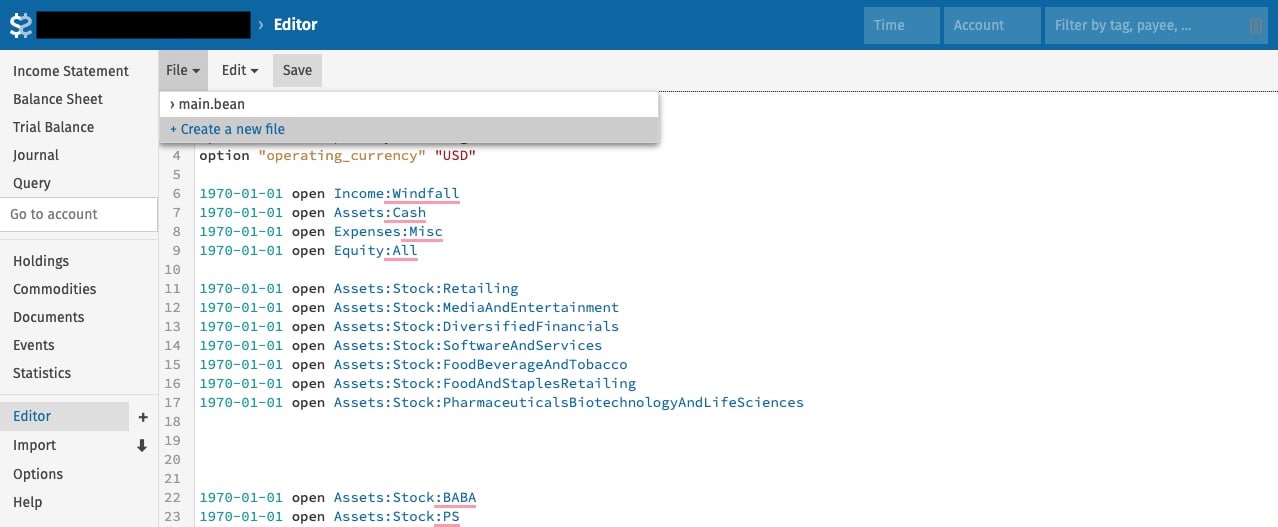
## Name your new file
Give the file a valid filename and save it. Every filename must end with `.bean`.
## Include the file
**This step is required**: include the newly created file in `main.bean`, or its entries won't be part of the ledger.
For example, if you added `stock.bean`, add `include "stock.bean"` to `main.bean`.
## Include a managed price feed
Hosted Beancount.io can also resolve a supported price URL as a read-only virtual file. Use the [Live Prices picker and setup guide](https://beancount.io/docs/live-prices) to choose feeds and paste their includes into a file your ledger loads. Managed prices are not editable files created through this workflow. Upstream Beancount and Fava need local price files; compatible `bea` versions have separate managed-include support.
## Refresh and navigate to the file
Refresh the page, and the file appears in the "File" dropdown.
## Rename or delete the file
With the file open, rename or delete it from the "Edit" dropdown.
## Having trouble?
Ask questions in the [Beancount Telegram group](https://t.me/beancount).
## Copy-ready Beancount templates for rental property
Canonical: https://beancount.io/docs/Tips/real-estate-templates-examples
Content type: reference
This guide provides practical Beancount templates and real-world examples for common real estate investment scenarios. Copy and adapt these templates for your own [rental property accounting](https://beancount.io/docs/Solutions/real-estate-investment-tracking) needs.
Explore a live real estate example ledger:
## Basic Setup Template
### Account Structure Template
```bean
; =============================================================================
; REAL ESTATE ACCOUNT SETUP TEMPLATE
; =============================================================================
; Property Asset Accounts
1970-01-01 open Assets:RealEstate:Property
1970-01-01 open Assets:RealEstate:AccumDepreciation
1970-01-01 open Assets:RealEstate:CapitalImprovements
; Bank Accounts
1970-01-01 open Assets:Bank:Checking
1970-01-01 open Assets:Bank:Savings
1970-01-01 open Assets:Bank:EscrowImpound
; Liability Accounts
1970-01-01 open Liabilities:Mortgage
1970-01-01 open Liabilities:SecurityDeposit
; Income Accounts
1970-01-01 open Income:RealEstate:Rent
1970-01-01 open Income:RealEstate:CapitalGains:LongTerm
1970-01-01 open Income:RealEstate:DepreciationRecapture
; Expense Accounts
1970-01-01 open Expenses:RealEstate:MortgageInterest
1970-01-01 open Expenses:RealEstate:LoanOrigination
1970-01-01 open Expenses:RealEstate:PropertyTax
1970-01-01 open Expenses:RealEstate:Insurance
1970-01-01 open Expenses:RealEstate:PropertyManagement
1970-01-01 open Expenses:RealEstate:Repairs
1970-01-01 open Expenses:RealEstate:Maintenance
1970-01-01 open Expenses:RealEstate:Depreciation
; Buyer-side closing costs (purchase only). There is deliberately no
; SellingCosts expense account: costs of sale reduce the amount realized
; at closing instead — see Property Sale Templates below.
1970-01-01 open Expenses:RealEstate:ClosingCosts
; Equity
1970-01-01 open Equity:Opening
; Commodity Definition
1970-01-01 commodity PROP123MAIN
name: "123 Main St, Anytown, CA 90210"
asset-class: "real-estate"
1970-01-01 commodity USD
```
## Property Purchase Templates
### Down Payment + Mortgage
```bean
; Template: Purchase property with mortgage
YYYY-MM-DD * "Escrow" "Down payment — [DOWN_PCT]% of $[PRICE]"
Assets:RealEstate:Property 1 [COMMODITY] {[PRICE] USD, YYYY-MM-DD}
Assets:Bank:Checking -[DOWN_PAYMENT] USD
Liabilities:Mortgage -[LOAN_AMOUNT] USD
; Example: $400,000 property with 20% down
2024-03-15 * "Escrow" "Down payment — 20% of $400,000"
Assets:RealEstate:Property 1 PROP123MAIN {400,000.00 USD, 2024-03-15}
Assets:Bank:Checking -80,000.00 USD
Liabilities:Mortgage -320,000.00 USD
```
### Closing Costs
```bean
; Template: Loan origination fee
YYYY-MM-DD * "Lender" "Loan origination fee — [PCT]% of $[LOAN]"
Expenses:RealEstate:LoanOrigination [FEE] USD
Assets:Bank:Checking -[FEE] USD
; Template: Title and escrow fees
YYYY-MM-DD * "Title company" "Title insurance, escrow fees, recording"
Expenses:RealEstate:ClosingCosts [AMOUNT] USD
Assets:Bank:Checking -[AMOUNT] USD
; Template: Property appraisal
YYYY-MM-DD * "Appraiser" "Property appraisal"
Expenses:RealEstate:ClosingCosts [AMOUNT] USD
Assets:Bank:Checking -[AMOUNT] USD
; Example: Closing costs for $320,000 loan
2024-03-15 * "Lender" "Loan origination fee — 1% of $320,000"
Expenses:RealEstate:LoanOrigination 3,200.00 USD
Assets:Bank:Checking -3,200.00 USD
2024-03-15 * "Title company" "Title insurance, escrow fees, recording"
Expenses:RealEstate:ClosingCosts 2,800.00 USD
Assets:Bank:Checking -2,800.00 USD
2024-03-15 * "Appraiser" "Property appraisal"
Expenses:RealEstate:ClosingCosts 450.00 USD
Assets:Bank:Checking -450.00 USD
```
### Initial Escrow Impound
```bean
; Template: Initial escrow deposit at closing
YYYY-MM-DD * "Escrow" "Initial escrow impound — property tax ([N] mo) + insurance (1 yr)"
Assets:Bank:EscrowImpound [TAX_IMPOUND] USD
Expenses:RealEstate:Insurance [INSURANCE_PREPAID] USD
Assets:Bank:Checking -[TOTAL] USD
; Example: 3 months property tax + 1 year insurance
2024-03-15 * "Escrow" "Initial escrow impound — property tax (3 mo) + insurance (1 yr)"
Assets:Bank:EscrowImpound 1,250.00 USD
Expenses:RealEstate:Insurance 1,800.00 USD
Assets:Bank:Checking -3,050.00 USD
```
## Mortgage Payment Templates
### Monthly P&I + Escrow
```bean
; Template: Monthly mortgage payment with escrow
; Total payment = Interest + Principal + Escrow
YYYY-MM-DD * "Bank" "Mortgage payment — [MONTH YEAR]"
Expenses:RealEstate:MortgageInterest [INTEREST] USD
Liabilities:Mortgage [PRINCIPAL] USD
Assets:Bank:EscrowImpound [ESCROW] USD
Assets:Bank:Checking -[TOTAL] USD
; Example: 30-year fixed, $320,000 at 7.0% APR
; Monthly P&I: $2,129.06, Escrow: $566.67, Total: $2,695.73
; Month 1 interest: $320,000 × 0.07 / 12 = $1,866.67
2024-04-01 * "Bank" "Mortgage payment — April 2024"
Expenses:RealEstate:MortgageInterest 1,866.67 USD
Liabilities:Mortgage 262.39 USD
Assets:Bank:EscrowImpound 566.67 USD
Assets:Bank:Checking -2,695.73 USD
; Month 2 interest: ($320,000 - $262.39) × 0.07 / 12 = $1,865.14
2024-05-01 * "Bank" "Mortgage payment — May 2024"
Expenses:RealEstate:MortgageInterest 1,865.14 USD
Liabilities:Mortgage 263.92 USD
Assets:Bank:EscrowImpound 566.67 USD
Assets:Bank:Checking -2,695.73 USD
```
### Escrow Disbursements
```bean
; Template: Semi-annual property tax payment from escrow
YYYY-MM-DD * "County tax collector" "Property tax — [INSTALLMENT] installment"
Expenses:RealEstate:PropertyTax [AMOUNT] USD
Assets:Bank:EscrowImpound -[AMOUNT] USD
; Template: Annual insurance payment from escrow
YYYY-MM-DD * "Insurance company" "Homeowner insurance renewal — year [N]"
Expenses:RealEstate:Insurance [AMOUNT] USD
Assets:Bank:EscrowImpound -[AMOUNT] USD
; Example: Property tax ($5,000/yr paid semi-annually)
2024-09-15 * "County tax collector" "Property tax — first installment"
Expenses:RealEstate:PropertyTax 2,500.00 USD
Assets:Bank:EscrowImpound -2,500.00 USD
; Example: Insurance renewal
2025-03-15 * "Insurance company" "Homeowner insurance renewal — year 2"
Expenses:RealEstate:Insurance 1,850.00 USD
Assets:Bank:EscrowImpound -1,850.00 USD
```
## Rental Income Templates
### Monthly Rent with Property Management Fee
```bean
; Template: Monthly rent with PM fee
YYYY-MM-DD * "Tenant" "[MONTH YEAR] rent"
Assets:Bank:Checking [NET_RENT] USD
Expenses:RealEstate:PropertyManagement [PM_FEE] USD
Income:RealEstate:Rent -[GROSS_RENT] USD
; Example: $2,400/mo rent with 8% PM fee ($192)
2024-04-01 * "Tenant" "April 2024 rent"
Assets:Bank:Checking 2,208.00 USD
Expenses:RealEstate:PropertyManagement 192.00 USD
Income:RealEstate:Rent -2,400.00 USD
```
### Security Deposit Receipt
```bean
; Template: Receive security deposit (liability, NOT income)
YYYY-MM-DD * "Tenant" "Security deposit — [N] month rent"
Assets:Bank:Checking [AMOUNT] USD
Liabilities:SecurityDeposit -[AMOUNT] USD
; Example: 1-month security deposit
2024-03-20 * "Tenant" "Security deposit — 1 month rent"
Assets:Bank:Checking 2,400.00 USD
Liabilities:SecurityDeposit -2,400.00 USD
```
### Security Deposit Return
```bean
; Template: Return security deposit at lease end
YYYY-MM-DD * "Tenant" "Return security deposit — lease ended"
Liabilities:SecurityDeposit [AMOUNT] USD
Assets:Bank:Checking -[AMOUNT] USD
; Example: Full deposit return
2025-11-01 * "Tenant" "Return security deposit — lease ended"
Liabilities:SecurityDeposit 2,400.00 USD
Assets:Bank:Checking -2,400.00 USD
```
## Operating Expense Templates
### Repairs (Current Deduction)
```bean
; Template: Repair expense — fully deductible in current year
YYYY-MM-DD * "[VENDOR]" "[DESCRIPTION]"
Expenses:RealEstate:Repairs [AMOUNT] USD
Assets:Bank:Checking -[AMOUNT] USD
; Example: HVAC repair
2024-05-18 * "HVAC Pro" "A/C repair — replaced capacitor"
Expenses:RealEstate:Repairs 285.00 USD
Assets:Bank:Checking -285.00 USD
; Example: Plumbing repair
2024-06-10 * "Joe's Plumbing" "Fix leaking kitchen faucet"
Expenses:RealEstate:Repairs 180.00 USD
Assets:Bank:Checking -180.00 USD
```
### Maintenance (Current Deduction)
```bean
; Template: Regular maintenance expense
YYYY-MM-DD * "[VENDOR]" "[DESCRIPTION]"
Expenses:RealEstate:Maintenance [AMOUNT] USD
Assets:Bank:Checking -[AMOUNT] USD
; Example: Quarterly landscaping
2024-06-15 * "Green Lawn Care" "Quarterly landscaping — Q2"
Expenses:RealEstate:Maintenance 360.00 USD
Assets:Bank:Checking -360.00 USD
; Example: Annual pest control
2024-10-20 * "PestShield" "Annual termite inspection & treatment"
Expenses:RealEstate:Maintenance 350.00 USD
Assets:Bank:Checking -350.00 USD
```
## Depreciation Templates
### Monthly Straight-Line Depreciation
```bean
; Template: Monthly depreciation entry (full month)
; Building cost / 27.5 / 12 = monthly amount
YYYY-MM-DD * "Depreciation" "[MONTH YEAR]"
Expenses:RealEstate:Depreciation [MONTHLY_AMOUNT] USD
Assets:RealEstate:AccumDepreciation -[MONTHLY_AMOUNT] USD
; Example: $320,000 building, monthly = $320,000 / 27.5 / 12 = $969.70
2024-04-30 * "Depreciation" "April 2024"
Expenses:RealEstate:Depreciation 969.70 USD
Assets:RealEstate:AccumDepreciation -969.70 USD
```
### Mid-Month Convention (First Month)
```bean
; Template: Half-month depreciation when placed in service
; Used in the month the property is placed in service
YYYY-MM-DD * "Depreciation" "[MONTH YEAR] — half-month (placed in service)"
Expenses:RealEstate:Depreciation [HALF_MONTH] USD
Assets:RealEstate:AccumDepreciation -[HALF_MONTH] USD
; Example: Placed in service March 15
; Half-month = $969.70 / 2 = $484.85
2024-03-31 * "Depreciation" "March 2024 — half-month (placed in service)"
Expenses:RealEstate:Depreciation 484.85 USD
Assets:RealEstate:AccumDepreciation -484.85 USD
```
### Mid-Month Convention (Disposition Month)
```bean
; Template: Half-month depreciation when disposed
; Used in the month the property is sold/disposed
YYYY-MM-DD * "Depreciation" "[MONTH YEAR] — half-month (disposed)"
Expenses:RealEstate:Depreciation [HALF_MONTH] USD
Assets:RealEstate:AccumDepreciation -[HALF_MONTH] USD
; Example: Sold November 15
2025-11-15 * "Depreciation" "November 2025 — half-month (disposed)"
Expenses:RealEstate:Depreciation 484.85 USD
Assets:RealEstate:AccumDepreciation -484.85 USD
```
## Capital Improvement Templates
### Basis Addition Entries
```bean
; Template: Capital improvement — adds to cost basis
; NOT a current expense deduction
YYYY-MM-DD * "[VENDOR]" "[DESCRIPTION]"
Assets:RealEstate:CapitalImprovements [AMOUNT] USD
Assets:Bank:Checking -[AMOUNT] USD
; Example: Replace water heater (extends useful life)
2024-08-12 * "Home Depot" "Replace water heater — 50 gal gas"
Assets:RealEstate:CapitalImprovements 1,800.00 USD
Assets:Bank:Checking -1,800.00 USD
; Example: New kitchen appliances (adds value)
2024-10-05 * "Lowe's" "New kitchen appliances — stove + dishwasher"
Assets:RealEstate:CapitalImprovements 4,200.00 USD
Assets:Bank:Checking -4,200.00 USD
```
## Property Sale Templates
### Selling Costs
Selling costs are settled inside escrow at closing: the escrow agent deducts them from the buyer's funds, so they never pass through your checking account, and they are already subtracted from the net proceeds the gain-recognition template below receives. Reconcile the closing statement first — every deduction must appear exactly once:
```bean
; Template: Closing-statement bridge — reconcile before recording the sale
; [SALE_PRICE] gross contract price
; [COMMISSION] sales commission ([PCT]% of [SALE_PRICE])
; [SELLER_COSTS] other seller-paid closing costs
; [NET_PROCEEDS] = [SALE_PRICE] - [COMMISSION] - [SELLER_COSTS]
; [PAYOFF_AMOUNT] remaining loan principal (lender payoff quote)
; [CASH_AT_CLOSE] = [NET_PROCEEDS] - [PAYOFF_AMOUNT]
; Example: $435,000 sale, 5% commission + 1% seller closing costs
; Contract price: $435,000.00
; - Sales commission (5%): - 21,750.00
; - Seller closing costs (1%): - 4,350.00
; = Net proceeds: $408,900.00
; - Mortgage payoff: -314,744.09
; = Cash wired to seller: $ 94,155.91
```
Do not record the commission or seller closing costs as separate expense payments. For US federal tax they reduce the amount realized on the sale (IRS Publication 544), and the cash they consume is already missing from [NET_PROCEEDS] — deducting them again would remove the same money from checking twice.
### Mortgage Payoff
```bean
; Template: Mortgage payoff at closing
; [PAYOFF_AMOUNT] is remaining loan principal (the lender's payoff quote),
; not sale cash — the disposal entry below carries the net proceeds
YYYY-MM-DD * "Bank" "Mortgage payoff at closing"
Liabilities:Mortgage [PAYOFF_AMOUNT] USD
Assets:Bank:Checking -[PAYOFF_AMOUNT] USD
; Example: payoff the principal remaining after the October 2025 payment
2025-11-15 * "Bank" "Mortgage payoff at closing"
Liabilities:Mortgage 314,744.09 USD
Assets:Bank:Checking -314,744.09 USD
```
### Gain Recognition (Depreciation Recapture + LTCG)
```bean
; Template: Dispose property and recognize gain
; [COST] original purchase price (the property lot's carrying basis)
; [IMPROVEMENTS] total capitalized improvements at sale
; [ACCUM_DEPRECIATION] total accumulated depreciation at sale
; [NET_PROCEEDS] sale price minus selling costs — NOT the cash wired to
; you, because the mortgage payoff is recorded separately
; [RECAPTURE] unrecaptured §1250 gain (max 25%) = min(gain, [ACCUM_DEPRECIATION])
; [LTCG] remaining gain, taxed at LTCG rates
; Total gain = Net proceeds - Adjusted basis
; Adjusted basis = [COST] + [IMPROVEMENTS] - [ACCUM_DEPRECIATION]
; For a sale at a loss: [RECAPTURE] is zero and the loss posts as a
; positive number to the capital-gains account
YYYY-MM-DD * "Sale" "Dispose property — recognize gain"
Assets:RealEstate:Property -1 [COMMODITY] {[COST] USD, [PURCHASE_DATE]}
Assets:RealEstate:CapitalImprovements -[IMPROVEMENTS] USD
Assets:RealEstate:AccumDepreciation [ACCUM_DEPRECIATION] USD
Assets:Bank:Checking [NET_PROCEEDS] USD
Income:RealEstate:DepreciationRecapture -[RECAPTURE] USD
Income:RealEstate:CapitalGains:LongTerm -[LTCG] USD
; Example: Sell $400K property for $435K after $19,394 depreciation and $6K improvements
; Adjusted basis: $400,000 + $6,000 - $19,394 = $386,606
; Net proceeds: $435,000 - $26,100 selling costs = $408,900
; Total gain: $408,900 - $386,606 = $22,294
; Recapture: $19,394 (equals accumulated depreciation)
; LTCG: $22,294 - $19,394 = $2,900
2025-11-15 * "Sale" "Dispose property — recognize gain"
Assets:RealEstate:Property -1 PROP123MAIN {400,000.00 USD, 2024-03-15}
Assets:RealEstate:CapitalImprovements -6,000.00 USD
Assets:RealEstate:AccumDepreciation 19,394.00 USD
Assets:Bank:Checking 408,900.00 USD
Income:RealEstate:DepreciationRecapture -19,394.00 USD
Income:RealEstate:CapitalGains:LongTerm -2,900.00 USD
```
Checking moves by exactly the closing statement's bottom line: \$408,900.00 in from the disposal, \$314,744.09 out for the payoff — net \$94,155.91.
## Refinancing Template
### Payoff Old Mortgage, Create New
```bean
; Template: Refinance — payoff existing and create new mortgage
; Alternative scenario: a refinance replaces the sale lifecycle above — a
; property refinanced in June cannot also use this guide's November payoff.
; Requires its own subaccounts (instead of the single Liabilities:Mortgage):
; 1970-01-01 open Liabilities:Mortgage:OldLoan
; 1970-01-01 open Liabilities:Mortgage:NewLoan
; [OLD_PAYOFF] is your lender's quote — the example reuses this guide's
; illustrative payoff figure
YYYY-MM-DD * "Refinance" "Payoff old mortgage, new [TERM]-year at [RATE]%"
Liabilities:Mortgage:OldLoan [OLD_PAYOFF] USD
Liabilities:Mortgage:NewLoan -[NEW_AMOUNT] USD
Assets:Bank:Checking [CASH_OUT] USD ; Cash-out amount (if any)
Expenses:RealEstate:ClosingCosts [REFI_COSTS] USD
; Example: Refinance from 7.0% to 5.5% — net cash-out $12,255.91 after $3,000.00 costs
2025-06-01 * "Refinance" "Payoff old mortgage, new 30-year at 5.5%"
Liabilities:Mortgage:OldLoan 314,744.09 USD
Liabilities:Mortgage:NewLoan -330,000.00 USD
Assets:Bank:Checking 12,255.91 USD
Expenses:RealEstate:ClosingCosts 3,000.00 USD
```
## Balance Assertion Templates
### Year-End Reconciliation
```bean
; Template: Year-end balance assertions
YYYY-01-01 balance Assets:RealEstate:Property 1 [COMMODITY]
YYYY-01-01 balance Assets:RealEstate:CapitalImprovements [TOTAL_IMPROVEMENTS] USD
YYYY-01-01 balance Assets:RealEstate:AccumDepreciation -[TOTAL_DEPRECIATION] USD
YYYY-01-01 balance Liabilities:SecurityDeposit -[DEPOSIT_AMOUNT] USD
; Example: Year-end 2024 assertions
2025-01-01 balance Assets:RealEstate:Property 1 PROP123MAIN
2025-01-01 balance Assets:RealEstate:CapitalImprovements 6,000.00 USD
2025-01-01 balance Assets:RealEstate:AccumDepreciation -9,212.15 USD
2025-01-01 balance Liabilities:SecurityDeposit -2,400.00 USD
```
### Post-Sale Assertions
```bean
; Template: Post-sale — all property accounts should be zero
; These hold once every monthly payment, every depreciation entry (through
; the disposition half-month) and the escrow refund below are recorded
YYYY-MM-DD balance Assets:RealEstate:Property 0 [COMMODITY]
YYYY-MM-DD balance Assets:RealEstate:CapitalImprovements 0 USD
YYYY-MM-DD balance Assets:RealEstate:AccumDepreciation 0 USD
YYYY-MM-DD balance Liabilities:Mortgage 0 USD
YYYY-MM-DD balance Liabilities:SecurityDeposit 0 USD
YYYY-MM-DD balance Assets:Bank:EscrowImpound 0 USD
; Example: Post-sale verification
2025-12-01 balance Assets:RealEstate:Property 0 PROP123MAIN
2025-12-01 balance Assets:RealEstate:CapitalImprovements 0 USD
2025-12-01 balance Assets:RealEstate:AccumDepreciation 0 USD
2025-12-01 balance Liabilities:Mortgage 0 USD
2025-12-01 balance Liabilities:SecurityDeposit 0 USD
2025-12-01 balance Assets:Bank:EscrowImpound 0 USD
```
## Price Directive Templates
Property prices below are your own dated valuations. [Live Prices](https://beancount.io/docs/live-prices) covers supported market assets and currency pairs, not appraisals for individual properties. Keep sourcing property values yourself, even if you use managed feeds for other holdings.
### Quarterly Property Valuations
```bean
; Template: Quarterly property valuation
YYYY-MM-DD price [COMMODITY] [VALUE] USD
; Example: Quarterly valuations for 123 Main St
2024-03-15 price PROP123MAIN 400,000.00 USD
2024-06-30 price PROP123MAIN 405,000.00 USD
2024-09-30 price PROP123MAIN 412,000.00 USD
2024-12-31 price PROP123MAIN 418,000.00 USD
2025-03-31 price PROP123MAIN 425,000.00 USD
2025-06-30 price PROP123MAIN 430,000.00 USD
```
Sources for valuations: Zillow Zestimate, Redfin estimates, comparable sales, or professional appraisals.
## Escrow Impound Refund Template
### Post-Sale Refund
```bean
; Template: Escrow impound refund after property sale
YYYY-MM-DD * "Bank" "Escrow impound refund — remaining balance"
Assets:Bank:Checking [REFUND] USD
Assets:Bank:EscrowImpound -[REFUND] USD
; Example: Remaining escrow balance returned by lender
; $1,250.00 initial + 19 monthly contributions of $566.67
; - 3 property-tax installments of $2,500.00 - $1,850.00 insurance = $2,666.73
2025-11-30 * "Bank" "Escrow impound refund — remaining balance"
Assets:Bank:Checking 2,666.73 USD
Assets:Bank:EscrowImpound -2,666.73 USD
```
## Usage Instructions
1. **Copy the relevant template** for your transaction type
2. **Replace placeholders** (shown in [BRACKETS]) with actual values — template lines with `YYYY-MM-DD` dates and bracketed amounts are patterns to copy from, not loadable ledger syntax; the dated examples beneath each template load as-is
3. **Adjust account names** to match your account structure (e.g., add property address to account path for multi-property portfolios)
4. **Calculate depreciation** using: Building cost / 27.5 / 12 for monthly amount
5. **Document the land/building split** in comments with the source (county assessor, appraisal, etc.)
6. **Reconcile the closing-statement bridge before recording a sale** — gross price, selling costs, net proceeds, payoff, cash, with each deduction appearing exactly once
7. **Verify calculations** before finalizing entries, especially [the sale gain decomposition](/blog/2026/07/18/depreciation-recapture-explained-guide)
## Best Practices
- Use consistent naming conventions for vendors and descriptions
- Record mortgage payments with the exact P&I split from your lender's amortization schedule
- Track capital improvements separately from repairs — the tax treatment is different
- Enter depreciation monthly for accurate interim financial statements
- Use [balance assertions](https://beancount.io/docs/Basics/syntax) at year-end to catch data-entry errors before tax filing
- Keep price directives updated quarterly for portfolio valuation
- Document the rationale for repair vs. capital improvement classification
These templates provide a solid foundation for real estate accounting in Beancount.io. Customize them based on your specific property, mortgage terms, and tax situation.
## Share or embed your Beancount.io ledger
Canonical: https://beancount.io/docs/Tips/share-or-embed-your-ledger
Content type: how-to
Beancount.io provides flexible options for sharing your financial data. You can embed your ledger on websites for public viewing or invite collaborators to help edit and manage your accounts.
## Embedding Your Ledger
Embedding allows you to display your ledger publicly on websites, portfolios, or documentation. This is perfect for [transparency reports](https://beancount.io/docs/Solutions/transparent-and-auditable), open-source project budgets, or educational demonstrations.
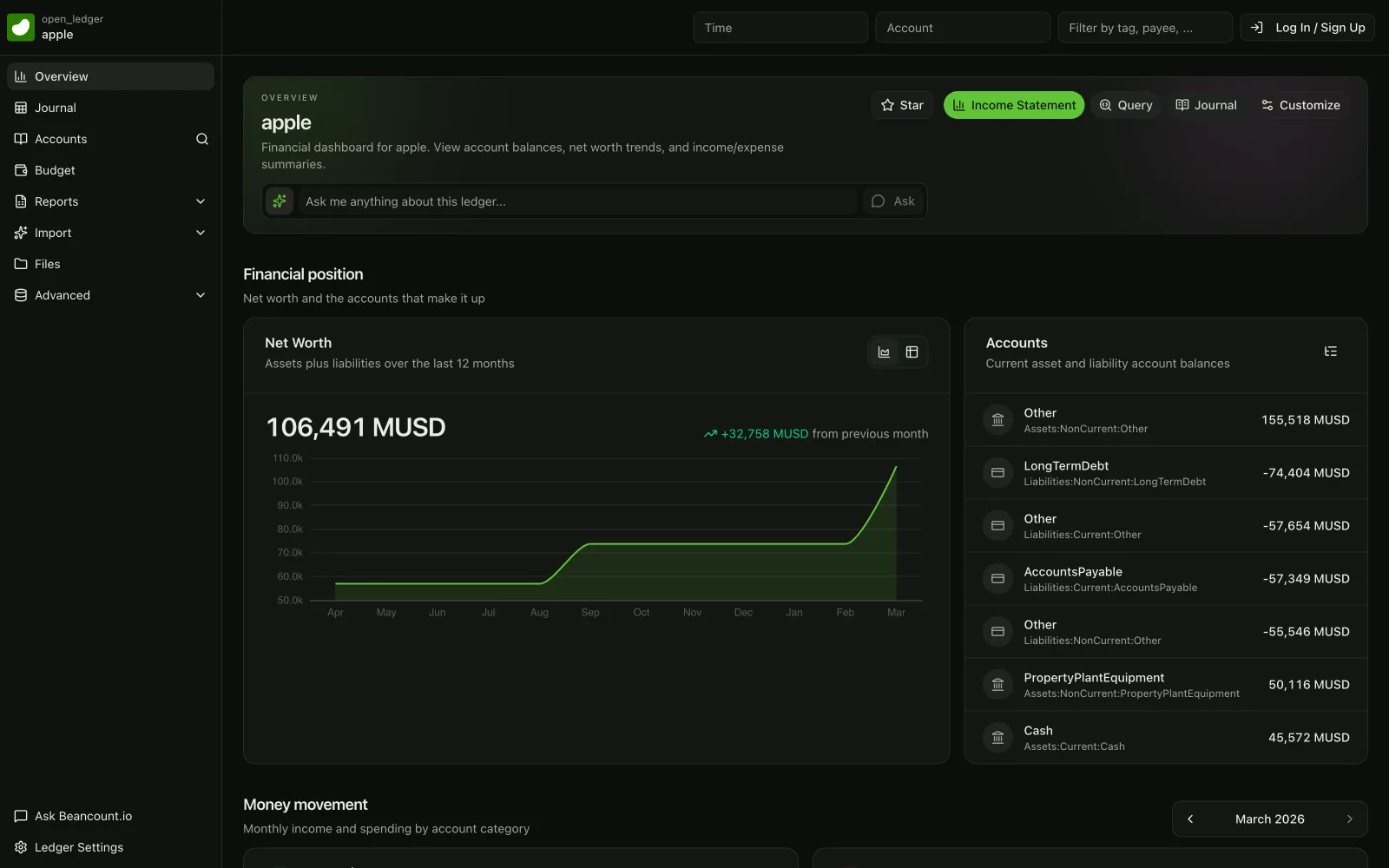
*[Explore the live ledger →](https://beancount.io/ledger/open_ledger/apple)*
### Prerequisites: Make Your Ledger Public
**Important:** Before you can embed your ledger, you must first set it to public visibility.
1. Navigate to your ledger's settings page: `https://beancount.io/ledger/{username}/{repo}/settings`
2. Change the visibility setting from "Private" to "Public"
3. Save your changes
:::warning Security Note
Only make your ledger public if you're comfortable sharing all financial data with anyone. Public ledgers can be viewed by anyone on the internet and will be indexed and tracked by search engines. If your ledger contains sensitive personal or business financial information, keep it private and use the collaboration features instead.
:::
### Embedding with an iframe
Once your ledger is public, you can embed it on any website using an HTML iframe. Here's an example embedding the overview page:
### iframe Code Example
```html
```
### Customizing the Embedded View
You can embed different pages from your ledger by changing the URL path:
- **Overview:** `/ledger/{username}/{repo}/overview`
- **Balance Sheet:** `/ledger/{username}/{repo}/balance-sheet`
- **Income Statement:** `/ledger/{username}/{repo}/income-statement`
- **Journal:** `/ledger/{username}/{repo}/journal`
- **Statistics:** `/ledger/{username}/{repo}/statistics`
Simply replace `{username}` with your username and `{repo}` with your ledger repository name.
## Sharing Your Ledger for Editing
If you want others to help edit your ledger (like an accountant, business partner, or team member), you can invite them as collaborators. Collaborators get full read and write access to your ledger and can make commits through the Git-based workflow.
### Step-by-Step: Invite a Collaborator
1. **Ask your collaborator to sign up**
Your collaborator needs to create a free account at [https://beancount.io](https://beancount.io) first.
2. **Navigate to the collaborators page**
Go to `https://beancount.io/ledger/{username}/{repo}/collaborators` (replace `{username}` and `{repo}` with your ledger details).
3. **Invite the collaborator**
Click the "Invite Collaborator" button and enter your collaborator's username or email address.
### What Collaborators Can Do
Once invited and accepted, collaborators can:
- View all transactions and financial data
- Edit the ledger files directly through the [web interface](https://beancount.io/docs/Tips/ui-features)
- Make Git commits and view commit history
- Upload documents and receipts
- [Run queries](https://beancount.io/docs/Basics/beancount-query-language) and generate reports
- Push and pull changes using Git commands (if working locally)
### Collaboration Best Practices
- **Define roles clearly:** Discuss who is responsible for which accounts or time periods
- **Use meaningful commit messages:** This helps track who made which changes and why
- **Regular communication:** Coordinate on major changes to avoid conflicts
- **Review changes together:** Use the Git history to review each other's work
- **Backup regularly:** Even though Git provides version control, maintain your own backups
:::tip Git-Based Workflow
Beancount.io uses Git for version control. Collaborators with Git knowledge can clone the repository locally, make changes with their favorite text editor, and push updates back to the server. This provides powerful version control capabilities for managing your financial data.
:::
## Privacy Considerations
### Public vs. Private Ledgers
- **Public Ledgers:**
- Can be embedded on external websites
- Viewable by anyone with the URL
- Indexed and tracked by search engines
- Great for transparency and educational purposes
- **Private Ledgers (Default):**
- Only accessible to you and invited collaborators
- Cannot be embedded externally
- Recommended for personal and business finances
### When to Use Each Option
- **Use Public** for: Open-source project budgets, educational examples, transparency reports, portfolio demonstrations
- **Use Private** for: Personal finances, business accounting, client work, sensitive financial data
You can always change the visibility settings at any time from your ledger's settings page.
## Add sidebar links and saved queries in Fava
Canonical: https://beancount.io/docs/Tips/side-bar-link
Content type: how-to
Add dated sidebar-link directives to stock Fava, then save a query that finds **negative ending balances** after summing all postings. The examples were executed with **Beancount 3.2.3, beanquery 0.2.0 and Fava 1.30.16**. Use the [pinned local setup](https://beancount.io/docs/Basics/fava-options).
These URLs target a local stock Fava server. Beancount.io's hosted dashboard has different report paths and is scoped separately below.
## Why Customize Fava?
Sidebar shortcuts preserve a useful [filtered view](https://beancount.io/docs/Tips/filtering-and-searching). A saved query can then answer a specific accounting question without repeatedly entering BQL.
### Pain points this solves:
- Repeatedly selecting the current or previous month.
- Reopening a saved report.
- Distinguishing an outflow from an account that actually ends below zero.
## ✨ Custom Sidebar Links
Add these directives to the complete `sidebar-demo.beancount` ledger in the next section. Start it with `fava sidebar-demo.beancount` and open its Journal report before clicking a shortcut.
```beancount
2021-01-01 custom "fava-sidebar-link" "Current Month" "/jump?time=month"
2021-01-01 custom "fava-sidebar-link" "Last Month" "/jump?time=month-1"
2021-01-01 custom "fava-sidebar-link" "Clear All" "/jump?account=&time=&filter="
```
### What They Do:
`/jump` returns to the page in the browser's `Referer` header and replaces the supplied query parameters. It does **not** always open the Journal report. On the balance sheet, it stays on the balance sheet. This behavior is implemented by the [stock Fava redirect handler](https://github.com/beancount/fava/blob/v1.30.16/src/fava/application.py).
- **Current Month:** Sets `time=month` on the current report.
- **Last Month:** Sets `time=month-1` on the current report.
- **Clear All:** Removes `account`, `time` and `filter`. Other parameters, such as conversion and interval, remain.
The 2021 fixture will have no transactions in today's month; use **Clear All** before reproducing its query results. A `/jump` URL requires a referrer. For a bookmark opened directly, copy a complete working report URL instead.
At the host root, `/jump?time=month` was tested from `/sidebar-demo/journal/?time=2021&account=Assets`: it returned HTTP 302 to the same journal with `account=Assets&time=month`. The destination report returned 200.
If an administrator mounts the **whole Fava application** at `/books`, every root-relative shortcut must include that prefix. This is an alternative configuration, not another directive to add alongside Current Month above:
```beancount
2021-01-01 custom "fava-sidebar-link" "Current Month" "/books/jump?time=month"
```
A local WSGI mount test verified `/books/jump` redirects back to `/books/sidebar-demo/journal/` with the new filter. Plain `/jump` is outside that mount and returned 404. Fava's custom links preserve the supplied URL; a leading `/` means the host root, not the ledger root.
**Hosted scope, checked 2026-09-07:** the Beancount.io dashboard source uses paths such as `/ledger/OWNER/LEDGER/income-statement` and `/ledger/OWNER/LEDGER/query`. Its sidebar builds its own report menu. The inspected source has no `/jump` route or `fava-sidebar-link` consumer. This stock recipe is therefore not established for that dashboard. On the hosted product, open the desired report and bookmark its working address. The source snapshot does not prove which revision a live deployment runs.
## 🔍 Custom SQL Queries
Save this complete fixture as `sidebar-demo.beancount`. It deliberately includes both positive and negative postings in each asset account:
```beancount
option "title" "Sidebar Demo"
option "operating_currency" "USD"
2021-01-01 open Assets:BCM:Positive USD
2021-01-01 open Assets:BCM:Negative USD
2021-01-01 open Equity:Opening-Balances USD
2021-12-01 * "Opening balances"
Assets:BCM:Positive 100.00 USD
Assets:BCM:Negative 20.00 USD
Equity:Opening-Balances -120.00 USD
2021-12-10 * "Outflows"
Assets:BCM:Positive -30.00 USD
Assets:BCM:Negative -50.00 USD
Equity:Opening-Balances 80.00 USD
2022-01-05 * "Refund"
Assets:BCM:Negative 10.00 USD
Equity:Opening-Balances -10.00 USD
2022-01-09 balance Assets:BCM:Positive 70.00 USD
2022-01-09 balance Assets:BCM:Negative -20.00 USD
```
`bea --file sidebar-demo.beancount check` passes. At the start of January 9, Positive holds `100 - 30 = 70 USD`; Negative holds `20 - 50 + 10 = -20 USD`.
Run this query in stock Fava's Query page with global filters cleared:
```sql
SELECT account, currency, SUM(number) AS ending_balance
FROM postings
WHERE account ~ ':BCM:'
AND date < 2022-01-09
GROUP BY account, currency
HAVING SUM(number) < 0
ORDER BY account, currency;
```
| Account | Currency | Ending balance |
| --- | --- | --- |
| Assets:BCM:Negative | USD | -20.00 |
### Breakdown:
`WHERE` selects the postings to aggregate. There is no lower date bound: an ending balance needs all earlier history, including the December 1 opening balances. The exclusive upper bound includes January 8 and excludes January 9 transactions.
`GROUP BY account, currency` keeps distinct commodities separate. `HAVING SUM(number) < 0` filters **after** summing each group's positive and negative quantities. This is an ending units balance per currency, not market value converted into one currency. It reports each exact account, not rolled-up parent accounts.
For comparison, this executable query answers a different question: **how much was posted negatively during the review window?**
```sql
SELECT account, currency, SUM(number) AS negative_postings
FROM postings
WHERE account ~ ':BCM:'
AND number < 0
AND date >= 2021-12-09 AND date < 2022-01-09
GROUP BY account, currency
ORDER BY account, currency;
```
| Account | Currency | Negative postings |
| --- | --- | --- |
| Assets:BCM:Negative | USD | -50.00 |
| Assets:BCM:Positive | USD | -30.00 |
The second query omits the refund and opening balances. Its `-30.00 USD` row does not mean Positive is overdrawn. Adding a lower date bound to the first query would instead produce net movement during a period, not an ending balance. See the [BQL reference](https://beancount.io/docs/Basics/beancount-query-language) for further query syntax.
### Use cases:
- Check asset accounts for unexpected negative quantities.
- Review negative postings separately when investigating outflows or reversals.
- Reconcile the reported balance to opening history and subsequent activity before treating it as an anomaly. A negative liability or income balance can be normal.
## 🛠 Pro Tip: Combine Links + Queries
Fava **does** support links to queries. Add this saved query and shortcut to `sidebar-demo.beancount`:
```beancount
2021-01-01 query "negative-balances" "SELECT account, currency, SUM(number) AS ending_balance FROM postings WHERE account ~ ':BCM:' AND date < 2022-01-09 GROUP BY account, currency HAVING SUM(number) < 0 ORDER BY account, currency"
2021-01-01 custom "fava-sidebar-link" "Negative Balances" "/sidebar-demo/query/?query_string=.run+%22negative-balances%22"
```
The query directive also appears in Fava's saved-query sidebar, subject to `sidebar-show-queries` (default 5). The explicit shortcut targets the fixture's `sidebar-demo` slug and runs the named query. The stock query page reads `query_string` from the URL; its query API returned the same single `-20.00 USD` row in the local test. See the [versioned Query component](https://github.com/beancount/fava/blob/v1.30.16/frontend/src/reports/query/Query.svelte).
Use your ledger's actual slug in a different book. Under the `/books` mount, the shortcut becomes `/books/sidebar-demo/query/?query_string=.run+%22negative-balances%22`. Keep global filters clear for a full-history ending balance; a date filter can remove the opening history before the saved query runs.
## Final Thoughts
Use the month shortcuts to navigate reports, and use the saved query to check a reproducible ending balance. When [reviewing your budget](https://beancount.io/docs/Tips/budgets), distinguish outflows, period movement and closing balances before interpreting a negative number. For additional reports, see [Fava's extension documentation](https://github.com/beancount/fava/blob/v1.30.16/src/fava/help/extensions.md) and the [UI guide](https://beancount.io/docs/Tips/ui-features).
## Beancount.io and Fava web UI: edit, query, upload
Canonical: https://beancount.io/docs/Tips/ui-features
Content type: reference
Use the editor, transaction form and query reports to work with your ledger. The executable recipes below target **stock Fava 1.30.16 with Beancount 3.2.3 and beanquery 0.2.0**; follow the [pinned local setup](https://beancount.io/docs/Basics/fava-options).
Beancount.io uses a separate dashboard. Its product source confirms ledger routes for editing, querying, documents and Settings, plus consumers for several Fava display options. That does not make stock Fava's keyboard shortcuts, insertion rules, plugin execution or URL paths a hosted compatibility promise. The image below shows the hosted dashboard, not the stock UI.

*[Explore the live ledger →](/ledger/open_ledger/example)*
## 1\. Editing and Data Entry
### The Built-in Editor
Stock Fava's editor offers completion for accounts, payees and tags. Use `default-file` to choose its initial source file. `insert-entry` also positions the cursor at the latest insertion marker in that file; it is not a core Beancount option.
```beancount
2000-01-01 custom "fava-option" "default-file"
2024-01-01 custom "fava-option" "insert-entry" "^Expenses:Food$"
```
This fragment selects its containing file. New entries after January 1, 2024 that match `Expenses:Food` are inserted before the marker unless a later eligible rule or a later posting's account takes precedence. See the [complete multi-file insertion example](https://beancount.io/docs/Basics/fava-options#insert-entry).
### Adding Transactions
In stock Fava, click `+` or press `n` to open the transaction form. The narration field accepts space-separated tags and links, such as `Lunch #food ^receipt-001`. Account names must already have `open` directives.
Save this complete ledger as `ui-demo.beancount` to try the reports below. The positive expense is a debit; the negative cash posting is its credit.
```beancount
option "title" "UI Demo"
option "operating_currency" "USD"
2024-01-01 open Assets:Checking USD
fava-uptodate-indication: TRUE
2024-01-01 open Income:Salary USD
2024-01-01 open Expenses:Food USD
2024-01-02 * "Salary"
Assets:Checking 3000.00 USD
Income:Salary -3000.00 USD
2024-01-03 * "Groceries" #food
Expenses:Food 400.00 USD
Assets:Checking -400.00 USD
2024-01-04 balance Assets:Checking 2600.00 USD
```
Run `bea --file ui-demo.beancount check`, then `fava ui-demo.beancount`. The check passes and checking holds **2,600.00 USD**. A future-dated transaction with `#template` is still a real transaction: that tag does not make it an inert reusable form template. Keep hypothetical transactions in a [separate scenario ledger](https://beancount.io/docs/Tips/forecast-plugin).
## 2\. Document Management
Stock Fava can upload documents by dropping them on account names or journal rows. Configure a real document root and keep its account hierarchy consistent with your open accounts.
This optional fragment can be added to `ui-demo.beancount`. First create a `documents` directory alongside the ledger. To try discovery, place a real file named `2024-01-03-receipt.pdf` inside `documents/Expenses/Food/`.
```beancount
option "documents" "documents"
plugin "fava.plugins.link_documents"
plugin "fava.plugins.tag_discovered_documents"
```
These are real modules shipped in Fava 1.30.16. Beancount discovers dated files in account directories; `tag_discovered_documents` adds `#discovered`. `link_documents` matches `document` metadata to document entries and links them. It does not infer a transaction association from a receipt's contents. Add this metadata directly under the existing Groceries header, before its postings:
```beancount
document: "2024-01-03-receipt.pdf"
```
That indented line is a **metadata fragment**, not a standalone ledger. With the file present, the document receives `#linked` and shares `^dok-2024-01-03` with the transaction. Missing matching documents produce an error. For the exact stock behavior, see the [versioned document-linking plugin](https://github.com/beancount/fava/blob/v1.30.16/src/fava/plugins/link_documents.py).
## 3\. Querying and Analysis with BQL
Stock Fava's Query page runs [Beancount Query Language](https://beancount.io/docs/Basics/beancount-query-language). Clear global time/account filters before reproducing these full-ledger results. Those UI filters can remove entries before a query runs.
Results can be downloaded as CSV. Chart support depends on the result types: the stock help describes exactly two columns, with a date or string followed by an inventory. An arbitrary pair of numeric columns does not guarantee a chart.
### Practical Query Examples
Run these queries against `ui-demo.beancount` in Fava's Query page or pass each quoted query to `bea --file ui-demo.beancount query "…"`.
**Monthly expense summary:**
```sql
SELECT account, SUM(position) AS total
FROM postings
WHERE account ~ '^Expenses:'
AND date >= 2024-01-01 AND date < 2024-02-01
GROUP BY account
ORDER BY account;
```
Expected result: `Expenses:Food`, **400.00 USD**.
**Income vs. expenses by month:**
```sql
SELECT YEAR(date) AS year, MONTH(date) AS month,
ROOT(account, 1) AS category, currency,
SUM(number) AS signed_total
FROM postings
WHERE account ~ '^(Income|Expenses):'
GROUP BY year, month, category, currency
ORDER BY year, month, category, currency;
```
| Year | Month | Category | Currency | Signed total |
| --- | --- | --- | --- | --- |
| 2024 | 1 | Expenses | USD | 400.00 |
| 2024 | 1 | Income | USD | -3000.00 |
The query preserves Beancount's signs and groups units separately by currency. Income of 3,000.00 USD less expenses of 400.00 USD leaves 2,600.00 USD. It is a units report, not a conversion or cost-basis report. `IIF` is unavailable on beanquery 0.2.0, and unary `-position` is unsupported; grouping the two account categories avoids both operations.
## 4\. Customization and Workflow
### Customizing the View
Add these Fava directives to the example ledger to hide zero-balance accounts and collapse investment branches:
```beancount
2000-01-01 custom "fava-option" "show-closed-accounts" "false"
2000-01-01 custom "fava-option" "show-accounts-with-zero-balance" "false"
2000-01-01 custom "fava-option" "collapse-pattern" "^Assets:Investments"
```
They affect report account trees. Accounts with non-zero balances remain visible. Core forms such as `option "show-closed-accounts" "false"` fail Beancount validation.
The sample's `fava-uptodate-indication: TRUE` metadata is on its own indented line under `open`. Do not put it on the `open` line or quote the boolean. A latest passing balance check produces green; a failing check produces red; a subsequent transaction produces yellow. The January 4 assertion is green. A separate grey freshness indicator can also appear because these dates are old.
### Sidebar Links
For the stock example titled `UI Demo`, these complete paths lead to its reports:
```beancount
2024-01-01 custom "fava-sidebar-link" "January Expenses" "/ui-demo/income_statement/?time=2024-01"
2024-01-01 custom "fava-sidebar-link" "All Documents" "/ui-demo/documents/"
```
These paths assume stock Fava is mounted at the host root. Replace `/ui-demo` with your actual ledger slug and include any server mount prefix. See [custom sidebar links](https://beancount.io/docs/Tips/side-bar-link) for tested `/jump` behavior and the hosted routing boundary.
### General Configuration
Starting stock Fava with multiple main files creates separate ledgers in its ledger switcher. Files brought in through `include` remain part of one ledger and appear as editable sources; they are not separate books.
Use [Fava options](https://beancount.io/docs/Basics/fava-options) for `language`, `default-file` and `use-external-editor`. An external editor needs a `beancount://` handler and access to the source files. Real stock extension modules also include `fava.ext.auto_commit` and `fava.ext.portfolio_list`. Extensions use `custom "fava-extension"` with their own prerequisites; they are distinct from the `plugin` directives used above. See [Fava's versioned extension help](https://github.com/beancount/fava/blob/v1.30.16/src/fava/help/extensions.md).
## 5\. Performance and Troubleshooting
### Handling Large Files
Use [includes](https://beancount.io/docs/Tips/multi-file-support) to organize a ledger by account or period. Beancount still loads the included files, so splitting one book does not itself reduce the report's input. Limit displayed dates and simplify expensive queries when you need a smaller report.
### Common Issues and Fixes
- **Ledger errors:** Run `bea check` and inspect Fava's Errors report. A page can render while the loader has errors.
- **Unexpected option behavior:** Check the tested runtime and use dated Fava custom directives. `bea check` cannot detect an unknown Fava option by itself.
- **Unexpected query totals:** Clear global filters, include opening history and keep currencies separate.
- **Missing documents:** Check the directory exists, the account is open, the filename starts with a valid date and the transaction's metadata matches the document.
For contrast, these are **intentional invalid examples**. They must not be copied into a working ledger:
```beancount
option "insert-entry" "Expenses:Food"
custom "fava-sidebar-link" "Label" "/jump?time=month"
```
The first uses an unknown core option. The second omits the required date. The [stock features reference](https://github.com/beancount/fava/blob/v1.30.16/src/fava/help/features.md) describes the UI behavior for this release.